
Infinite Canvas: Room for Your Whole Project
Lopaka now has an infinite canvas. Open a project and work on its screens together, with room around them to sketch, experiment, and keep ideas for later.
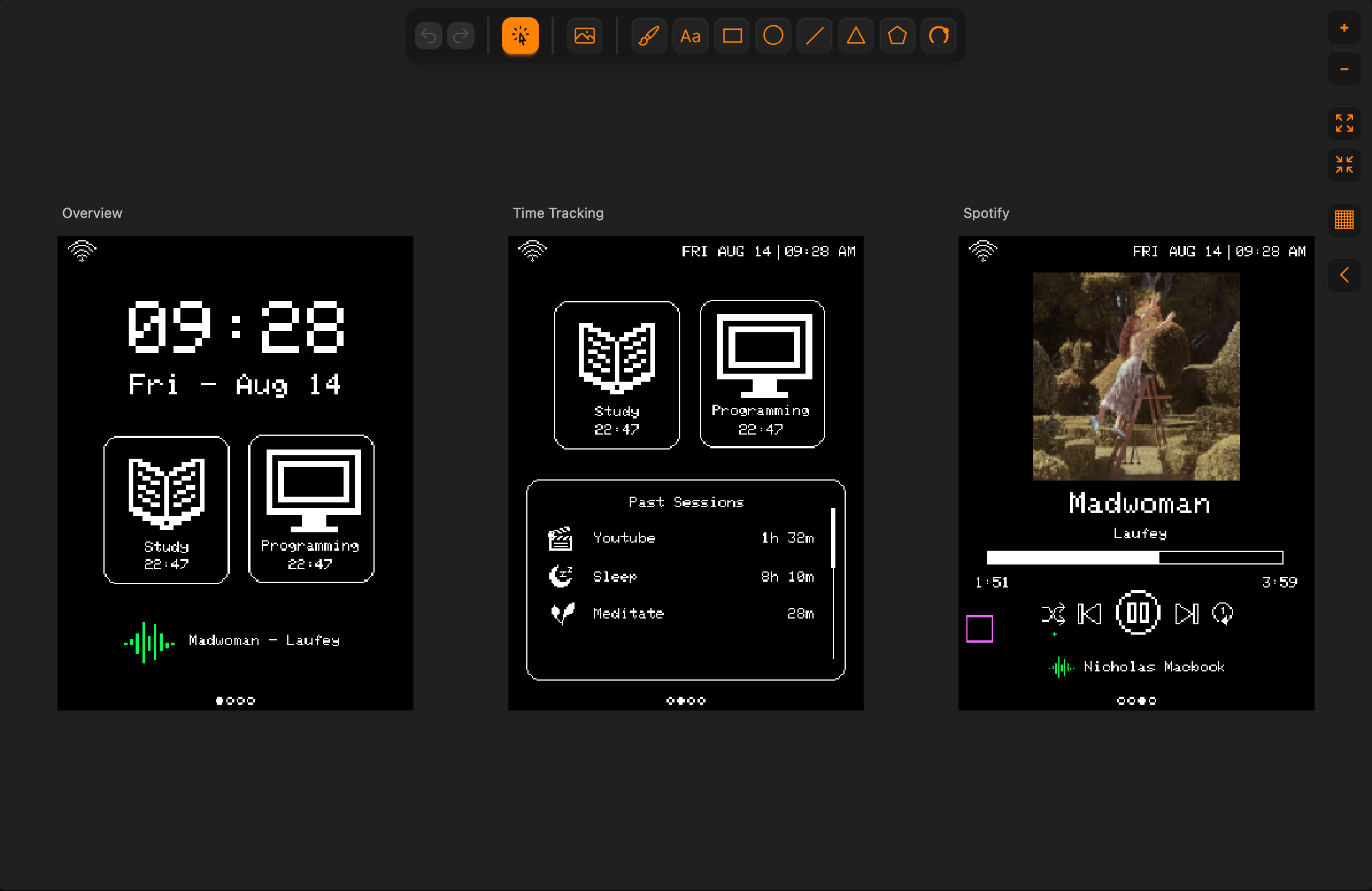
Shown here: Firefly Lantern UI, from the Lopaka community.
Put your home screen next to its settings page. Try a second layout beside the first. Zoom out and see how the whole interface fits together. This is a big step for Lopaka, and it gives you a new way to design beyond a single display.
All your screens, side by side
Arrange your screens anywhere on the canvas by dragging their titles. Keep related screens together, or line up alternatives to compare their spacing, text, and icons.
- Try another version. Duplicate a screen and edit the copy beside the original.
- Move artwork between screens. Drag a selection onto another screen to move it there.
- Keep a scratch area. Draw outside the screens or move unused artwork into the surrounding space. Bring it into a screen when you're ready to use it.
The Layers panel brings screens, groups, and draft artwork into one tree. Each screen also has its own code tab, so you can choose which screen's code to view while working across the project.
From the whole project to a single pixel
Use Fit all to see your screens and drafts together, or Fit selection to focus on the screen or artwork you're editing. Pan with a middle- or right-button drag; on a trackpad, use two fingers to pan and pinch to zoom.
The grid button cycles through three views: a 1-pixel grid for detailed pixel work, a 10-pixel grid for judging larger spacing, and no grid for a clear look at your design.
A new home for your projects
My Projects has a new card layout with large screen previews. Browse your work visually, check how many screens each project contains, and use the arrows to flip through them before opening the editor.
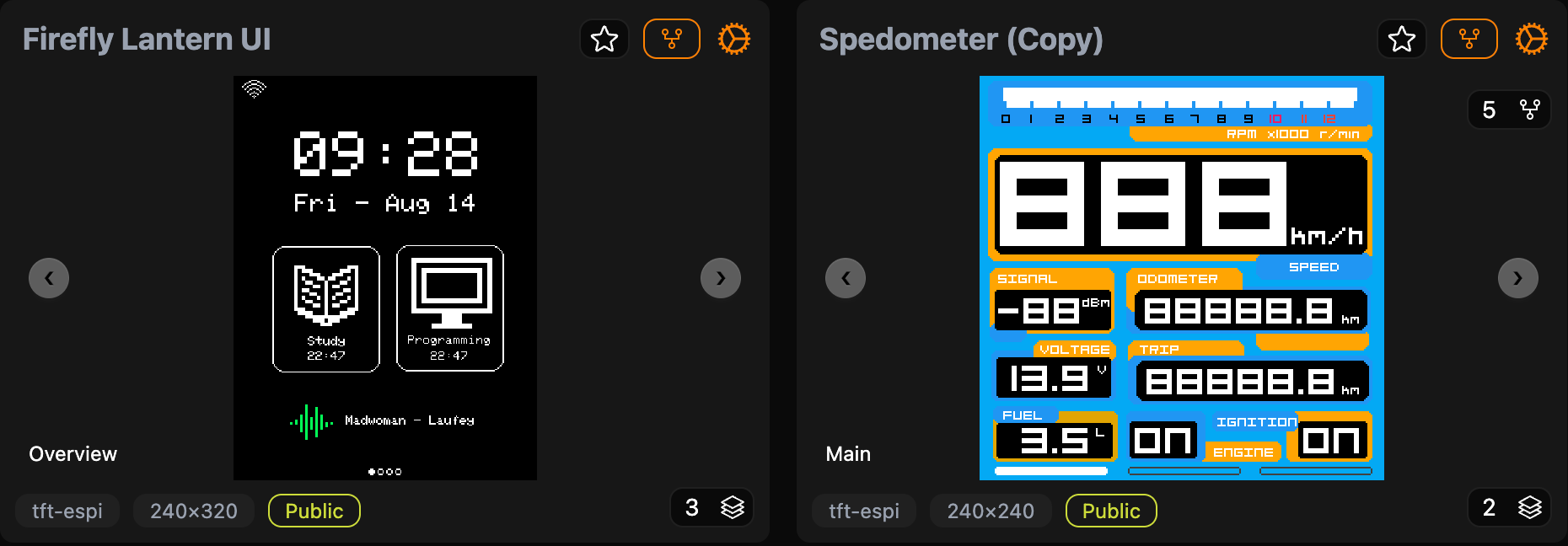
Click a preview to open the project's canvas, or use the settings icon on its card to update the project.