
Lopaka Basics 01: Your First Screen
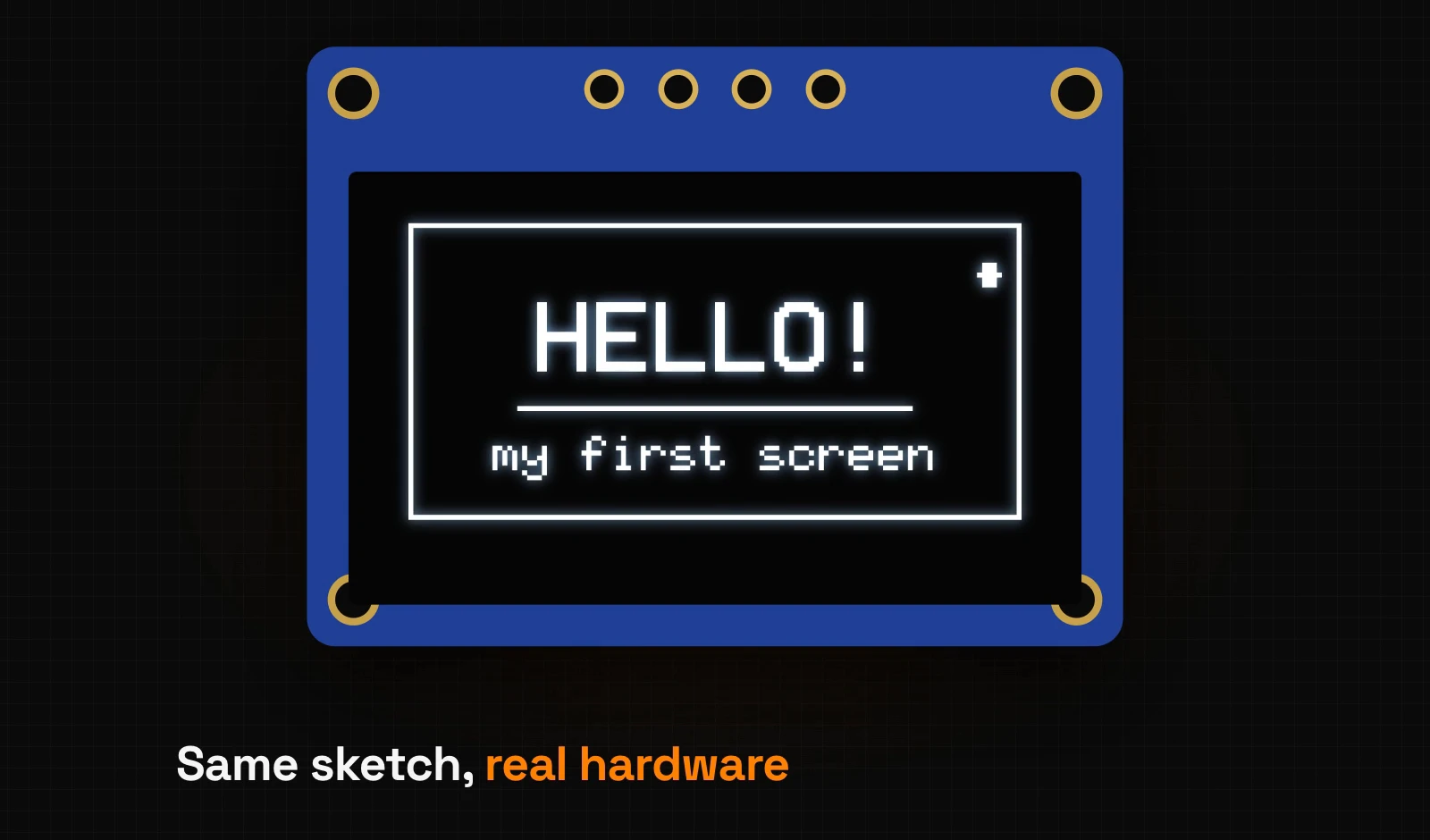
Thermostats, smart watches, 3D printers, weather stations: almost every gadget has a small screen, and someone had to draw it. Lopaka Basics is a ten-part series for people who have never touched a microcontroller and have never opened Lopaka.
Every episode follows the same path: draw it, get the code, see it on a screen. In this first one you will see what happens inside a gadget when it shows a picture, then design a small screen in Lopaka and run the generated code on a simulated Arduino.
What you will build: a 128×64 OLED screen with a frame, a large "HELLO!", a caption, a divider line and a small status dot. What you need: a browser. A real board is optional; we run the code in a free online simulator.
What's inside a gadget
A tiny computer that runs one program
Most small devices have a microcontroller board inside: an Arduino UNO, an ESP32, a Raspberry Pi Pico or something similar. A microcontroller is a tiny computer. Unlike your laptop, it runs one program, your firmware. In an Arduino sketch, the loop() function of that program repeats for as long as the board has power.
Your program draws everything that appears on the screen. The board gives you no desktop, windows or ready-made buttons to start from.
The screen is a grid of pixels
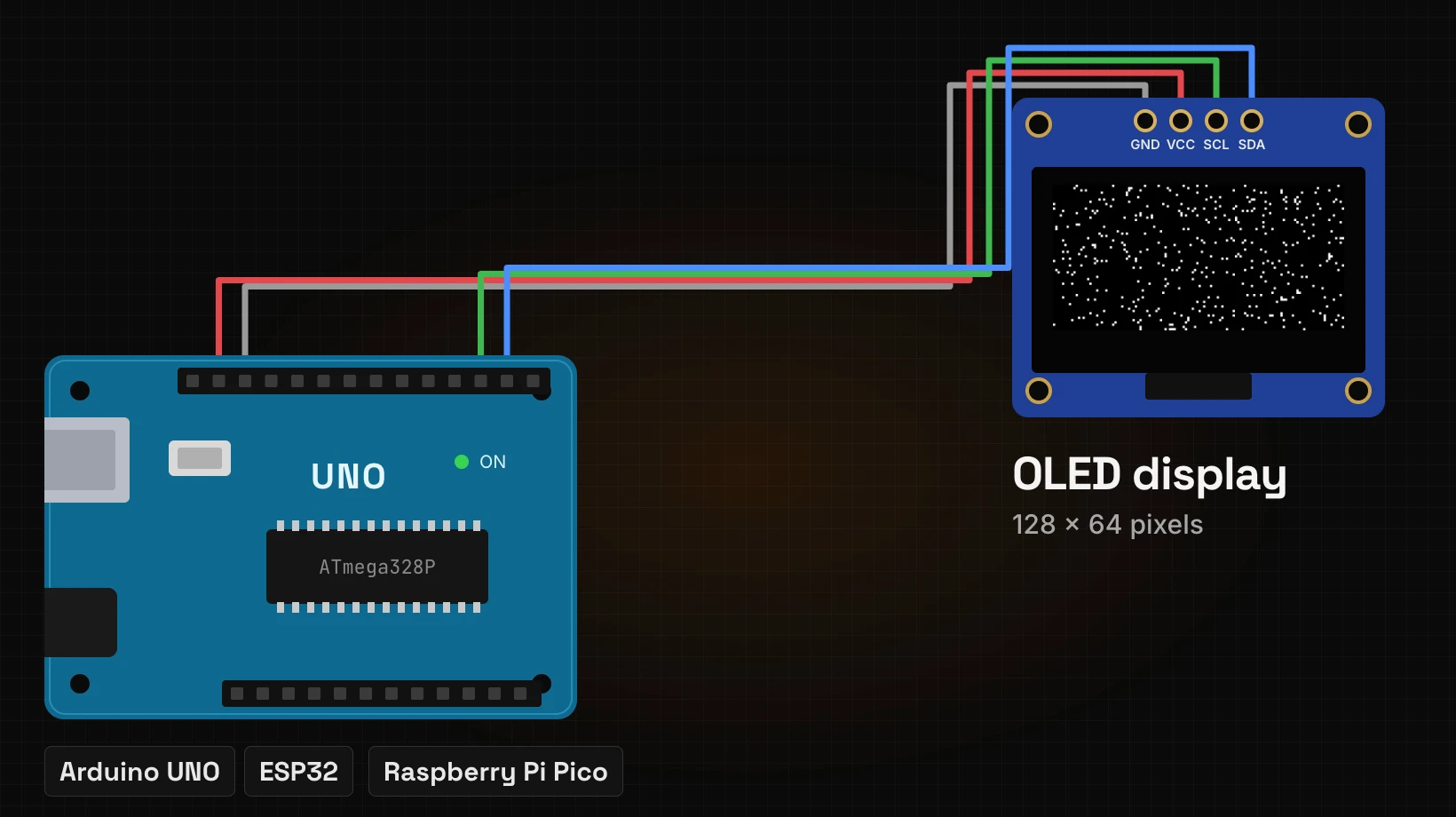
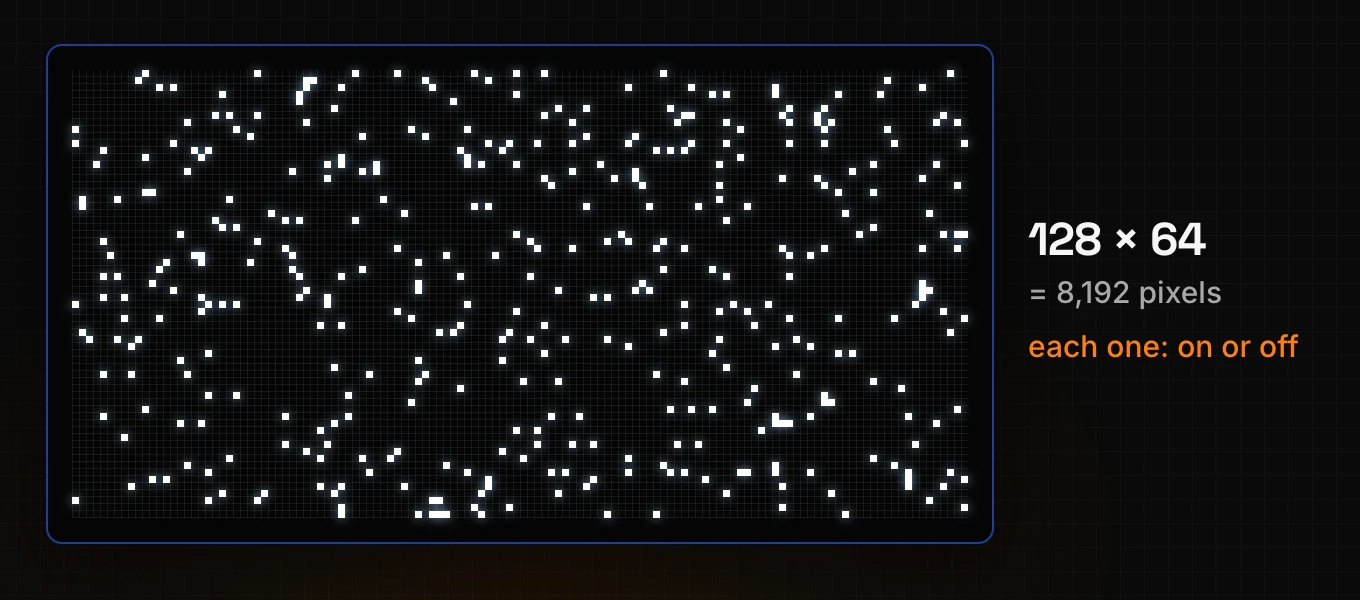
The display we use throughout the first episodes is one of the most common in hobby electronics: a small monochrome OLED, 128 pixels wide and 64 pixels tall. The common module is a 0.96-inch board with the SSD1306 controller. That makes 8,192 pixels, and each one is either on or off. With no shades of grey, everything on it, text included, looks crisp and blocky.
The I2C version of the module connects to the board with four wires: two for power (GND and VCC) and two for data (SCL and SDA).
Every pixel has an address
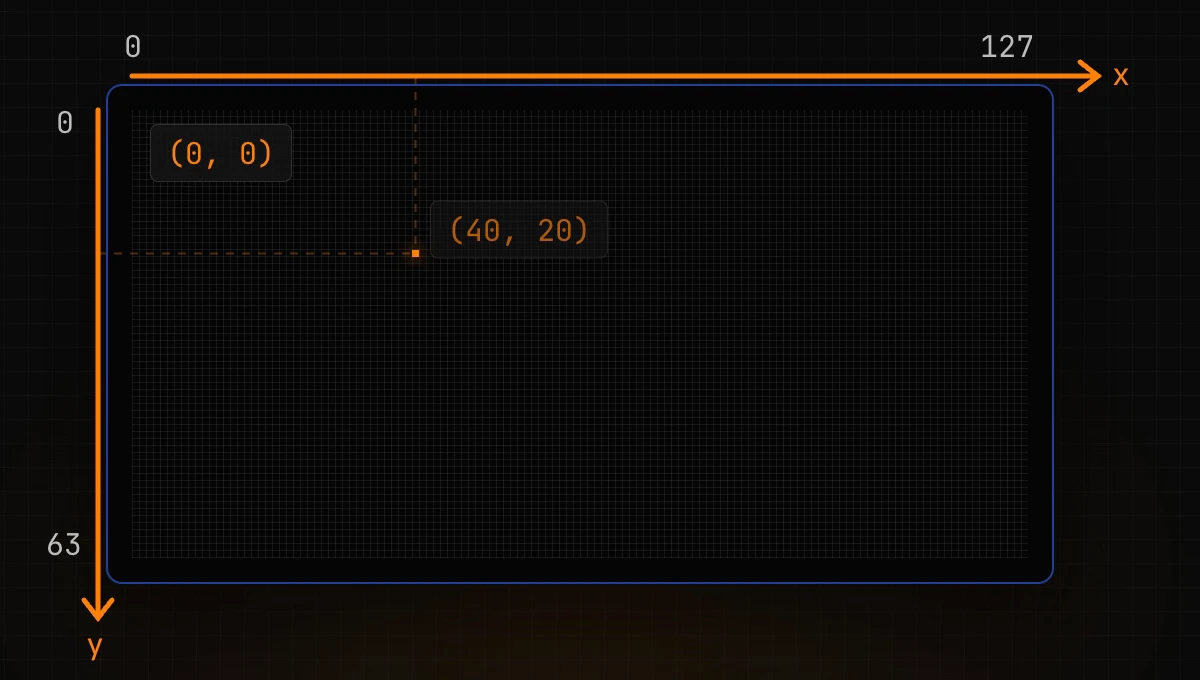
To light up a particular pixel, your program needs to say which one. Every pixel has an address made of two numbers:
- x counts from the left edge,
- y counts down from the top edge.
So (0, 0) is the top-left corner. Two details trip up most beginners:
- Y grows downwards, the opposite of school maths. A pixel at
(40, 20)is 40 pixels to the right and 20 pixels down from the corner. - Counting starts at zero. On a 128×64 display the last column is 127 and the last row is 63.
A graphics library turns commands into pixels
You do not switch the 8,192 pixels yourself. Your program calls a graphics library and talks to it in shapes: draw a frame here, write this text there. The library works out which pixels that means and sends them to the display.
For small monochrome displays, one of the most popular libraries is U8g2. Two lines are enough to draw the start of our screen:
u8g2.drawFrame(2, 2, 124, 60);      // a frame: x, y, width, height
u8g2.drawStr(28, 32, "HELLO!");     // text at x = 28, y = 32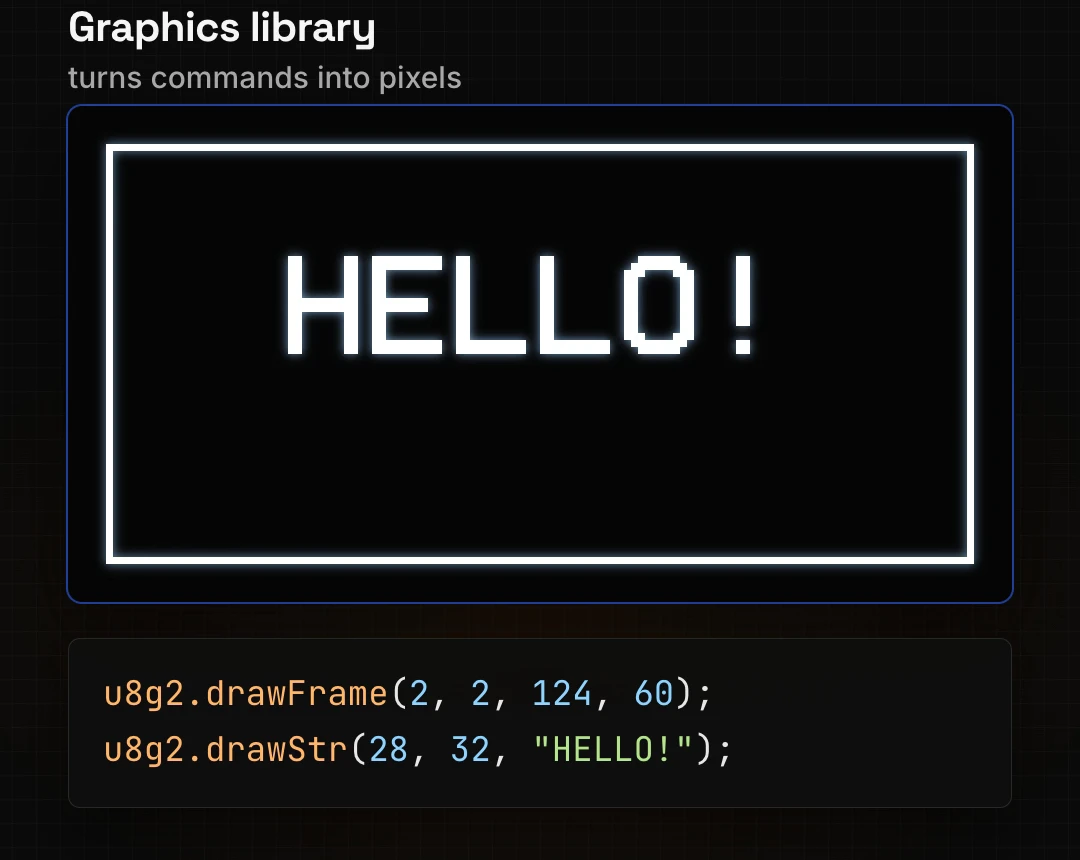
The old way: guess, compile, upload, look
You write every number in that code by hand. You guess where the text should start, compile the sketch, upload it to the board, and look at the screen. The text is three pixels too far to the right? Change a number and go round again: compile, upload, look.
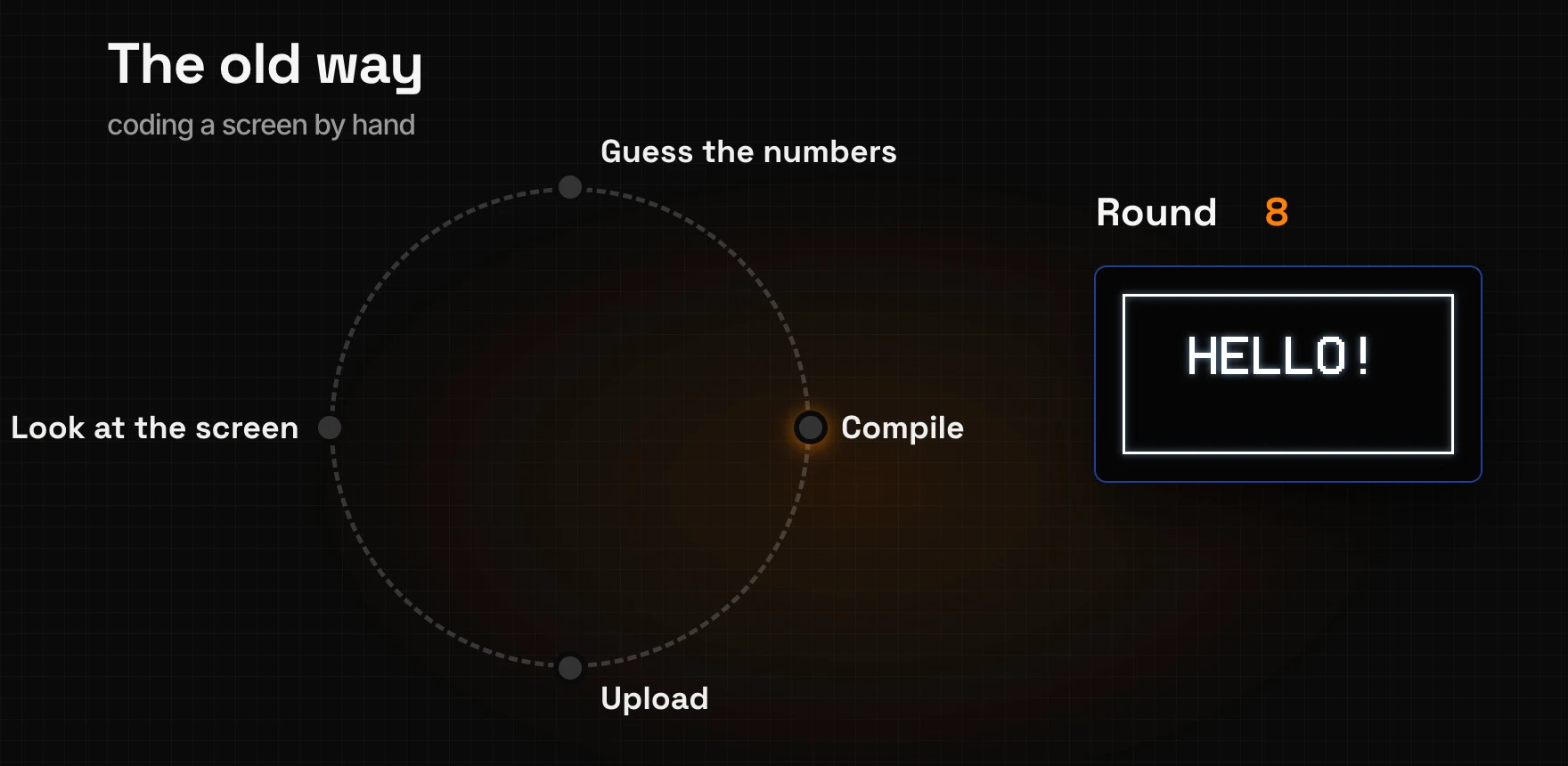
Each round costs a compile and an upload, often tens of seconds, and you need a board plugged in to see anything. Even a simple screen like ours can take dozens of rounds before everything lines up.
Lopaka removes that loop. It is an editor that runs in your browser. You draw the screen, and Lopaka writes the code for your graphics library while you draw.
Lopaka: sign in, projects and the gallery
Open lopaka.app and sign in with email, Google or GitHub. Lopaka keeps your projects in the cloud, so you can open them from any computer.
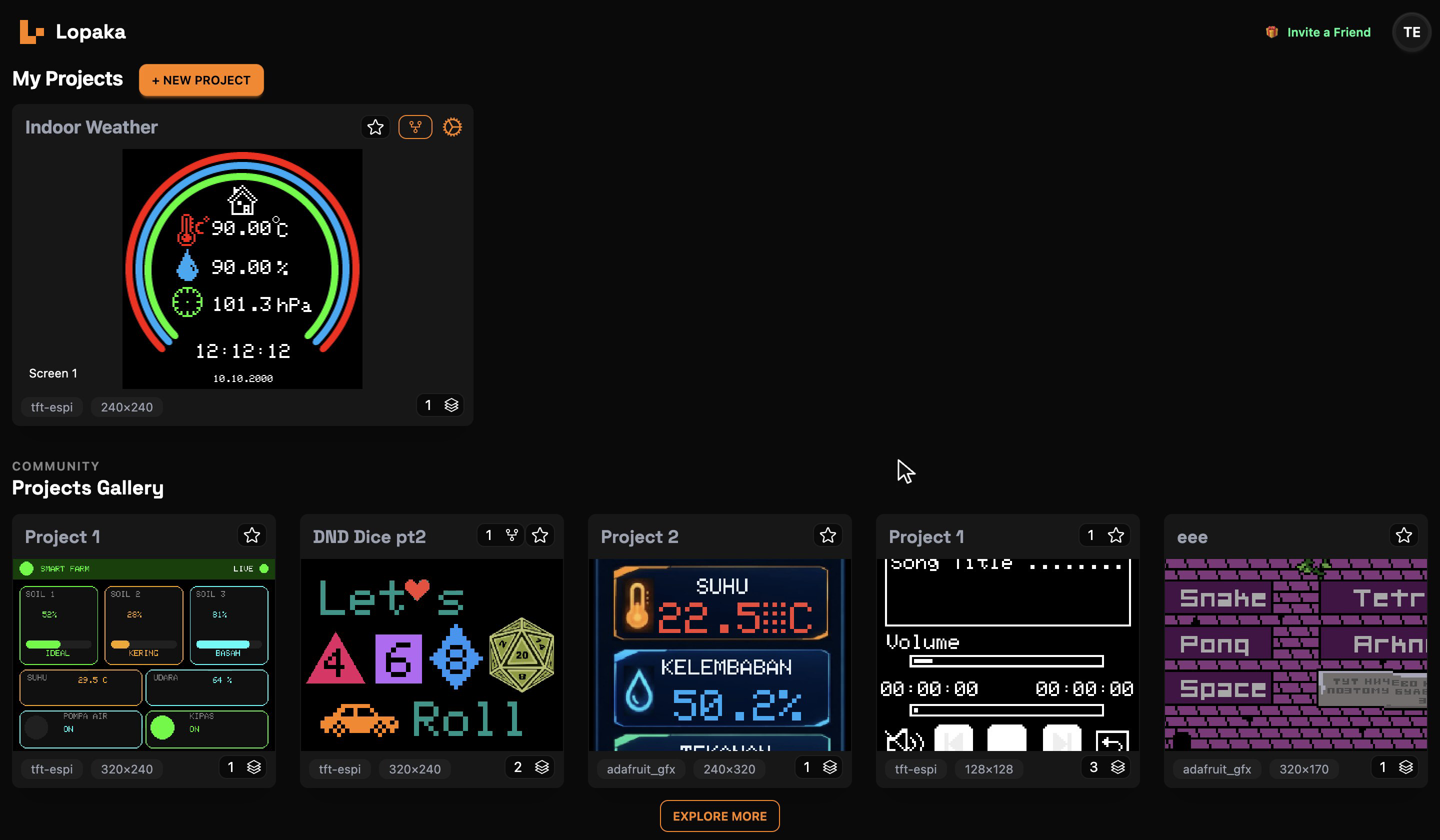
Step 1: create a new project
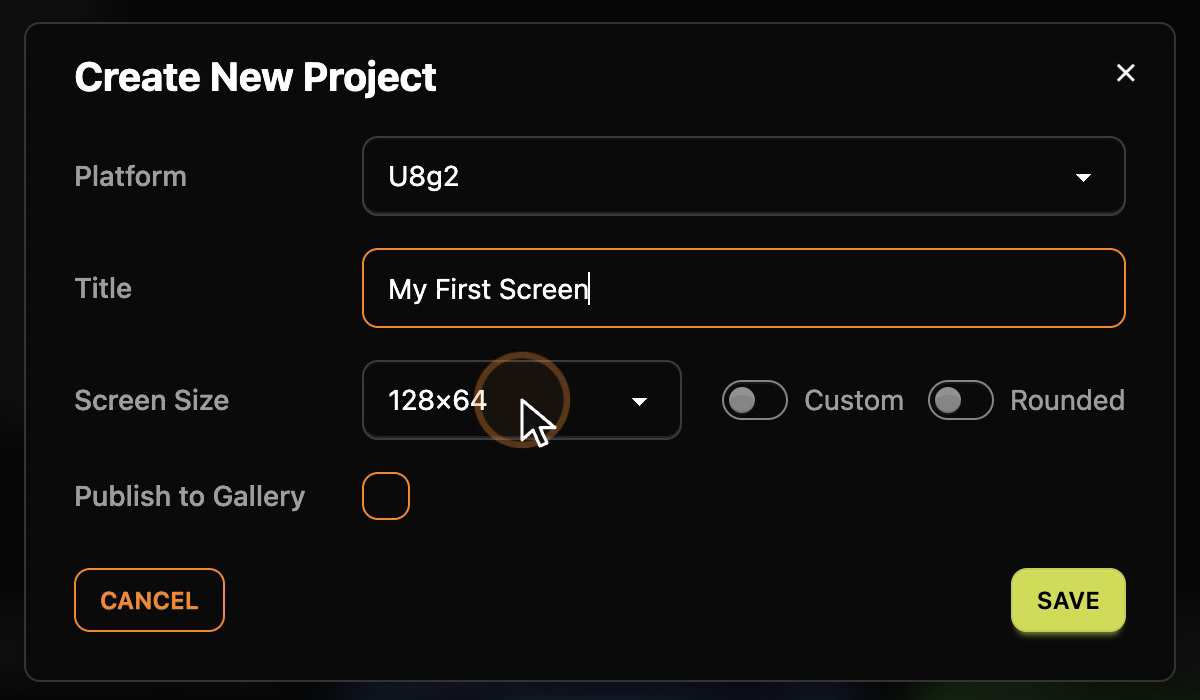
Click + New Project. The first and most important choice is the Platform, the graphics library your firmware will use. This decides what kind of code Lopaka will generate, so pick the library you are going to install on the board.
For each library, Lopaka writes the code the way that library expects it.
For a small black-and-white OLED, pick U8g2. Its description calls it "the default choice for monochrome OLED and LCD panels such as SSD1306, SH1106 and ST7565, where every pixel is simply on or off", and the code can be exported as Arduino C++ or ESP-IDF C.
Then fill in the rest of the dialog:
- Title: "My First Screen".
- Screen Size: 128×64. For U8g2 it is already selected; the list has dozens of other sizes. The Custom switch lets you type any size, and Rounded is for round displays.
Click Save.
Step 2: a quick tour of the editor
This is the editor. Everything you need for this episode fits on one screen:
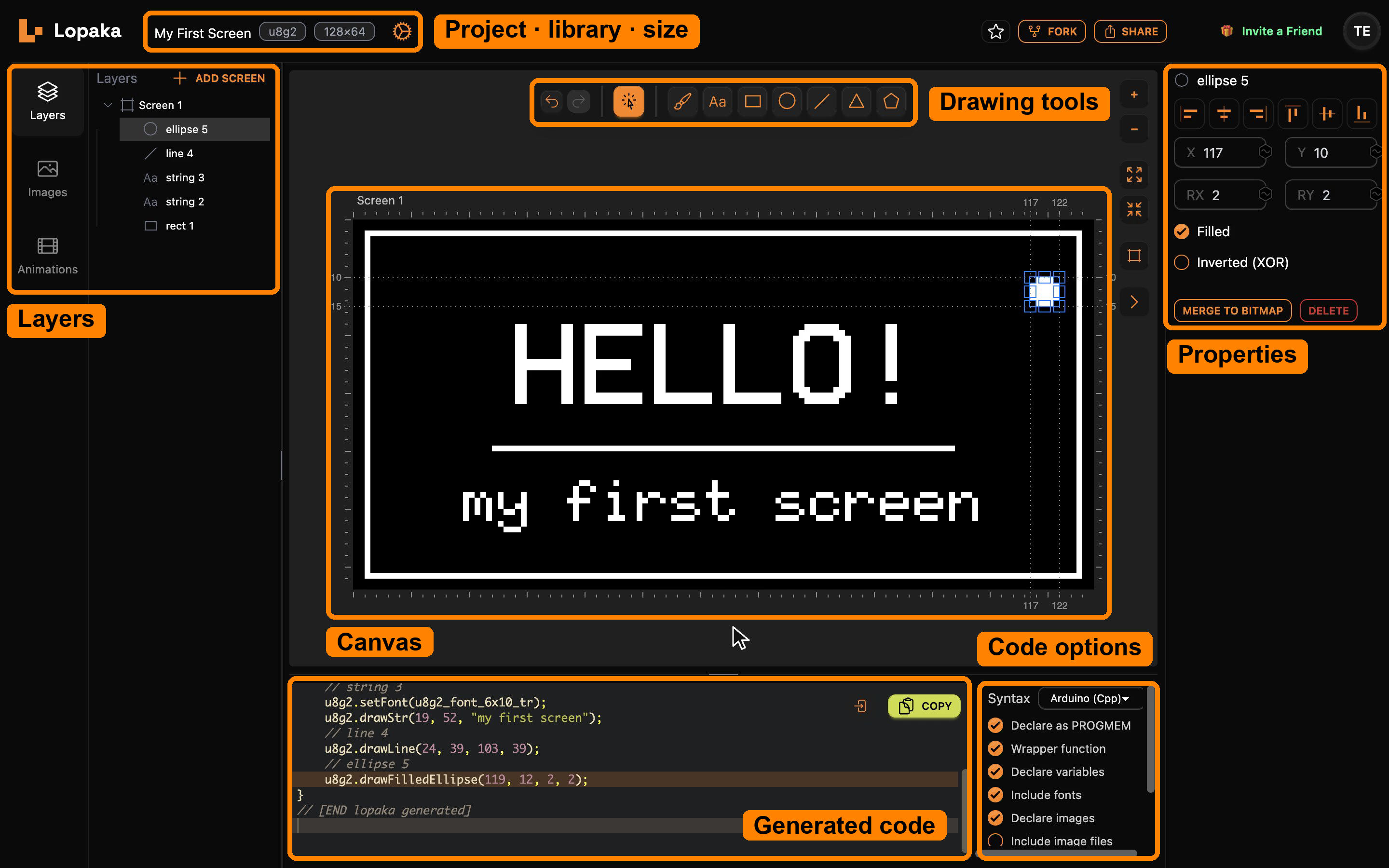
- Top bar. The project name, followed by two badges: the library (
u8g2) and the screen size (128×64). The gear icon next to them opens the project settings. On the right are Fork and Share. - Drawing tools, above the canvas: undo and redo, the selection tool, then the brush, text (
Aa), rectangle, ellipse (the circle icon), line, triangle and polygon. - The canvas in the middle is your screen at 128×64, with rulers along its edges. When you select a shape, the rulers mark its exact edges in pixels.
- Layers on the left. Every shape you draw becomes a layer here, grouped under its screen. Add Screen creates another screen in the same project; the Images and Animations tabs below hold your bitmaps and animations.
- Properties on the right, also called the inspector: the exact position, size and style of whatever is selected.
- Generated code at the bottom. It updates live as you draw. Next to it are the Syntax switch (Arduino C++ or ESP-IDF C for U8g2) and switches that control what goes into the code.
Step 3: draw the screen
A frame, and your first line of code
Pick the rectangle tool and drag across the canvas. A frame appears on the screen, and at the same moment a new line appears in the code:
u8g2.drawFrame(2, 2, 124, 60);Those four numbers are x, y, width and height: the same pixel addresses from the beginning of the article. Skip precise dragging and type exact values into the inspector: X 2, Y 2, W 124, H 60. The rulers follow your numbers and mark the edges of the shape at 2 and 126 across, 2 and 62 down. The rulers count the lines between pixels, so the right edge at 126 means the last lit column is 125.
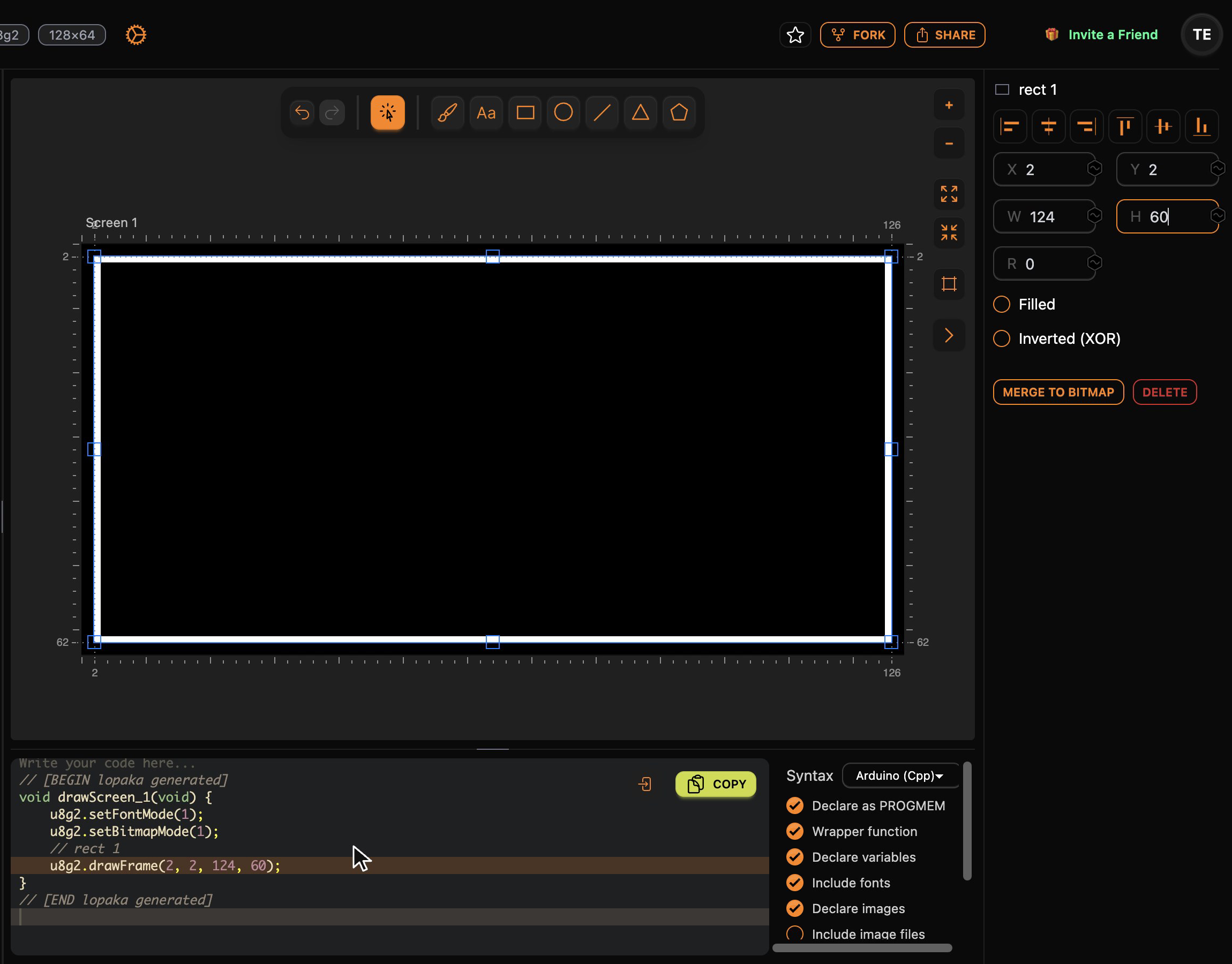
A frame that starts at x = 2 and is 124 pixels wide covers columns 2 to 125. That leaves two empty columns on each side of the 128-pixel screen, and the same two-pixel margin top and bottom. By hand, you would do this arithmetic in your head before every compile.
The other rectangle properties change the code too:
- R rounds the corners, and the call becomes
drawRFrame. - Filled turns the outline into a solid block,
drawBox. - Inverted (XOR) flips the pixels under the shape instead of switching them on, which is handy for highlighted menu items.
Text and fonts
Pick the text tool (Aa) and click on the canvas. A new layer with the word Text appears; select it if it is not selected yet, and type HELLO! into the text field in the inspector. The first text in a project uses the default font, 4x6, which is tiny: each character is four pixels wide. Every text you add after that starts in the last font you picked.
Open the Font list. Lopaka offers 42 built-in U8g2 fonts, from 4×6 pixel micro text to large display faces. The first item in the list, Import font..., adds your own. Pick profont22.
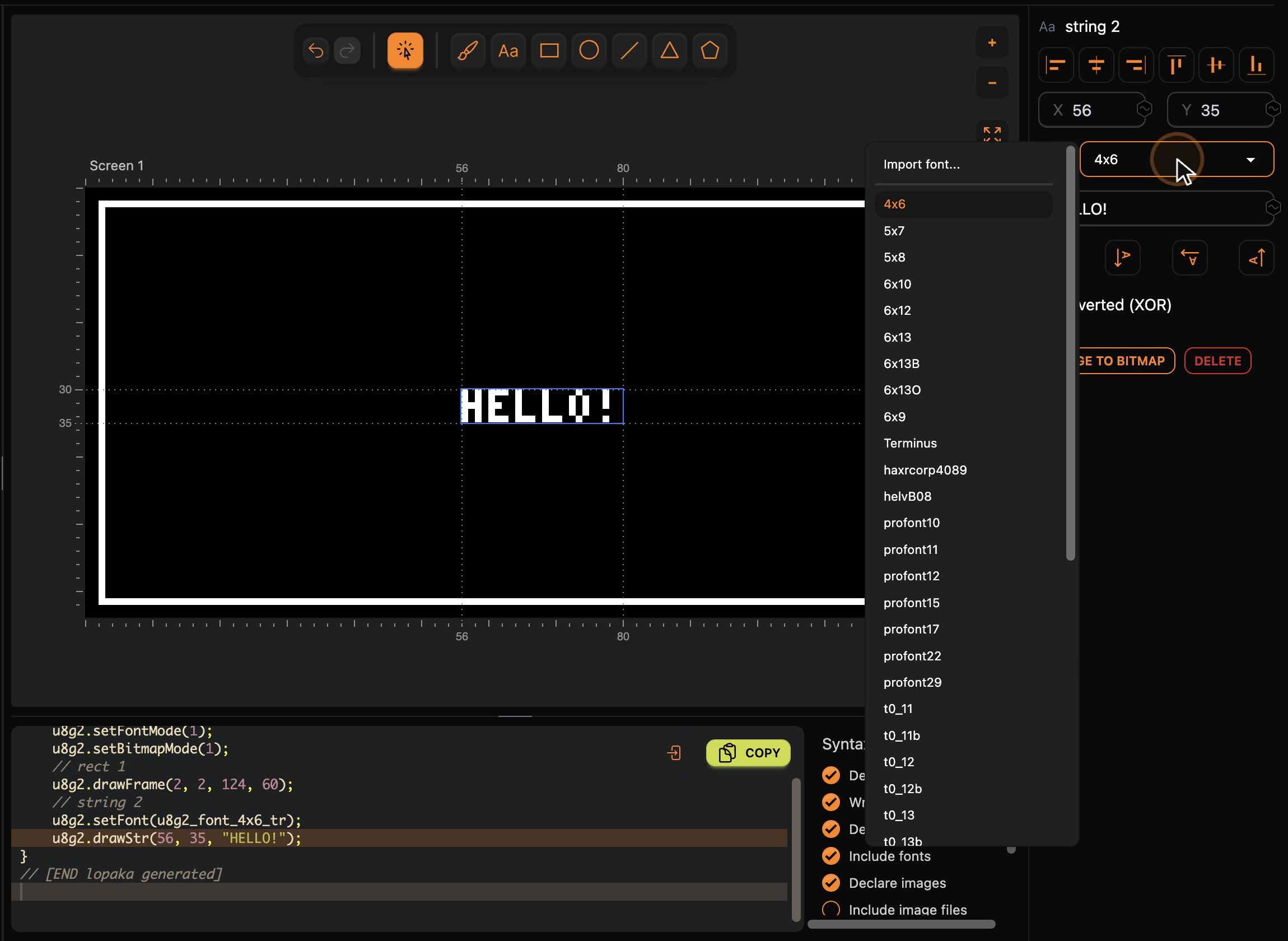
A setFont line appears in the code before the text, so the library knows which font to draw it with:
u8g2.setFont(u8g2_font_profont22_tr);
u8g2.drawStr(56, 35, "HELLO!");
Align, and watch the numbers move
Now place the text with the align buttons at the top of the inspector: the two centre buttons put the text in the middle of the screen, horizontally and vertically. Or drag it anywhere.
Watch the code while you do this. Every move updates the numbers at once, and centring sets X to 28. You see the result while you change it, with no compile and no upload.
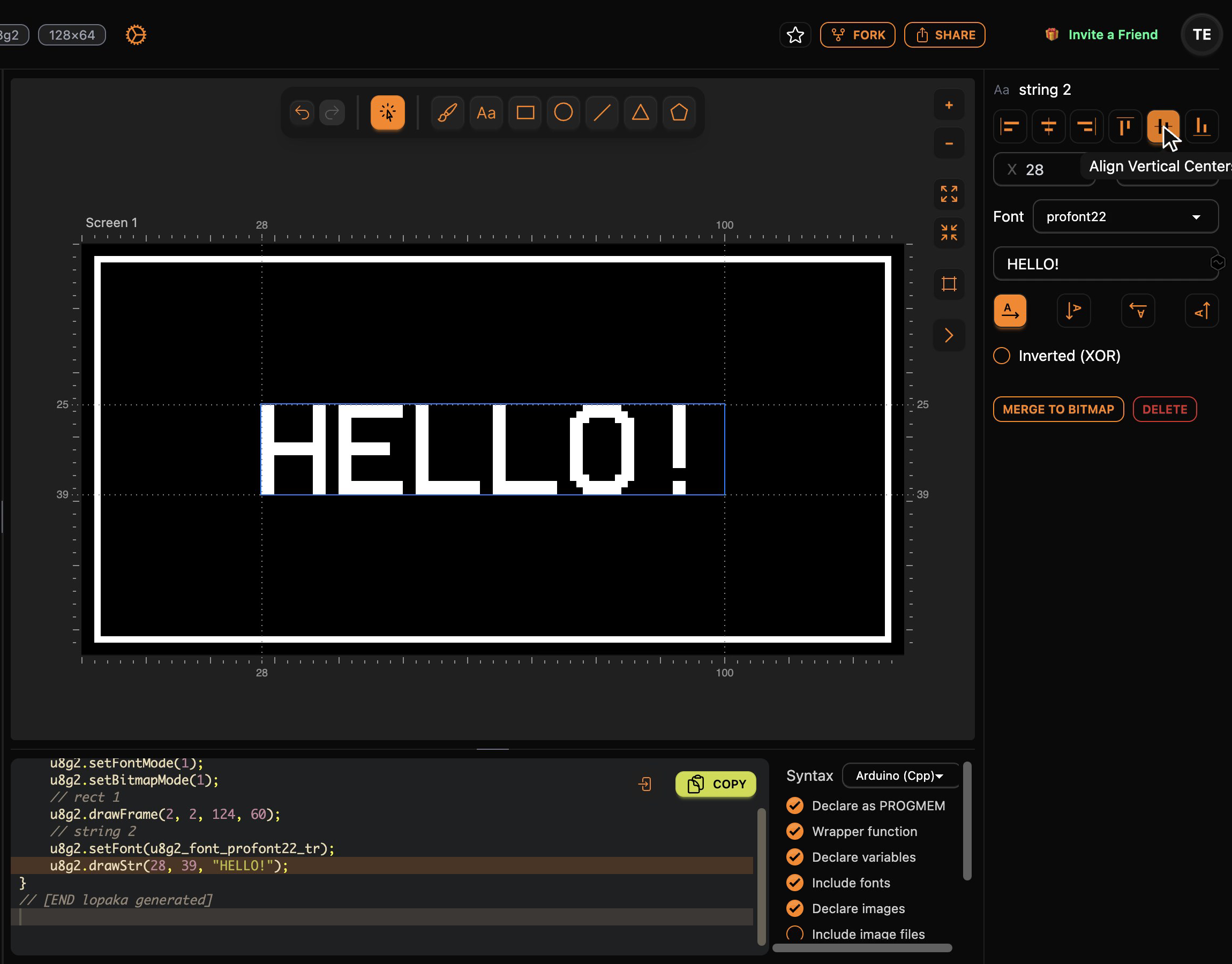
Look at the rulers in this screenshot: they mark the box around the letters from 25 to 39, and the code says drawStr(28, 39, ...). In U8g2 the y of a text is its baseline, the line the letters stand on, and the letters fill the rows above it. Text you place by hand at y = 0 ends up above the screen, a classic first mistake. Lopaka's inspector uses the same baseline for Y, so the number in the field goes straight into the code, and the canvas shows where the letters will land.
In the finished design we move "HELLO!" a little higher, to y = 32, to make room for the line and caption below it.
Caption, line and a status dot
Finish the screen with three more layers:
- A caption. Another text layer,
my first screen. It starts in profont22, the last font you used, so switch it to the smaller6x10, centre it horizontally and set Y to 52:drawStr(19, 52, "my first screen"). Because this text uses a different font, Lopaka adds anothersetFontbefore it. If two texts in a row use the same font, it does not repeat the call. - A line under "HELLO!":
drawLine(24, 39, 103, 39). For lines, the four numbers are the start point and the end point. - A small dot in the top-right corner, made with the ellipse tool, with Filled on.
In the inspector the dot has X 117, Y 10, RX 2 and RY 2: the top-left corner of the box around it and its two radii. U8g2's ellipse function takes the centre, so the code says drawFilledEllipse(119, 12, 2, 2). Every library has conventions like this one. Lopaka converts them for you, and you work with what you see on the canvas.
Now look at the layers panel: rect 1, string 2, string 3, line 4, ellipse 5. Every shape is a layer, and every layer is a line of code, with its name as a comment above it.
Step 4: get the code
When the screen looks right, click Copy above the code. You get a ready-made function, named after the screen:
// [BEGIN lopaka generated]
void drawScreen_1(void) {
    u8g2.setFontMode(1);
    u8g2.setBitmapMode(1);
    // rect 1
    u8g2.drawFrame(2, 2, 124, 60);
    // string 2
    u8g2.setFont(u8g2_font_profont22_tr);
    u8g2.drawStr(28, 32, "HELLO!");
    // string 3
    u8g2.setFont(u8g2_font_6x10_tr);
    u8g2.drawStr(19, 52, "my first screen");
    // line 4
    u8g2.drawLine(24, 39, 103, 39);
    // ellipse 5
    u8g2.drawFilledEllipse(119, 12, 2, 2);
}
// [END lopaka generated]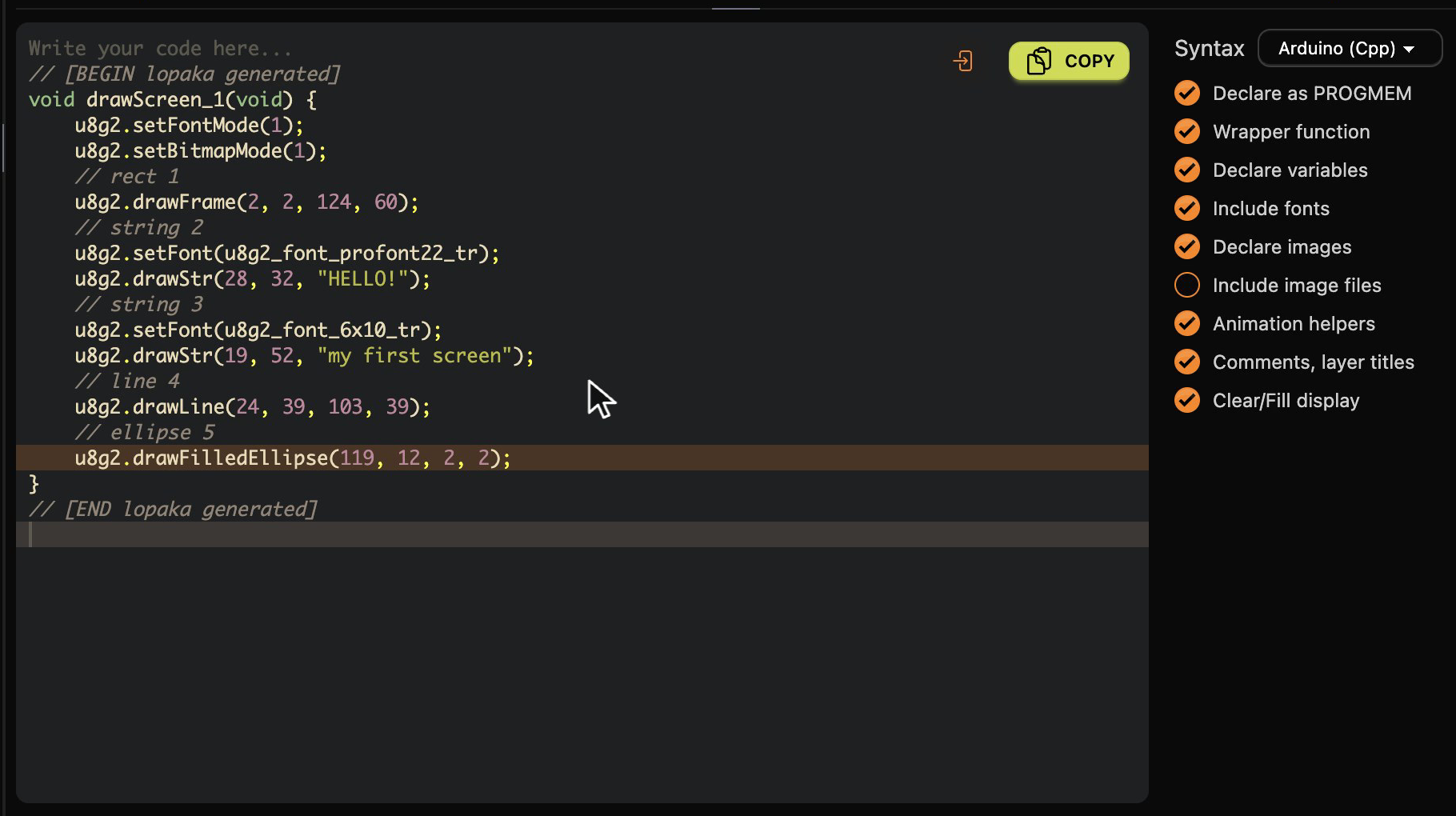
Four details in this code:
- The fonts are already set. Every text gets the font you chose in the editor, with the right U8g2 font name. In
u8g2_font_profont22_tr, thetmeans a transparent background and thermeans the reduced character set: the basic Latin letters, digits and punctuation, which keeps the font small in memory. setFontMode(1)andsetBitmapMode(1)make text and images transparent, so a letter drawn over a line does not erase it with its background.- The
BEGINandENDmarkers show which part of your sketch came from Lopaka. When you change the design, replace everything between them. - The switches next to the code control what goes into it: wrapping the drawing into a function, declaring images as
PROGMEM, including fonts and image data, comments with layer names and more. The defaults are right for this episode.
Step 5: run it
Where the function goes: the frame buffer
Your sketch has to call the copied function. A minimal Arduino sketch for our display:
#include <U8g2lib.h>
#include <Wire.h>

// 128x64 SSD1306 OLED on I2C, full frame buffer
U8G2_SSD1306_128X64_NONAME_F_HW_I2C u8g2(U8G2_R0, U8X8_PIN_NONE);

// Paste the Lopaka code here

void setup() {
  u8g2.begin();
}

void loop() {
  u8g2.clearBuffer();
  drawScreen_1();
  u8g2.sendBuffer();
}
The long name of the display object reads from left to right: the SSD1306 controller, a 128X64 panel, a generic (NONAME) module, a Full frame buffer, connected over HardWare I2C. U8G2_R0 means no rotation, and U8X8_PIN_NONE says the module has no reset pin wired.
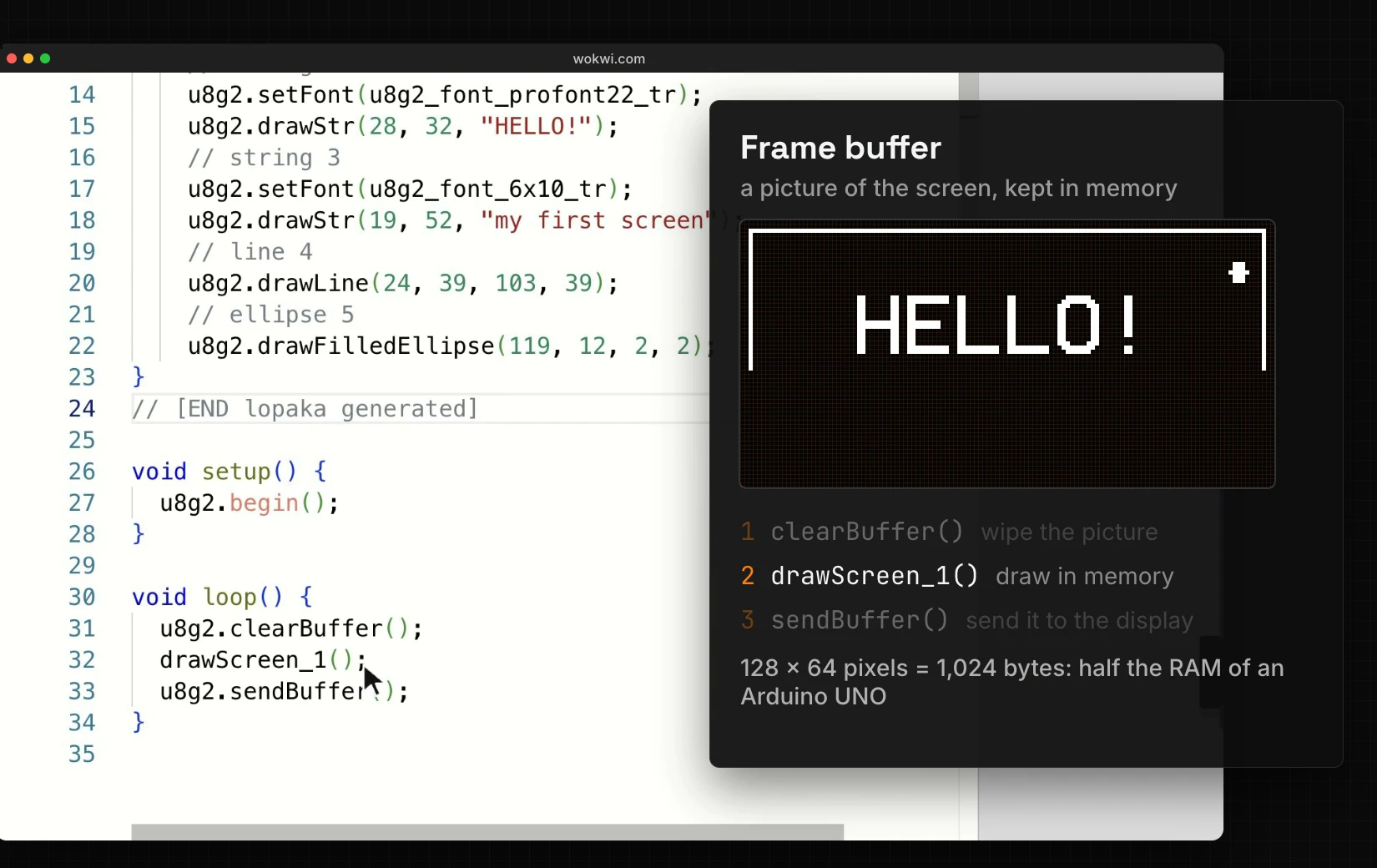
In loop(), call your function between clearBuffer() and sendBuffer():
clearBuffer()wipes the picture.drawScreen_1()draws everything in memory, not on the display.sendBuffer()sends the finished picture to the display in one go.
That picture in memory is called a frame buffer. The display receives only complete frames, so you never see a half-drawn screen. The price is memory: 128 × 64 pixels at one bit each is 1,024 bytes, half of the 2 KB of RAM an Arduino UNO has. Our whole sketch takes 12,218 bytes of flash (37%) and 1,578 bytes of RAM (77%) on an UNO, and most of that RAM is the frame buffer. For a sketch this small that is fine. On an ESP32 the same sketch uses 7% of the RAM. We will come back to memory, and to drawing with less of it, later in the series.
No board yet? Run it in a simulator
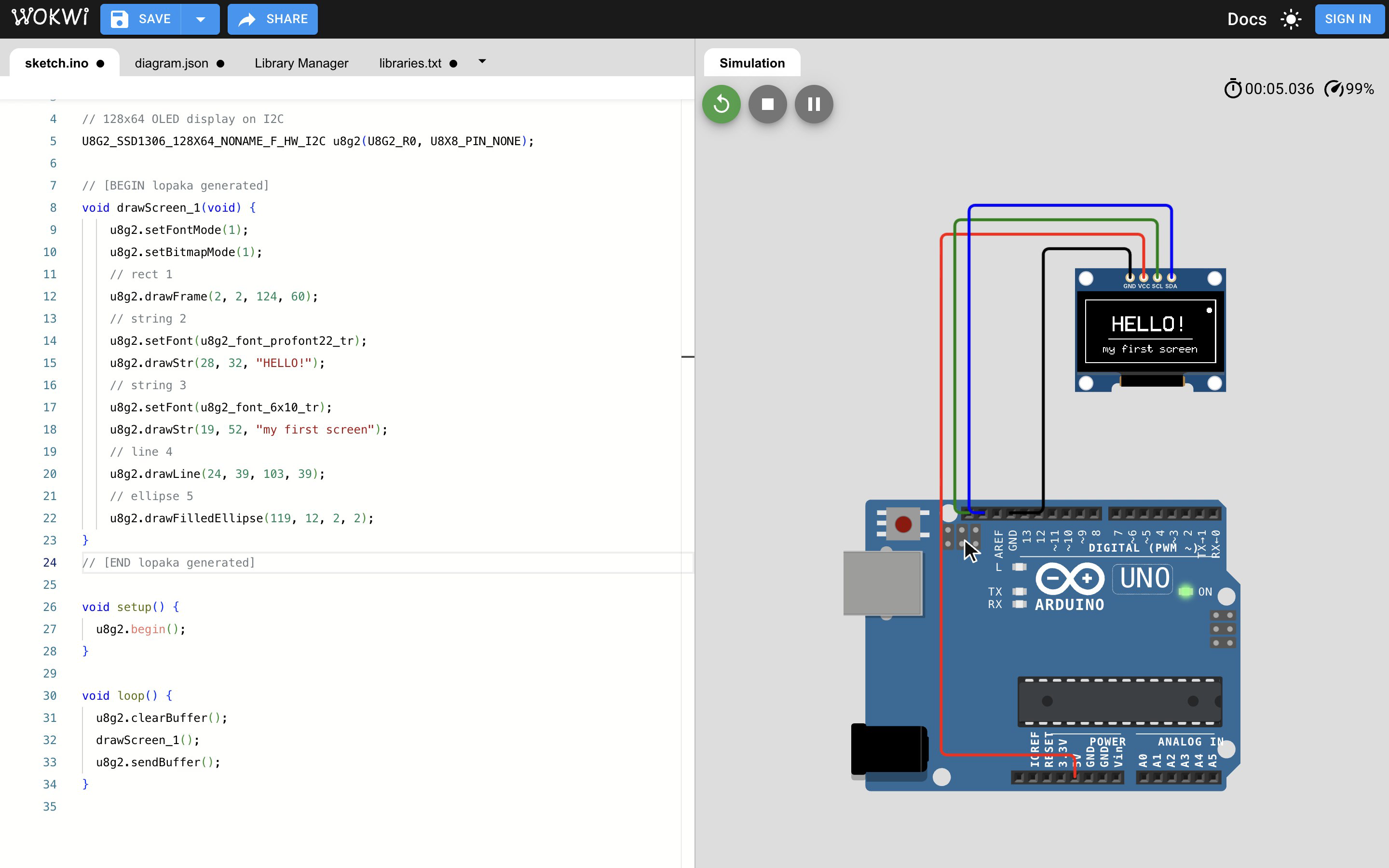
You can see your screen working without any hardware. Wokwi is a free online simulator that compiles and runs real Arduino code:
- Create a new Arduino UNO project.
- Add an SSD1306 OLED display and connect four wires: GND to GND, VCC to 5V, SCL to A5 and SDA to A4.
- Add the U8g2 library in the Library Manager tab.
- Paste the sketch above into
sketch.ino, with the Lopaka code in its place. - Press Play.
The display shows what you drew, running as real Arduino code. We pasted the code from Lopaka without changing a character, and the simulated display matched the Lopaka canvas pixel for pixel.
On a real board
Because it is real code, the same sketch runs on a real board too. Wire up the display the same way, install U8g2 from the Library Manager in the Arduino IDE, and upload. Two things to check on real hardware:
- The controller. Most 0.96-inch modules use the SSD1306. Many 1.3-inch modules look the same but use the SH1106; for those, change
SSD1306toSH1106in the constructor:U8G2_SH1106_128X64_NONAME_F_HW_I2C. - Power. Most of these modules accept both 3.3 V and 5 V, but some bare boards are 3.3 V only. Check the listing of your module.
A later episode of the series goes through this step by step, including what to check when the screen stays black.
Recap
The workflow stays the same for every screen you make:
- Pick your library: the platform you choose when creating a project decides what code you get. For a monochrome OLED, start with U8g2.
- Draw your screen: every shape is a layer, every layer is a line of code, and the inspector shows the exact numbers.
- Copy the code: call the function between
clearBuffer()andsendBuffer(), and run it in the simulator or on a real board.
Next episode: Text, Fonts & Icons. We build a mini weather station and find out why every font costs memory. Read episode 2 or watch it on YouTube.
Ready to try? Open Lopaka and draw your first screen.