
Lopaka Basics 02: Text, Fonts & Icons
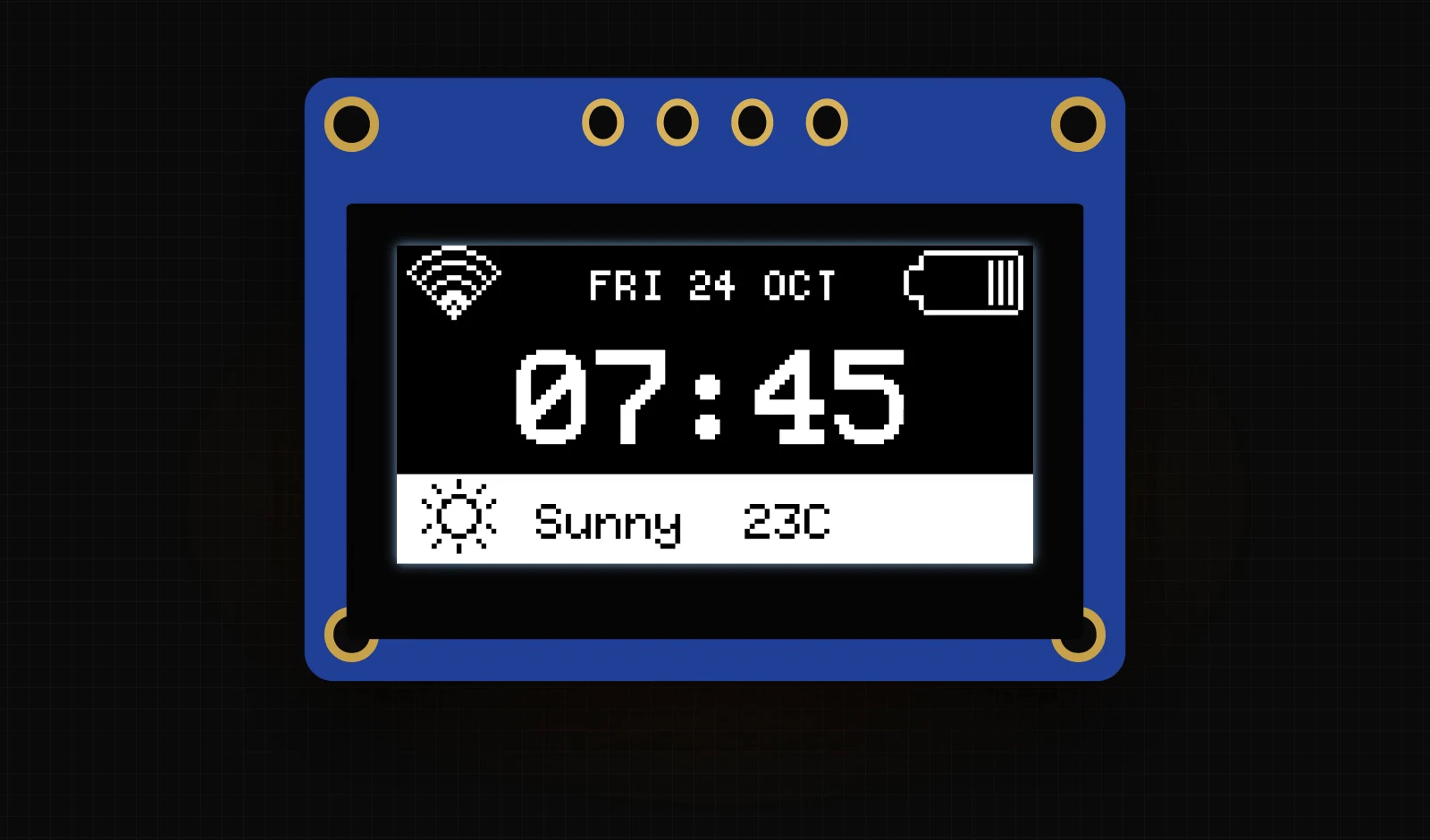
A clock, the weather and a picture of the moon, all on a screen the size of a postage stamp. Text, fonts, icons and images make a small screen useful, and on a microcontroller every one of them costs memory.
In this episode you will find out what a font is on a microcontroller, where it is stored and how much space it takes. Then you will build a small morning dashboard in Lopaka with two screens, a status bar with inverted text and your own picture turned into dots, and run it on a simulated Arduino UNO.
What you will build: a 128×64 OLED dashboard with two screens. Morning shows the time, the date, Wi-Fi and battery icons and a weather bar. Night shows a picture of the moon and the time. What you need: a browser and the simulator project from episode 1. A real board is optional.
A font is a set of pictures
One picture per character
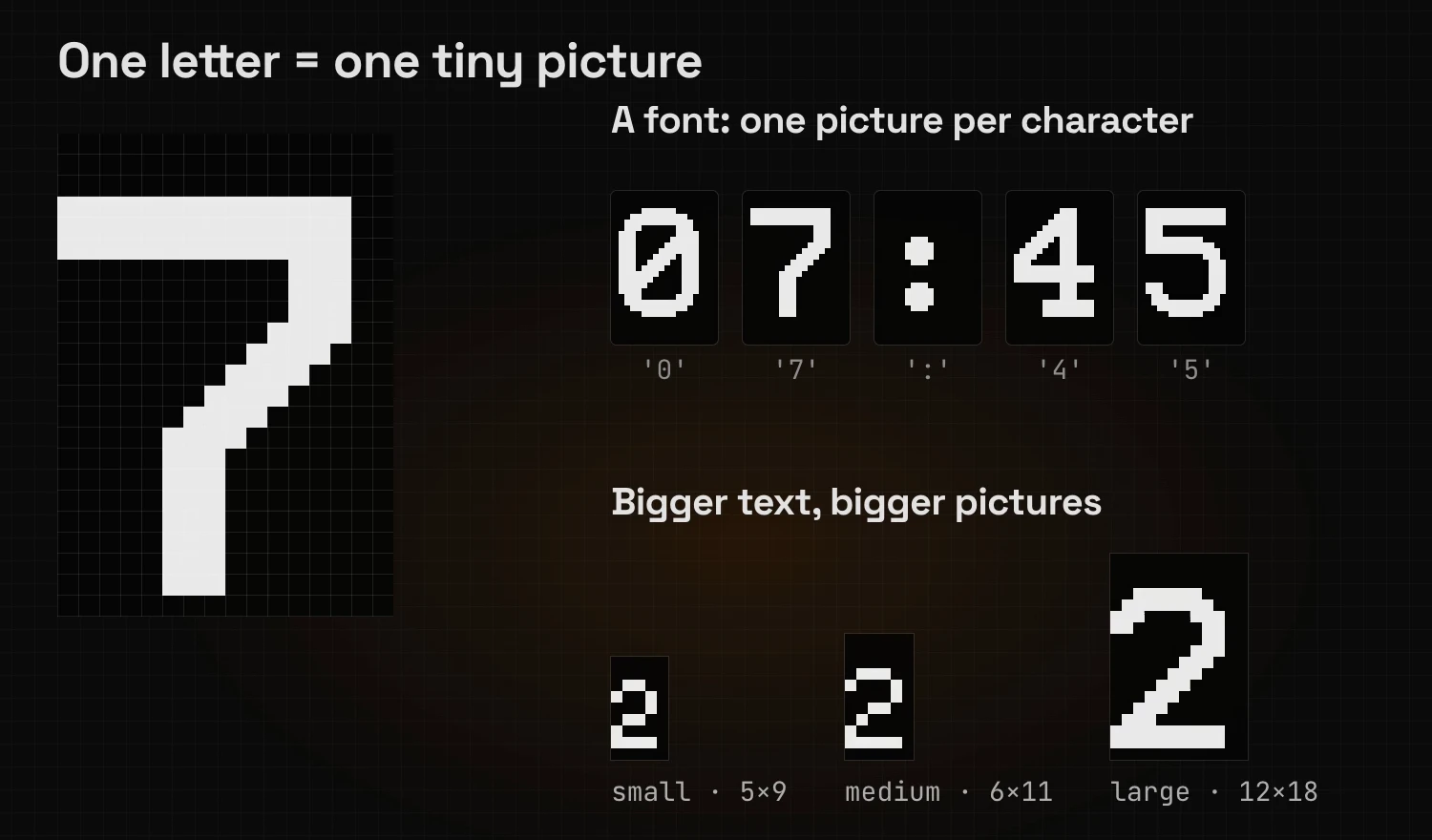
A microcontroller does not know what letters are. To show "07:45", the graphics library needs a small picture for each character: one for 0, one for 7, one for : and so on. A font on a microcontroller is a set of tiny pictures, one for every character it can draw.
Bigger text, bigger pictures
Each picture is a grid of pixels. A bigger font means bigger grids: the same digit 2 is 5×9 pixels in a small font and 12×18 in a large one. Every one of those pictures has to be stored on the chip, so a bigger font takes more memory.
Two kinds of memory
Flash is the bookshelf, RAM is the desk
A microcontroller has two kinds of memory:
- Flash keeps your program, fonts and images. It works like a bookshelf: everything the program might need is stored there, and it stays there when the power is off.
- RAM is the small desk where the work happens: the values the program is working on right now.
On an Arduino UNO the bookshelf holds 32 KB and the desk only 2 KB.
How much a font costs
A small font takes about one kilobyte of flash, a large one two to four. We measured it by compiling a sketch for an UNO with one text in a single font and comparing it with a sketch without text: 4x6 added 1.1 KB, profont22 2.1 KB, profont29 2.5 KB and timR24 3.7 KB.
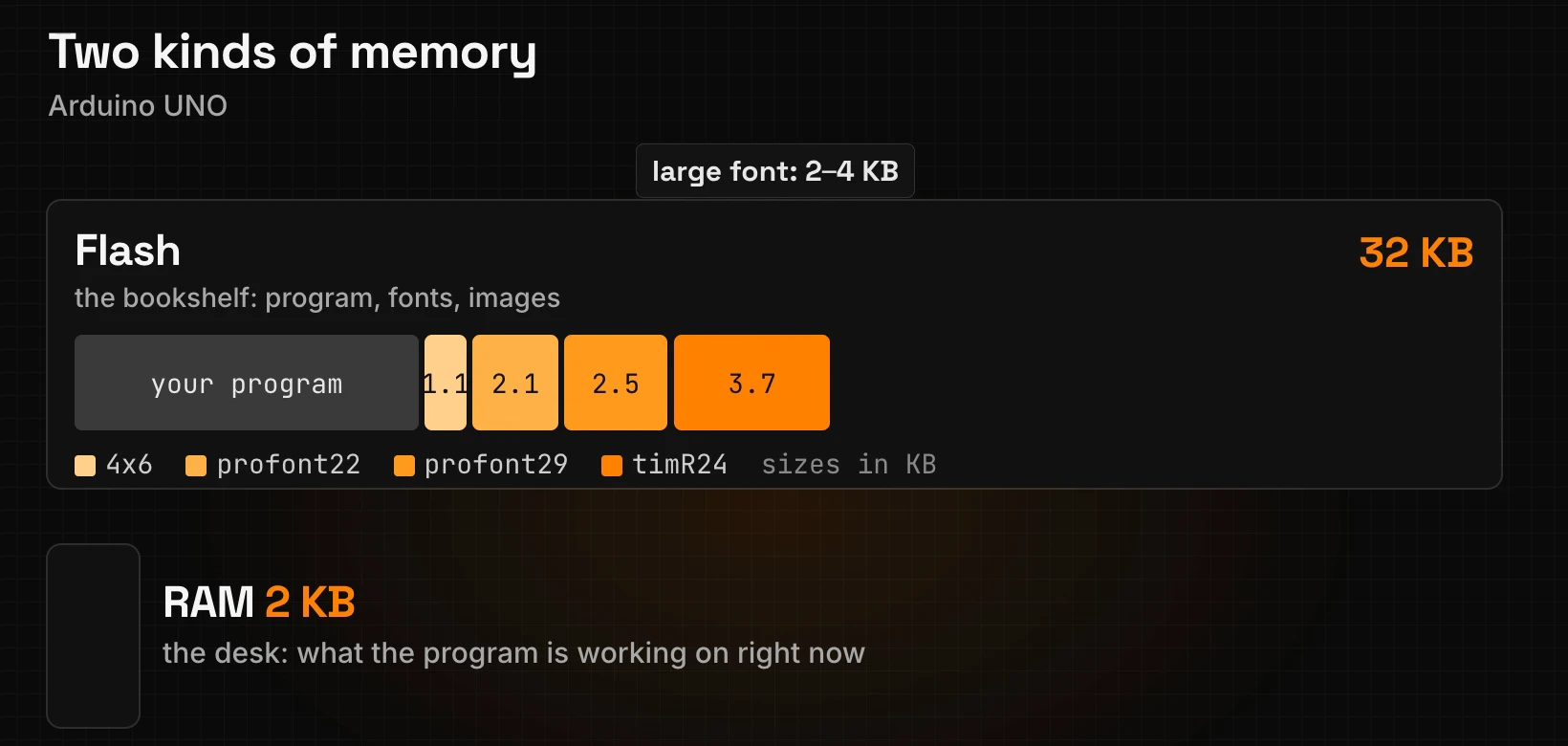
Each font is stored once, however many texts use it. The practical rule: two or three fonts per screen. To see which fonts your design uses, look for the setFont lines in Lopaka's code panel: every different font name there is another font on the bookshelf.
Step 1: a new project
Same start as in episode 1: click + New Project, pick the U8g2 platform, keep the screen size at 128×64 and give the project a title, "Morning Dashboard". Click Save.
Step 2: text
The time in a big font
Pick the text tool (Aa), click on the canvas and select the new string 1 layer. In the inspector, replace the text with 07:45, open the Font list and pick profont29, a font that is easy to read from across the room.
Click the centre horizontally align button at the top of the inspector and set Y to 40. The code now reads:
u8g2.setFont(u8g2_font_profont29_tr);
u8g2.drawStr(24, 40, "07:45");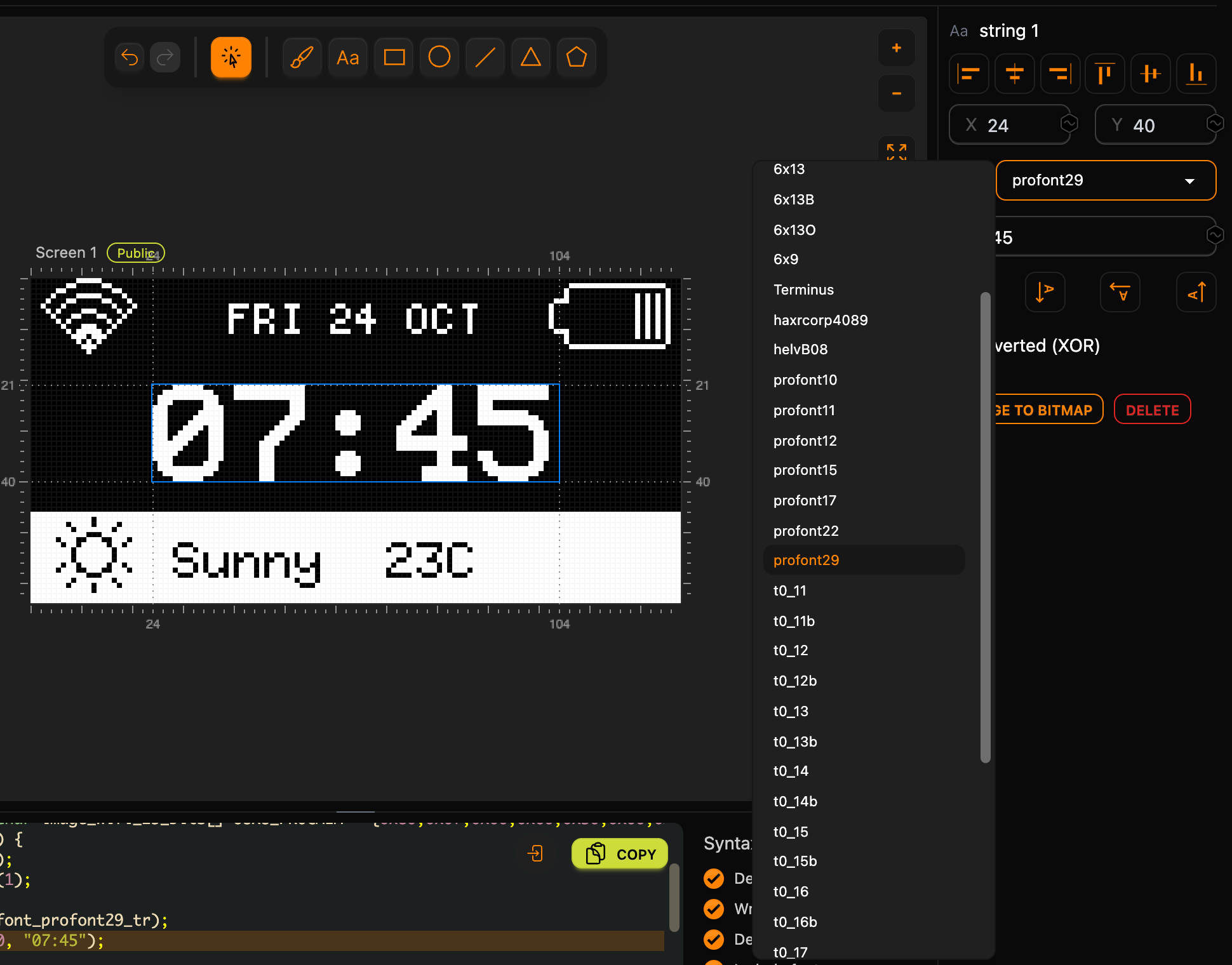
Both numbers can be checked by hand. Every character of profont29 is 16 pixels wide, so "07:45" is 5 × 16 = 80 pixels wide, and (128 − 80) / 2 = 24 puts it in the middle. The 40 is the baseline, the line the digits stand on, as in episode 1: the digits fill the rows above it.
The date in a small font
Add another text, FRI 24 OCT. A new text starts in the last font you used, so switch it to the small 5x8. Centre it horizontally and set Y to 11. Ten characters of 5 pixels make 50 pixels, which gives drawStr(39, 11, "FRI 24 OCT").
Your own font
Want a different look? The first item of the Font list, Import font..., takes a TrueType file (.ttf; .otf, .woff and .bdf work too), and Lopaka turns it into pixels at the height you choose. In the video we imported Press Start 2P, a free pixel font, and set Font Height to 8. The preview shows the whole font: 95 tiny pictures, every printable character from the space to ~.
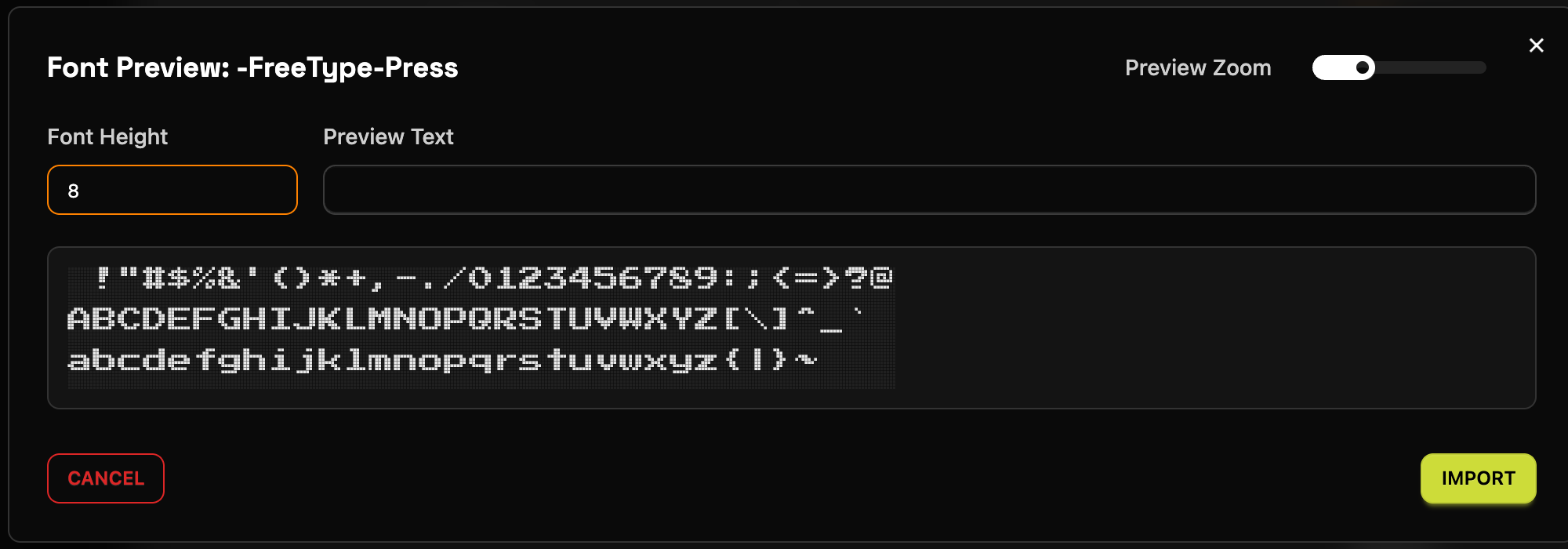
Click Import, and the font is ready to use. The selected text switches to it, and the code gets one extra line, #include "Press_Start_2P_8.h". That header holds the font data. A button with the same name appears under the code: download the file and put it next to your sketch, or the sketch will not compile.
The dashboard keeps the built-in fonts. If you tried the import on the time, switch it back to profont29.
Step 3: icons
Search and add
Lopaka has more than two thousand icons built in. Open the Images tab on the left, type into the search field and click an icon to add it to the screen. Add three:
wifi_25(search "wifi"),battery_30(search "battery"),weather_sun(search "sun").
All three are in the Gaai set.
Put each icon in its place
Drag the icons into place on the canvas: Wi-Fi in the top-left corner, the battery in the top-right corner, the sun in the bottom-left corner.
An icon is 32 bytes
An icon is a tiny picture too. The sun is 15 pixels wide and 16 tall, and on a one-colour screen each pixel is one bit: on or off. Eight pixels fit in one byte. A row of 15 pixels needs two bytes, and the last bit stays unused, so the whole icon is 2 bytes × 16 rows = 32 bytes.
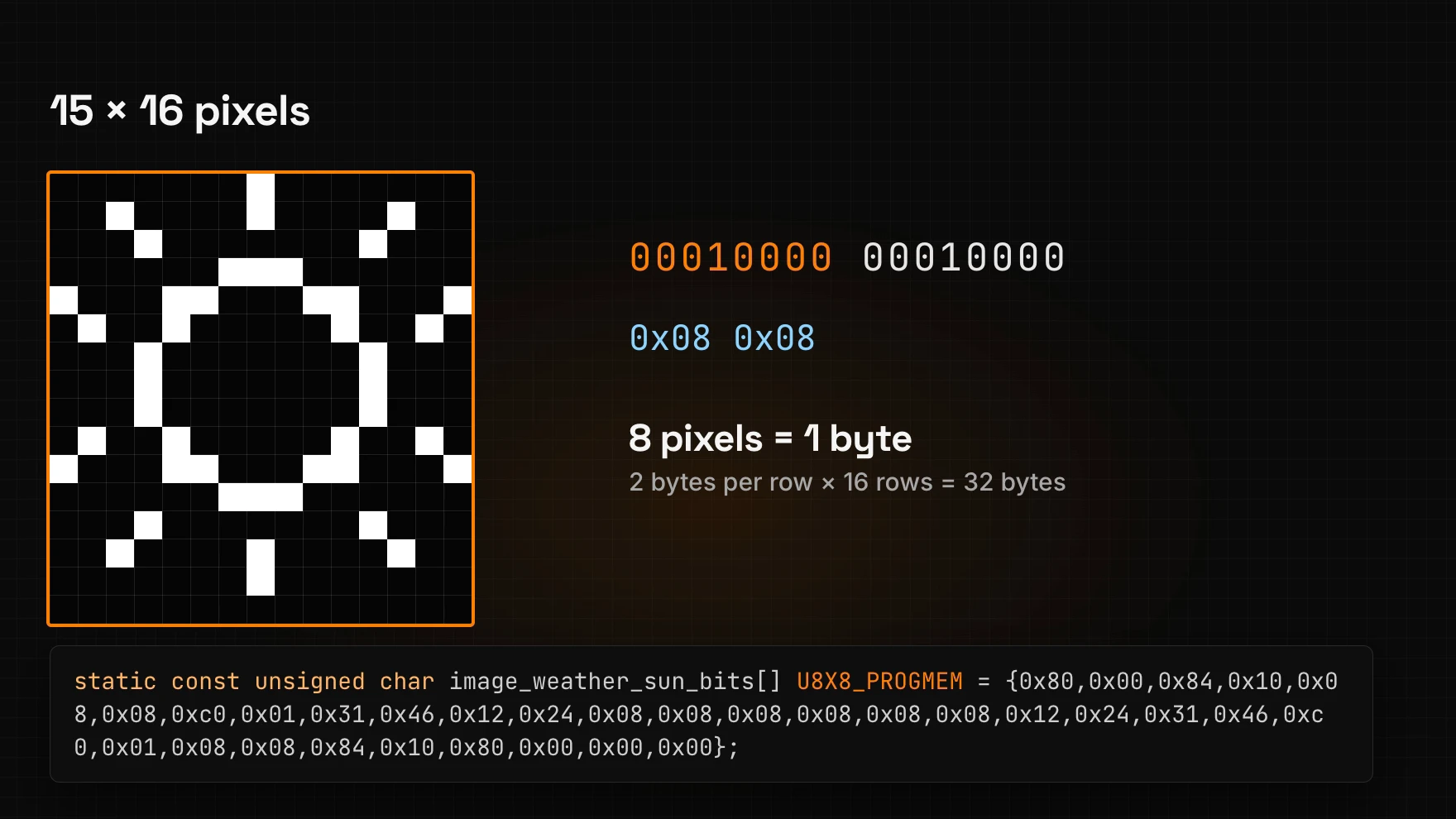
In the code, the icon becomes this list of numbers. The library reads them and draws the pixels:
static const unsigned char image_weather_sun_bits[] U8X8_PROGMEM = {0x80,0x00,0x84,0x10,0x08,0x08,0xc0,0x01,0x31,0x46,0x12,0x24,0x08,0x08,0x08,0x08,0x08,0x08,0x12,0x24,0x31,0x46,0xc0,0x01,0x08,0x08,0x84,0x10,0x80,0x00,0x00,0x00};u8g2.drawXBMP(5, 47, 15, 16, image_weather_sun_bits);drawXBMP takes the position, the width and height of the picture, and the array. In this format, called XBM, the first pixel of a row is the lowest bit of the byte. That is why the highlighted row reads 00010000 from left to right but is stored as 0x08.
The other two icons are 19×16 and 24×16 pixels. Both need three bytes per row, 48 bytes each.
Step 4: inverted text
A white bar with dark text
For a status bar, draw a filled rectangle and put text on top:
- Pick the rectangle tool, drag a rectangle on the canvas and set X
0, Y46, W128, H18. Turn on Filled. The bar now covers the bottom 18 rows of the screen, rows 46 to 63. - The new rectangle is the top layer and hides the sun. Press Ctrl + ↓ (Cmd + ↓ on a Mac) to move it one layer down, under
weather_sun. - Select
weather_sunand turn on Inverted (XOR). - Add a text
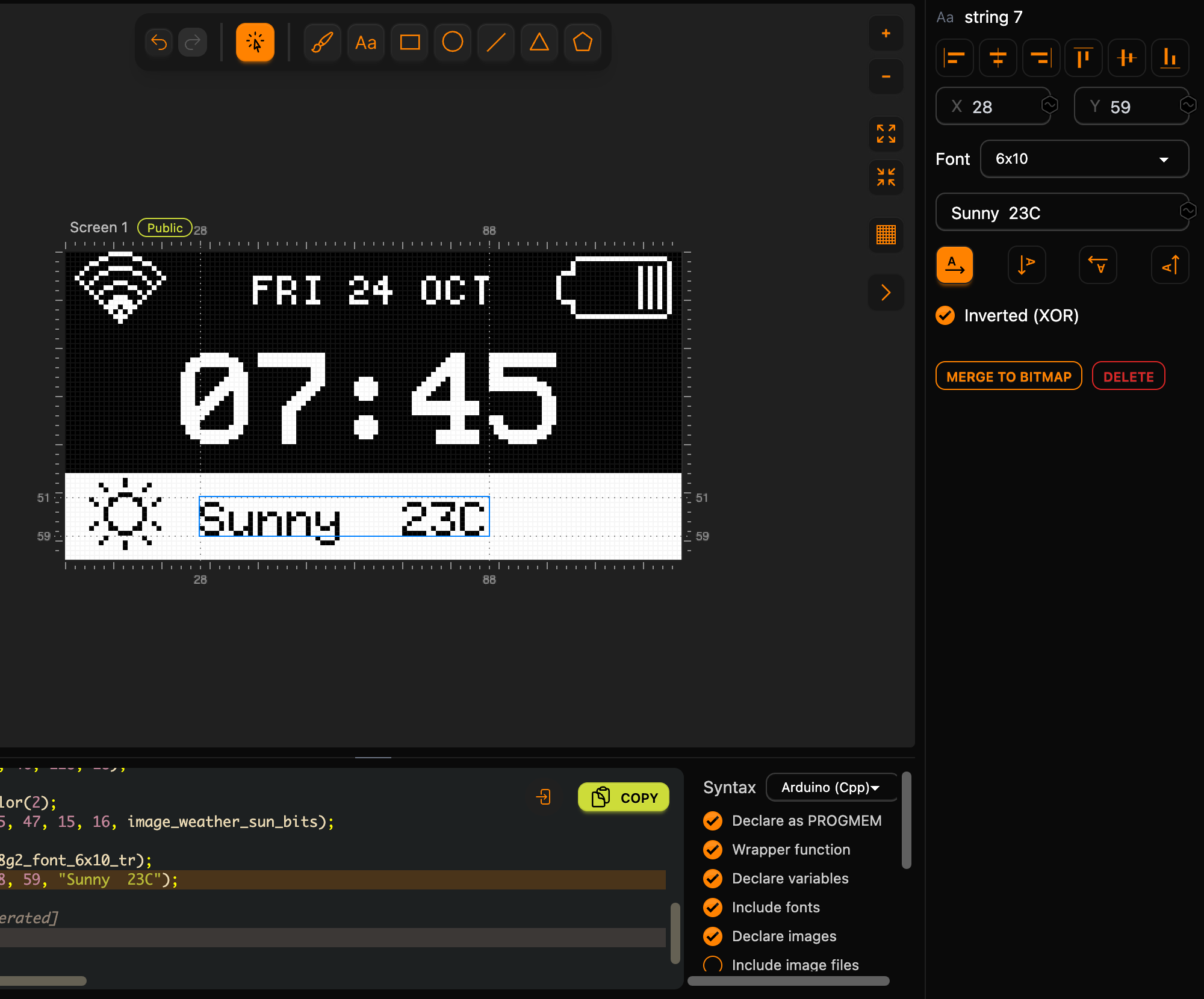
Sunny 23C(with two spaces), pick the6x10font, set X28and Y59, and turn on Inverted (XOR).
The sun and the text cut through the white bar in black.
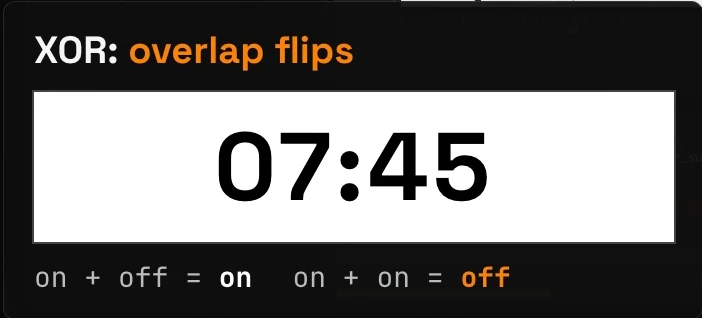
XOR: where shapes overlap, the pixels flip
Inverted uses a trick called XOR. Wherever a new shape overlaps something already drawn, the pixels flip: a lit pixel under the shape goes dark, a dark one lights up. On a one-colour screen, that is how you get dark text on a light bar.
In the code this is one line before the sun:
// rect 6
u8g2.drawBox(0, 46, 128, 18);
// weather_sun
u8g2.setDrawColor(2);
u8g2.drawXBMP(5, 47, 15, 16, image_weather_sun_bits);
// string 7
u8g2.setFont(u8g2_font_6x10_tr);
u8g2.drawStr(28, 59, "Sunny  23C");
setDrawColor(2) switches U8g2 to XOR mode, and the mode stays on until the code changes it again. That is why the text after the sun needs no second call. The order of the layers matters here: the bar has to be drawn first, so that the sun and the text have something to flip.
Step 5: your own image
Upload a picture
You can bring your own pictures, too. In the Images tab, click Upload and choose an image file. Lopaka opens an import dialog that converts it for the display. We used a photo-like picture of the moon.
Set Dimensions to W 48 and H 48, and turn on Invert palette: the moon is light on a dark background, and this makes the moon the lit pixels on the OLED.
Dithering turns grey into dots
This screen has no grey. Every pixel is black or white. The simplest conversion cuts at half brightness: brighter pixels go on, darker ones go off. On the moon that keeps only a white blob, and all the shading is lost.
Dithering fixes that. It mixes black and white dots, denser where the picture is brighter, so from a distance your eye sees shades of grey.
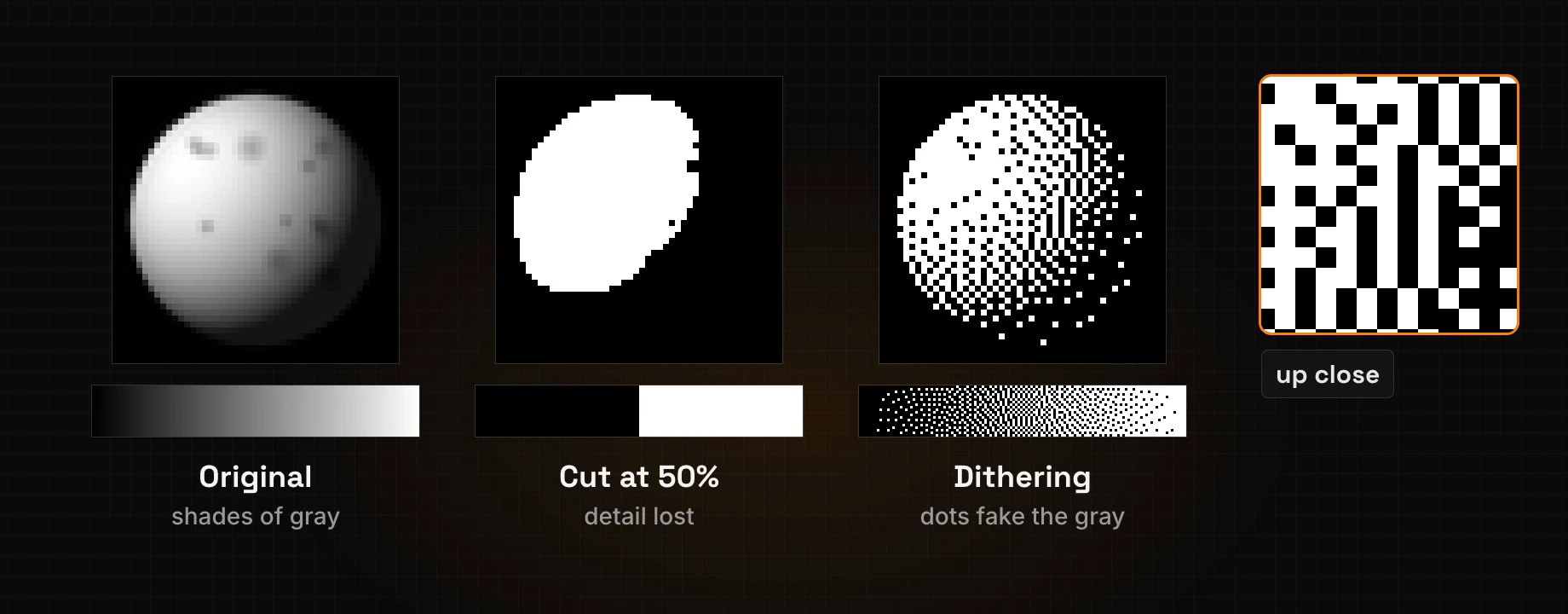
Pick a style in the Dithering list: Floyd-Steinberg, Atkinson, Bayer 8x8 or No dithering. We kept Floyd-Steinberg. Click Import.
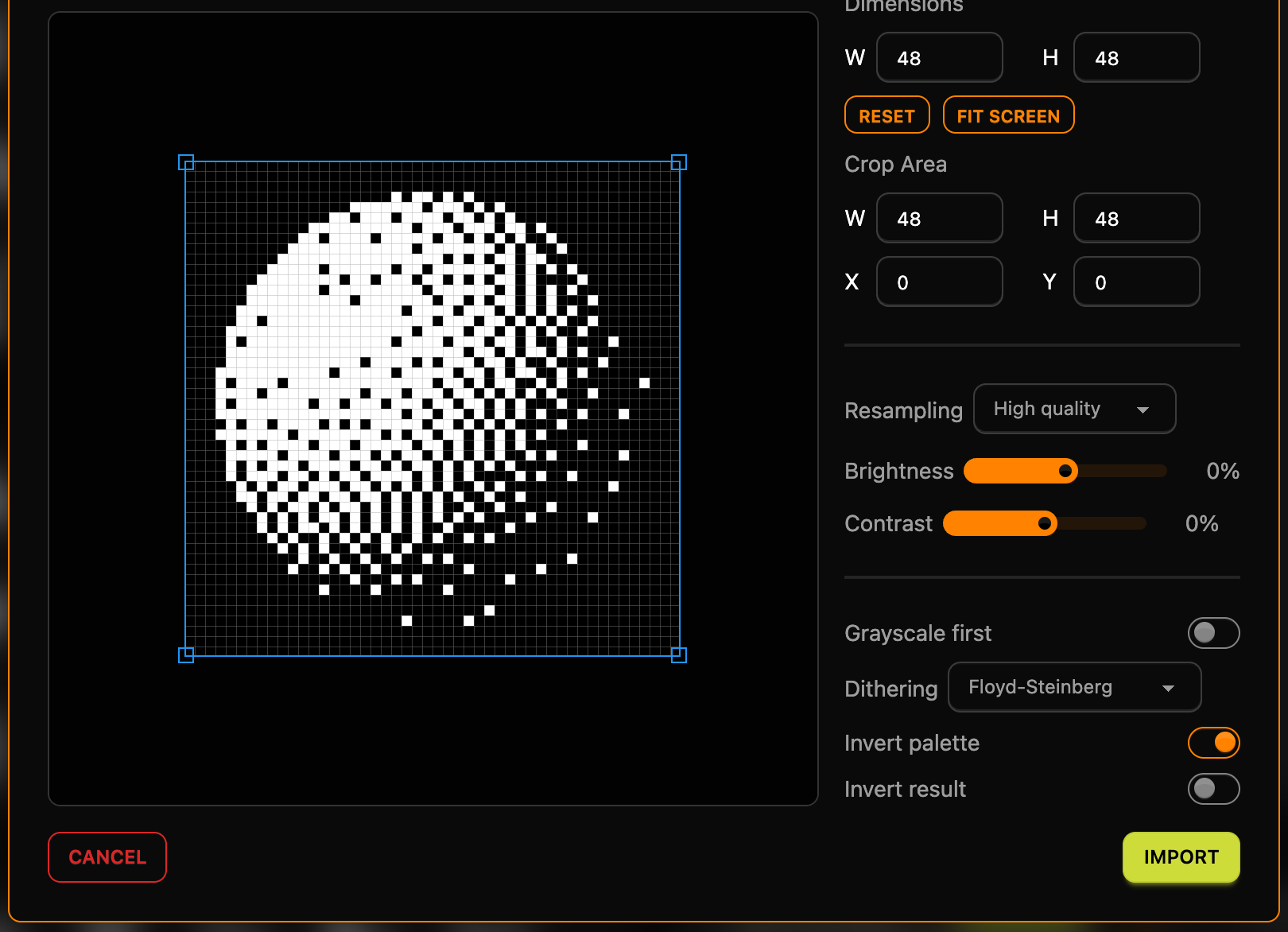
At 48 by 48 pixels the picture takes 48 / 8 × 48 = 288 bytes.
A second screen for the night
Let's give the moon a screen of its own. A project can hold as many screens as you need.
- Double-click the screen's name above the canvas and rename
Screen 1toMorning. - Click Add Screen in the Layers panel and rename the new screen to
Night.
Put the moon on the Night screen at X 6, Y 8, and add two texts:
Good nightin6x10at X62, Y26,22:30inprofont22at X62, Y50.
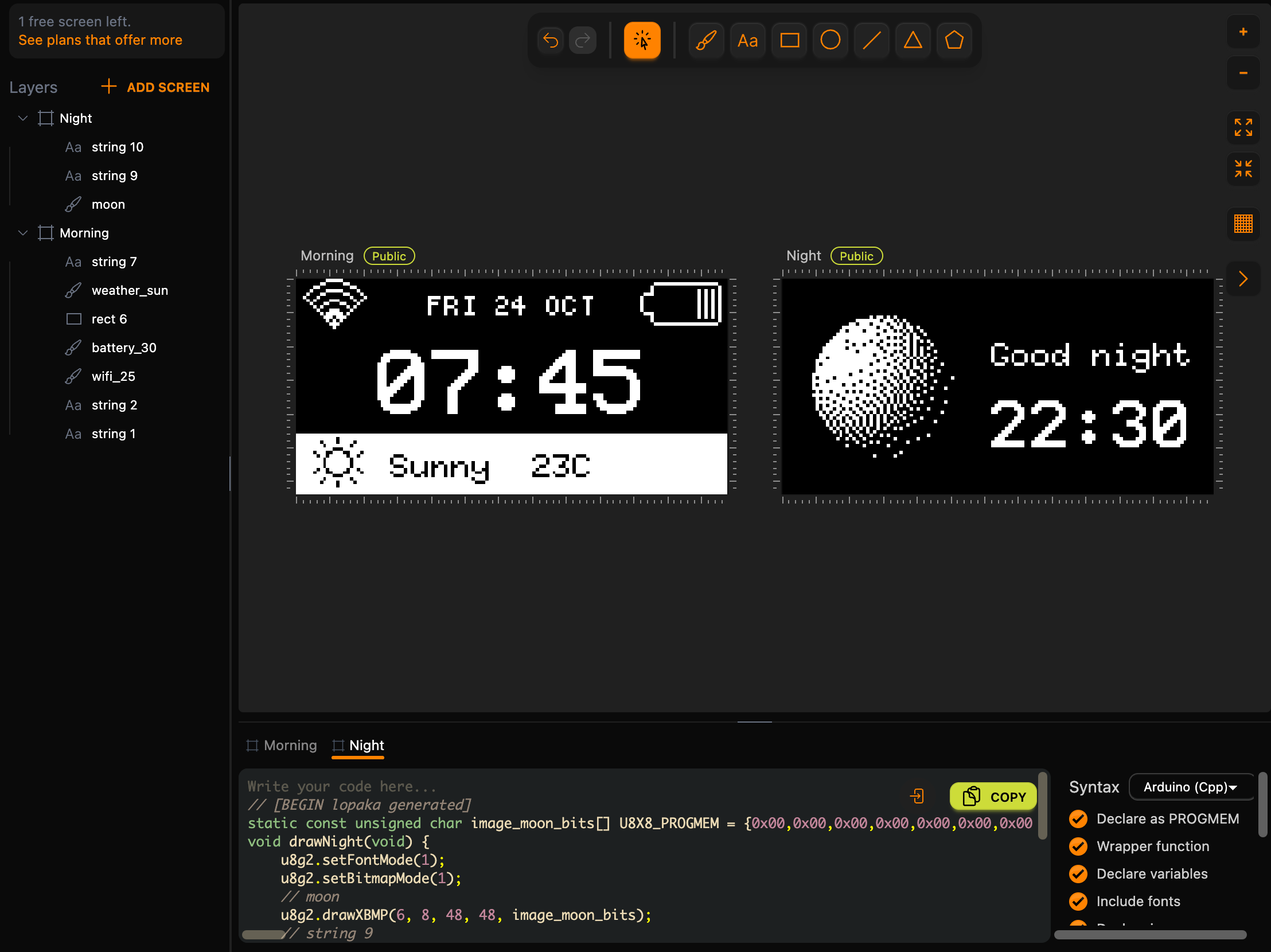
Each screen becomes its own function in the code: drawMorning() and drawNight(), named after the screens. The code panel has a tab for each screen. Your sketch decides which one to show, and when.
Step 6: PROGMEM
One setting worth knowing: Declare as PROGMEM, in the list of switches next to the code. It is on by default.

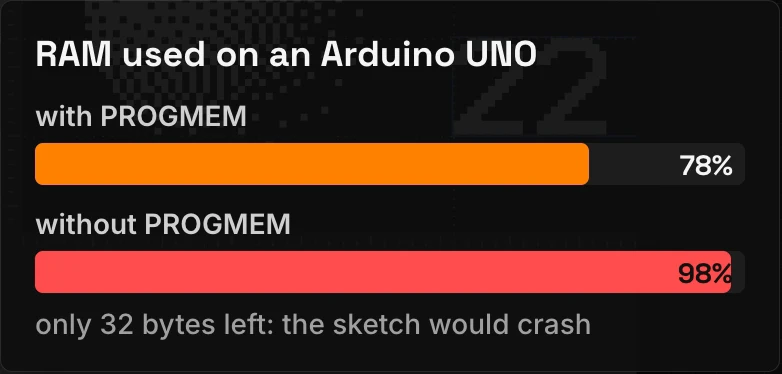
On an AVR board such as the UNO, a constant array is copied to RAM when the program starts, unless it is marked for flash. U8X8_PROGMEM keeps the image data in flash, on the bookshelf, so it does not crowd the small RAM desk, and drawXBMP (with the P) reads it from there. With the switch off, Lopaka writes drawXBM and the arrays without U8X8_PROGMEM.
The difference for this dashboard: the four images take 416 bytes. Compiled for an UNO, the sketch uses 78% of the RAM with PROGMEM and 98% without it. Without it only 32 bytes are left for everything the program does while it runs, and the sketch may crash or behave strangely.
Step 7: run it
The code
Click Copy on the Morning tab, paste it into your sketch, then do the same on the Night tab. Copy takes the code of the open tab. This is the code Lopaka generates for the two screens:
// [BEGIN lopaka generated]
static const unsigned char image_battery_30_bits[] U8X8_PROGMEM = {0x00,0x00,0x00,0xf0,0xff,0x7f,0x08,0x00,0x80,0x08,0x00,0xaa,0x0e,0x00,0xaa,0x01,0x00,0xaa,0x01,0x00,0xaa,0x01,0x00,0xaa,0x01,0x00,0xaa,0x01,0x00,0xaa,0x0e,0x00,0xaa,0x08,0x00,0xaa,0x08,0x00,0x80,0xf0,0xff,0x7f,0x00,0x00,0x00,0x00,0x00,0x00};
static const unsigned char image_weather_sun_bits[] U8X8_PROGMEM = {0x80,0x00,0x84,0x10,0x08,0x08,0xc0,0x01,0x31,0x46,0x12,0x24,0x08,0x08,0x08,0x08,0x08,0x08,0x12,0x24,0x31,0x46,0xc0,0x01,0x08,0x08,0x84,0x10,0x80,0x00,0x00,0x00};
static const unsigned char image_wifi_25_bits[] U8X8_PROGMEM = {0x80,0x0f,0x00,0x60,0x30,0x00,0x18,0xc0,0x00,0x84,0x0f,0x01,0x62,0x30,0x02,0x11,0x40,0x04,0x0a,0x87,0x02,0xc4,0x18,0x01,0x28,0xa0,0x00,0x10,0x47,0x00,0xa0,0x2f,0x00,0xc0,0x1d,0x00,0x80,0x0a,0x00,0x00,0x07,0x00,0x00,0x02,0x00,0x00,0x00,0x00};
void drawMorning(void) {
    u8g2.setFontMode(1);
    u8g2.setBitmapMode(1);
    // string 1
    u8g2.setFont(u8g2_font_profont29_tr);
    u8g2.drawStr(24, 40, "07:45");
    // string 2
    u8g2.setFont(u8g2_font_5x8_tr);
    u8g2.drawStr(39, 11, "FRI 24 OCT");
    // wifi_25
    u8g2.drawXBMP(2, 0, 19, 16, image_wifi_25_bits);
    // battery_30
    u8g2.drawXBMP(102, 0, 24, 16, image_battery_30_bits);
    // rect 6
    u8g2.drawBox(0, 46, 128, 18);
    // weather_sun
    u8g2.setDrawColor(2);
    u8g2.drawXBMP(5, 47, 15, 16, image_weather_sun_bits);
    // string 7
    u8g2.setFont(u8g2_font_6x10_tr);
    u8g2.drawStr(28, 59, "Sunny  23C");
}
// [END lopaka generated]

// [BEGIN lopaka generated]
static const unsigned char image_moon_bits[] U8X8_PROGMEM = {0x00,0x00,0x00,0x00,0x00,0x00,0x00,0x00,0x00,0x00,0x00,0x00,0x00,0x00,0x00,0x00,0x00,0x00,0x00,0x00,0xd0,0x0a,0x00,0x00,0x00,0x00,0x7f,0x57,0x00,0x00,0x00,0xc0,0xee,0xad,0x00,0x00,0x00,0xf0,0xbf,0xbb,0x05,0x00,0x00,0xd8,0xfb,0x56,0x09,0x00,0x00,0xfc,0xbf,0xbf,0x12,0x00,0x00,0xfe,0xff,0xd5,0x06,0x00,0x00,0xdf,0x6f,0xbf,0x2a,0x00,0x80,0x7f,0xbb,0xd5,0x42,0x00,0xc0,0xdf,0x7f,0xbf,0x2a,0x00,0xc0,0xff,0xfe,0xd6,0x8a,0x00,0xe0,0xff,0xdf,0xbb,0x2a,0x00,0x60,0xff,0xff,0x6e,0x95,0x00,0xf0,0xff,0xbf,0xb7,0x4a,0x00,0xd0,0xff,0xef,0xdd,0x12,0x02,0xf0,0xff,0xff,0xb7,0x56,0x00,0xf0,0xff,0xbd,0x6e,0x09,0x01,0xf8,0xbf,0xef,0x5b,0x53,0x00,0xe8,0xfd,0xff,0xd6,0x14,0x10,0x78,0xff,0xdd,0xad,0x8a,0x00,0xe8,0x6f,0x77,0x5b,0x11,0x00,0xf8,0xff,0xdf,0x56,0x45,0x04,0xd0,0x5e,0x7d,0xab,0x10,0x00,0xf8,0xfb,0xd7,0x56,0x05,0x00,0x50,0xef,0xbe,0x55,0x41,0x00,0xf0,0xbd,0x6b,0x55,0x0a,0x04,0x50,0xf7,0xd6,0xaa,0x00,0x00,0xd0,0xad,0xbd,0x0a,0x25,0x00,0xa0,0x76,0xab,0x52,0x00,0x02,0x60,0xdb,0x56,0x25,0x01,0x00,0x40,0xad,0x55,0x49,0x08,0x00,0x80,0x6a,0x55,0x15,0x82,0x00,0x80,0x5a,0x55,0x82,0x00,0x00,0x00,0xa5,0x4a,0x29,0x00,0x00,0x00,0x2a,0x29,0x00,0x00,0x00,0x00,0x48,0x92,0x02,0x20,0x00,0x00,0xa4,0x04,0x08,0x04,0x00,0x00,0x00,0x51,0x80,0x00,0x00,0x00,0x20,0x04,0x02,0x00,0x00,0x00,0x00,0x00,0x00,0x00,0x00,0x00,0x00,0x00,0x20,0x00,0x00,0x00,0x00,0x20,0x08,0x00,0x00,0x00,0x00,0x00,0x00,0x00,0x00,0x00,0x00,0x00,0x00,0x00,0x00,0x00,0x00,0x00,0x00,0x00,0x00};
void drawNight(void) {
    u8g2.setFontMode(1);
    u8g2.setBitmapMode(1);
    // moon
    u8g2.drawXBMP(6, 8, 48, 48, image_moon_bits);
    // string 9
    u8g2.setFont(u8g2_font_6x10_tr);
    u8g2.drawStr(62, 26, "Good night");
    // string 10
    u8g2.setFont(u8g2_font_profont22_tr);
    u8g2.drawStr(62, 50, "22:30");
}
// [END lopaka generated]
6x10 appears in both functions, but it is the same font and is stored in flash once. The whole design uses four fonts: profont29, 5x8, 6x10 and profont22.
The sketch
Start from last episode's sketch and change loop() so it shows each screen for three seconds:
#include <U8g2lib.h>
#include <Wire.h>

// 128x64 OLED display on I2C
U8G2_SSD1306_128X64_NONAME_F_HW_I2C u8g2(U8G2_R0, U8X8_PIN_NONE);

// Paste the Lopaka code here

void setup() {
  u8g2.begin();
}

void loop() {
  u8g2.clearBuffer();
  // show each screen for 3 seconds
  if ((millis() / 3000) % 2 == 0) drawMorning();
  else drawNight();
  u8g2.sendBuffer();
}
millis() counts the milliseconds since the board started. Divided by 3000, it grows by one every three seconds, and % 2 turns that into 0, 1, 0, 1. On 0 the sketch draws Morning, on 1 Night. As in episode 1, both functions draw between clearBuffer() and sendBuffer().
Run it in the simulator
Open the simulator project from episode 1: an Arduino UNO, an SSD1306 OLED wired to GND, 5V, A5 (SCL) and A4 (SDA), and the U8g2 library. Replace the sketch with the one above, paste the Lopaka code in its place and press Play. The display switches between the two screens every three seconds.
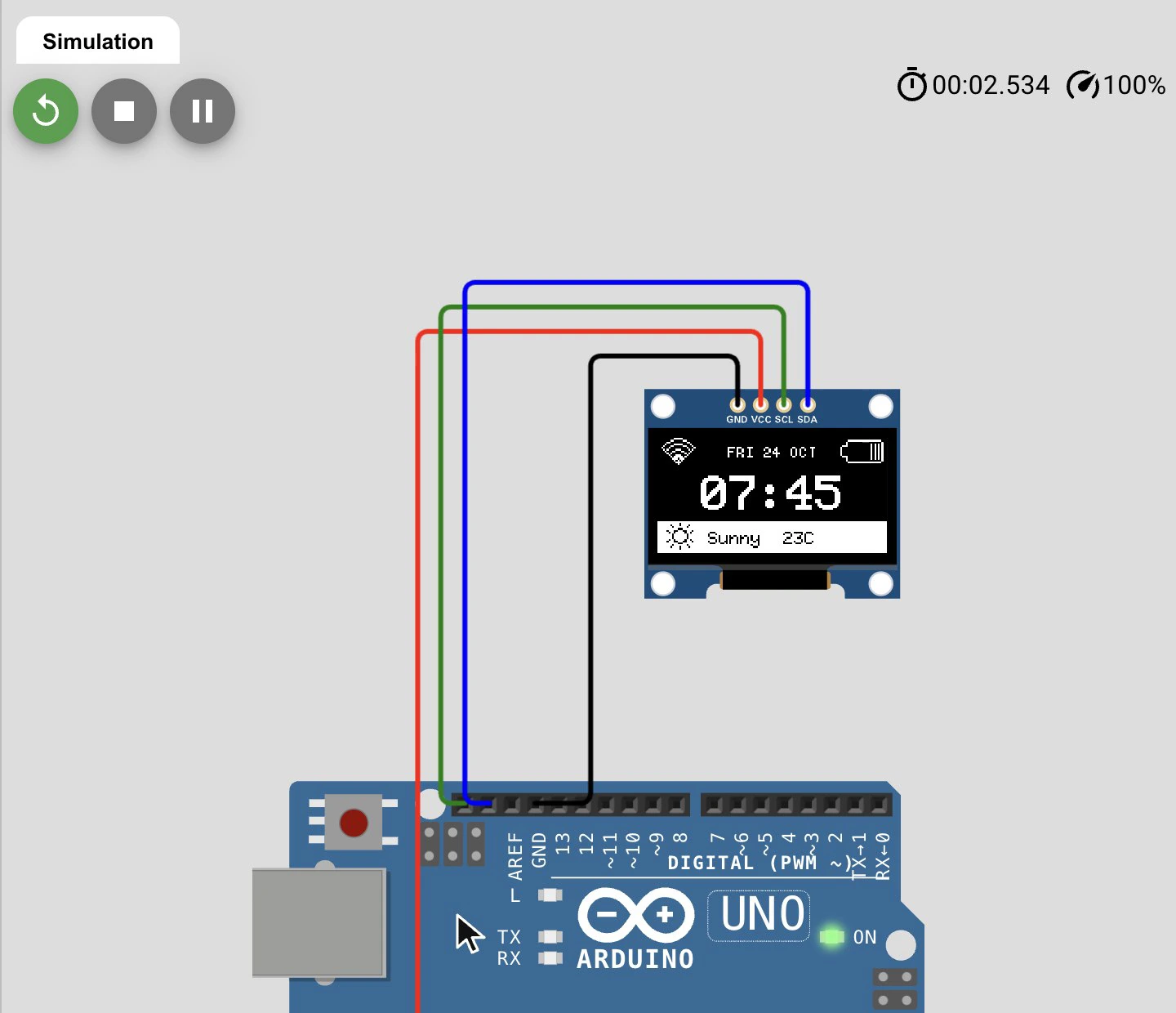
We checked both screens pixel by pixel: the Lopaka canvas, the screen drawn by the U8g2 library and the simulated display are identical.
How much memory it all takes
The whole thing, with four fonts, three icons and a picture, fits in less than half of the UNO's flash. The compiler reports:
Sketch uses 15394 bytes (47%) of program storage space. Maximum is 32256 bytes.
Global variables use 1600 bytes (78%) of dynamic memory, leaving 448 bytes for local variables. Maximum is 2048 bytes.
Most of the 1,600 bytes of RAM is the 1,024-byte frame buffer from episode 1. For this sketch that is fine.
Recap
- Fonts and icons are pictures: every character of a font and every icon is a small grid of pixels, one bit per pixel.
- Pictures cost memory: a font takes one to four kilobytes of flash, so use two or three per screen, and keep images in flash with PROGMEM.
- Dithering turns grey into dots: pick a dithering style when you import a photo, and the one-colour screen shows shades.
Next episode: Going Colour. The same kind of interface on a colour TFT display, and what RGB565 means. Read episode 3 or watch it on YouTube.
Ready to try? Open Lopaka and build your own dashboard.