
Lopaka Basics 10: E-paper & Shipping
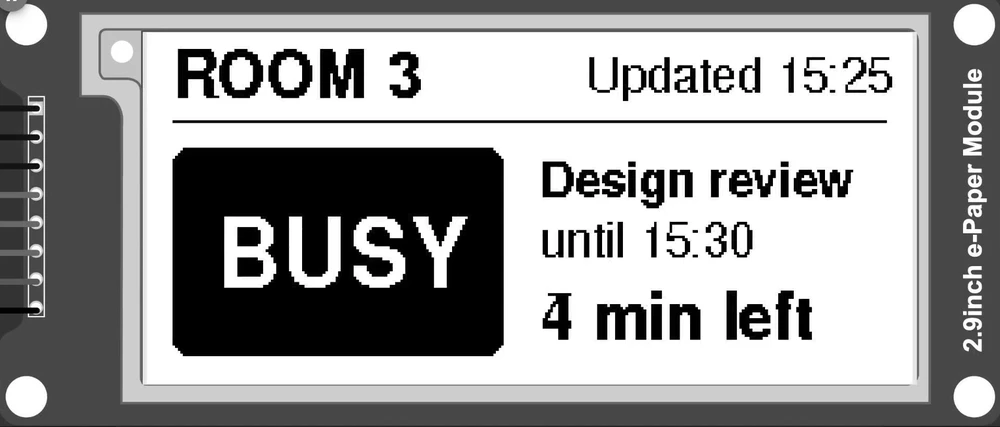
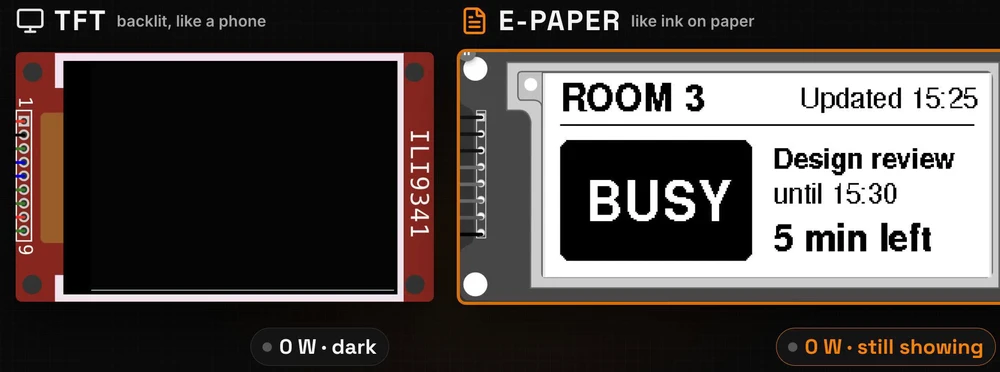
Two screens show the same sign. Pull the plug, and the bright one goes dark at once. The other one keeps its picture with zero power, and it will still be there days later. That is e-paper.
In this episode you will find out how electronic ink holds a picture without power, and why it has two ways to change it. Then you will design a meeting room sign in Lopaka for the GxEPD2 library, update only the minutes without a flash, try a red version for a three-colour panel, publish the design and share a link to it. Before you ship, a checklist of the five mistakes we see most.
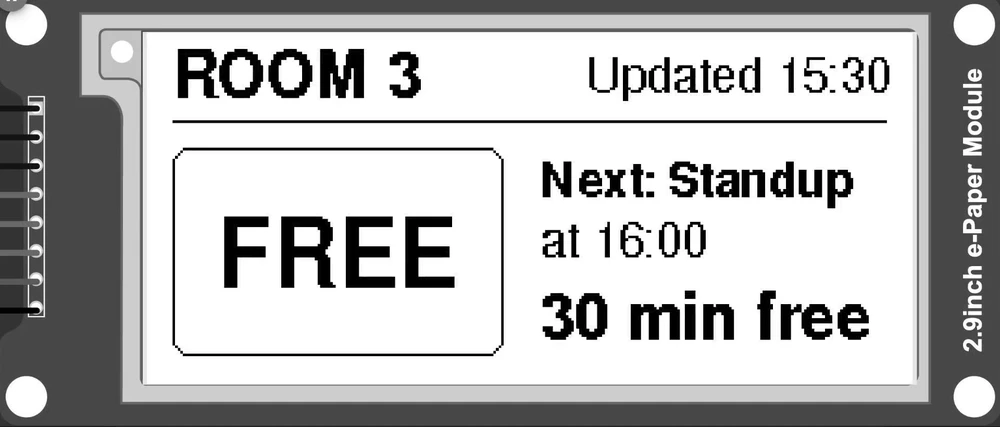
What you will build: a 296×128 room sign for a 2.9-inch e-paper display with two screens. Busy shows the room, the meeting, a big BUSY block and the minutes left. Free shows the next meeting. What you need: a browser. To run the sign, an ESP32 and a 2.9-inch e-paper module (Waveshare V2).
How e-paper works
Unplugged, still showing
A TFT screen like the one in episode 3 shines its own light, and its picture lives only as long as the power does. Cut the power and it is dark.
E-paper works like ink on paper. Once the picture is drawn, it stays without any power at all. That makes it a good fit for signs, labels and price tags that change a few times an hour and run on a battery.
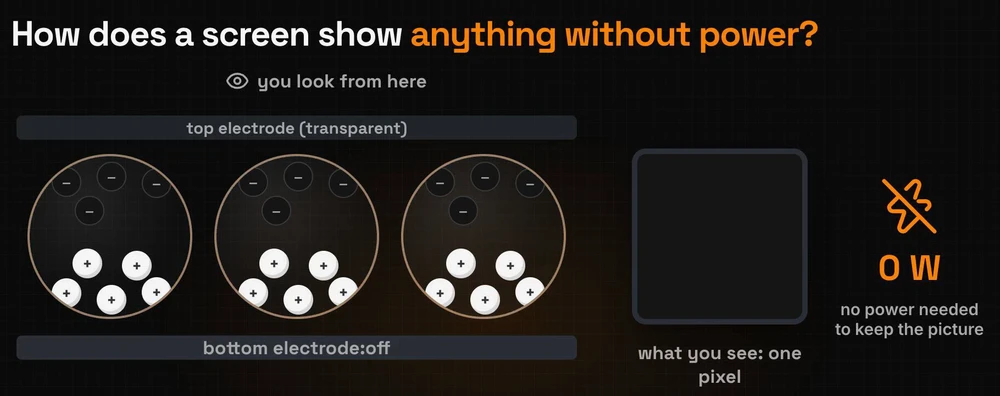
Capsules with black and white particles
Every pixel of e-paper is full of tiny capsules. Inside each one float white particles and black particles with opposite electric charges. Between two electrodes, a voltage pulls one colour to the top, the side you look at, and the pixel turns white or black.
Then the power goes away, and the particles stay where they are. No power is needed to keep the picture.
Full refresh and partial refresh
Changing the picture takes work, and there are two ways to do it:
- A full refresh shakes every pixel. The whole panel flashes black and white to wipe the old image, then shows the new one. On the 2.9-inch black-and-white panel of this episode it takes about 4 seconds.
- A partial refresh moves only the pixels that changed, in under a second (about 0.7 s on this panel), with no flash.
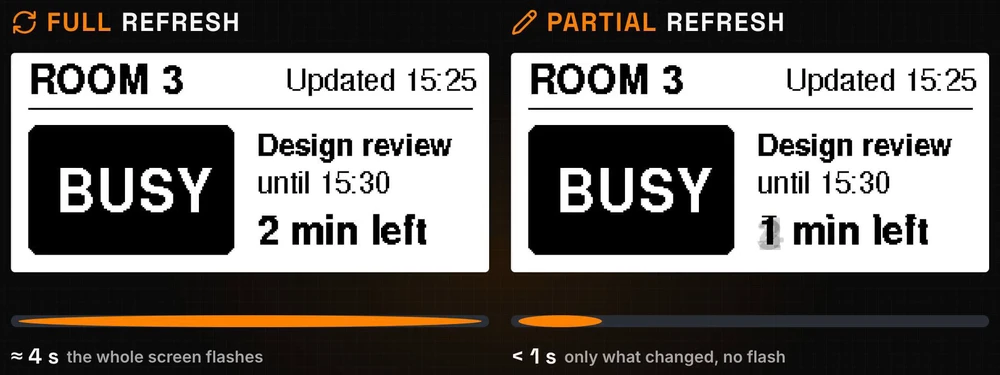
Each partial refresh leaves a faint ghost of the old picture, like the old digit behind the new one above. After a few partial refreshes, do a full refresh again to wipe the ghosts.
Step 1: a new e-paper project
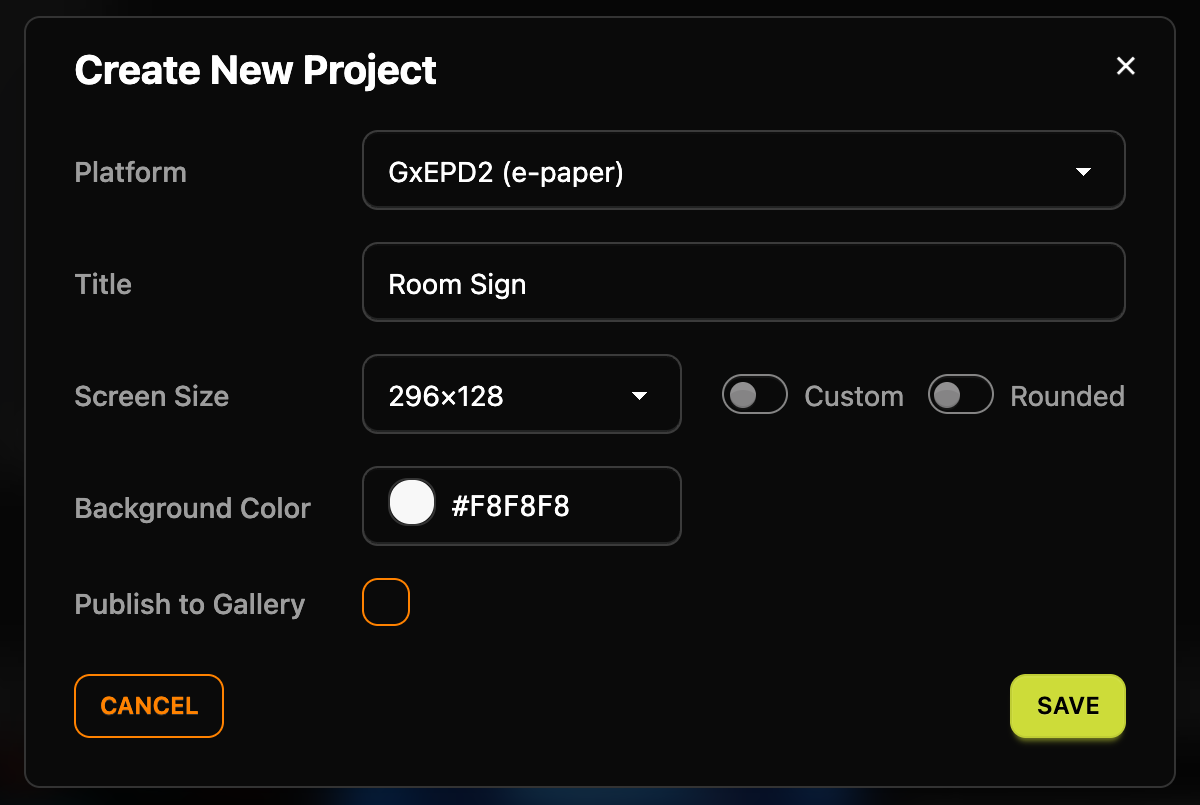
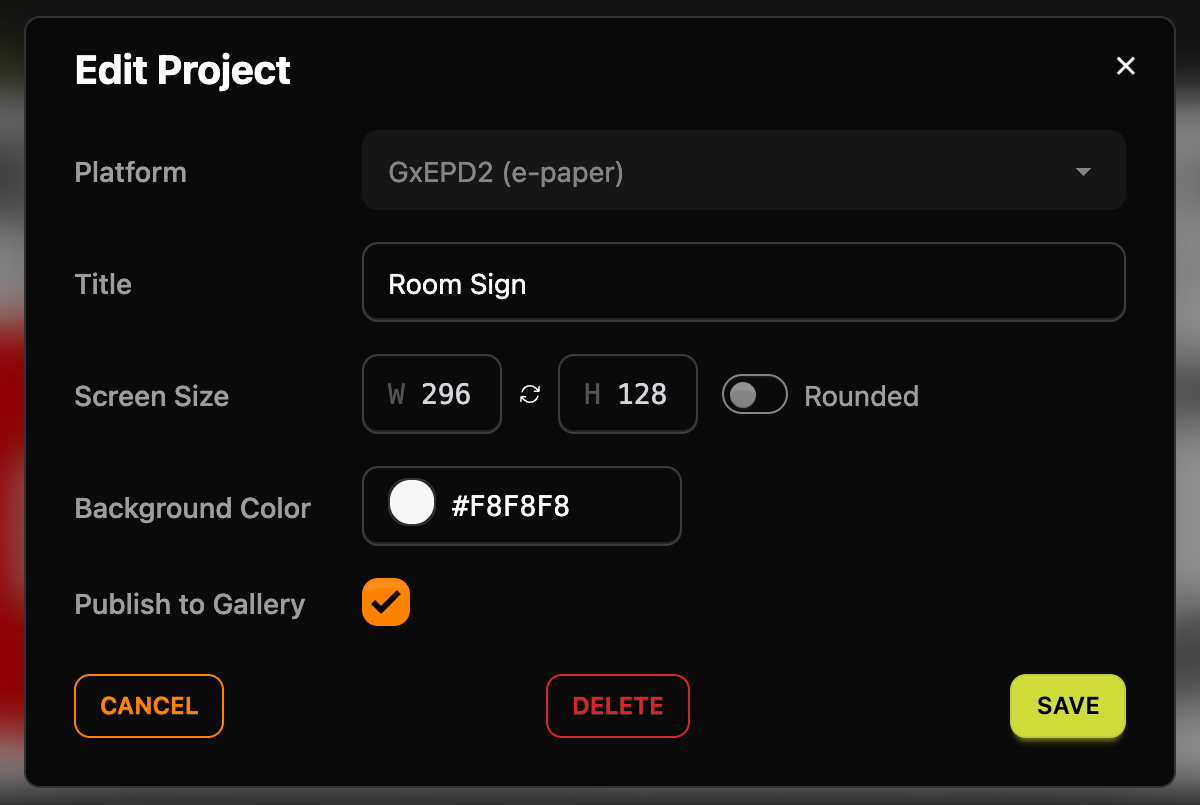
Click + New Project and open the Platform list. Pick GxEPD2 (e-paper), a C++ library by ZinggJM. Its description in Lopaka sums up what matters: it "sits on top of Adafruit GFX, so drawing calls and fonts are the familiar ones, but you must name your exact panel class", and its colour "is a fixed set of nine constants such as GxEPD_BLACK and GxEPD_RED, and anything else maps to black".
Fill in the rest of the dialog:
- Title: "Room Sign".
- Screen Size: 296×128, the size of a common 2.9-inch panel.
The Background Color is already #F8F8F8, a near-white, like paper. Click Save.
Step 2: draw the sign
Double-click the screen's name above the canvas and rename Screen 1 to Busy. Then draw the sign from top to bottom. All texts use the Adafruit GFX fonts from the Font list in the inspector:
- The room name. Pick the text tool (
Aa), typeROOM 3and chooseFreeSansBold12pt7b. Put it in the top-left corner. - The update time. Add
Updated 15:25inFreeSans9pt7b, in the top-right corner. - A divider. Pick the line tool and draw a line under the header, from x = 10 to x = 285 at y = 32.
- The status block. Pick the rectangle tool, drag a rectangle and set X
10, Y42, W128, H76, R6, then turn on Filled. - The status. Add
BUSYinFreeSansBold18pt7bon top of the block, and set its Fill color to#FFFFFF, white on black. - The meeting. To the right of the block, add three lines of text:
Design reviewinFreeSansBold9pt7b,until 15:30inFreeSans9pt7band5 min leftinFreeSansBold12pt7b.
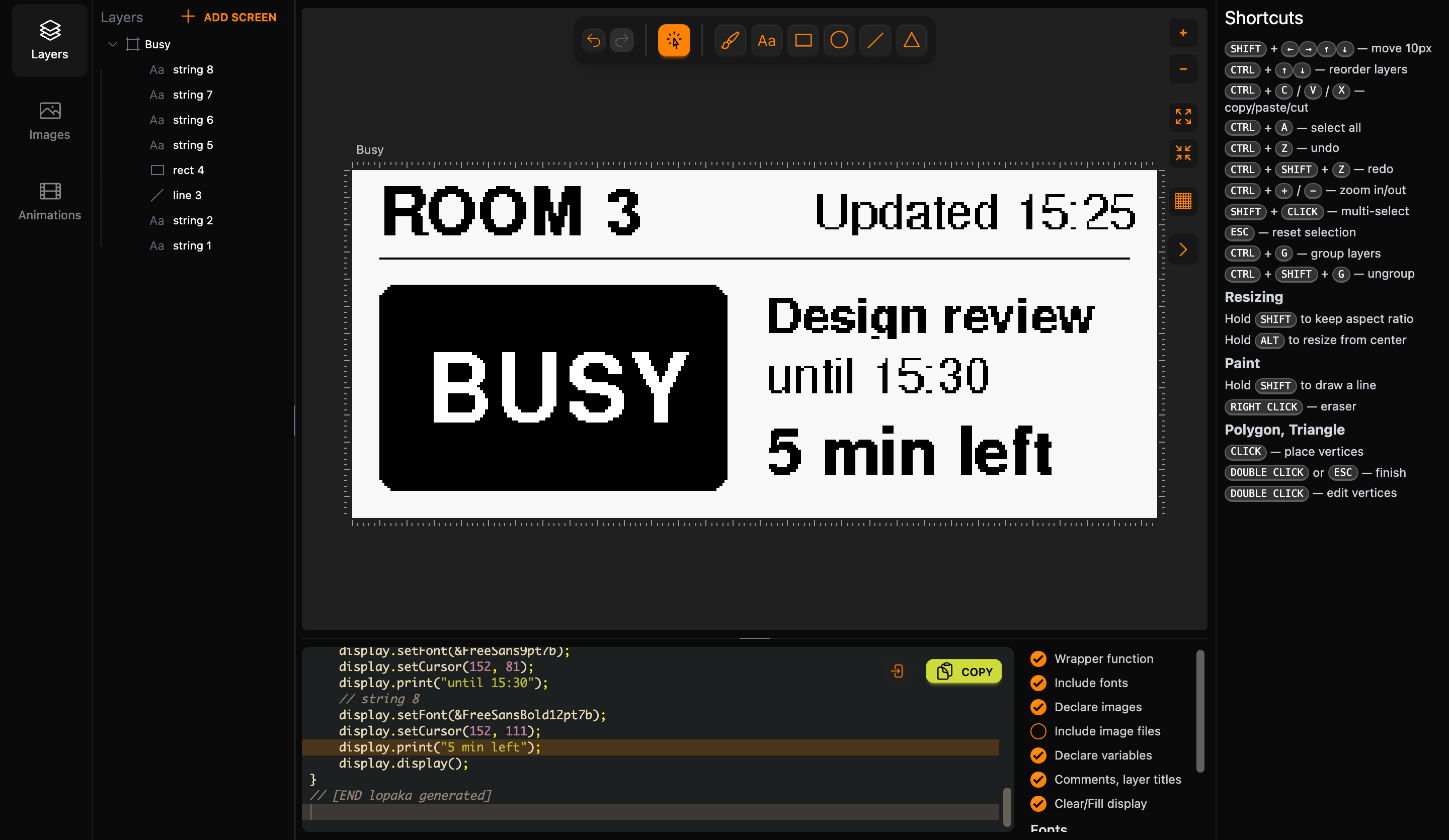
The numbers keep the same 10-pixel margin on every side. The line ends at x = 285, ten pixels before the last column, 295. The block starts 10 pixels from the left edge, and its bottom row is 117, ten rows above the last one, 127.
Nine colours, and your panel shows a few
Open the Fill color of any shape and you will see how short the palette is. These nine are the only colours the GxEPD2 library knows: GxEPD_BLACK, GxEPD_WHITE, GxEPD_LIGHTGREY, GxEPD_DARKGREY, GxEPD_RED, GxEPD_YELLOW, GxEPD_BLUE, GxEPD_GREEN and GxEPD_ORANGE.
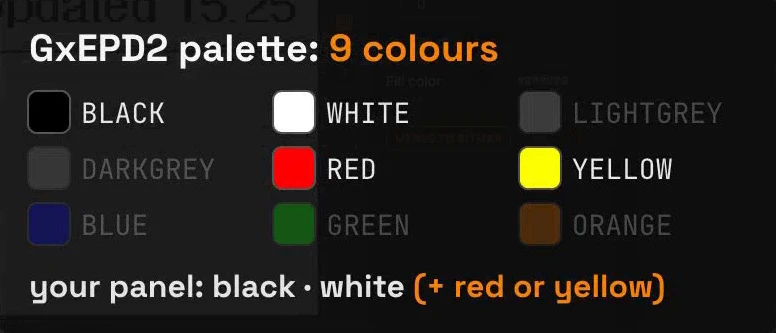
Your panel shows only some of them. The panel of this episode is black and white; many others add a third colour, red or yellow. Design with the colours your panel has.
Step 3: duplicate for "free"
When the meeting ends, the sign needs a second screen. Instead of drawing it again, select the Busy screen in the Layers panel and click Duplicate in the inspector. Rename the copy to Free and change it:
BUSYbecomesFREE, with the Fill color back to#000000.- Select
rect 4and turn off Filled: the block becomes a frame. Updated 15:25becomesUpdated 15:30.- The meeting lines become
Next: Standup,at 16:00and30 min free.
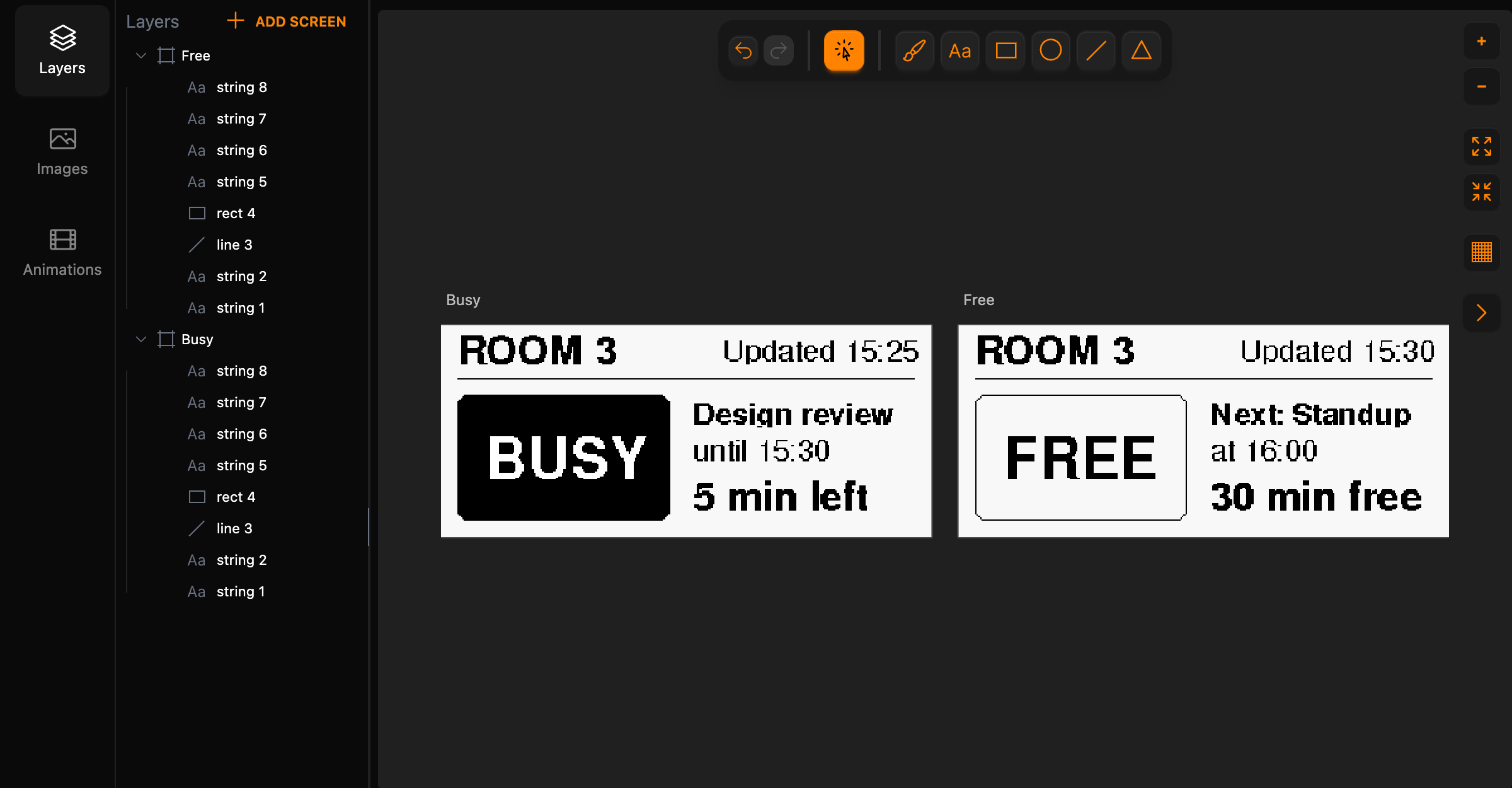
Each screen becomes its own function in the code, drawBusy() and drawFree(), and the code panel has a tab for each.
Step 4: the code
Familiar drawing calls
Open the Busy tab of the code panel. The code is the same kind of drawing calls as in the earlier episodes:
// [BEGIN lopaka generated]
void drawBusy(void) {
    display.fillScreen(GxEPD_WHITE);
    // string 1
    display.setTextColor(GxEPD_BLACK);
    display.setTextWrap(false);
    display.setFont(&FreeSansBold12pt7b);
    display.setCursor(10, 23);
    display.print("ROOM 3");
    // string 2
    display.setFont(&FreeSans9pt7b);
    display.setCursor(170, 21);
    display.print("Updated 15:25");
    // line 3
    display.drawLine(10, 32, 285, 32, GxEPD_BLACK);
    // rect 4
    display.fillRoundRect(10, 42, 128, 76, 6, GxEPD_BLACK);
    // string 5
    display.setTextColor(GxEPD_WHITE);
    display.setFont(&FreeSansBold18pt7b);
    display.setCursor(27, 92);
    display.print("BUSY");
    // string 6
    display.setTextColor(GxEPD_BLACK);
    display.setFont(&FreeSansBold9pt7b);
    display.setCursor(152, 59);
    display.print("Design review");
    // string 7
    display.setFont(&FreeSans9pt7b);
    display.setCursor(152, 81);
    display.print("until 15:30");
    // string 8
    display.setFont(&FreeSansBold12pt7b);
    display.setCursor(152, 111);
    display.print("5 min left");
    display.display();
}
// [END lopaka generated]fillScreen(GxEPD_WHITE)clears the picture. The near-white canvas background maps to white on the panel.fillRoundRect(10, 42, 128, 76, 6, …)is the block: x, y, width, height and the corner radius R. On the Free screen the same block isdrawRoundRect, the outline only.setCursor(x, y)puts text on its baseline, the line the letters stand on, as in episode 1. For "5 min left" that is row 111.display.display()at the end sends the whole picture to the panel with a full refresh.
The Free tab has the same calls with the new texts and drawRoundRect, in a function called drawFree().
The fonts come with the library
The four fonts are part of the Adafruit GFX library, which GxEPD2 is built on. You include them yourself, with the rest of your setup, so turn off Include fonts in the switches next to the code.
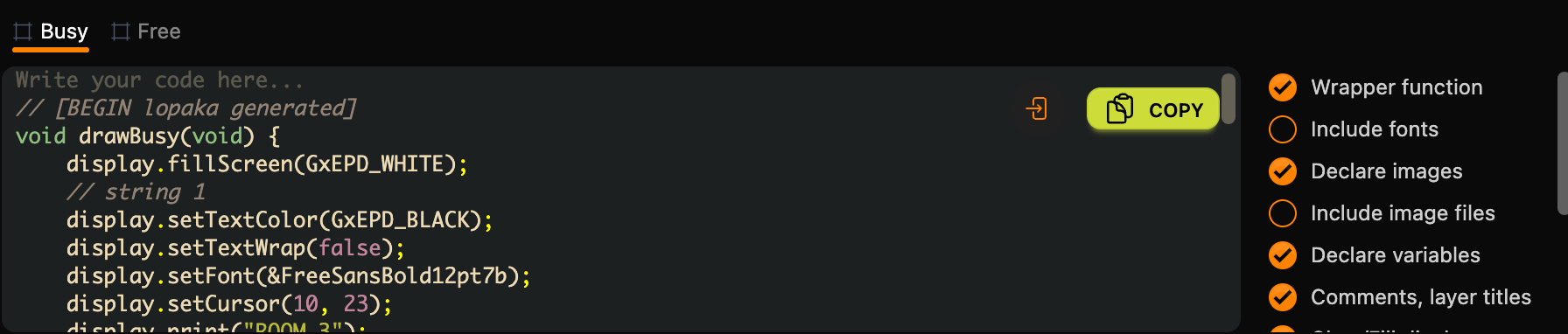
Your code above: the library, the fonts and your exact panel
Above the generated part, include the library and the four fonts, and name your exact panel:
#include <GxEPD2_BW.h>
#include <Fonts/FreeSans9pt7b.h>
#include <Fonts/FreeSansBold9pt7b.h>
#include <Fonts/FreeSansBold12pt7b.h>
#include <Fonts/FreeSansBold18pt7b.h>

// 2.9" e-paper 296x128 (Waveshare V2): CS, DC, RST, BUSY
GxEPD2_BW<GxEPD2_290_T94_V2, GxEPD2_290_T94_V2::HEIGHT>
    display(GxEPD2_290_T94_V2(5, 17, 16, 4));
#define MINUTE 60000UL
GxEPD2_BW is the black-and-white display class. Inside the angle brackets:
GxEPD2_290_T94_V2is the driver for the Waveshare 2.9-inch black-and-white module, version 2. GxEPD2 has a separate class for almost every panel, and several 2.9-inch panels look the same but need different classes. Check the model printed on the panel's ribbon cable and find the class that matches it in the GxEPD2 examples.GxEPD2_290_T94_V2::HEIGHTis how many rows the program keeps in memory. With the full height, the whole picture fits in a frame buffer of 296 × 128 / 8 = 4,736 bytes, one bit per pixel.
The four numbers are the ESP32 pins the module is wired to: CS 5, DC 17, RST 16 and BUSY 4. MINUTE is one minute in milliseconds.
Your code below: full, partial, sleep
Below the generated part, draw the busy screen once, then update only the minutes:
// partial refresh: only the minutes change
void showMinutes(int m) {
    display.fillRect(152, 94, 136, 24, GxEPD_WHITE);
    display.setFont(&FreeSansBold12pt7b);
    display.setTextColor(GxEPD_BLACK);
    display.setCursor(152, 111);
    display.print(m);
    display.print(" min left");
    display.displayWindow(152, 94, 136, 24);
}

void setup() {
    display.init();
    display.setRotation(1);
    drawBusy();              // full refresh
    for (int m = 4; m >= 1; m--) {
        delay(MINUTE);
        showMinutes(m);      // partial refresh
    }
    delay(MINUTE);
    drawFree();              // full refresh
    display.hibernate();     // panel off, the picture stays
}

void loop() {}setRotation(1): the panel is 128 pixels wide and 296 tall when it stands upright. Rotation 1 turns it on its side, so it matches the 296×128 canvas.showMinutes()paints a white rectangle over the old "5 min left", from row 94 to row 117 and from column 152 to 287, prints the new number on the same baseline, 111, and callsdisplayWindow()with the same rectangle. Only that window is sent to the panel, as a partial refresh, with no flash.setup()draws Busy with a full refresh, updates the minutes four times with partial refreshes, then draws Free with a full refresh. Four partial refreshes, then a full one: the ghosts are wiped when the meeting ends.hibernate()switches the panel off and puts it into deep sleep. The picture stays.
Everything happens once in setup(), so loop() is empty.
You can type these lines straight into Lopaka's code panel, above the BEGIN marker and below the END marker. Then click Copy on the Busy tab, and the whole sketch comes with it. Paste drawFree() from the Free tab at the end.
The whole sketch
#include <GxEPD2_BW.h>
#include <Fonts/FreeSans9pt7b.h>
#include <Fonts/FreeSansBold9pt7b.h>
#include <Fonts/FreeSansBold12pt7b.h>
#include <Fonts/FreeSansBold18pt7b.h>

// 2.9" e-paper 296x128 (Waveshare V2): CS, DC, RST, BUSY
GxEPD2_BW<GxEPD2_290_T94_V2, GxEPD2_290_T94_V2::HEIGHT>
    display(GxEPD2_290_T94_V2(5, 17, 16, 4));
#define MINUTE 60000UL

// [BEGIN lopaka generated]
void drawBusy(void) {
    display.fillScreen(GxEPD_WHITE);
    // string 1
    display.setTextColor(GxEPD_BLACK);
    display.setTextWrap(false);
    display.setFont(&FreeSansBold12pt7b);
    display.setCursor(10, 23);
    display.print("ROOM 3");
    // string 2
    display.setFont(&FreeSans9pt7b);
    display.setCursor(170, 21);
    display.print("Updated 15:25");
    // line 3
    display.drawLine(10, 32, 285, 32, GxEPD_BLACK);
    // rect 4
    display.fillRoundRect(10, 42, 128, 76, 6, GxEPD_BLACK);
    // string 5
    display.setTextColor(GxEPD_WHITE);
    display.setFont(&FreeSansBold18pt7b);
    display.setCursor(27, 92);
    display.print("BUSY");
    // string 6
    display.setTextColor(GxEPD_BLACK);
    display.setFont(&FreeSansBold9pt7b);
    display.setCursor(152, 59);
    display.print("Design review");
    // string 7
    display.setFont(&FreeSans9pt7b);
    display.setCursor(152, 81);
    display.print("until 15:30");
    // string 8
    display.setFont(&FreeSansBold12pt7b);
    display.setCursor(152, 111);
    display.print("5 min left");
    display.display();
}
// [END lopaka generated]

// partial refresh: only the minutes change
void showMinutes(int m) {
    display.fillRect(152, 94, 136, 24, GxEPD_WHITE);
    display.setFont(&FreeSansBold12pt7b);
    display.setTextColor(GxEPD_BLACK);
    display.setCursor(152, 111);
    display.print(m);
    display.print(" min left");
    display.displayWindow(152, 94, 136, 24);
}

void setup() {
    display.init();
    display.setRotation(1);
    drawBusy();              // full refresh
    for (int m = 4; m >= 1; m--) {
        delay(MINUTE);
        showMinutes(m);      // partial refresh
    }
    delay(MINUTE);
    drawFree();              // full refresh
    display.hibernate();     // panel off, the picture stays
}

void loop() {}

// [BEGIN lopaka generated]
void drawFree(void) {
    display.fillScreen(GxEPD_WHITE);
    // string 1
    display.setTextColor(GxEPD_BLACK);
    display.setTextWrap(false);
    display.setFont(&FreeSansBold12pt7b);
    display.setCursor(10, 23);
    display.print("ROOM 3");
    // string 2
    display.setFont(&FreeSans9pt7b);
    display.setCursor(170, 21);
    display.print("Updated 15:30");
    // line 3
    display.drawLine(10, 32, 285, 32, GxEPD_BLACK);
    // rect 4
    display.drawRoundRect(10, 42, 128, 76, 6, GxEPD_BLACK);
    // string 5
    display.setFont(&FreeSansBold18pt7b);
    display.setCursor(27, 92);
    display.print("FREE");
    // string 6
    display.setFont(&FreeSansBold9pt7b);
    display.setCursor(152, 59);
    display.print("Next: Standup");
    // string 7
    display.setFont(&FreeSans9pt7b);
    display.setCursor(152, 81);
    display.print("at 16:00");
    // string 8
    display.setFont(&FreeSansBold12pt7b);
    display.setCursor(152, 111);
    display.print("30 min free");
    display.display();
}
// [END lopaka generated]
drawFree() comes after setup(), which calls it. That is fine in an Arduino sketch: the Arduino tools declare every function at the top of the sketch for you.
Step 5: run it
Wire the module to an ESP32
The module has eight wires. Connect them to an ESP32 DevKit like this:
- VCC to 3V3 and GND to GND. E-paper panels need 3.3 V, on the power and on the data lines. If your module has a ninth pin, PWR, connect it to 3V3 too.
- DIN to 23 and CLK to 18, the ESP32's hardware SPI pins.
- CS to 5, DC to 17, RST to 16 and BUSY to 4, the pins from the constructor.
In the Arduino IDE, install GxEPD2 by Jean-Marc Zingg from the Library Manager and accept Adafruit GFX Library with it. Pick the ESP32 Dev Module board and upload. The sketch is small for an ESP32:
Sketch uses 322220 bytes (24%) of program storage space. Maximum is 1310720 bytes.
Global variables use 28460 bytes (8%) of dynamic memory, leaving 299220 bytes for local variables. Maximum is 327680 bytes.
The 4,736-byte frame buffer is part of those 28,460 bytes.
What you will see
In the video the sign runs on a simulated ESP32 with a 2.9-inch e-paper module, with one "minute" sped up to two seconds. Watch the start: the panel flashes black and white, and the sign appears. That is the full refresh.
Then the minutes tick down, 4, 3, 2, 1, and only that number changes, with no flash. When the meeting ends, one more full refresh draws the Free screen, and the panel goes to sleep. The sign stays.
Step 6: make it red
Want some red? Many panels add a third colour. Select the Busy screen, select its rect 4 and set the Fill color to #FF0000, red from the palette. The code changes one word:
display.fillRoundRect(10, 42, 128, 76, 6, GxEPD_RED);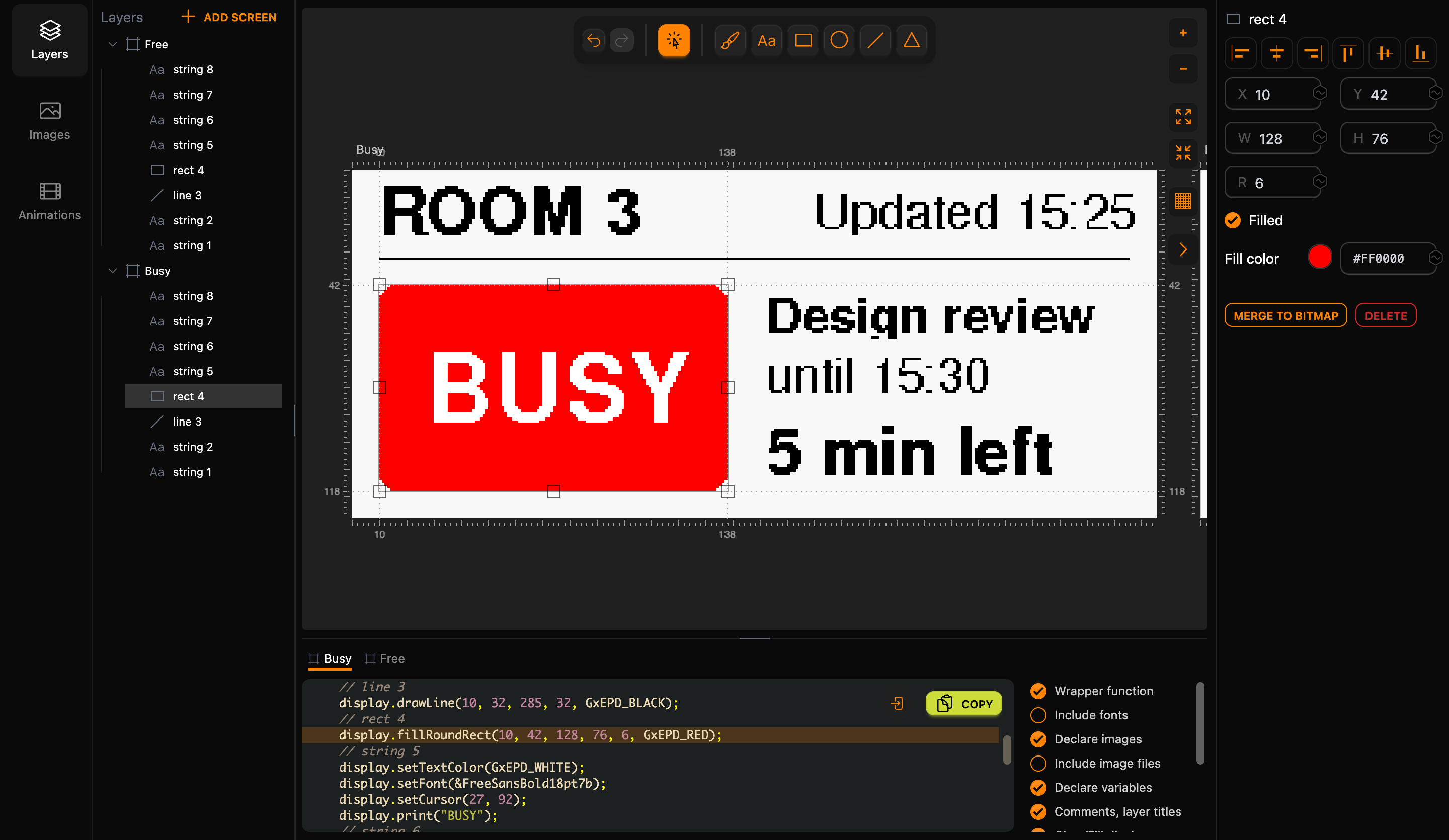
For a three-colour panel, change the top of the sketch to the three-colour class and the driver of a red 2.9-inch panel:
#include <GxEPD2_3C.h>

// 2.9" three-colour e-paper 296x128 (black, white, red): CS, DC, RST, BUSY
GxEPD2_3C<GxEPD2_290_C90c, GxEPD2_290_C90c::HEIGHT>
    display(GxEPD2_290_C90c(5, 17, 16, 4));
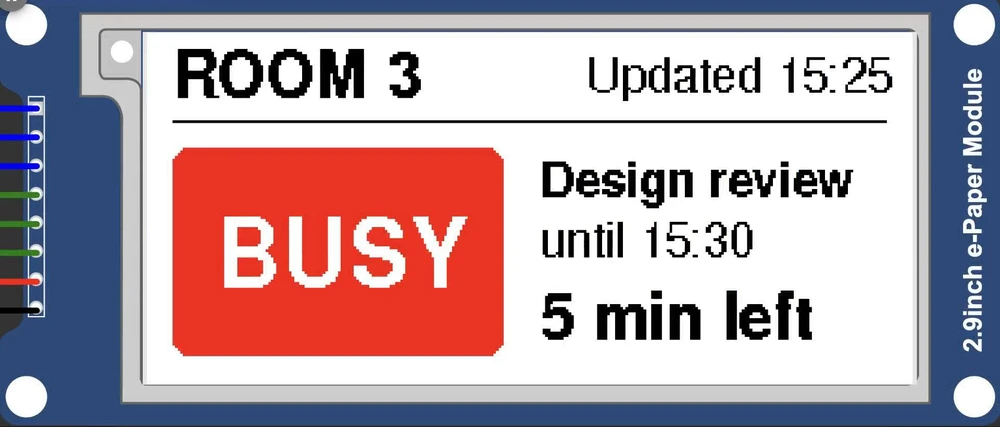
On a three-colour panel the block comes out red. But three-colour panels are slow: a full refresh of this one takes about 26 seconds, and it has no quick partial refresh, so every update redraws the whole screen. Draw the sign once and skip the minute countdown:
void setup() {
    display.init();
    display.setRotation(1);
    drawBusy();              // full refresh, about 26 s on a real panel
    display.hibernate();
}
The red picture needs a second buffer: the sketch takes 33,196 bytes of RAM (10%) instead of 28,460.
Step 7: publish it
Now ship it. Click the gear icon next to the project name to open the project settings, turn on Publish to Gallery and click Save.
A published project shows its screens only when you make them public. Select the Busy screen and click Make Public in the inspector. The screen gets a Public badge, and the button turns into Make Private.
Step 8: share the link
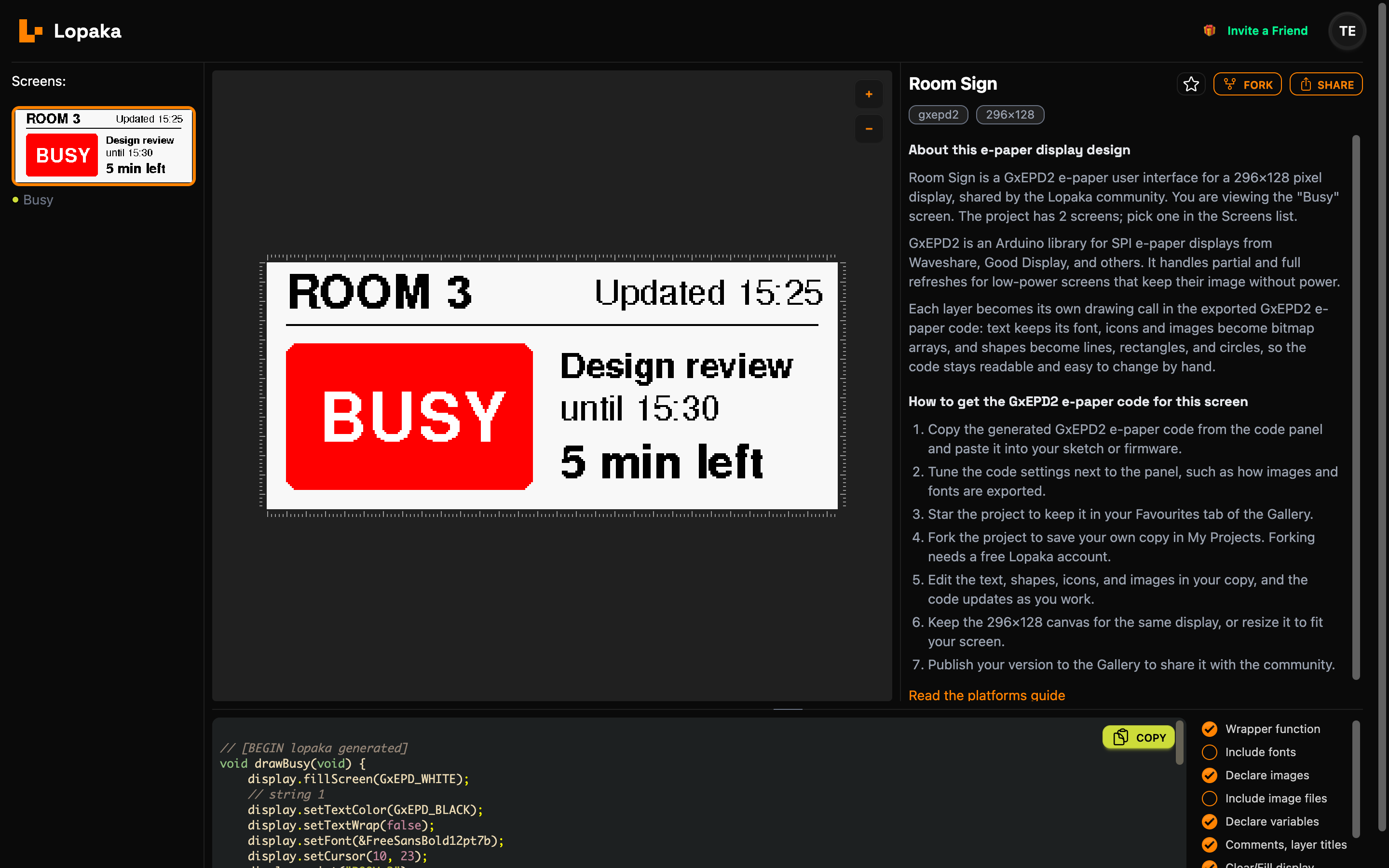
Click Share in the top bar and choose Copy public link. The link points to this screen in the gallery: https://lopaka.app/gallery/<project>/<screen>.
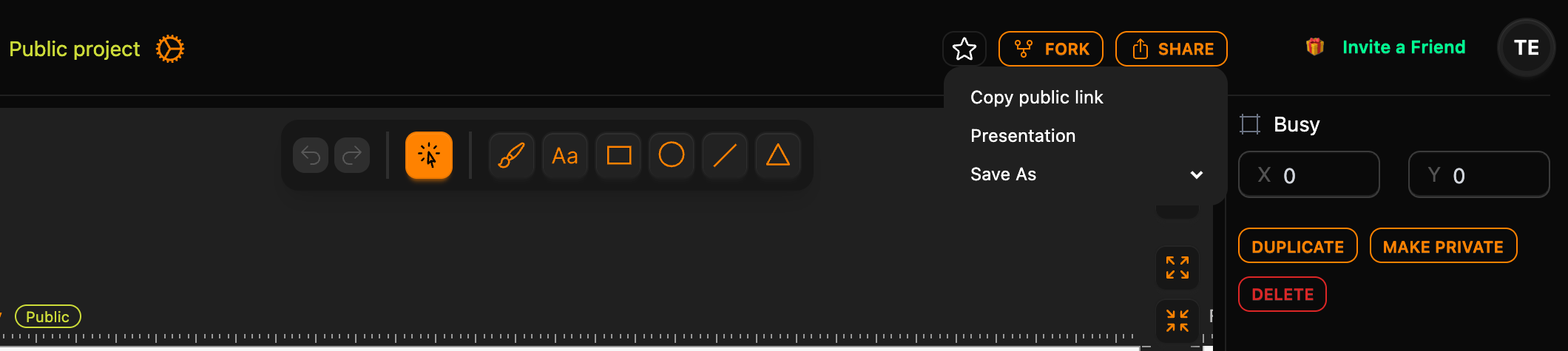
Send the link to anyone: a teammate, a client, a forum thread. They open the design and its code right in the browser. With Star they keep it in their favourites, and with Fork they get their own copy in My Projects to build on, while yours stays untouched.
Before you ship: five mistakes
Before you ship any screen, run this checklist. These are the five mistakes we see most in embedded screens:
- Text that's too small. Read the screen from where people will stand: for a room sign, the door.
- Colours the panel can't show. Design with the panel's real palette: black and white, plus red or yellow if your panel has it.
- Text that doesn't fit. Test the longest name you'll ever get, not the nice short one. "Design review" fits next to the block; "Quarterly planning" runs off the edge of the sign.
- Refreshing too often. Redraw only what changed: it's faster, and on e-paper it saves the battery.
- A dead device still shows its last picture. This is the sneaky one on e-paper: a sign with a flat battery looks like a working one. Always show when it was updated, so nobody trusts a stale sign.
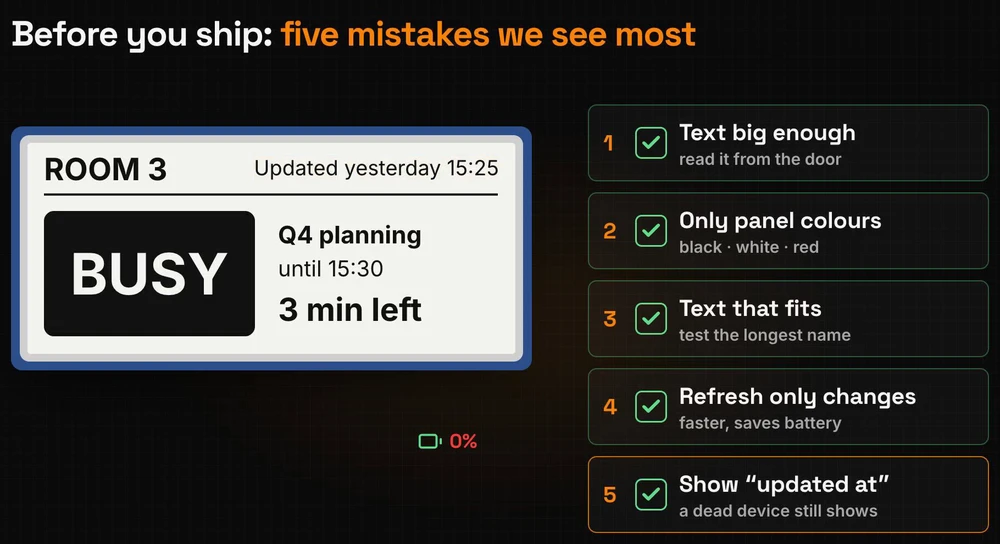
The sign in this episode covers the fifth: "Updated 15:25" in the corner tells everyone how old the picture is.
Recap
- E-paper keeps its picture without power: the particles stay where the last voltage put them, so the panel needs power only to change the picture.
- Full refresh, partial refresh, sleep:
display()redraws everything with a flash,displayWindow()changes one area without it, andhibernate()switches the panel off while the picture stays. - Check, then ship: run the five-point checklist, publish the project, make the screen public and share the link.
Draw it, get the code, see it on the screen. Open Lopaka and design your own e-paper sign.