
Lopaka Basics 03: Going Colour
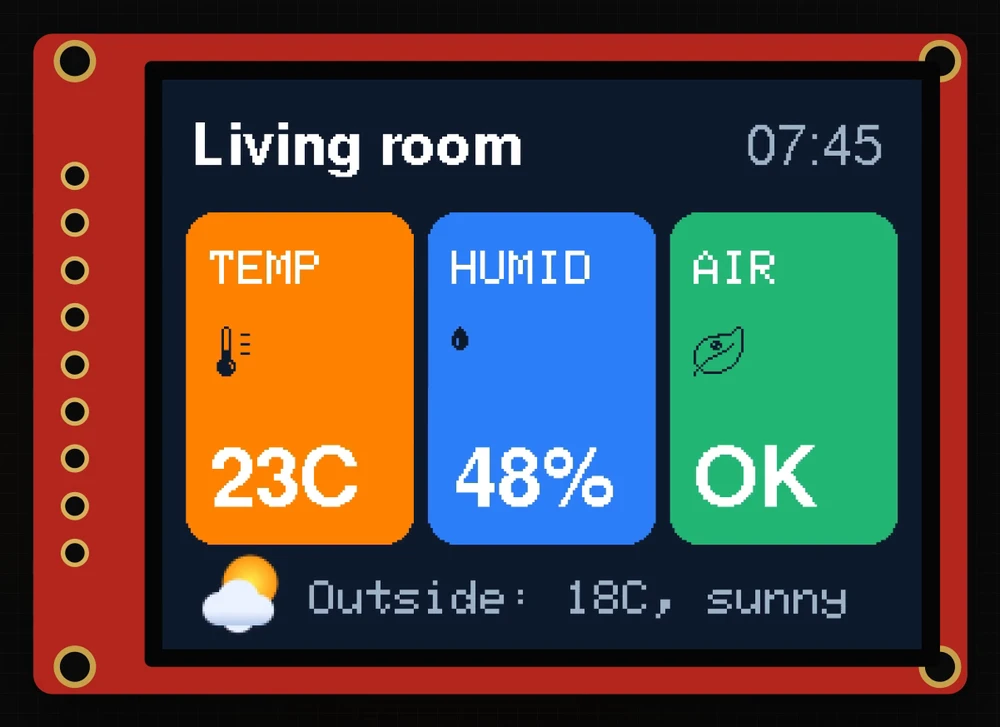
Same idea as the first two episodes, now in full colour: a living-room dashboard on a colour display, built in a few minutes.
In this episode you will find out how a colour screen makes its colours, what RGB565 means and why a single full-screen picture does not fit on an Arduino UNO. Then you will build the dashboard in Lopaka with rounded cards, coloured text, tinted icons and one small colour picture, and run it on an ESP32.
What you will build: a 320×240 colour dashboard with a title and the time, three rounded cards for temperature, humidity and air quality, and a line about the weather outside. What you need: a browser and the online simulator from episode 1. A real board is optional.
How a colour screen works
One pixel is three tiny lights
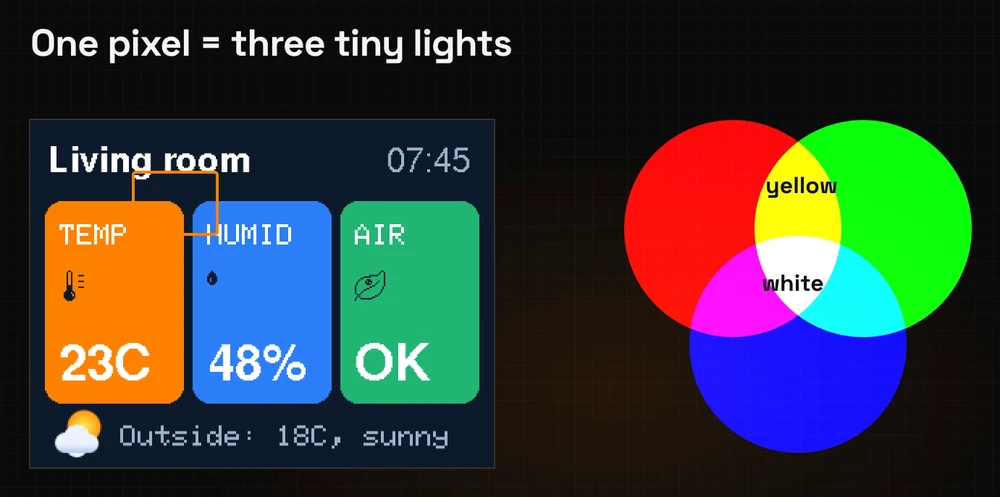
On the OLED from the last two episodes, a pixel is either on or off. On a colour display, every pixel is made of three tiny lights: red, green and blue. Each one can glow at any brightness, and from a normal viewing distance your eye mixes them into one colour.
Mix them, and you get any colour. Red and green together make yellow. All three at full power make white. All three off is black.
RGB565: a colour in two bytes
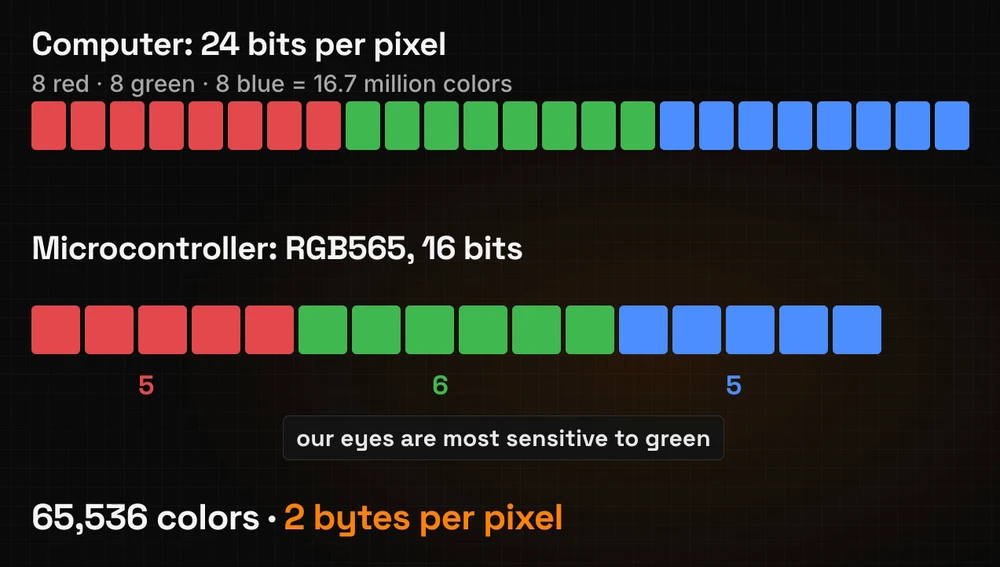
Your computer stores a colour in 24 bits: 8 for red, 8 for green and 8 for blue, about 16.7 million colours. That is the colour you type as #FF8200 in a web page or in Lopaka: two hex digits per light.
Small chips and their displays usually use 16 bits, in a format called RGB565:
- 5 bits for red,
- 6 bits for green,
- 5 bits for blue.
Green gets the extra bit because our eyes are most sensitive to it. That makes 65,536 colours, and every pixel takes exactly two bytes.
Why a picture does not fit on an UNO
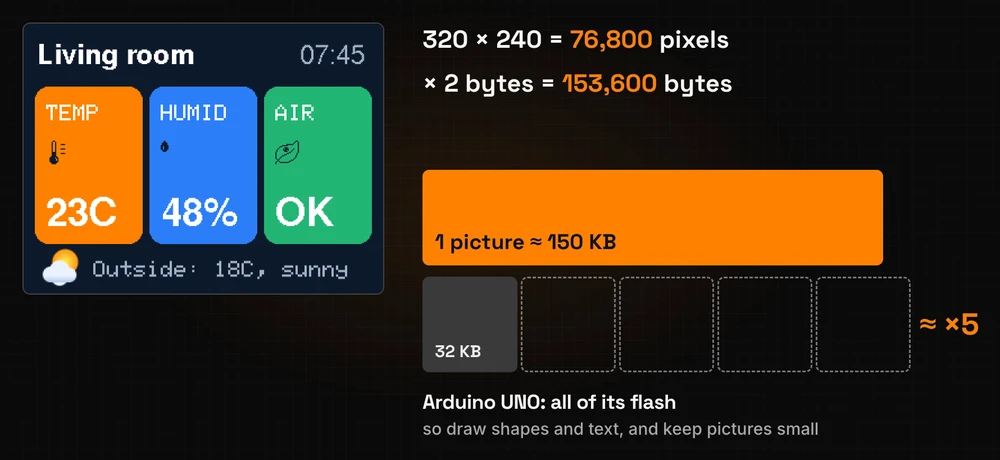
Now the maths. A 320×240 screen has 320 × 240 = 76,800 pixels. At two bytes each, one full-screen picture takes 153,600 bytes, about 150 KB.
An Arduino UNO has 32 KB of flash for the whole program. One full-screen picture is almost five times that. So on colour screens you draw with shapes and text, and keep pictures small.
Step 1: a new colour project
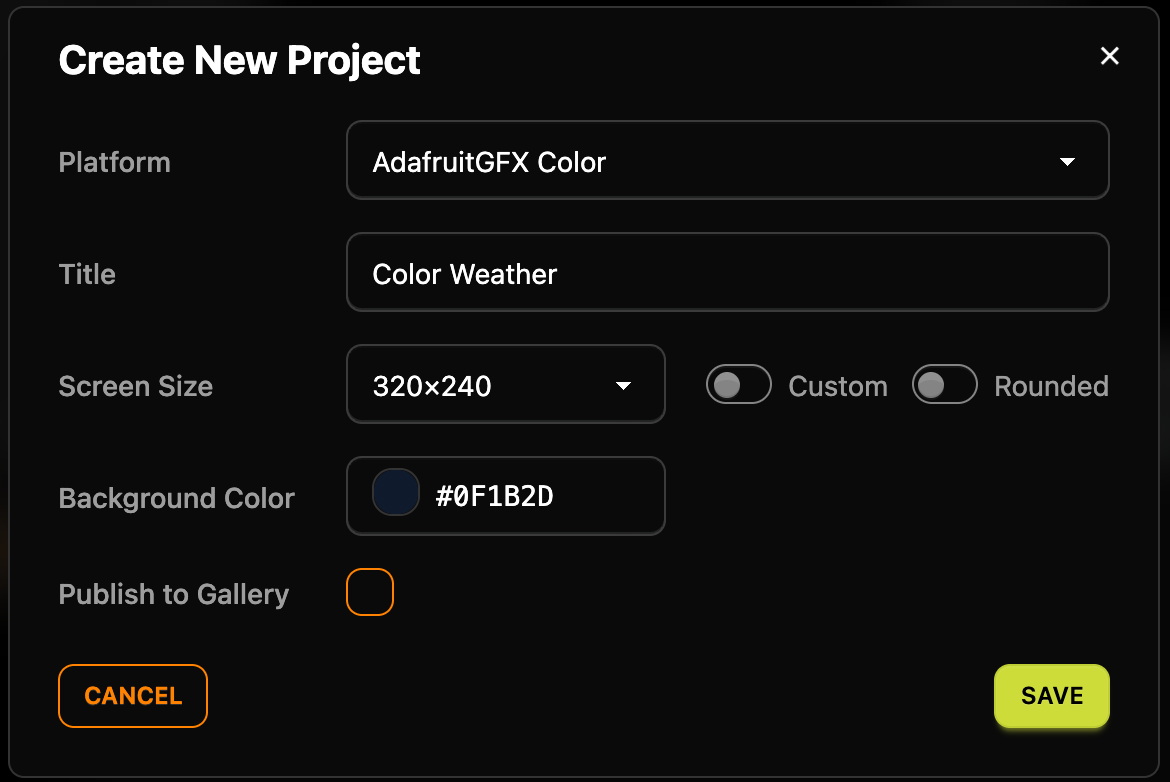
Click + New Project and open the Platform list. For this episode pick AdafruitGFX Color: Adafruit GFX is one of the most popular graphics libraries for colour displays. Lopaka describes it as "the shared drawing layer under most Adafruit display drivers": you pair it with the driver for your exact panel, such as Adafruit_ILI9341, colours are packed as RGB565, and drawing goes straight to the panel.
Then fill in the rest of the dialog:
- Title: "Color Weather".
- Screen Size: 320×240.
- Background Color:
#0F1B2D, a dark blue.
Click Save.
Lopaka converts every colour to RGB565
The code panel already has one line:
tft.fillScreen(0x8C5);fillScreen paints the whole display in one colour, and 0x8C5 is the dark blue in RGB565. Lopaka does the conversion for every colour you pick. By hand, it works like this: keep the top 5 bits of red, the top 6 bits of green and the top 5 bits of blue, and write them one after another.
| Hex | Top bits | |
|---|---|---|
| red | 0x0F | 00001 |
| green | 0x1B | 000110 |
| blue | 0x2D | 00101 |
Together that is 0000100011000101, or 0x08C5. Lopaka writes it without the leading zero.
Step 2: three rounded cards
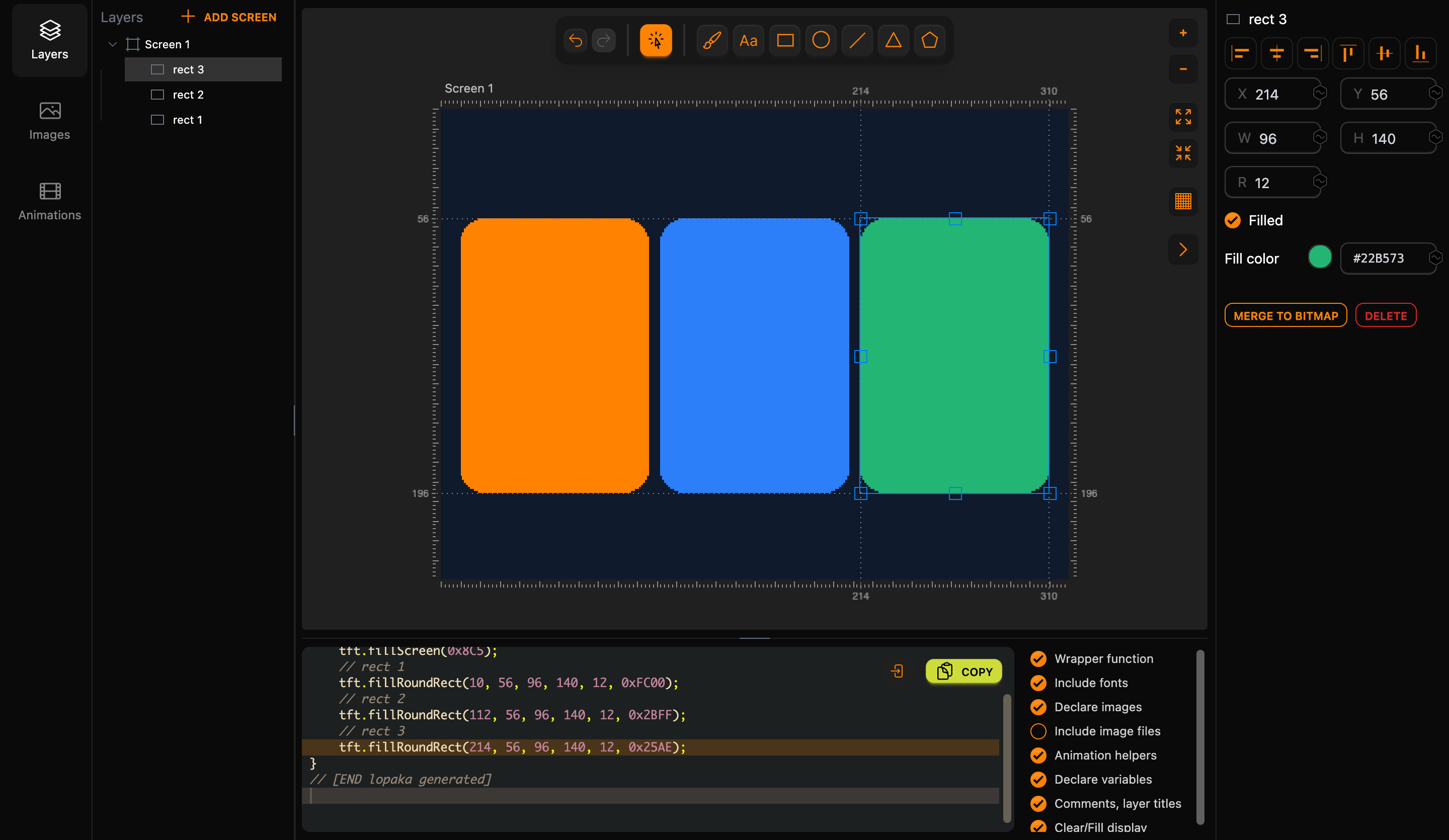
Pick the rectangle tool and drag a card on the canvas. In the inspector, set R to 12 to round the corners, turn on Filled, and type #FF8200 into Fill color for orange. One line appears in the code:
tft.fillRoundRect(10, 56, 96, 140, 12, 0xFC00);The numbers are x, y, width, height, corner radius and colour. A shape is one line of code, however big it is: this card spans 96 × 140 pixels, and the line that draws it takes a few bytes of flash.
Repeat it for the other two cards: blue #2D7FF9 and green #22B573. All three are 96 pixels wide and 140 tall, at y 56, and they start at x 10, 112 and 214. That leaves a 10-pixel margin on both sides of the screen and 6 pixels between the cards: 10 + 3 × 96 + 2 × 6 + 10 = 320.
Step 3: text in colour
Text works as in the first two episodes, and now it can take any colour. Pick the text tool (Aa): a new text layer appears on the canvas. Type the text into the inspector, pick a font and set Fill color. A new text starts in the colour you used last, so check the colour every time.
The title and the time
Living roomin FreeSansBold12pt7b, white#FFFFFF, in the top-left corner.07:45in FreeSans12pt7b, light grey-blue#9FB3C8, in the top-right corner.
tft.setTextColor(0xFFFF);
tft.setTextWrap(false);
tft.setFont(&FreeSansBold12pt7b);
tft.setCursor(12, 35);
tft.print("Living room");
setTextColor sets the colour for every text after it, so Lopaka only writes it again when the colour changes. setTextWrap(false) keeps a long text on one line instead of wrapping it at the edge of the screen.
With FreeSans fonts, the y of setCursor is the baseline: the last pixel row of the letters. In the inspector the title has Y 36, the line under that row (the rulers count the lines between pixels, as in episode 1), so the code says 35.
A small label and a big number on every card
Each card gets a small label in the classic font and a big number in a bold FreeSans:
- The labels
TEMP,HUMIDandAIRuse Adafruit 5x7, the classic font built into the library, with Size set to2. - The numbers
23C,48%andOKuse FreeSansBold18pt7b.
All six texts are white. Place each label near the top of its card and each number near the bottom.
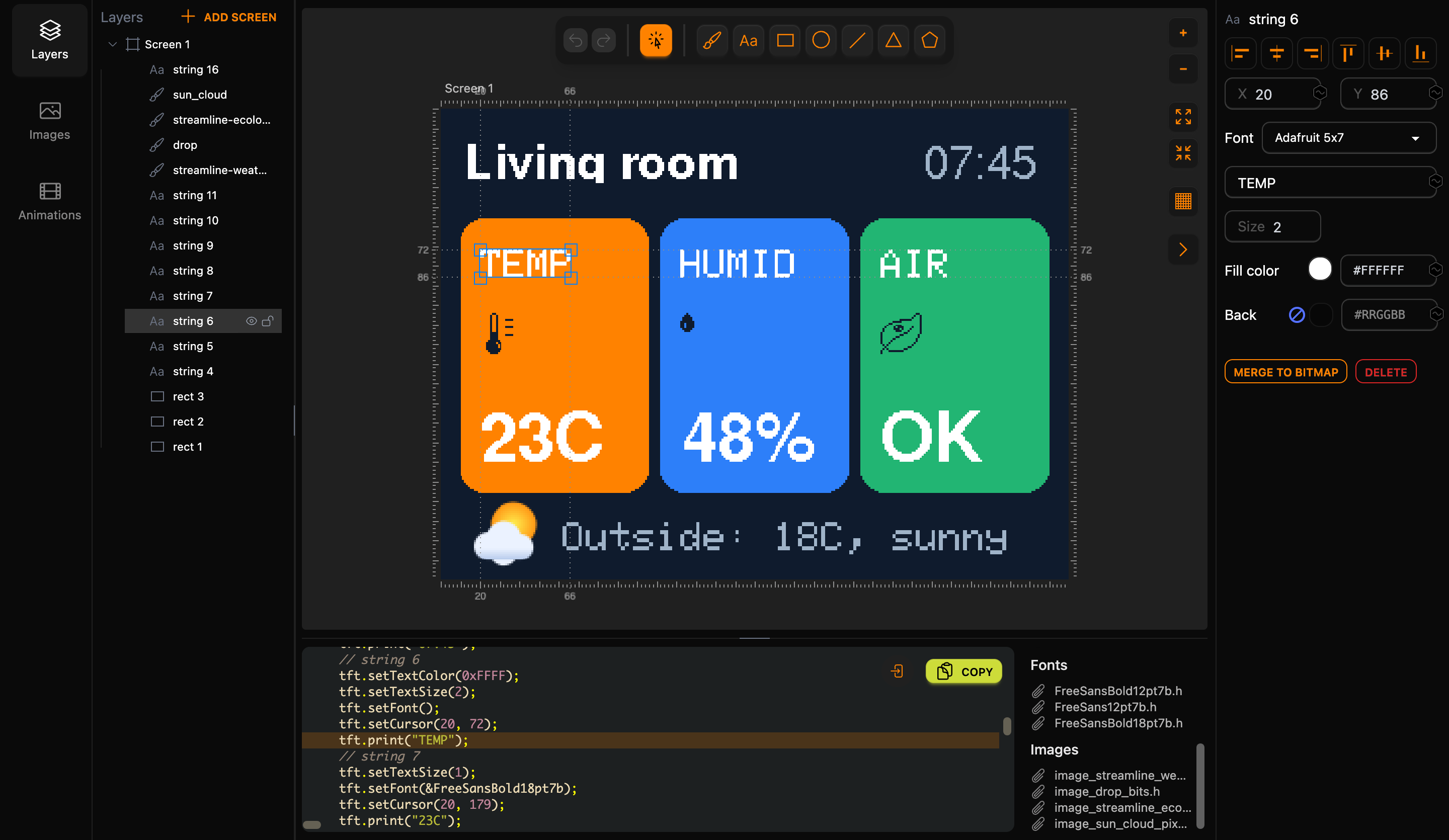
The classic font can be scaled up two or three times: Size 2 turns every pixel of a letter into a 2×2 block. The code for the label and the number:
tft.setTextSize(2);
tft.setFont();
tft.setCursor(20, 72);
tft.print("TEMP");
tft.setTextSize(1);
tft.setFont(&FreeSansBold18pt7b);
tft.setCursor(20, 179);
tft.print("23C");
setFont() with nothing in the brackets switches back to the classic font. The classic font counts y differently: setCursor takes the top-left corner of the text, not the baseline. The label's letters are 7 pixels tall, 14 at size 2, so the inspector's 86 becomes 86 − 14 = 72 in the code. Lopaka does this conversion for you. Before the FreeSans number it resets the size to 1, so the big font is not doubled.
The text says 23C, not 23°C: FreeSans fonts contain only the basic ASCII characters, and the degree sign is not one of them.
Fonts cost flash only when you use them
FreeSans and the other fonts in the list ship with the Adafruit GFX library. Each font is a separate file, and it takes flash only when your screen uses it. Lopaka adds an #include for every font the design uses, here three:
#include "FreeSans12pt7b.h"
#include "FreeSansBold12pt7b.h"
#include "FreeSansBold18pt7b.h"
Step 4: tinted icons
Open the Images tab, search for an icon and click it to add it to the screen. Add three:
- a thermometer (search "thermo"),
- a drop (search "drop"),
- a leaf (search "leaf").
Go back to Layers and put each icon under the label of its card.
Icons from the library are one colour, so you can tint them to match your design. Select each icon and set its Fill color to the dark blue of the background, #0F1B2D. On the bright cards the icons now look cut out.
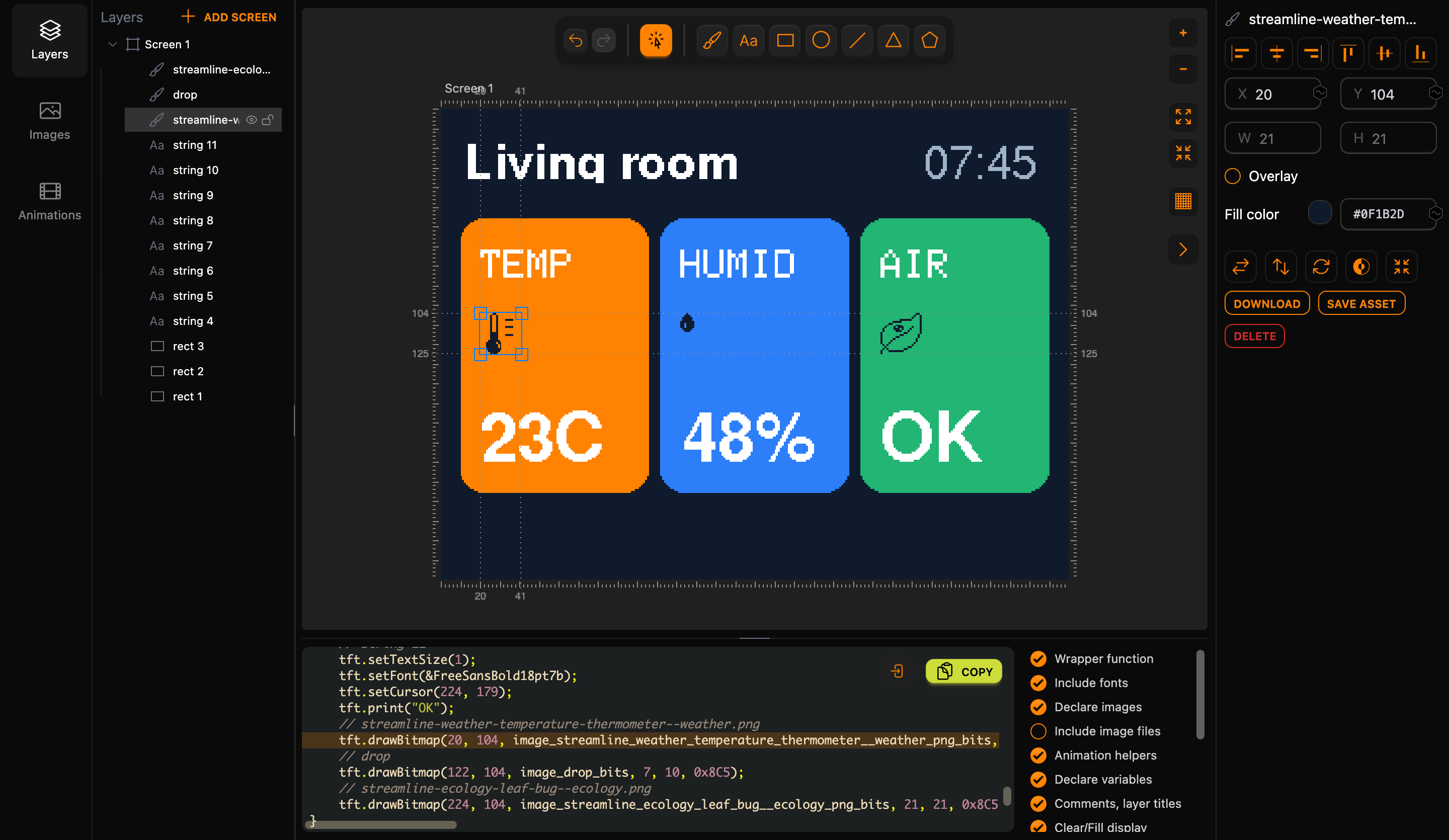
In the code, a one-colour icon becomes drawBitmap:
tft.drawBitmap(20, 104, image_streamline_weather_temperature_thermometer__weather_png_bits, 21, 21, 0x8C5);The arguments are the position, the array of bits, the width and height, and the colour. The array stores one bit per pixel, as on the OLED in episode 2: the thermometer is 21×21 pixels, 3 bytes per row, 63 bytes in total. The colour is a separate number in the code, so the same icon can be drawn in any colour without a second copy.
Step 5: a colour picture
Upload it as RGB
Pictures can be full colour too. In the Images tab, click Upload and choose a picture, the same way as in episode 2. This time, switch the converter from Monochrome to RGB.
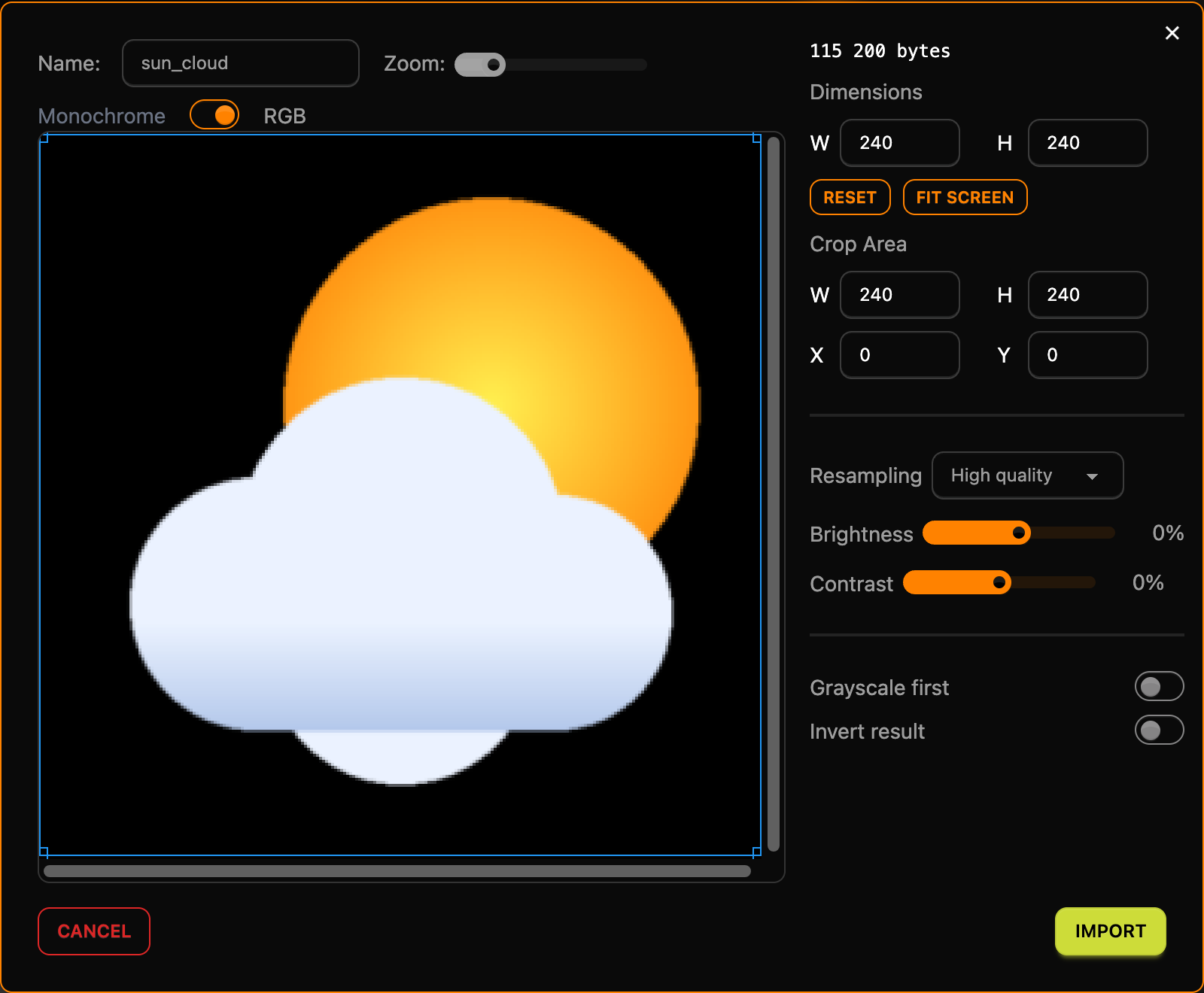
The counter at the top shows the cost. At its full size of 240×240 pixels, this picture would take 240 × 240 × 2 = 115,200 bytes, more than three times the whole flash of an UNO.
Shrink it to 40×40
Set Dimensions to W 40 and H 40. Now the picture takes 40 × 40 × 2 = 3,200 bytes, about three kilobytes. That is the sweet spot for colour pictures: small, colourful details. Click Import.
In the code, the picture becomes an array of 1,600 RGB565 numbers, one per pixel, and one line that draws it:
tft.drawRGBBitmap(12, 197, image_sun_cloud_pixels, 40, 40);Unlike drawBitmap, this call takes no colour: every pixel brings its own.
The bottom line
Drop the picture into the bottom-left corner, and add one more line of text next to it: Outside: 18C, sunny in Adafruit 5x7, Size 2, in the same grey-blue #9FB3C8 as the time.
Step 6: get the code
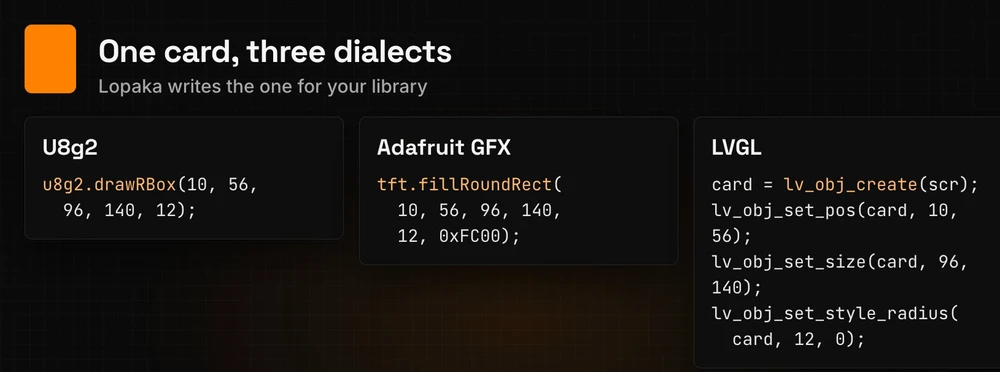
One card, three dialects
Every library speaks its own dialect. The same rounded card is drawRBox in U8g2, fillRoundRect in Adafruit GFX, and a styled object in LVGL. Lopaka writes the one for the platform you picked.
Copy, and download the font files
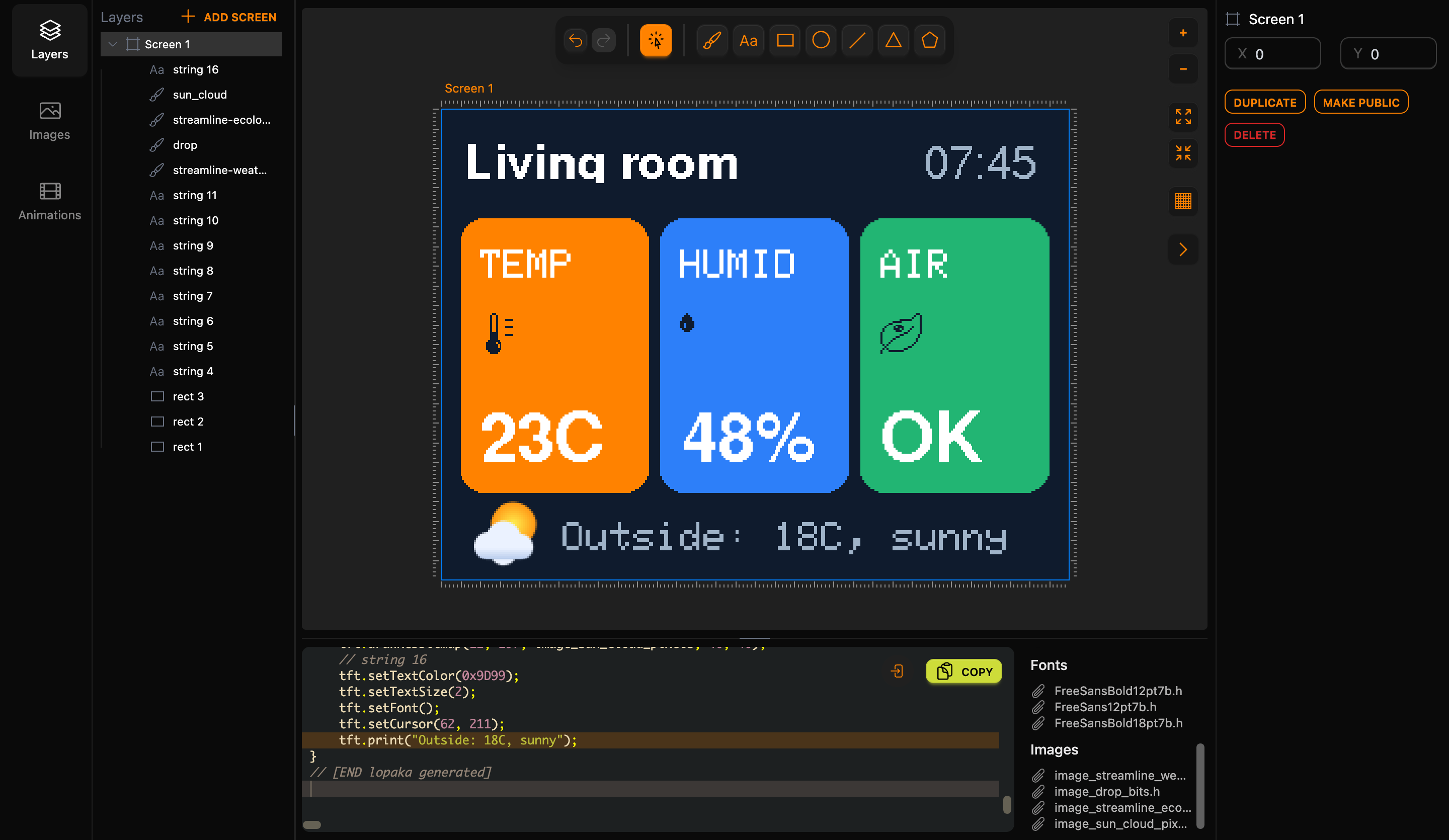
Click Copy above the code. Under the switches next to the code, Lopaka lists the Fonts and Images the design uses. Click each of the three font files to download it, and put the files next to your sketch. The picture and the icons are already inside the copied code as arrays, so you do not need the image files.
If you forget the font files, the compiler stops with fatal error: FreeSans12pt7b.h: No such file or directory.
Lopaka generates this code for the dashboard. The picture array is 1,600 numbers long, so it is shortened here; Copy gives you all of it.
// [BEGIN lopaka generated]
#include "FreeSans12pt7b.h"
#include "FreeSansBold12pt7b.h"
#include "FreeSansBold18pt7b.h"

static const unsigned char PROGMEM image_drop_bits[] = {0x10,0x38,0x7c,0x7c,0xfe,0xde,0xde,0xde,0x7c,0x38};

static const unsigned char PROGMEM image_streamline_ecology_leaf_bug__ecology_png_bits[] = {0x00,0x00,0x30,0x00,0x00,0x48,0x00,0x00,0x88,0x00,0x3f,0x08,0x03,0xe0,0x08,0x0c,0x00,0x08,0x10,0xe0,0x08,0x21,0x70,0x88,0x41,0xd1,0x08,0x40,0xe2,0x08,0x80,0x0c,0x08,0x80,0x30,0x10,0x80,0xc0,0x10,0x83,0x00,0x20,0x84,0x00,0x20,0x88,0x00,0x40,0x50,0x00,0x80,0x20,0x03,0x00,0x50,0x0c,0x00,0x8f,0xf0,0x00,0x80,0x00,0x00};

static const unsigned char PROGMEM image_streamline_weather_temperature_thermometer__weather_png_bits[] = {0x03,0x00,0x00,0x04,0x80,0x00,0x04,0x80,0x00,0x04,0x87,0x80,0x04,0x80,0x00,0x04,0x80,0x00,0x04,0x80,0x00,0x04,0x87,0x80,0x04,0x80,0x00,0x04,0x80,0x00,0x07,0x80,0x00,0x07,0x87,0x80,0x07,0x80,0x00,0x07,0x80,0x00,0x0f,0xc0,0x00,0x1f,0x60,0x00,0x1f,0xa0,0x00,0x1f,0xa0,0x00,0x1f,0xe0,0x00,0x0f,0xc0,0x00,0x07,0x80,0x00};

static const uint16_t PROGMEM image_sun_cloud_pixels[] = {/* 1,600 RGB565 values, shortened here */};

void drawScreen_1(void) {
    tft.fillScreen(0x8C5);
    // rect 1
    tft.fillRoundRect(10, 56, 96, 140, 12, 0xFC00);
    // rect 2
    tft.fillRoundRect(112, 56, 96, 140, 12, 0x2BFF);
    // rect 3
    tft.fillRoundRect(214, 56, 96, 140, 12, 0x25AE);
    // string 4
    tft.setTextColor(0xFFFF);
    tft.setTextWrap(false);
    tft.setFont(&FreeSansBold12pt7b);
    tft.setCursor(12, 35);
    tft.print("Living room");
    // string 5
    tft.setTextColor(0x9D99);
    tft.setFont(&FreeSans12pt7b);
    tft.setCursor(246, 35);
    tft.print("07:45");
    // string 6
    tft.setTextColor(0xFFFF);
    tft.setTextSize(2);
    tft.setFont();
    tft.setCursor(20, 72);
    tft.print("TEMP");
    // string 7
    tft.setTextSize(1);
    tft.setFont(&FreeSansBold18pt7b);
    tft.setCursor(20, 179);
    tft.print("23C");
    // string 8
    tft.setTextSize(2);
    tft.setFont();
    tft.setCursor(122, 72);
    tft.print("HUMID");
    // string 9
    tft.setTextSize(1);
    tft.setFont(&FreeSansBold18pt7b);
    tft.setCursor(122, 179);
    tft.print("48%");
    // string 10
    tft.setTextSize(2);
    tft.setFont();
    tft.setCursor(224, 72);
    tft.print("AIR");
    // string 11
    tft.setTextSize(1);
    tft.setFont(&FreeSansBold18pt7b);
    tft.setCursor(224, 179);
    tft.print("OK");
    // streamline-weather-temperature-thermometer--weather.png
    tft.drawBitmap(20, 104, image_streamline_weather_temperature_thermometer__weather_png_bits, 21, 21, 0x8C5);
    // drop
    tft.drawBitmap(122, 104, image_drop_bits, 7, 10, 0x8C5);
    // streamline-ecology-leaf-bug--ecology.png
    tft.drawBitmap(224, 104, image_streamline_ecology_leaf_bug__ecology_png_bits, 21, 21, 0x8C5);
    // sun_cloud
    tft.drawRGBBitmap(12, 197, image_sun_cloud_pixels, 40, 40);
    // string 16
    tft.setTextColor(0x9D99);
    tft.setTextSize(2);
    tft.setFont();
    tft.setCursor(62, 211);
    tft.print("Outside: 18C, sunny");
}
// [END lopaka generated]
Step 7: run it on an ESP32
The sketch
This time we run the screen on an ESP32, a faster board, popular for colour screens; a typical ESP32 board has 4 MB of flash. The display is a 320×240 ILI9341 module on SPI.
#include <SPI.h>
#include <Adafruit_GFX.h>
#include <Adafruit_ILI9341.h>

// ILI9341 320x240 color display on SPI
#define TFT_CS  15
#define TFT_DC  2
#define TFT_RST 4
Adafruit_ILI9341 tft(TFT_CS, TFT_DC, TFT_RST);

// Paste the Lopaka code here

void setup() {
  tft.begin();
  tft.setRotation(1);   // landscape, 320x240
  drawScreen_1();
}

void loop() {
}
Adafruit_ILI9341 tft(...)creates the display object and tells it which pins it uses for chip select, data/command and reset. Lopaka's code calls ittft, so keep that name.- The ILI9341 is a portrait panel, 240 wide and 320 tall.
setRotation(1)turns it to landscape, 320×240, the size we designed. drawScreen_1()runs once, insetup(). The screen keeps its picture until something draws over it, soloop()stays empty for now.
Wire it in the simulator
In the simulator from episode 1, start a new ESP32 project and add an ILI9341 display. Connect it:
- VCC and LED (the backlight) to 3V3, GND to GND,
- CS to 15, D/C to 2, RST to 4,
- MOSI to 23, SCK to 18, MISO to 19.
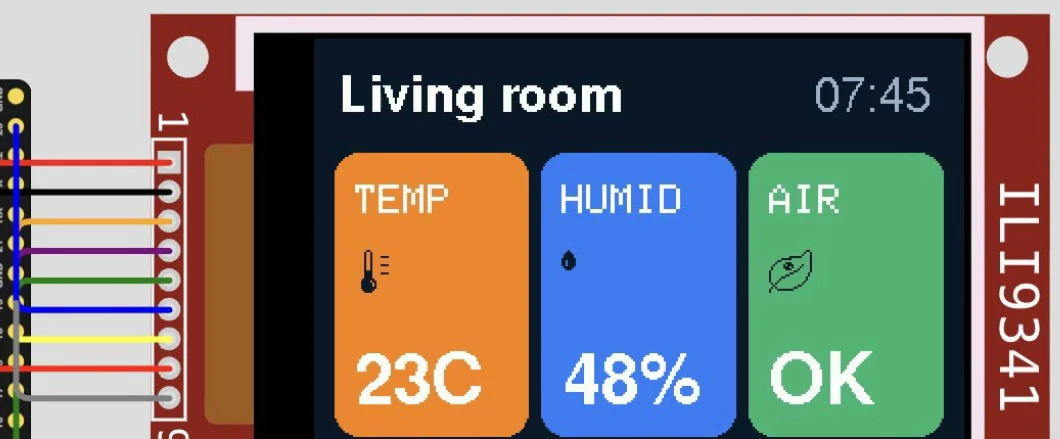
Add the Adafruit ILI9341 and Adafruit GFX Library libraries, paste the sketch with the Lopaka code in its place, add the three font files to the project, and press Play. The dashboard appears on the simulated display.
No frame buffer
Remember the frame buffer from episode 1, the whole picture kept in RAM before it goes to the display? At 320×240 in colour it would need the same 150 KB as a full-screen picture. Colour libraries like Adafruit GFX skip it and draw straight to the display: every fillRoundRect and print sends its pixels over SPI right away.
That keeps the RAM use tiny. Compiled for the ESP32, the sketch uses 23% of the program space and 7% of the RAM. The same sketch compiled for an Arduino UNO:
Sketch uses 25946 bytes (80%) of program storage space. Maximum is 32256 bytes.
Global variables use 317 bytes (15%) of dynamic memory, leaving 1731 bytes for local variables. Maximum is 2048 bytes.
Only 15% of the UNO's RAM. The flash is the tight part: 80%, and the three fonts and the 3,200-byte picture are a large share of it.
On a real board
- Signal voltage. The ESP32 works at 3.3 V, like the ILI9341. Many low-cost ILI9341 modules have no level shifter, so on a 5 V board such as the UNO check the listing of your module before you wire it.
- The controller. Some 320×240 modules use the ST7789 controller instead. For those, include
Adafruit_ST7789.h, create the display asAdafruit_ST7789 tft(TFT_CS, TFT_DC, TFT_RST);and start it withtft.init(240, 320);instead oftft.begin();. The Lopaka code stays the same.
Step 8: ideas from the gallery
Need ideas? The Projects Gallery has thousands of public projects. Open one, press Fork, and Lopaka copies it into your projects, ready to change.
Recap
- Three lights make every colour: each pixel mixes red, green and blue.
- RGB565 packs them into two bytes: 5 bits of red, 6 of green, 5 of blue, and Lopaka converts every colour for you.
- Shapes beat big pictures: a card is one line of code, a full-screen picture is 150 KB, so keep pictures small.
Next episode: Live Data. We make these numbers change on their own. Read episode 4.
Ready to try? Open Lopaka and build your own colour dashboard.