
Lopaka Basics 04: Live Data
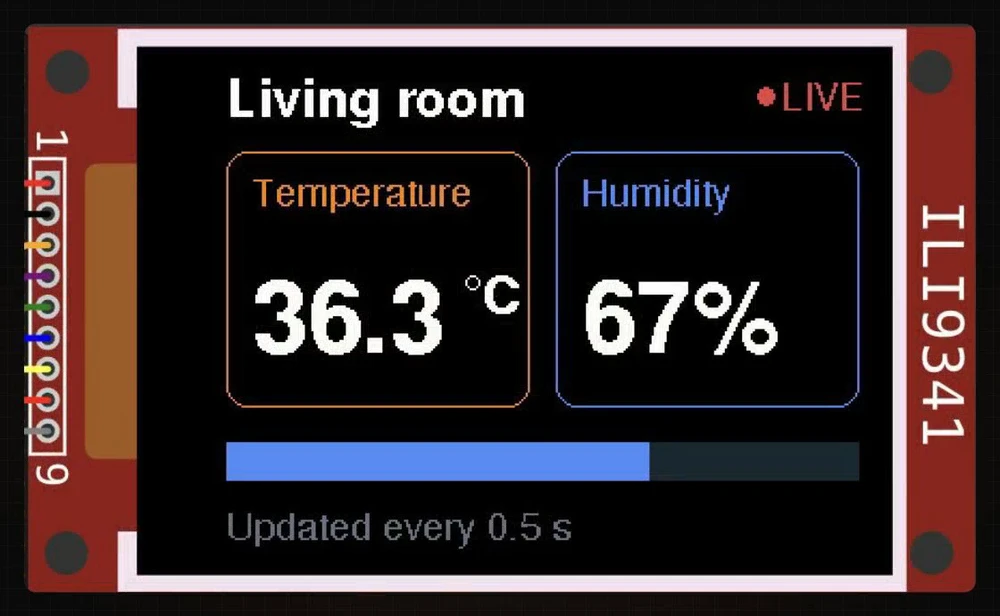
Two screens. Same board, same sensor, same numbers. But one of them blinks every time a number changes. Slow it down, and you can see why: the whole picture gets wiped, then painted back, piece by piece.
In this episode you will find out what loop() does, why a colour display flickers when an OLED does not, and the three rules that stop it. Then you will turn the numbers of a Lopaka design into variables, feed them from a temperature and humidity sensor, and run it on a simulated ESP32 without a single blink.
What you will build: a 320×240 colour room monitor with live temperature and humidity numbers and a humidity bar, updated twice a second. What you need: a browser. We run the code on a simulated ESP32 with an ILI9341 display and a DHT22 sensor; a real board is optional.
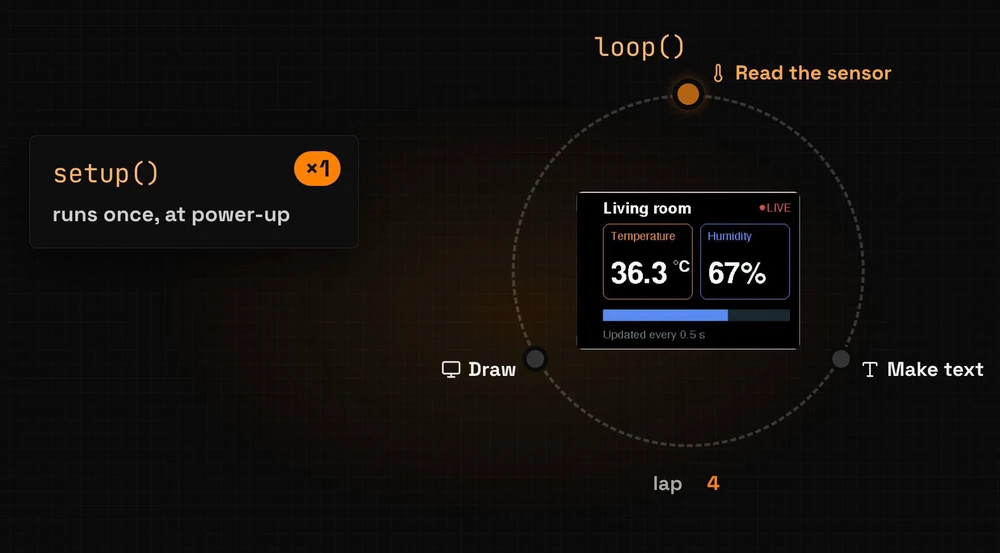
setup() and loop()
Every Arduino sketch has two parts:
setup()runs once, at power-up.loop()runs after it, again and again, for as long as the board has power.
Live data lives in loop(): read the sensor, turn the numbers into text, draw them, and repeat. Every lap draws the screen again.
Why a colour screen blinks
The OLED draws in memory first
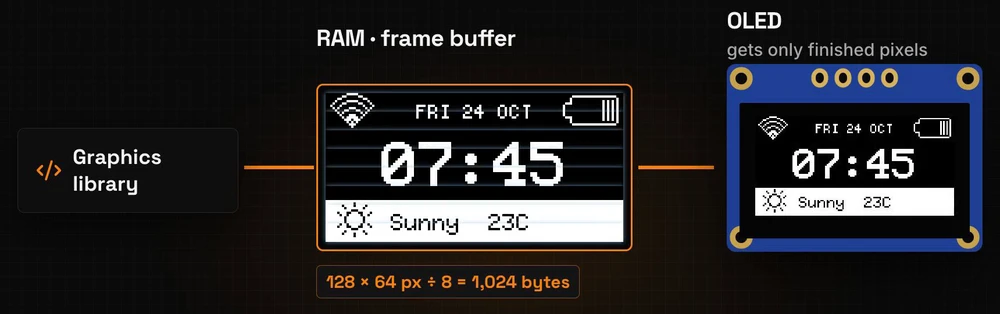
The OLED from the first episodes never blinked. Its library, U8g2, draws into memory first: a frame buffer of one kilobyte for 128 × 64 pixels, as you saw in episode 1. Only the finished picture goes to the display. Page mode does the same in eight strips of 128 bytes, one after another.
A colour frame would need 150 KB
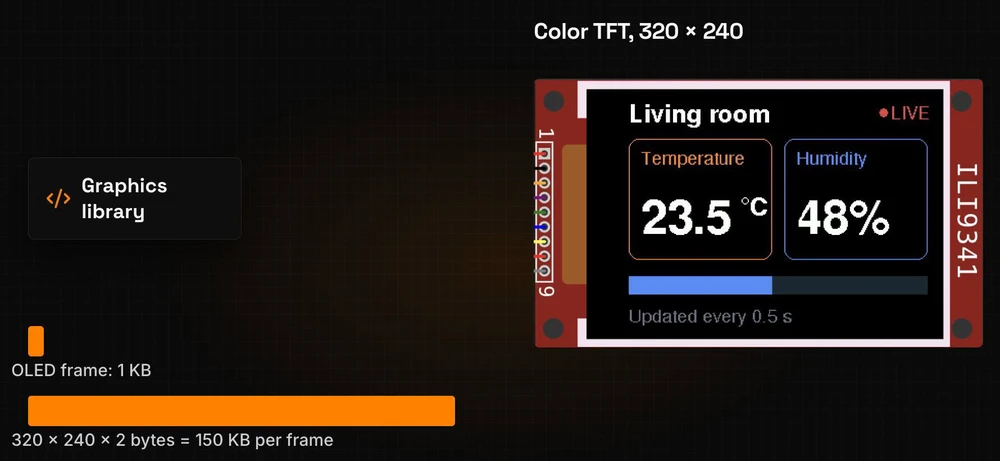
A 320×240 colour screen stores two bytes per pixel, so one frame takes 320 × 240 × 2 = 153,600 bytes, about 150 KB. That is almost half of the RAM an ESP32 gives your sketch. So TFT_eSPI paints straight onto the display, like Adafruit GFX in episode 3.
You see every step
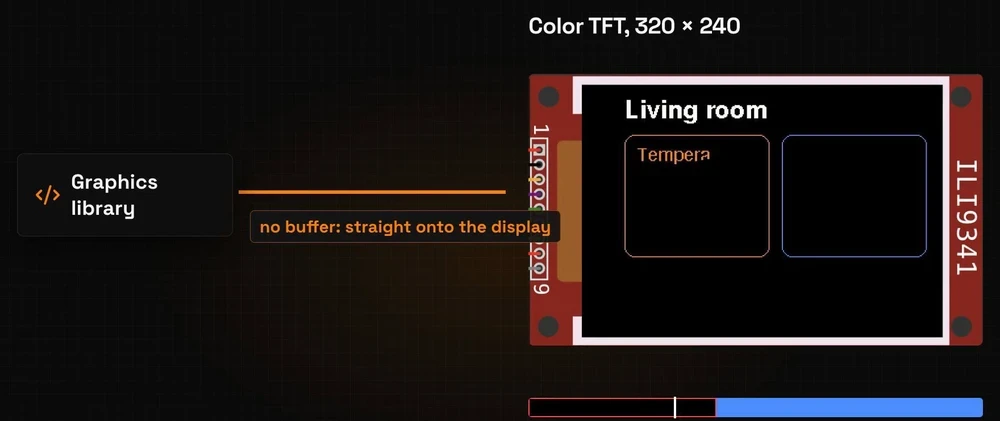
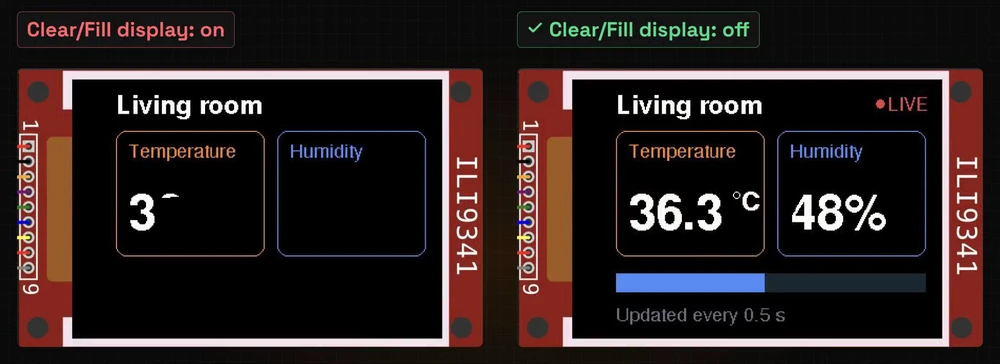
When the library paints straight onto the display, you see every step of the drawing. If the sketch clears the screen at the start of every lap, the display goes black first, and the picture comes back piece by piece.
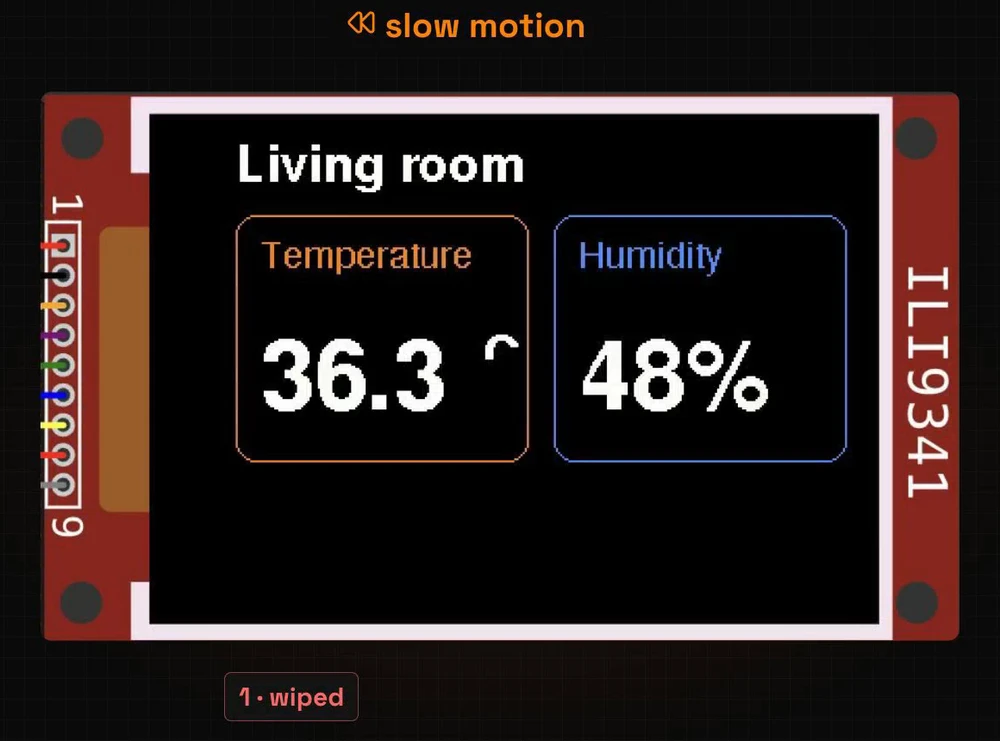
In our test (ESP32 in the simulator, SPI at 27 MHz), clearing the 320×240 screen took 48 milliseconds and drawing the dashboard another 68. Almost 50 milliseconds of black on every update is enough for your eye to catch it.
Three rules against flicker
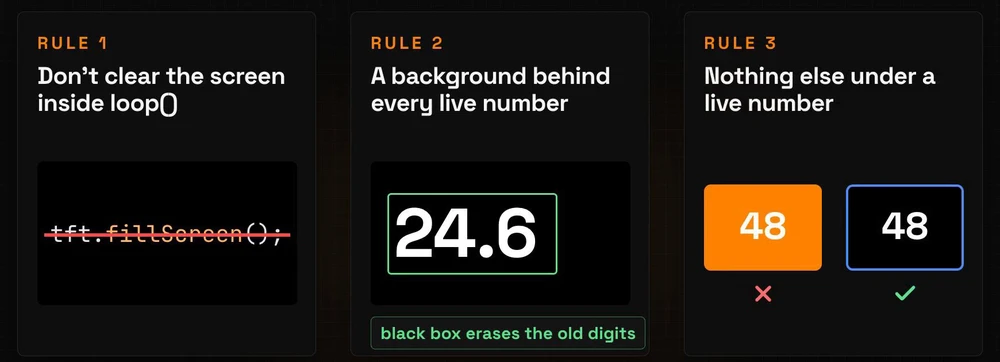
- Don't clear the screen inside
loop(). NofillScreen()on every lap. - Give every live number a background colour. Without one, the new digits are drawn on top of the old ones and pile up into a mess. With one, each digit is drawn in a box of the background colour that erases what was under it.
- Keep other shapes out from under a live number. A filled card under the number would be painted over it on every lap, and the number would blink. An outlined card does not touch the pixels behind the digits.
Lopaka takes care of the first two.
Step 1: design the room monitor
A new TFT_eSPI project
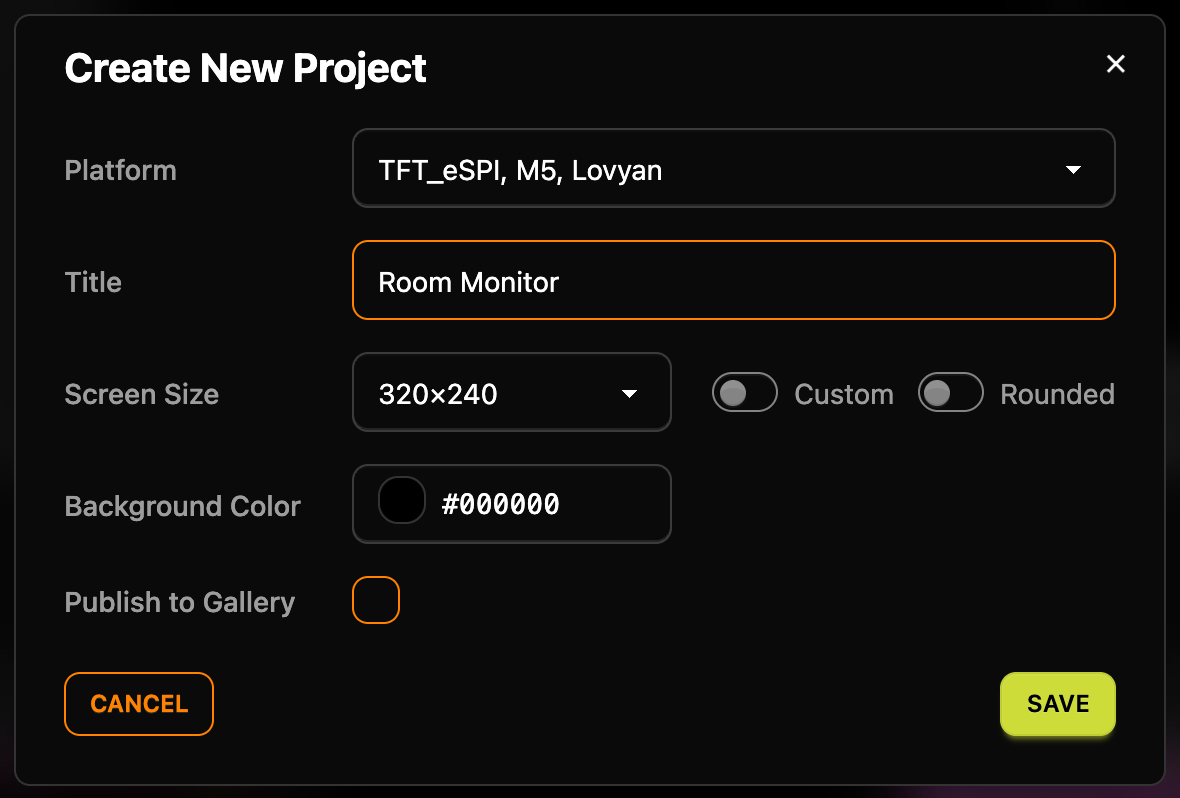
Click + New Project and pick the TFT_eSPI, M5, Lovyan platform. TFT_eSPI is one of the most common graphics libraries for colour displays on the ESP32. Set the Title to "Room Monitor" and the Screen Size to 320×240, keep the black Background Color and click Save.
Draw the dashboard
Draw the screen the same way as last time: a title, two outlined cards, two labels, two big numbers, a degree sign, a bar for humidity, a caption and a red LIVE mark. These are the values we used:
| Layer | Tool | Values in the inspector | Font | Colour |
|---|---|---|---|---|
Living room | text | X 12, Y 30 | FreeSansBold12pt7b | #FFFFFF |
| temperature card | rectangle | X 12, Y 46, W 142, H 120, R 10 | #FF8200 | |
| humidity card | rectangle | X 166, Y 46, W 142, H 120, R 10 | #4C8DFF | |
Temperature | text | X 24, Y 72 | FreeSans9pt7b | #FF8200 |
Humidity | text | X 178, Y 72 | FreeSans9pt7b | #4C8DFF |
23.5 | text | X 24, Y 140 | FreeSansBold24pt7b | #FFFFFF |
48% | text | X 178, Y 140 | FreeSansBold24pt7b | #FFFFFF |
C | text | X 132, Y 122 | FreeSansBold12pt7b | #FFFFFF |
| degree sign | ellipse | X 124, Y 104, RX 3, RY 3 | #FFFFFF | |
| bar | rectangle, Filled | X 12, Y 182, W 142, H 18 | #4C8DFF | |
| empty part of the bar | rectangle, Filled | X 154, Y 182, W 154, H 18 | #1F2937 | |
Updated every 0.5 s | text | X 12, Y 228 | FreeSans9pt7b | #6B7280 |
| LIVE dot | ellipse, Filled | X 260, Y 16, RX 4, RY 4 | #EF4444 | |
LIVE | text | X 272, Y 27 | FreeSans9pt7b | #EF4444 |
The first text in a TFT_eSPI project starts in the small Adafruit 5x7 font, and every text after that starts in the last font you picked.
The cards are outlines, following rule 3. The bar is two rectangles side by side, the filled part and the empty part, so no pixel of the bar is painted twice. If you drew the whole dark bar and the blue part over it, the blue part would blink on every lap.
The Y of a text
Look at the big temperature number in the code:
tft.drawString("23.5", 24, 104);The inspector says Y 140, the code says 104. As in U8g2, the inspector's Y is the baseline, the line the digits stand on. TFT_eSPI's drawString takes the top of the text instead, so Lopaka converts the number for you. Colours are converted too: #FF8200 becomes 0xFC00 in RGB565, the two-byte colour format from episode 3.
Right now these numbers are plain text. They will never change.
Step 2: layers become variables
Name the layer
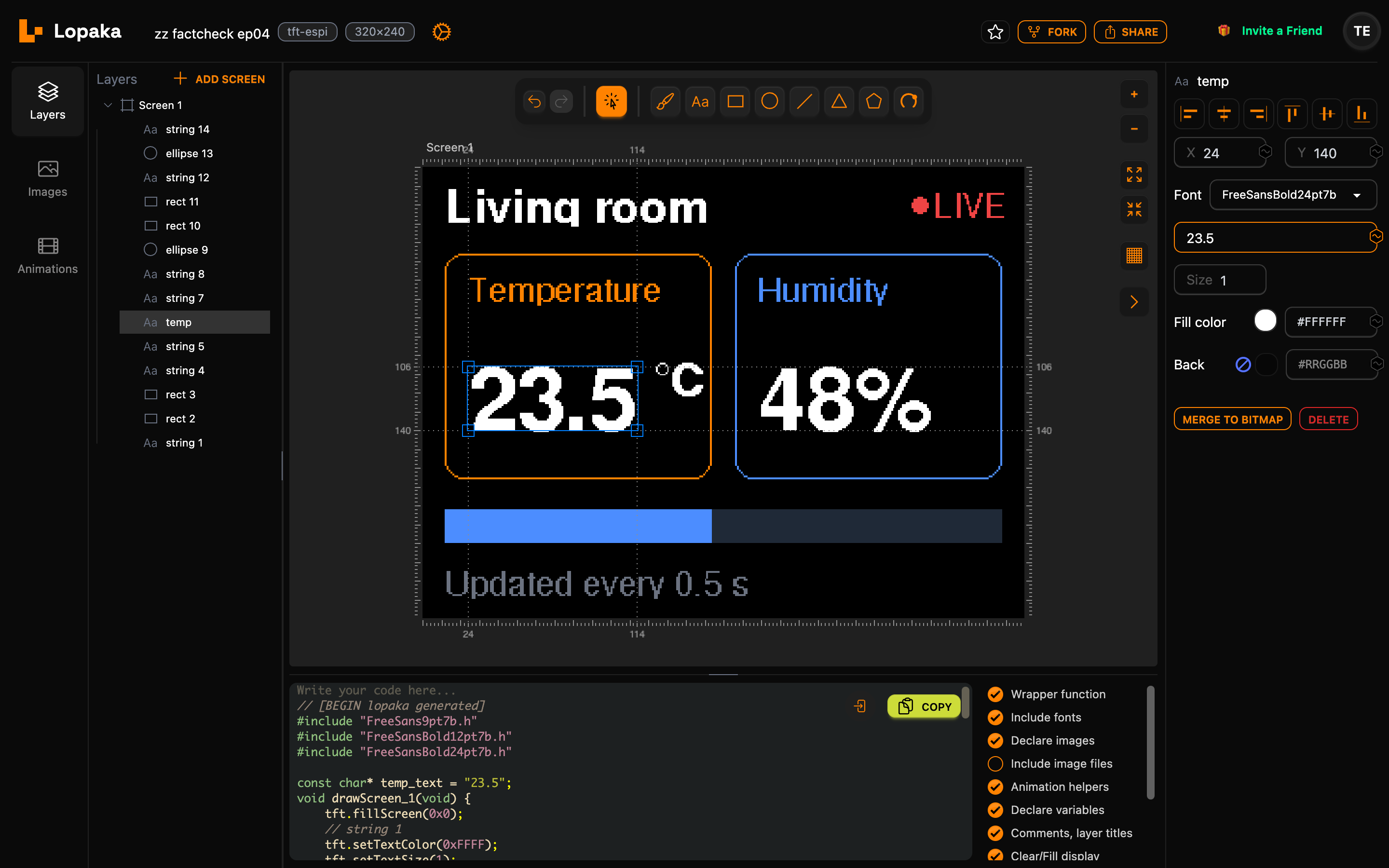
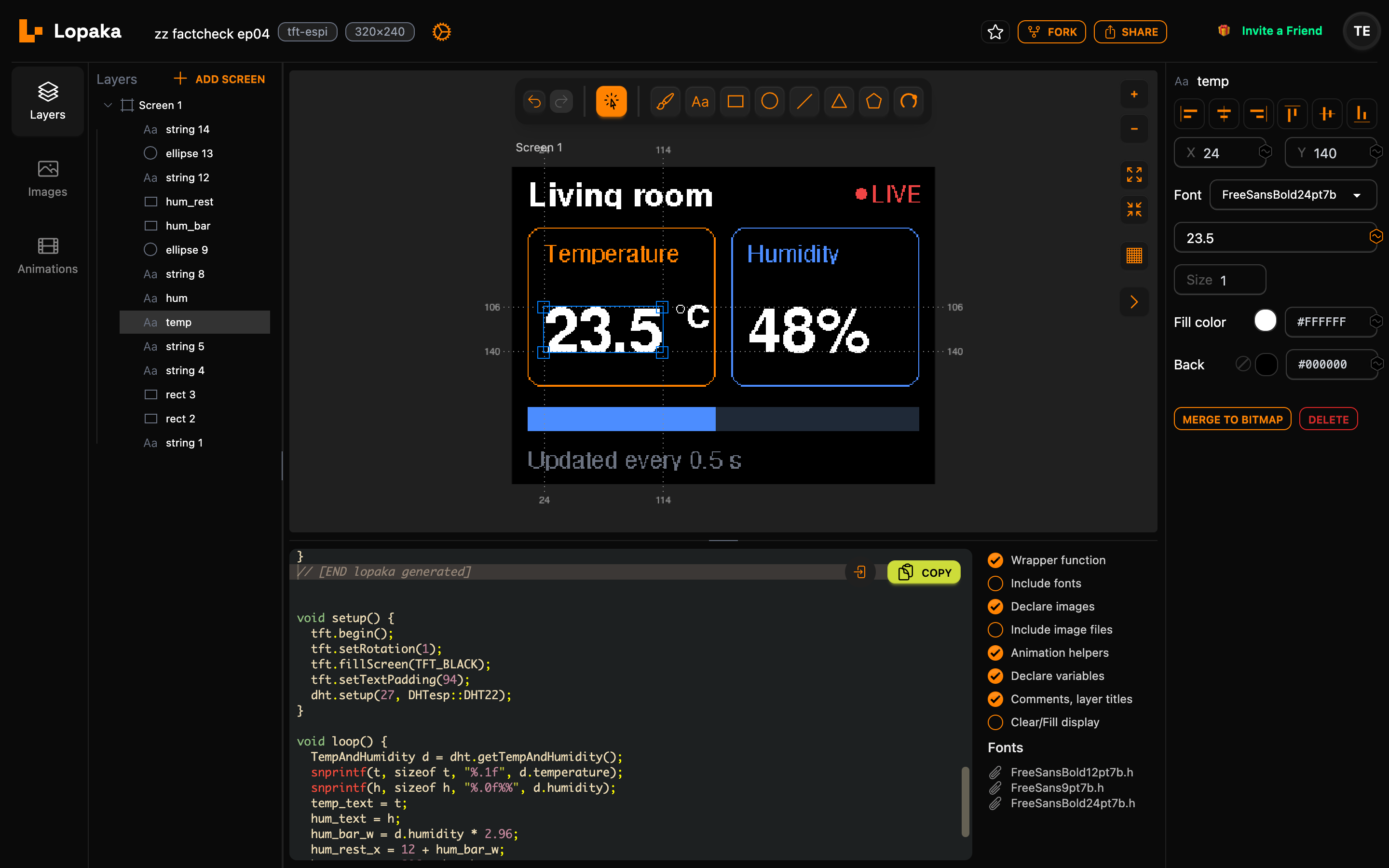
To make a number live, turn it into a variable. First, name the layer: double-click string 6, the 23.5 text, in the Layers panel and rename it to temp.
Click the variable button
Select the layer and click the variable button at the right end of its text field in the inspector (its tooltip says Add variable). The button turns orange, and two things change in the code:
const char* temp_text = "23.5";// temp
tft.drawString(temp_text, 24, 104);Lopaka declares a variable at the top of the code, named after the layer, with the text as its starting value. The draw call now uses the variable instead of the fixed text. Your sketch can put any text into temp_text, and the next call of the draw function shows it.
Humidity and the bar
Do the same for humidity, and give the bar variable sizes:
- Rename
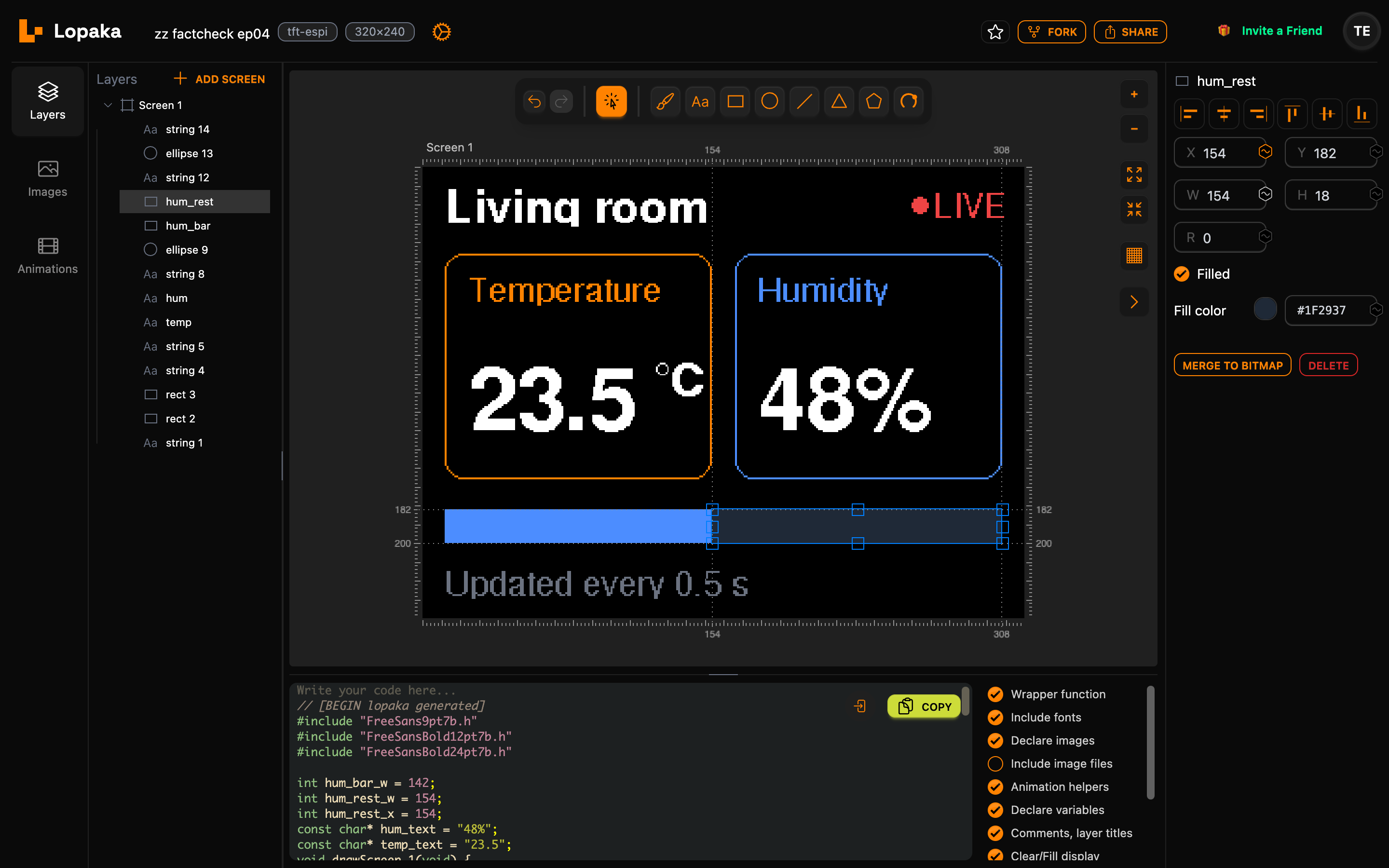
string 7, the48%text, tohumand click the variable button next to its text:hum_text. - Rename the filled bar to
hum_barand click the variable button next to W:hum_bar_w. - Rename the empty part of the bar to
hum_restand click the variable buttons next to X and W:hum_rest_xandhum_rest_w.
The bar gets a variable width, and its empty part a variable position and width, so the sketch still paints every pixel of the bar once, whatever the humidity.
int hum_bar_w = 142;
int hum_rest_w = 154;
int hum_rest_x = 154;
const char* hum_text = "48%";
const char* temp_text = "23.5";// hum_bar
tft.fillRect(12, 182, hum_bar_w, 18, 0x4C7F);
// hum_rest
tft.fillRect(hum_rest_x, 182, hum_rest_w, 18, 0x1946);A text becomes a const char*, a number such as a width becomes an int. The layer name and the property make the variable name: hum_bar + w.
Step 3: no blink
A background behind every number
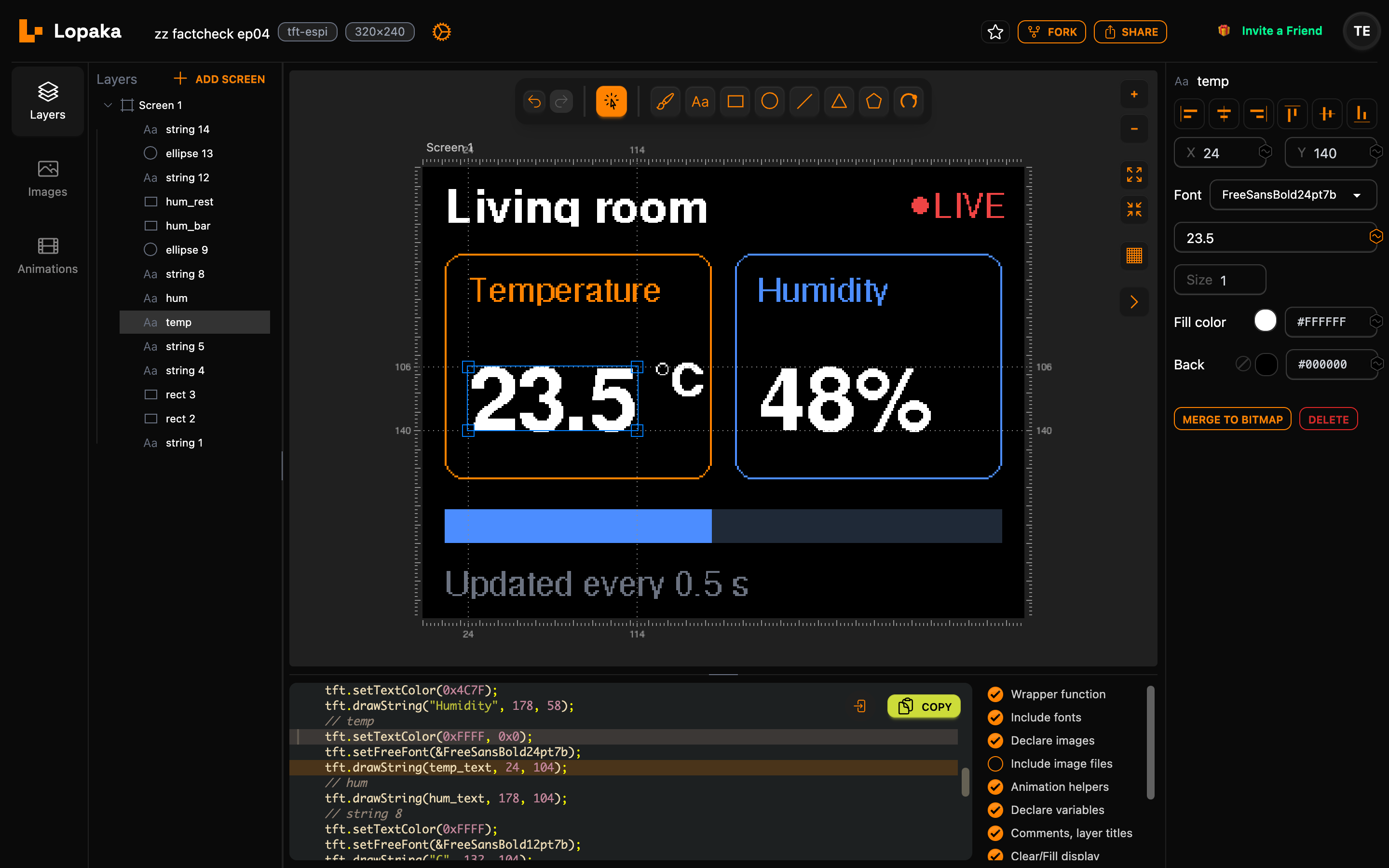
Select temp and set its Back colour to #000000, black like the screen. Do the same for hum. The code now sets two colours for the text, the digits and the box behind them:
// temp
tft.setTextColor(0xFFFF, 0x0);
tft.setFreeFont(&FreeSansBold24pt7b);
tft.drawString(temp_text, 24, 104);
// hum
tft.drawString(hum_text, 178, 104);0xFFFF is white, 0x0 is black. The humidity number uses the same colours, so Lopaka does not repeat the call. That is rule 2.
Switch off Clear/Fill display
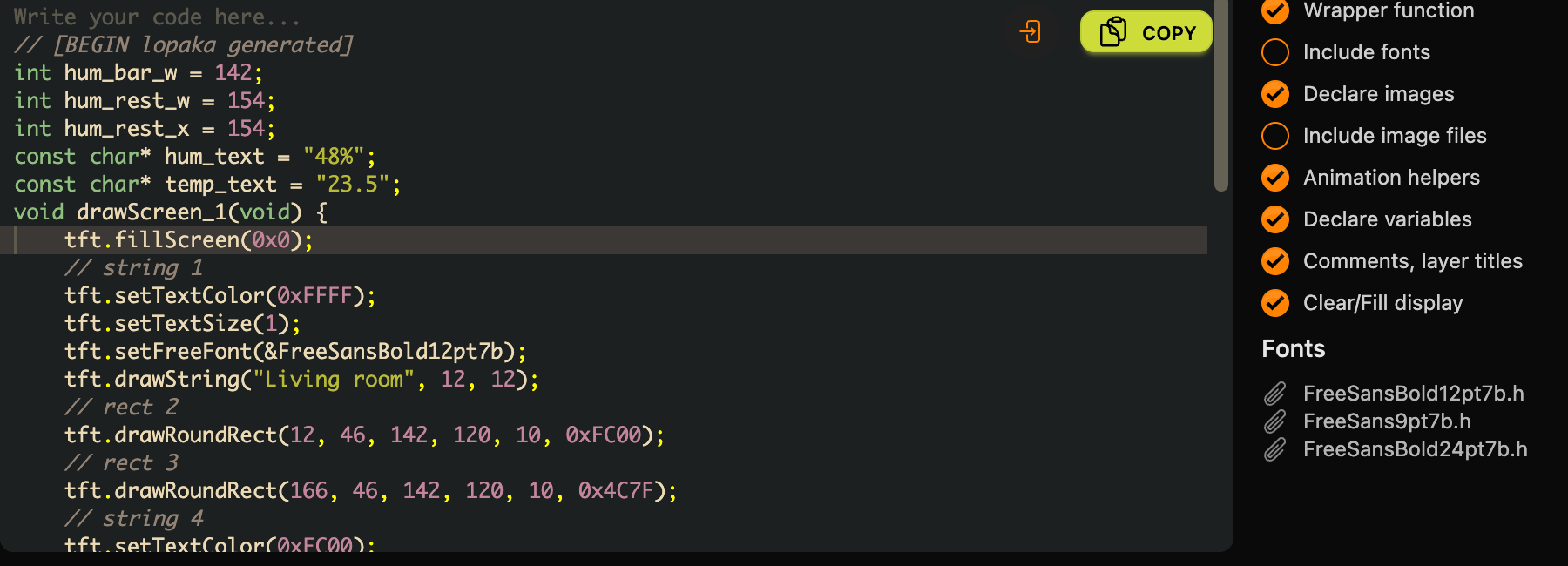
Now rule 1. In the list of switches next to the code, find Clear/Fill display. In a new TFT_eSPI project it is on, and the draw function starts by filling the whole screen:
void drawScreen_1(void) {
tft.fillScreen(0x0);That one line causes the blink: the function runs on every lap of loop(), so the screen goes black on every lap. Switch Clear/Fill display off, and the line is gone.
Switch off Include fonts
One more switch: turn off Include fonts. TFT_eSPI already brings these FreeFonts with it, so the sketch needs no font files.
Step 4: your own loop
Write around the generated block
The rest is a few lines of your own. You can write the whole sketch right here in the code panel. Lopaka keeps your code around its generated block, between // [BEGIN lopaka generated] and // [END lopaka generated], and it stays when you change the design or reload the page.
Click above the BEGIN line and type the includes and the objects:
#include <TFT_eSPI.h>
#include <DHTesp.h>
TFT_eSPI tft;
DHTesp dht;
char t[8], h[8];Then, below the END line, add setup() and loop():
void setup() {
tft.begin();
tft.setRotation(1);
tft.fillScreen(TFT_BLACK);
tft.setTextPadding(94);
dht.setup(27, DHTesp::DHT22);
}
void loop() {
TempAndHumidity d = dht.getTempAndHumidity();
snprintf(t, sizeof t, "%.1f", d.temperature);
snprintf(h, sizeof h, "%.0f%%", d.humidity);
temp_text = t;
hum_text = h;
hum_bar_w = d.humidity * 2.96;
hum_rest_x = 12 + hum_bar_w;
hum_rest_w = 296 - hum_bar_w;
drawScreen_1();
delay(500);
}
What setup() does
setup() starts the display, turns it to landscape with setRotation(1), and paints it black once, then starts the sensor on pin 27. The one fillScreen here is fine: it runs at power-up, not on every lap.
setTextPadding(94) gives every live number a fixed box 94 pixels wide. TFT_eSPI fills the text background only as wide as the new text. When "23.5" changes to a narrower value such as "9.8", the right end of the old digits would stay on the screen. 94 pixels is the width of a two-digit value such as "48%" in this font, and the box stops before the degree sign.
What loop() does
loop() reads temperature and humidity, writes them into the text variables, turns humidity into the bar width, and calls the draw function. Then it waits half a second, and goes again:
snprintfturns a number into text:"%.1f"keeps one decimal, so 23.46 becomes "23.5", and"%.0f%%"gives "48%".%%prints the percent sign.temp_text = t;points the variable at that text. The bufferstandhare declared outsideloop(), so the text is still there when the draw function reads it.- The bar is 296 pixels long at 100%, from x = 12 to 308, so one percent is 2.96 pixels. The empty part starts where the filled part ends and takes the rest.
delay(500)gives two updates a second.
Step 5: run it
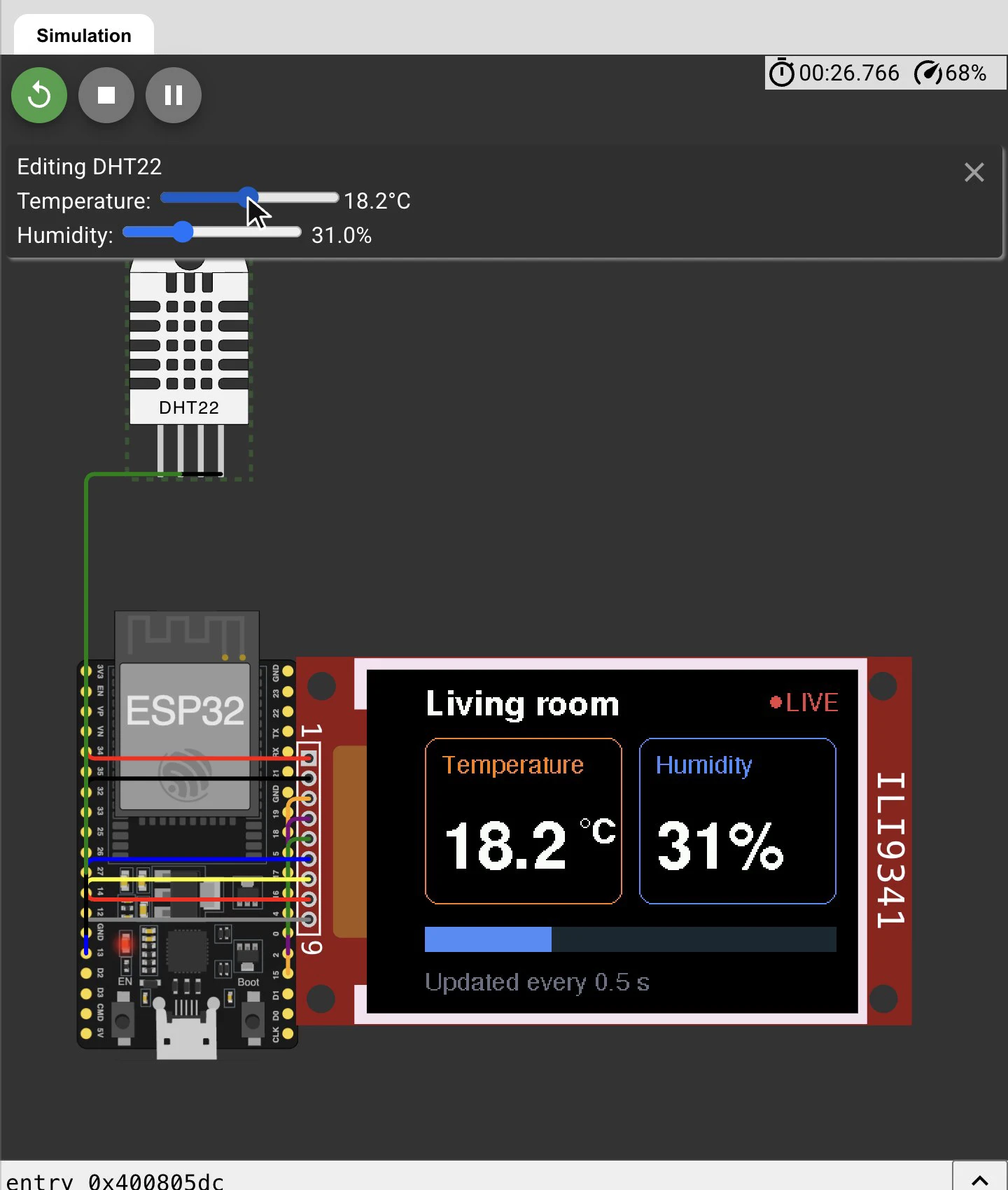
In the simulator
Click Copy above the code. It copies the whole panel, your code included. In the simulator from episode 1:
- Create a new ESP32 project.
- Add an ILI9341 display and connect it: VCC and LED to 3V3, GND to GND, CS to 15, RST to 2, D/C to 0, MOSI to 13, SCK to 14, MISO to 12.
- Add a DHT22 sensor: VCC to 3V3, GND to GND, SDA to 27.
- In the Library Manager, add TFT_eSPI and DHT sensor library for ESPx (the library with
DHTesp.h). - Paste the code into
sketch.inoand press Play.
TFT_eSPI reads its pins from a settings file in the library folder. The simulator uses the library's default settings: an ILI9341 on these ESP32 pins.
Click the DHT22 and drag its sliders. The numbers and the bar follow the sliders without a single blink.
The complete code from the Copy button, with the Lopaka block in the middle:
#include <TFT_eSPI.h>
#include <DHTesp.h>
TFT_eSPI tft;
DHTesp dht;
char t[8], h[8];
// [BEGIN lopaka generated]
int hum_bar_w = 142;
int hum_rest_w = 154;
int hum_rest_x = 154;
const char* hum_text = "48%";
const char* temp_text = "23.5";
void drawScreen_1(void) {
// string 1
tft.setTextColor(0xFFFF);
tft.setTextSize(1);
tft.setFreeFont(&FreeSansBold12pt7b);
tft.drawString("Living room", 12, 12);
// rect 2
tft.drawRoundRect(12, 46, 142, 120, 10, 0xFC00);
// rect 3
tft.drawRoundRect(166, 46, 142, 120, 10, 0x4C7F);
// string 4
tft.setTextColor(0xFC00);
tft.setFreeFont(&FreeSans9pt7b);
tft.drawString("Temperature", 24, 58);
// string 5
tft.setTextColor(0x4C7F);
tft.drawString("Humidity", 178, 58);
// temp
tft.setTextColor(0xFFFF, 0x0);
tft.setFreeFont(&FreeSansBold24pt7b);
tft.drawString(temp_text, 24, 104);
// hum
tft.drawString(hum_text, 178, 104);
// string 8
tft.setTextColor(0xFFFF);
tft.setFreeFont(&FreeSansBold12pt7b);
tft.drawString("C", 132, 104);
// ellipse 9
tft.drawEllipse(127, 107, 3, 3, 0xFFFF);
// hum_bar
tft.fillRect(12, 182, hum_bar_w, 18, 0x4C7F);
// hum_rest
tft.fillRect(hum_rest_x, 182, hum_rest_w, 18, 0x1946);
// string 12
tft.setTextColor(0x6B90);
tft.setFreeFont(&FreeSans9pt7b);
tft.drawString("Updated every 0.5 s", 12, 214);
// ellipse 13
tft.fillEllipse(264, 20, 4, 4, 0xEA28);
// string 14
tft.setTextColor(0xEA28);
tft.drawString("LIVE", 272, 13);
}
// [END lopaka generated]
void setup() {
  tft.begin();
  tft.setRotation(1);
  tft.fillScreen(TFT_BLACK);
  tft.setTextPadding(94);
  dht.setup(27, DHTesp::DHT22);
}

void loop() {
  TempAndHumidity d = dht.getTempAndHumidity();
  snprintf(t, sizeof t, "%.1f", d.temperature);
  snprintf(h, sizeof h, "%.0f%%", d.humidity);
  temp_text = t;
  hum_text = h;
  hum_bar_w = d.humidity * 2.96;
  hum_rest_x = 12 + hum_bar_w;
  hum_rest_w = 296 - hum_bar_w;
  drawScreen_1();
  delay(500);
}Compiled for an ESP32, the sketch uses 24% of the program space and 6% of the RAM.
The same sketch with Clear/Fill display
The split screen below runs the same sketch twice: on the left with Clear/Fill display switched on, on the right ours. The only difference is the tft.fillScreen(0x0); line at the start of drawScreen_1(). The left screen is caught halfway through a redraw, with only the first digit back. On the right, only the digits change.
On a real board
Install TFT_eSPI and DHT sensor library for ESPx from the Library Manager in the Arduino IDE, wire the display and the sensor the same way and upload. Things to check on real hardware:
- TFT_eSPI settings. The library takes the display driver and the pins from
User_Setup.hin its own folder. The default is an ILI9341 with the pins above. For a different display or other pins, change that file, not the sketch. - Boot pins. On a real ESP32, GPIO 0 and GPIO 12 also decide how the board starts. If the board does not boot with the display connected, move D/C and MISO to other pins in
User_Setup.h. - The sensor. A DHT22 gives a new reading at most every two seconds. The library returns the last reading in between, so the screen still redraws twice a second. If the numbers show
nan, the sensor did not answer: check its wiring.
Recap
loop()redraws your screen forever: read, make text, draw, repeat.- Name a layer, get a variable: the variable button turns a text or a size into a variable named after the layer, and your loop feeds it.
- No clearing plus a background means no blink: switch off Clear/Fill display and give every live number a Back colour.
Next episode: From Browser to Board. We take a design off the screen and onto a real board, and go through five reasons a new display stays black. Read episode 5.
Ready to try? Open Lopaka and make your own screen live.