
Lopaka Basics 08: Touch UI with LVGL
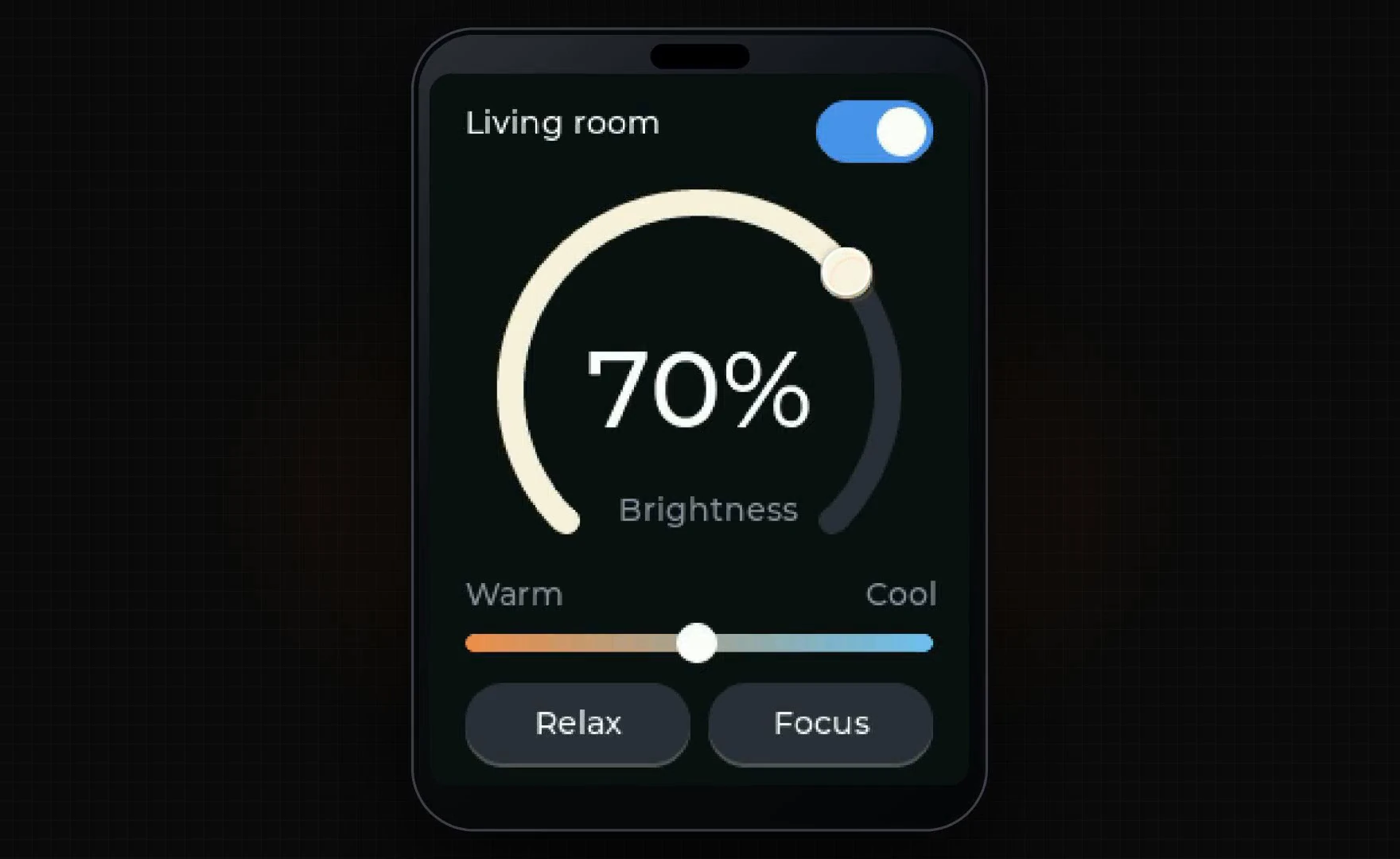
This looks like an app on a phone, but it runs on a microcontroller with a small touchscreen. You turn the dial with a finger, slide from warm to cool, tap a button and the dial sweeps to a new value.
In this episode you will see how a UI framework called LVGL turns a small screen into a touch interface, and what makes it different from the graphics libraries of the earlier episodes. Then you will lay out the screen in Lopaka, add a few lines of your own code for the touches, and run it on a simulated ESP32 with a real touch panel.
What you will build: a 240×320 touch screen that controls a living room light: a brightness dial with a big number, a Warm ↔ Cool slider, a power switch and two scene buttons, Relax and Focus. What you need: a browser and the online simulator from episode 1. A real board is optional: an ESP32 and a 2.8-inch ILI9341 display with an FT6206 capacitive touch panel.
A pen, or a set of parts
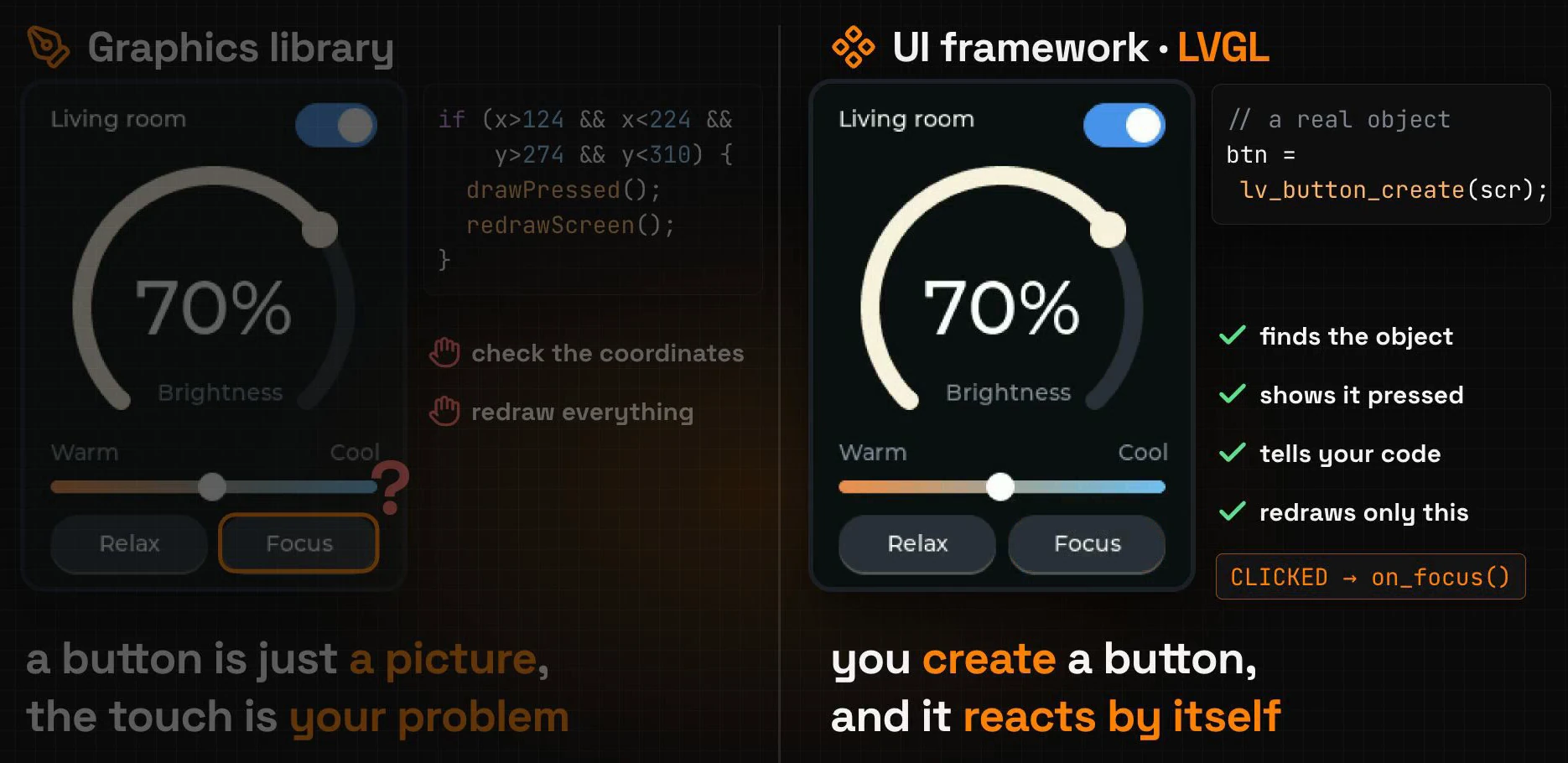
A graphics library draws a picture of a button
So far we drew every screen with a graphics library such as U8g2 or Adafruit GFX. A graphics library is a pen: a rectangle here, some text there. A button drawn this way is only a picture of a button.
The touch is your problem too. When a finger lands on the screen, your code has to read the coordinates, check whether they fall inside the rectangle (x > 124 && x < 224 && y > 274 …), draw the button in its pressed look and redraw the screen, all by hand.
A UI framework gives you real objects
LVGL is a UI framework. You do not draw a button, you create one: lv_button_create(). From then on the button is an object that knows its own size, colours and state.
LVGL reads the touch, finds the object under the finger, shows it pressed and tells your code what happened: "Focus was clicked". It also redraws only the part of the screen that changed, not the whole picture.
Step 1: a new LVGL project
Click + New Project and set up the dialog:
- Platform: LVGL (v9).
- Title: "Living Room".
- Screen Size: turn on Custom and type W
240, H320. The screen stands upright, like a phone. - Background Color:
#0E1116, a dark blue-black.
Click Save. The background colour is the first line of the generated code:
lv_obj_set_style_bg_color(lv_screen_active(), lv_color_hex(0x0E1116), LV_PART_MAIN);lv_screen_active() is the screen object itself, and every widget you add will live on it.
Step 2: add the widgets
On an LVGL project the toolbar holds real widgets: next to the selection tool and paint are text (Aa), Text Area, Panel, Button, Switch, Slider, Checkbox and Arc. Click a tool and the widget appears on the screen. Then set its position, size and colours in the inspector on the right.
The dial
Pick the Arc tool. Set X 30, Y 52, W 180 and H 180, then Value 70. Set Fill color to #2196F3 and Back to #2A3039.
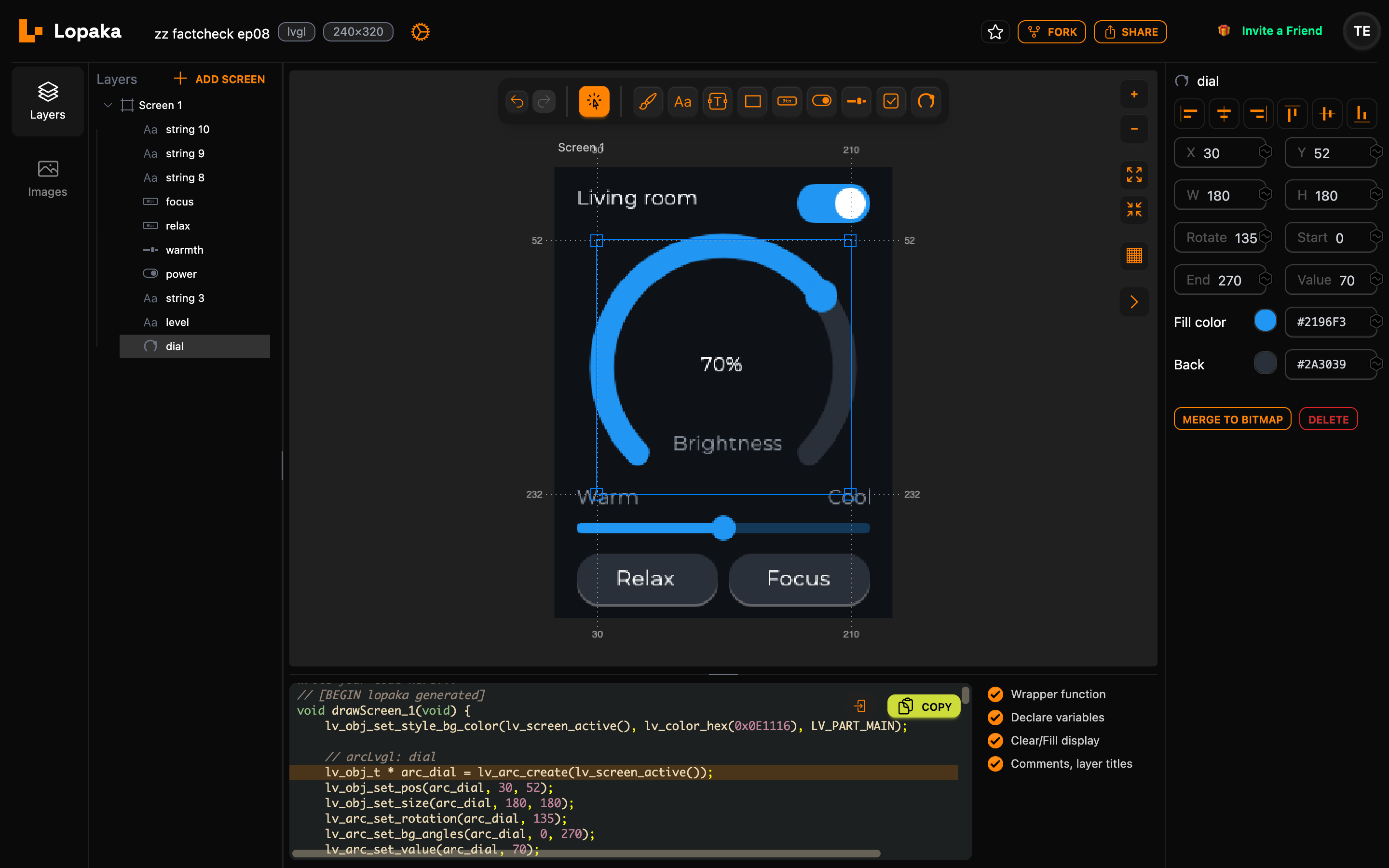
A 180-pixel dial on a 240-pixel screen leaves 30 pixels on each side, so X 30 centres it. The other three numbers come with the arc:
- Start
0and End270make the track three quarters of a circle. - Rotate
135turns it so the gap is at the bottom. LVGL counts angles clockwise from the right, so the arc starts at the lower left and ends at the lower right. - Value
70is how much of the track is filled, on a scale from 0 to 100.
Fill color paints the filled part and Back the rest of the track.
Labels, a switch, a slider and two buttons
Add the rest of the screen. Give every widget its colours in the inspector as you go:
- The number: a text
70%in white (#FFFFFF) inside the dial, at X104, Y150. - The title: a text
Living roomin white in the top-left corner. - A switch in the top-right corner, 52×28 pixels, with Fill color
#2196F3and Back#3A404A. Checked is on: the light starts switched on. - A slider below the dial, 208 pixels wide and 8 tall, with Fill color
#2196F3. - Two buttons along the bottom,
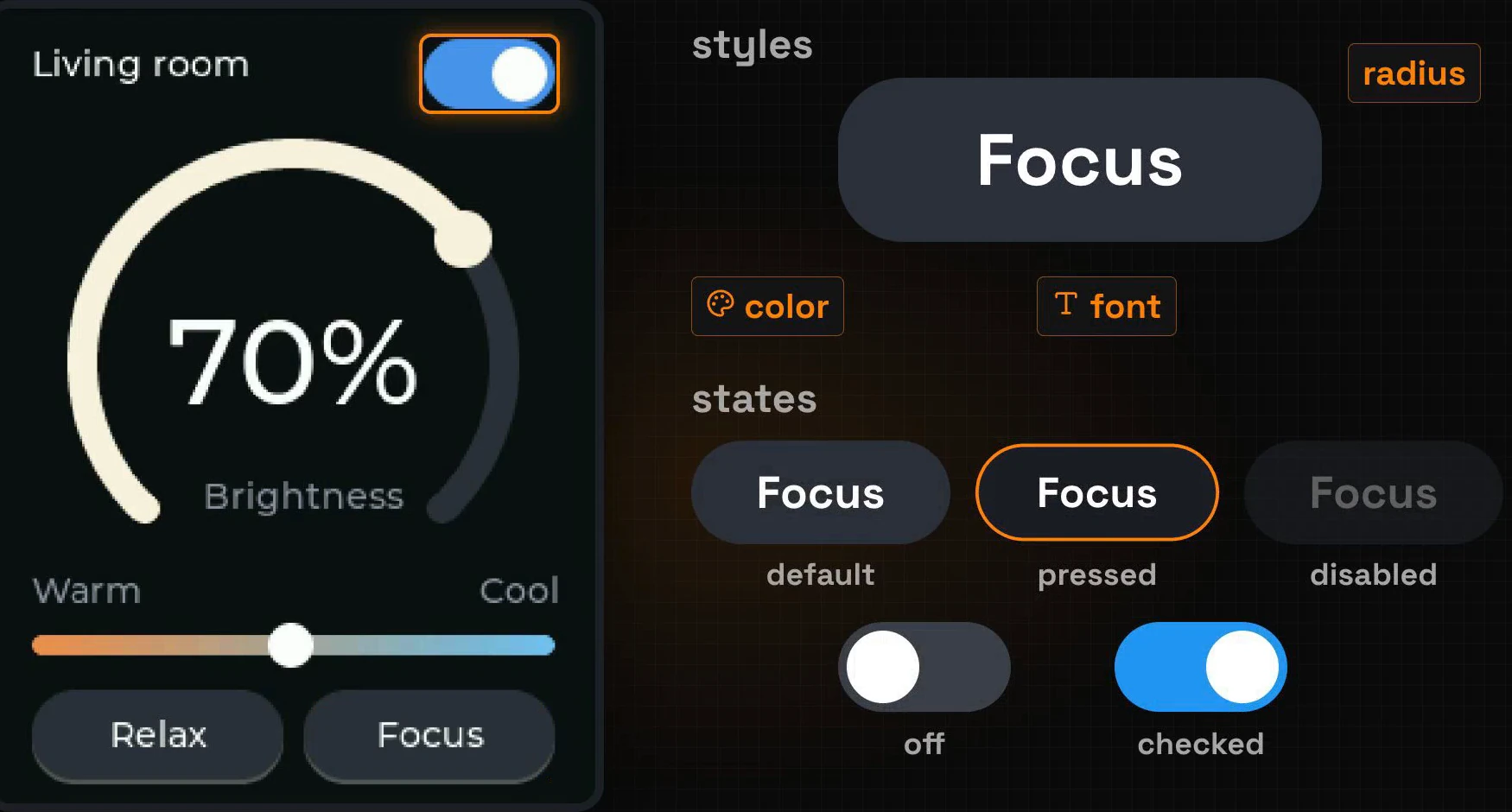
RelaxandFocus, 100×36 pixels each. Set R to17, the text colour to#FFFFFFand Back to#2A3039. A radius of almost half the height turns each button into a pill. - Three small labels in grey (
#8A93A0):Brightnessunder the number,WarmandCoolabove the two ends of the slider.
Each widget appears in the middle of the screen when you add it, and the X and Y fields move it into place.
Step 3: name the layers
Every widget is a layer in the Layers panel, and the layer name becomes the variable name in the code. Double-click a layer and give the six you will need in your code short names:
| Layer | Name | In the code |
|---|---|---|
| the arc | dial | arc_dial |
the 70% text | level | label_level |
| the switch | power | switch_power |
| the slider | warmth | slider_warmth |
| the Relax button | relax | button_relax |
| the Focus button | focus | button_focus |
Lopaka puts the widget type in front of the name. The title and the grey labels keep their default names; nothing refers to them.
Everything is an object
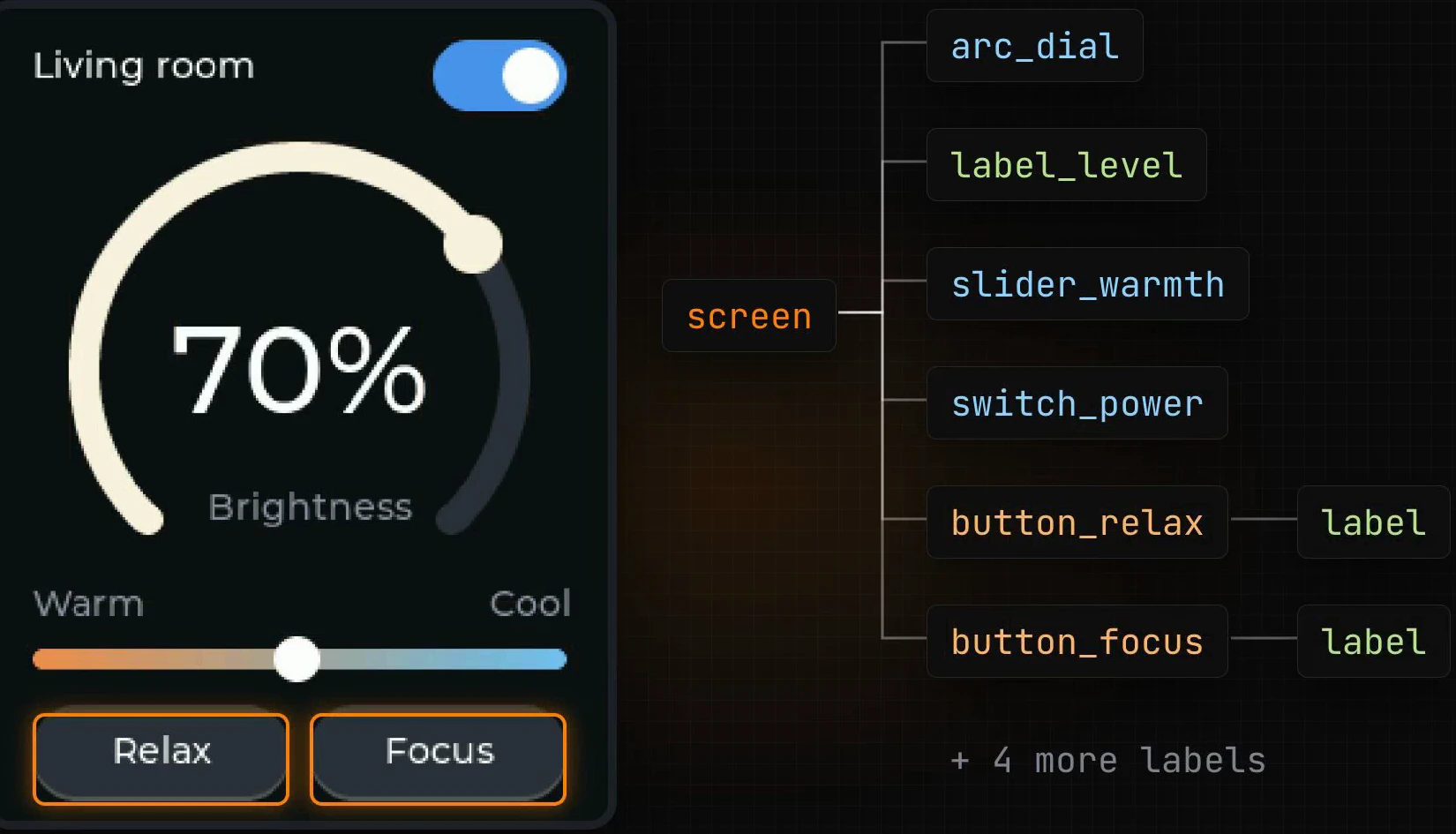
LVGL sees the screen you built as a set of objects. Everything on the screen is an object, and objects live in a tree. The screen holds the dial, the number, the slider, the switch and the buttons. Each button holds its own label, so the two move together.
Styles, and states
Every object has styles: colour, radius, font. Styles can depend on the object's state. The same Focus button looks different by default, while it is pressed and when it is disabled, and the switch changes when it is checked. LVGL switches between these looks on its own.
Events
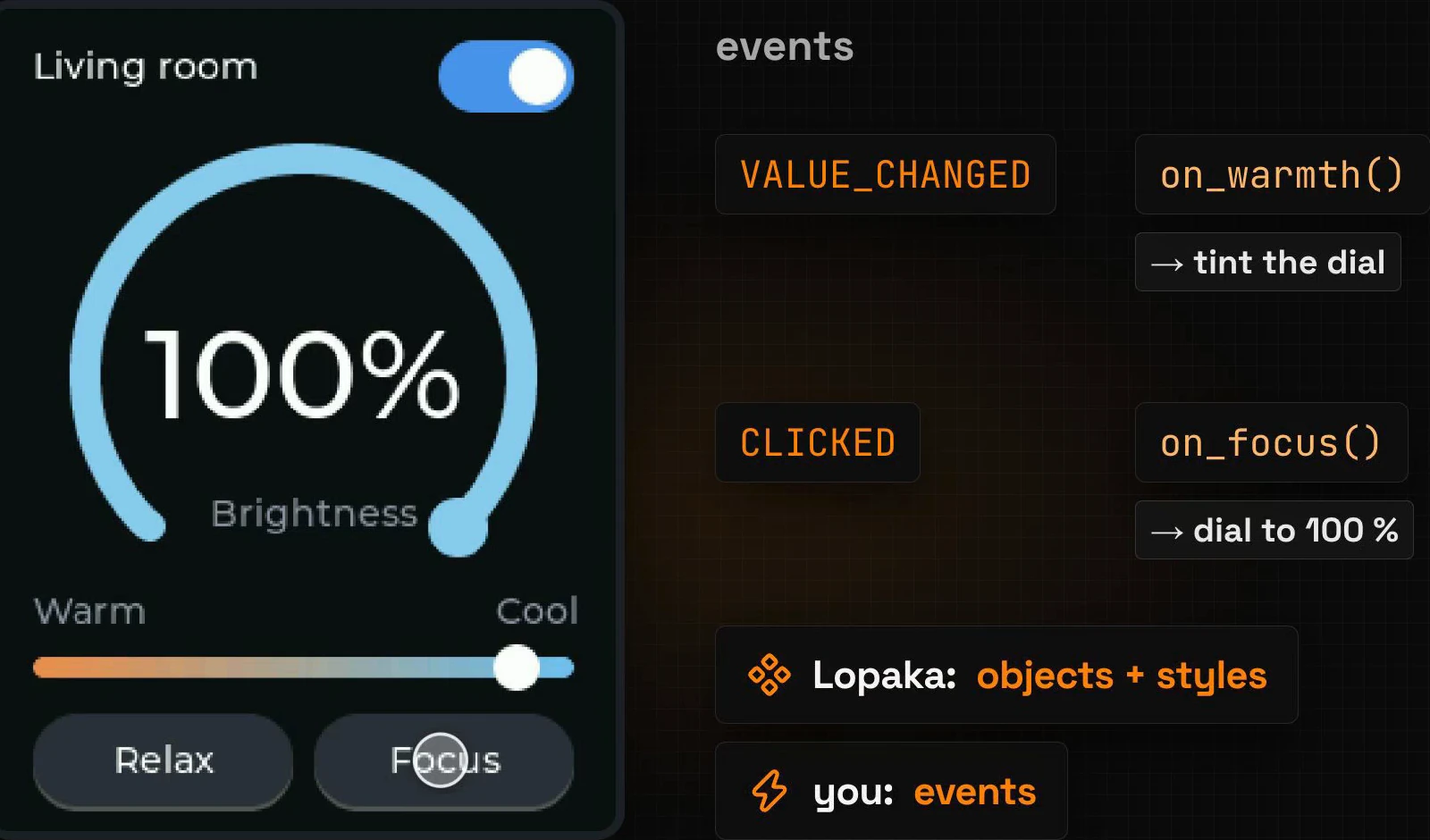
Finally, events. When the slider moves, it sends a VALUE_CHANGED event. When a button is tapped, it sends CLICKED. Your function runs and decides what happens next: on_warmth() tints the dial, on_focus() sends it to 100%.
Lopaka writes the objects and their styles. The events are yours.
Step 4: your code
What Lopaka generates
Open the code panel. Every widget is one create call, followed by its position, size and colours:
// [BEGIN lopaka generated]

lv_obj_set_style_bg_color(lv_screen_active(), lv_color_hex(0x0E1116), LV_PART_MAIN);

// arcLvgl: dial
lv_obj_t * arc_dial = lv_arc_create(lv_screen_active());
lv_obj_set_pos(arc_dial, 30, 52);
lv_obj_set_size(arc_dial, 180, 180);
lv_arc_set_rotation(arc_dial, 135);
lv_arc_set_bg_angles(arc_dial, 0, 270);
lv_arc_set_value(arc_dial, 70);
lv_obj_set_style_arc_color(arc_dial, lv_color_hex(0x2196F3), LV_PART_INDICATOR);
lv_obj_set_style_arc_color(arc_dial, lv_color_hex(0x2A3039), LV_PART_MAIN);

// string: level
lv_obj_t * label_level = lv_label_create(lv_screen_active());
lv_obj_set_style_text_color(label_level, lv_color_hex(0xFFFFFF), LV_PART_MAIN);
lv_obj_set_pos(label_level, 104, 132);
lv_label_set_text(label_level, "70%");

// string: string 3
lv_obj_t * label_string_3 = lv_label_create(lv_screen_active());
lv_obj_set_style_text_color(label_string_3, lv_color_hex(0xFFFFFF), LV_PART_MAIN);
lv_obj_set_pos(label_string_3, 16, 14);
lv_label_set_text(label_string_3, "Living room");

// switch: power
lv_obj_t * switch_power = lv_switch_create(lv_screen_active());
lv_obj_set_pos(switch_power, 172, 12);
lv_obj_set_size(switch_power, 52, 28);
lv_obj_add_state(switch_power, LV_STATE_CHECKED);
lv_obj_set_style_bg_color(switch_power, lv_color_hex(0x2196F3), LV_PART_INDICATOR | LV_STATE_CHECKED);
lv_obj_set_style_bg_color(switch_power, lv_color_hex(0x3A404A), LV_PART_MAIN);

// slider: warmth
lv_obj_t * slider_warmth = lv_slider_create(lv_screen_active());
lv_slider_set_value(slider_warmth, 50, LV_ANIM_OFF);
lv_obj_set_pos(slider_warmth, 16, 252);
lv_obj_set_size(slider_warmth, 208, 8);
lv_obj_set_style_bg_color(slider_warmth, lv_color_hex(0x2196F3), LV_PART_INDICATOR);
lv_obj_set_style_bg_color(slider_warmth, lv_color_hex(0x2196F3), LV_PART_KNOB);
lv_obj_set_style_bg_color(slider_warmth, lv_color_hex(0x2196F3), LV_PART_MAIN);

// button: relax
lv_obj_t * button_relax = lv_button_create(lv_screen_active());
lv_obj_set_pos(button_relax, 16, 274);
lv_obj_set_size(button_relax, 100, 36);
lv_obj_set_style_radius(button_relax, 17, LV_PART_MAIN);
lv_obj_set_style_bg_color(button_relax, lv_color_hex(0x2A3039), LV_PART_MAIN);
lv_obj_t * button_relax_label = lv_label_create(button_relax);
lv_label_set_text(button_relax_label, "Relax");
lv_obj_center(button_relax_label);

// button: focus
lv_obj_t * button_focus = lv_button_create(lv_screen_active());
lv_obj_set_pos(button_focus, 124, 274);
lv_obj_set_size(button_focus, 100, 36);
lv_obj_set_style_radius(button_focus, 17, LV_PART_MAIN);
lv_obj_set_style_bg_color(button_focus, lv_color_hex(0x2A3039), LV_PART_MAIN);
lv_obj_t * button_focus_label = lv_label_create(button_focus);
lv_label_set_text(button_focus_label, "Focus");
lv_obj_center(button_focus_label);

// string: string 8
lv_obj_t * label_string_8 = lv_label_create(lv_screen_active());
lv_obj_set_style_text_color(label_string_8, lv_color_hex(0x8A93A0), LV_PART_MAIN);
lv_obj_set_pos(label_string_8, 84, 188);
lv_label_set_text(label_string_8, "Brightness");

// string: string 9
lv_obj_t * label_string_9 = lv_label_create(lv_screen_active());
lv_obj_set_style_text_color(label_string_9, lv_color_hex(0x8A93A0), LV_PART_MAIN);
lv_obj_set_pos(label_string_9, 16, 226);
lv_label_set_text(label_string_9, "Warm");

// string: string 10
lv_obj_t * label_string_10 = lv_label_create(lv_screen_active());
lv_obj_set_style_text_color(label_string_10, lv_color_hex(0x8A93A0), LV_PART_MAIN);
lv_obj_set_pos(label_string_10, 194, 226);
lv_label_set_text(label_string_10, "Cool");
// [END lopaka generated]
This is the code with Wrapper function turned off, as we will need it in a moment. A few details in it:
- Parts. An arc has a track (
LV_PART_MAIN) and a filled part (LV_PART_INDICATOR); a slider and a switch also have a knob (LV_PART_KNOB). Each style call names the part it paints. The switch colour applies toLV_PART_INDICATOR | LV_STATE_CHECKED, the filled part while the switch is on: a style for a state. - The button and its label.
lv_label_create(button_relax)creates the label inside the button, not on the screen, andlv_obj_center()keeps it in the middle. That is the object tree from the explainer, in code. - Why the number says 132.
lv_obj_set_pos()places an object by its top-left corner. In Lopaka's inspector, the Y of a text is the bottom of its line, as on every platform. The text line is 18 pixels tall, so Y150in the inspector becomes132in the code. - Defaults stay out. Lopaka leaves out styles that match LVGL's own defaults. That is why the buttons have no line for their white text: white is already the default colour of a button's text.
Turn off the wrapper function
With Wrapper function on, Lopaka wraps the code in void drawScreen_1(void) { … }. Turn it off: then the generated lines sit inside a function you write yourself, with your own code above and below them. Lopaka keeps whatever you type outside the BEGIN and END markers, and updates only the part between them when you change the design.
Your code above the markers
Above // [BEGIN lopaka generated], type the display setup and a few small functions:
#include "touch_display.h"

lv_obj_t *dial, *level, *warmth;

void show_level(void *obj, int32_t v) {
  lv_arc_set_value(dial, v);
  lv_label_set_text_fmt(level, "%d%%", v);
}

void tint(int w) {
  lv_color_t warm = lv_color_hex(0xFF8A3D), white = lv_color_hex(0xFFF1DC), cool = lv_color_hex(0x4FC3F7);
  lv_color_t c = w < 50 ? lv_color_mix(white, warm, w * 255 / 50)
                        : lv_color_mix(cool, white, (w - 50) * 255 / 50);
  lv_obj_set_style_arc_color(dial, c, LV_PART_INDICATOR);
  lv_obj_set_style_bg_color(dial, c, LV_PART_KNOB);
}

void set_warmth(void *obj, int32_t w) {
  lv_slider_set_value(warmth, w, LV_ANIM_OFF);
  tint(w);
}

void scene(int to_level, int to_warmth) {
  lv_anim_t a;
  lv_anim_init(&a);
  lv_anim_set_duration(&a, 700);
  lv_anim_set_path_cb(&a, lv_anim_path_ease_out);
  lv_anim_set_exec_cb(&a, show_level);
  lv_anim_set_values(&a, lv_arc_get_value(dial), to_level);
  lv_anim_start(&a);
  lv_anim_set_exec_cb(&a, set_warmth);
  lv_anim_set_values(&a, lv_slider_get_value(warmth), to_warmth);
  lv_anim_start(&a);
}

void on_dial(lv_event_t *e) { show_level(NULL, lv_arc_get_value(dial)); }
void on_warmth(lv_event_t *e) { tint(lv_slider_get_value(warmth)); }
void on_relax(lv_event_t *e) { scene(30, 10); }
void on_focus(lv_event_t *e) { scene(100, 90); }

void on_power(lv_event_t *e) {
  lv_obj_t *sw = lv_event_get_target_obj(e);
  bool on = lv_obj_has_state(sw, LV_STATE_CHECKED);
  lv_obj_t *scr = lv_screen_active();
  for (uint32_t i = 0; i < lv_obj_get_child_count(scr); i++) {
    lv_obj_t *o = lv_obj_get_child(scr, i);
    if (o == sw) continue;
    lv_obj_set_state(o, LV_STATE_DISABLED, !on);
    lv_obj_set_style_opa(o, on ? LV_OPA_COVER : LV_OPA_30, 0);
  }
}

void build_ui() {show_level()moves the dial and writes the number:%d%%prints the value followed by a percent sign.tint()turns the slider position, 0 to 100, into a colour: warm orange at 0, warm white at 50, cool blue at 100.lv_color_mix()blends two colours; its last argument, from 0 to 255, says how much of the first colour to take.scene()animates the dial and the slider to new values in 700 milliseconds, slowing down at the end. Relax goes to 30% and warm, Focus to 100% and cool.on_power()runs when the switch changes. With the light off, it disables every other object on the screen and fades it to 30%.
The last line opens build_ui(), the function the generated code now sits in.
Your code below the markers
Below // [END lopaka generated], close the function and add the styles, the events and the usual setup() and loop():
  dial = arc_dial;
  level = label_level;
  warmth = slider_warmth;

  // styles
  lv_obj_set_style_text_font(level, &lv_font_montserrat_48, 0);
  lv_obj_align(level, LV_ALIGN_TOP_MID, 0, 116);
  lv_obj_set_style_bg_color(warmth, lv_color_hex(0xFF8A3D), LV_PART_MAIN);
  lv_obj_set_style_bg_opa(warmth, LV_OPA_COVER, LV_PART_MAIN);
  lv_obj_set_style_bg_grad_color(warmth, lv_color_hex(0x4FC3F7), LV_PART_MAIN);
  lv_obj_set_style_bg_grad_dir(warmth, LV_GRAD_DIR_HOR, LV_PART_MAIN);
  lv_obj_set_style_bg_opa(warmth, LV_OPA_TRANSP, LV_PART_INDICATOR);
  lv_obj_set_style_bg_color(warmth, lv_color_white(), LV_PART_KNOB);
  tint(lv_slider_get_value(warmth));

  // events
  lv_obj_add_event_cb(arc_dial, on_dial, LV_EVENT_VALUE_CHANGED, NULL);
  lv_obj_add_event_cb(slider_warmth, on_warmth, LV_EVENT_VALUE_CHANGED, NULL);
  lv_obj_add_event_cb(switch_power, on_power, LV_EVENT_VALUE_CHANGED, NULL);
  lv_obj_add_event_cb(button_relax, on_relax, LV_EVENT_CLICKED, NULL);
  lv_obj_add_event_cb(button_focus, on_focus, LV_EVENT_CLICKED, NULL);
}

void setup() {
  display_begin();
  build_ui();
}

void loop() {
  lv_timer_handler();
  delay(5);
}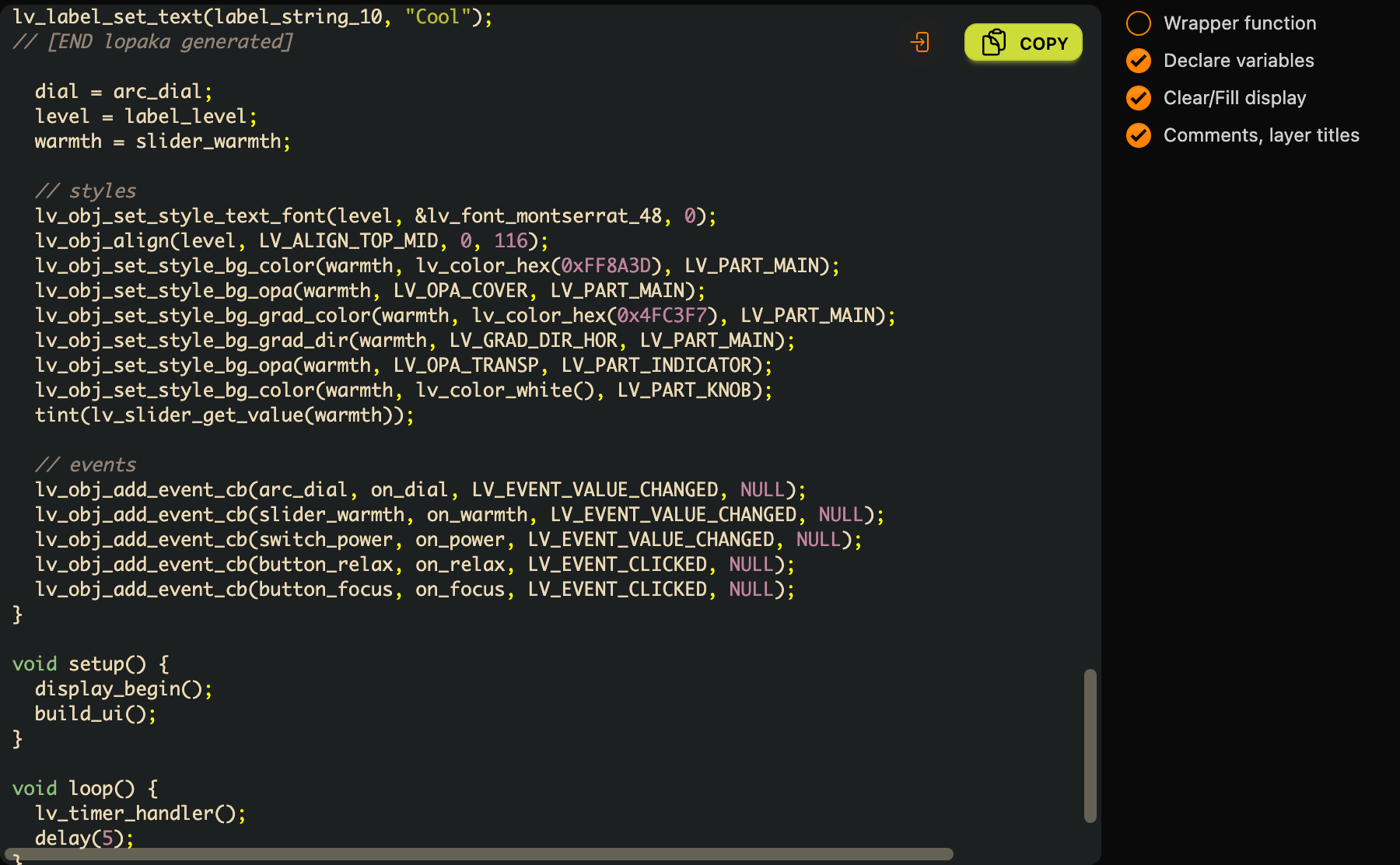
The first three lines copy the generated objects into the global variables, so the functions above can reach them. The generated variables exist only inside build_ui().
Styles. One style line makes the number big: lv_font_montserrat_48 is LVGL's Montserrat font at 48 pixels. A bigger number is also wider, so lv_obj_align() centres it at the top of the dial instead of leaving it at its old top-left corner. The next lines paint the slider's track as a warm-to-cool gradient, hide its filled part and make the knob white.
Events. One line per widget connects it to a function: lv_obj_add_event_cb(object, function, event, NULL). The dial updates the number, the slider tints the dial, the buttons switch scenes and the switch dims the screen. The dial, the slider and the switch send LV_EVENT_VALUE_CHANGED; the buttons send LV_EVENT_CLICKED.
The loop. lv_timer_handler() is where LVGL does its work: it reads the touch, sends the events, runs the animations and redraws what changed. Call it every few milliseconds and keep loop() free of long delays, or the screen stops reacting.
Step 5: copy the code
Click Copy above the code. You get the whole sketch: your code, the generated part between the markers, and setup() and loop().
Step 6: run it
The display file
The sketch starts with #include "touch_display.h". That file connects LVGL to this display and its touch chip. It is the same for every project with this display, so you write it once:
// Display + touch glue for LVGL: ILI9341 (SPI) + FT6206 (I2C), 240x320 portrait.
#include <lvgl.h>
#include <Adafruit_ILI9341.h>
#include <Adafruit_FT6206.h>

Adafruit_ILI9341 tft(23, 21, 22);  // CS, DC, RST
Adafruit_FT6206 touch;
#define DRAW_BUF_SIZE (240 * 160 * 2)   // half the screen
static uint8_t *draw_buf;

static void flush(lv_display_t *d, const lv_area_t *a, uint8_t *px) {
  uint32_t w = a->x2 - a->x1 + 1, h = a->y2 - a->y1 + 1;
  tft.startWrite();
  tft.setAddrWindow(a->x1, a->y1, w, h);
  tft.writePixels((uint16_t *)px, w * h);
  tft.endWrite();
  lv_display_flush_ready(d);
}

static void read_touch(lv_indev_t *i, lv_indev_data_t *data) {
  if (touch.touched()) {
    TS_Point p = touch.getPoint();
    data->point.x = 240 - p.x;   // the touch panel is mirrored
    data->point.y = 320 - p.y;
    data->state = LV_INDEV_STATE_PRESSED;
  } else {
    data->state = LV_INDEV_STATE_RELEASED;
  }
}

void display_begin() {
  pinMode(5, OUTPUT);
  digitalWrite(5, HIGH);  // backlight
  SPI.begin(18, 17, 19);  // SCK, MISO, MOSI
  Wire.begin(4, 16);      // SDA, SCL
  tft.begin();
  tft.setRotation(0);
  touch.begin(40);
  lv_init();
  lv_tick_set_cb(millis);
  lv_display_t *disp = lv_display_create(240, 320);
  lv_display_set_flush_cb(disp, flush);
  draw_buf = (uint8_t *)malloc(DRAW_BUF_SIZE);
  lv_display_set_buffers(disp, draw_buf, NULL, DRAW_BUF_SIZE, LV_DISPLAY_RENDER_MODE_PARTIAL);
  lv_indev_t *indev = lv_indev_create();
  lv_indev_set_type(indev, LV_INDEV_TYPE_POINTER);
  lv_indev_set_read_cb(indev, read_touch);
}
It has two jobs:
flush()sends pixels to the display. LVGL does not keep the whole screen in memory: a full 240×320 picture with two bytes per pixel would take 153,600 bytes. It draws into a buffer of half the screen, 240 × 160 × 2 = 76,800 bytes, and hands over one area at a time. When only the number changes, only that area is drawn and sent.read_touch()tells LVGL where the finger is. The FT6206 chip reports the touch point. On this panel its coordinates run the opposite way to the display's, so240 - p.xand320 - p.yturn them around.
lv_tick_set_cb(millis) gives LVGL a clock for its animations, and touch.begin(40) sets how firm a touch has to be to count.
The settings file
LVGL reads its settings from a file called lv_conf.h. Take lv_conf_template.h from the LVGL library, save it as lv_conf.h and change two lines:
#if 1 /* Set this to "1" to enable content */#define LV_FONT_MONTSERRAT_48 1The first line switches the file on. The second adds the 48-pixel font for the big number: LVGL compiles in only the fonts you enable, and the template enables only Montserrat 14, the default font of every label.
Run it in the simulator
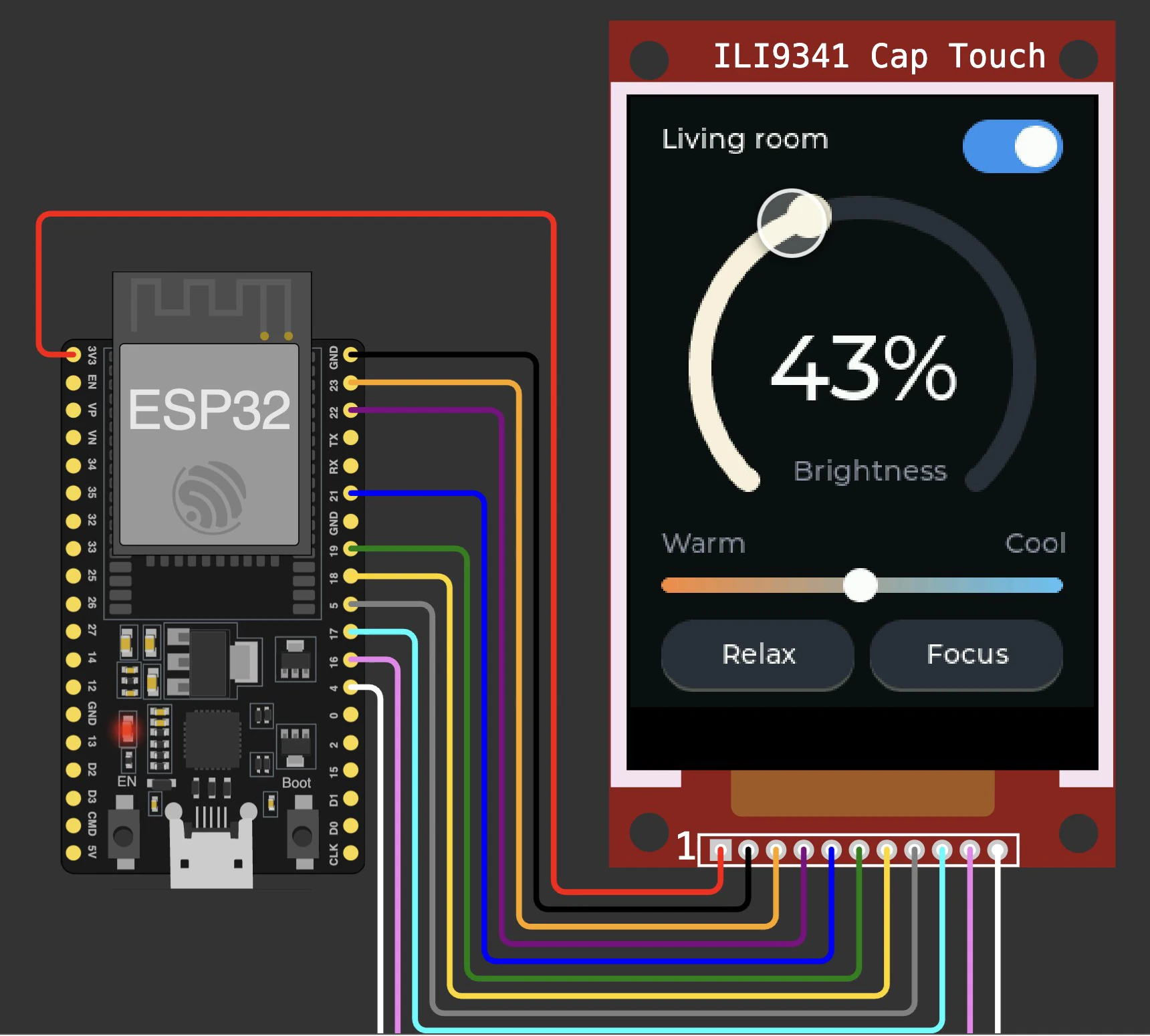
In the online simulator from episode 1, create a new ESP32 project and add the ILI9341 Cap Touch display: an ILI9341 screen with an FT6206 touch panel. Wire it to the ESP32:
- VCC to 3V3, GND to GND, LED (the backlight) to 5,
- CS to 23, D/C to 21, RST to 22,
- SCK to 18, MOSI to 19, MISO to 17,
- SDA to 4 and SCL to 16 for the touch panel.
Add the lvgl, Adafruit ILI9341 and Adafruit FT6206 Library libraries. Create two new files, touch_display.h and lv_conf.h, with the contents above. Paste the code from Lopaka into sketch.ino and press Play.
Once it is built, the mouse becomes a finger. Turn the dial: the number follows. Slide from warm to cool: the dial changes colour. Tap Focus: the dial sweeps to 100%. Then switch the light off, and the rest of the screen fades.
On a real board
The same sketch runs on a real ESP32 with a 2.8-inch ILI9341 module. In the Arduino IDE, install the same three libraries and pick the ESP32 Dev Module board. The sketch takes about half of the flash and 27% of the RAM; 64 KB of that RAM is LVGL's own memory for objects and styles. Three things to check:
- Where
lv_conf.hgoes. In the Arduino IDE it does not go next to the sketch. Put it in yourlibrariesfolder, next to thelvglfolder, not inside it. If LVGL cannot find it, the 48-pixel font is missing and the sketch does not compile. - The touch chip. Many low-cost 2.8-inch ILI9341 modules have a resistive touch panel with an XPT2046 chip instead of the capacitive FT6206. For those,
read_touch()needs a library for the XPT2046; the rest of the sketch stays the same. - The direction of the touch. If a tap lands on the wrong side of the screen, your panel is not mirrored like this one. Use
p.xandp.ydirectly inread_touch(), or mirror only one of them.
When LVGL is worth it
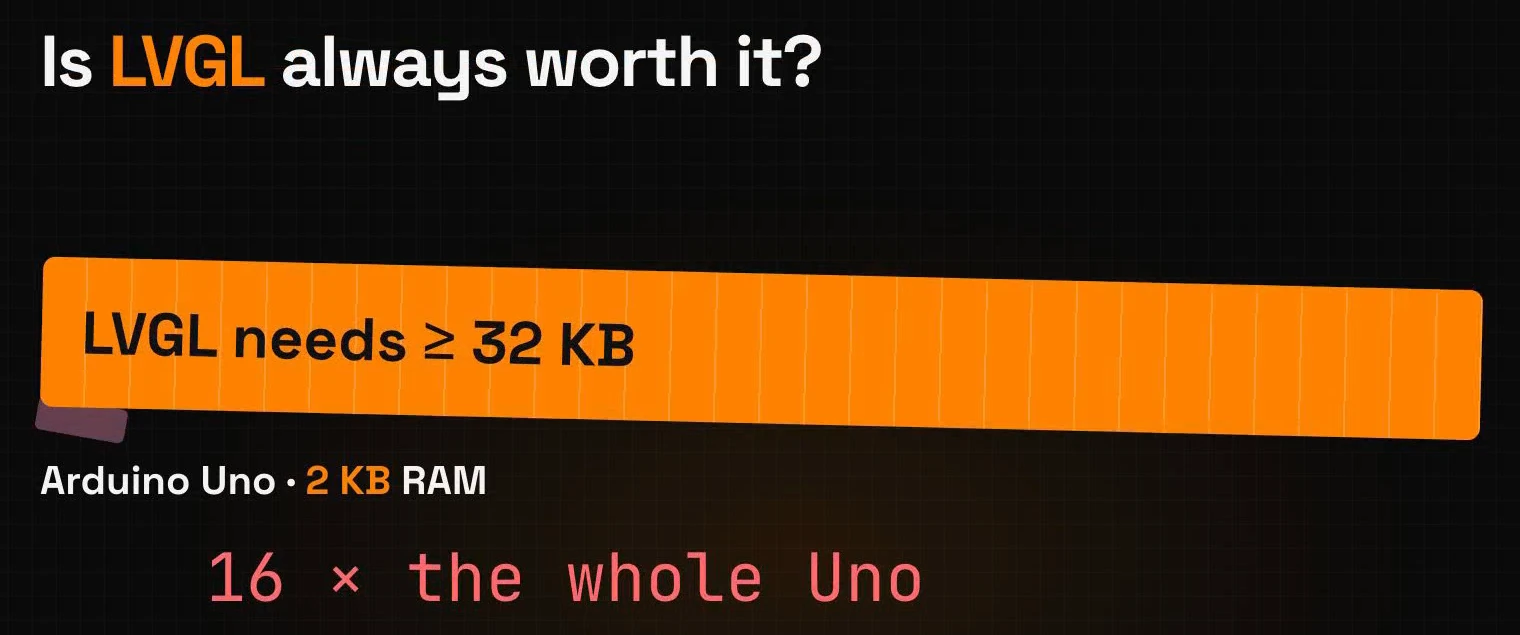
LVGL needs memory. Its own documentation asks for at least 32 KB of RAM. An Arduino UNO has 2 KB, so LVGL alone needs 16 times the whole UNO.
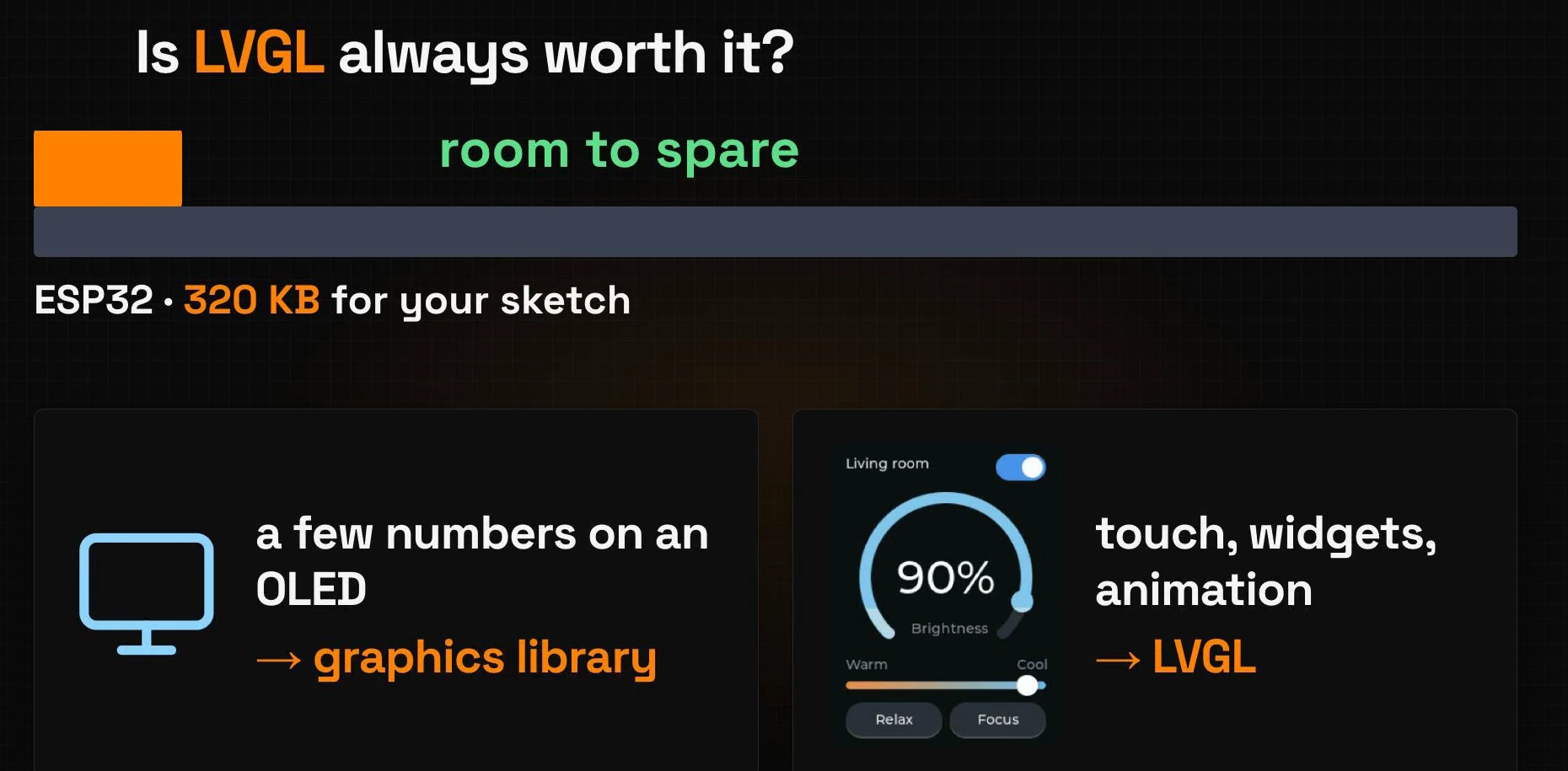
An ESP32 gives your sketch 320 KB of RAM, and this interface uses 27% of it. Pick the tool by the job:
- A few numbers on an OLED? A graphics library is enough.
- Touch, widgets and animation? That's LVGL.
Recap
- Objects, not pixels: LVGL builds a screen from objects such as arcs, sliders and buttons. You create a button instead of drawing it.
- Styles for every state: colours, radius and fonts decide how an object looks by default, while it is pressed, checked or disabled.
- Events connect a tap to your code: one
lv_obj_add_event_cbline per widget. Lopaka lays out the widgets, and you write the events.
Next episode: Beyond Arduino. One design, many platforms, from ESPHome to MicroPython and Flipper Zero. Read episode 9.
Ready to try? Open Lopaka and lay out your own touch screen.