
Lopaka Basics 09: Beyond Arduino
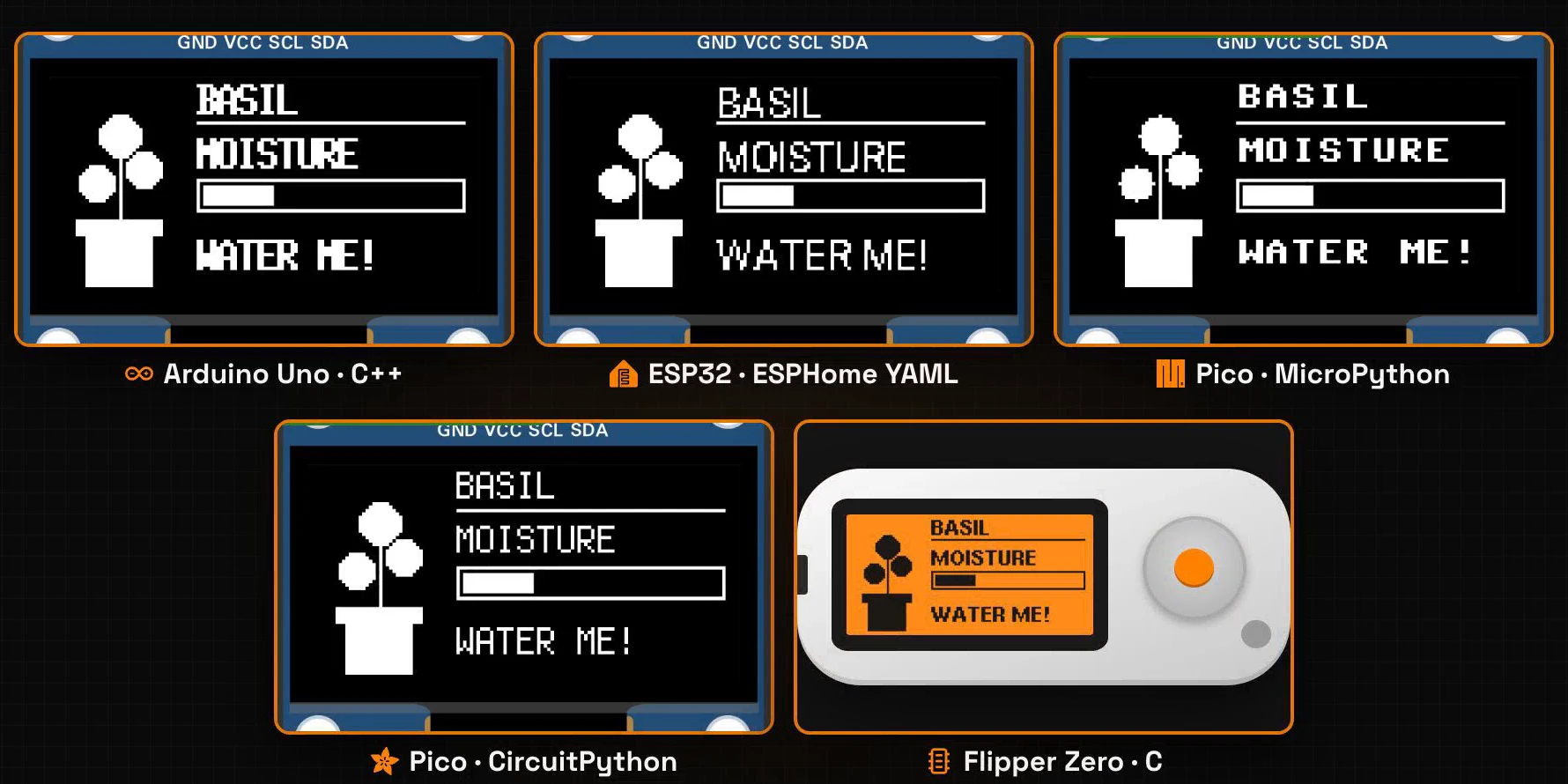
C++. YAML. Python. More Python. And C for a Flipper Zero. Five different programs draw the same screen, and Lopaka wrote the drawing code for every one of them.
In this episode you will find out why boards run code in such different languages, and what separates compiled firmware from a Python interpreter. Then you will draw a small plant monitor in Lopaka for MicroPython, build the same screen for CircuitPython, ESPHome and Flipper Zero, and run three of them on simulated boards.
What you will build: a 128×64 plant monitor screen: a pot with three leaves, the plant's name, a moisture bar and a reminder to water it, on four platforms. What you need: a browser and the online simulator from episode 1. Boards are optional: a Raspberry Pi Pico or an ESP32 with a 128×64 SSD1306 OLED, or a Flipper Zero.
Two ways to run code
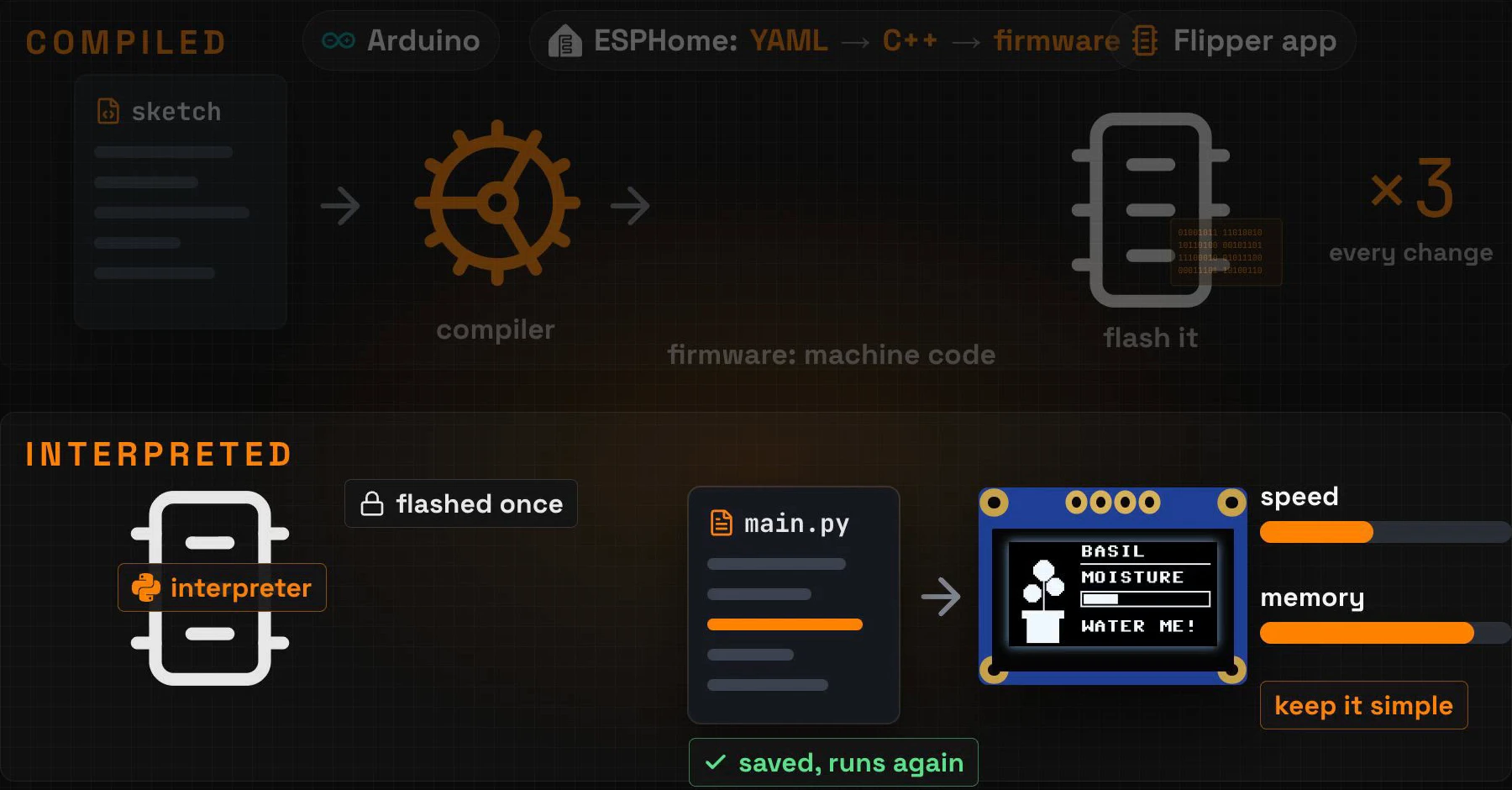
Compiled: the whole firmware, every time
Arduino code is compiled. A compiler turns your sketch into firmware, raw machine instructions for the chip, and you flash the whole firmware onto the board. Change one line, and you compile and flash everything again.
ESPHome works the same way: your YAML file becomes C++, and the C++ becomes firmware. A Flipper Zero app is compiled too.
Interpreted: a text file on the board
MicroPython and CircuitPython flip this around. You flash an interpreter onto the board once. After that, your program is a plain text file on the board, such as main.py, and the interpreter reads it line by line. Change a line, save the file, and it runs again, with no compiler in between.
The price is speed and memory: the interpreter itself runs on the chip and takes its share. On small boards, keep the drawing simple.
Step 1: pick a platform
In Lopaka, the platform is the first thing you choose in a new project. Click + New Project and open the Platform list. Next to each platform's name is a badge with the language of its code: C++, YAML, Python or C.
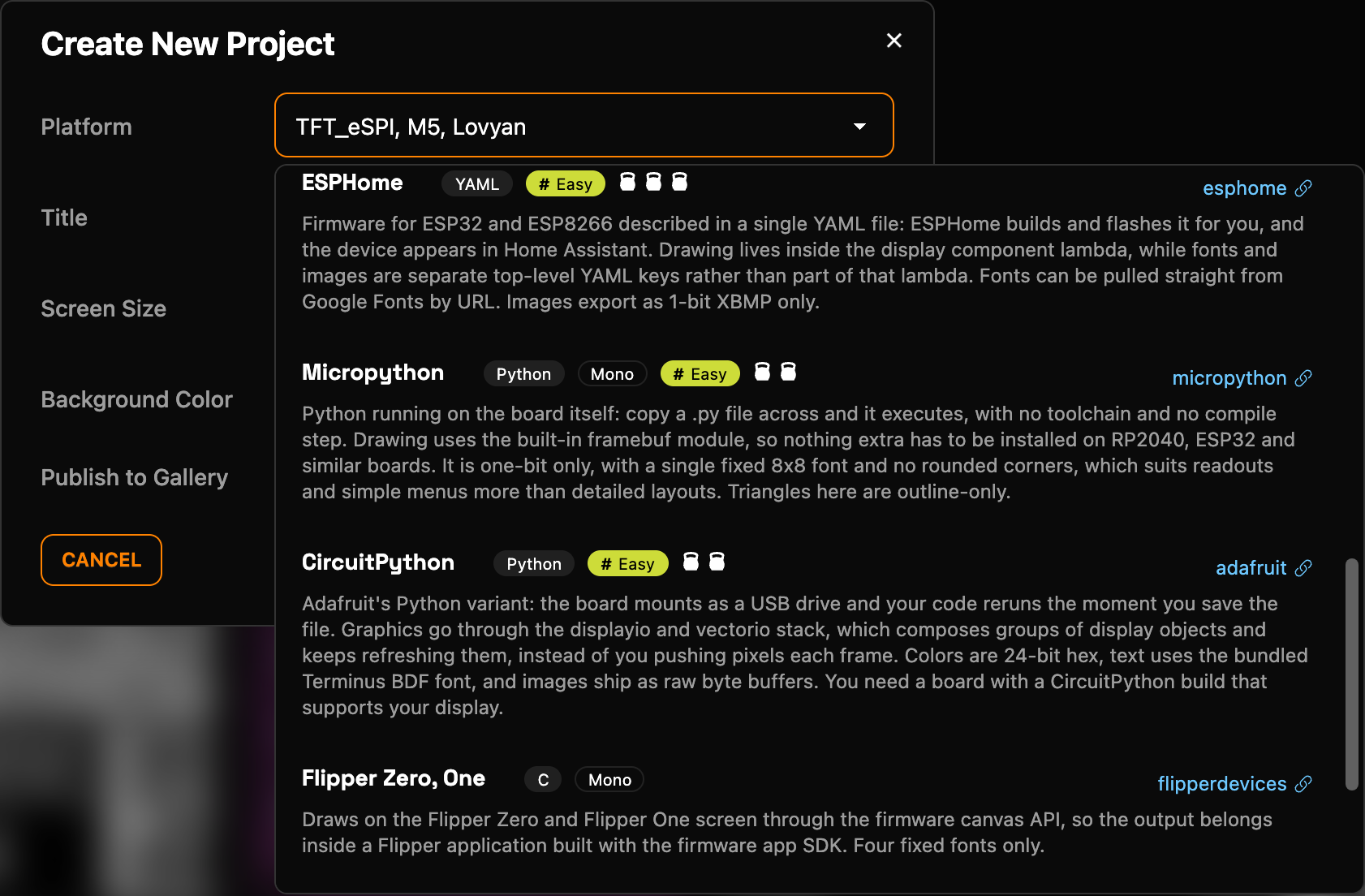
Start with Micropython. Keep the screen size at 128×64, give the project a title, "Plant Monitor", and click Save.
Step 2: draw the screen
The design is a tiny plant monitor. It uses only rectangles, circles, lines and text, so every platform in this episode can draw it.
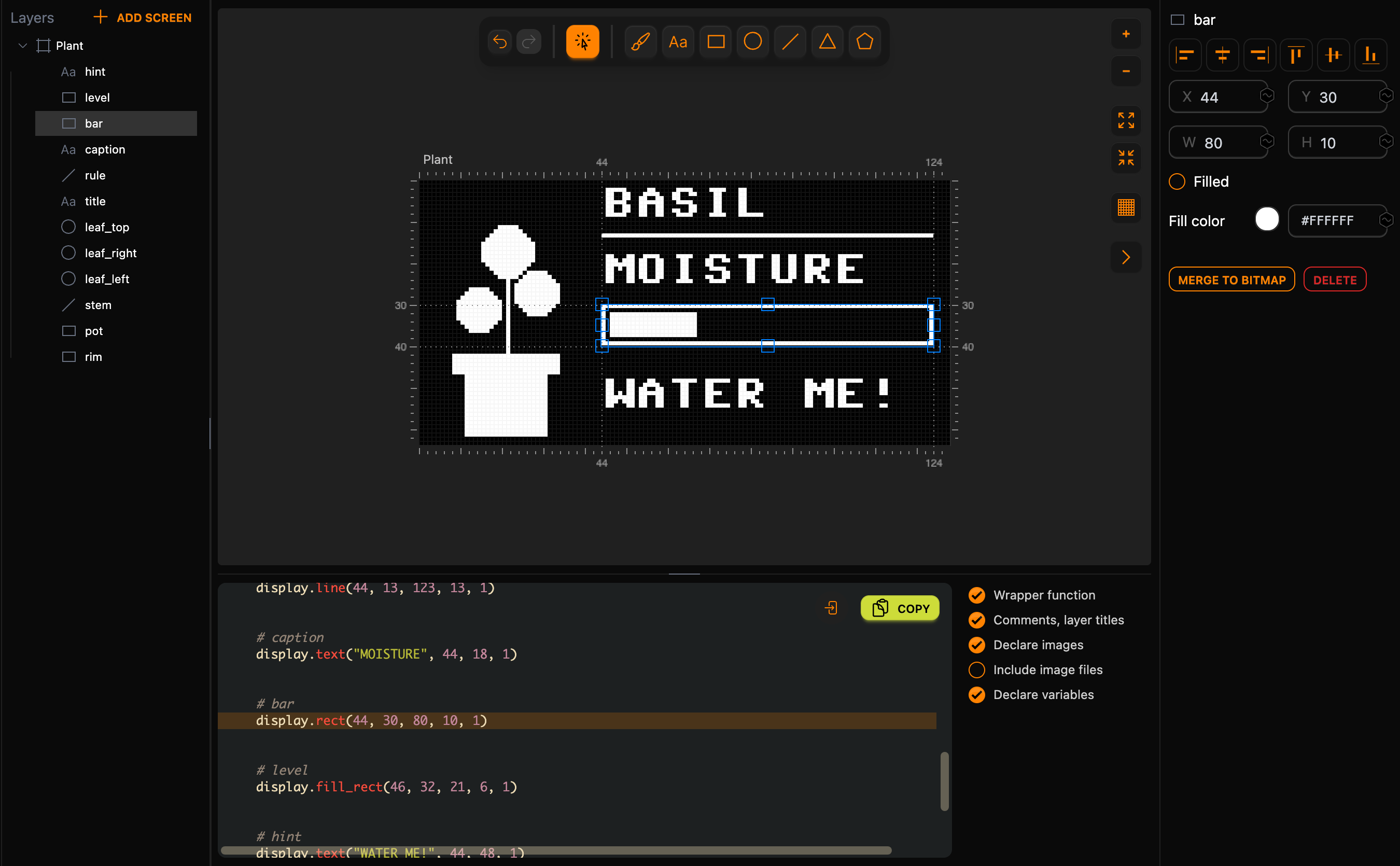
Draw it with the Rectangle, ellipse, line and text (Aa) tools, and type the exact values into the inspector:
- The pot: two filled rectangles, the rim at X
8, Y42, W26, H5, and the pot below it at X11, Y47, W20, H15. Turn on Filled for both. - The stem: a line from
21, 24to21, 41. - The leaves: three ellipses with Filled on and both radii equal: left at X
9, Y26with radius5, right at X23, Y22with radius5, and top at X15, Y11with radius6. - The name: the text
BASILat X44, Y11, and a line under it from44, 13to123, 13. - The moisture bar: the text
MOISTUREat X44, Y27, a rectangle at X44, Y30, W80, H10, and a filled rectangle inside it at X46, Y32, W21, H6: the water level. - The reminder: the text
WATER ME!at X44, Y57.
MicroPython has one font, 8×8 pixels, so the text layers have no font list.
Finally, give everything names. Double-click Screen 1 in the layers panel and rename it to Plant, then name the layers rim, pot, stem, leaf_left, leaf_right, leaf_top, title, rule, caption, bar, level and hint. The screen name becomes the name of the function, and the layer names become comments in the code.
Step 3: your code
One call per layer
The code is plain Python. Every layer becomes one call on the display object: fill_rect, rect, line, ellipse and text. At the end, display.show() sends the finished picture to the screen.
Lopaka's generated code sits between the BEGIN and END markers. A few lines of your own go around it: four above the markers set up the display, and one below calls the function. Type them straight into Lopaka's code panel. Lopaka keeps your lines outside the markers, and Copy takes the whole file:
from machine import Pin, I2C
from ssd1306 import SSD1306_I2C

i2c = I2C(0, scl=Pin(5), sda=Pin(4))
display = SSD1306_I2C(128, 64, i2c)

# [BEGIN lopaka generated]
# SSD1306 OLED display library: https://github.com/PerfecXX/MicroPython-SSD1306/blob/main/ssd1306.py

def drawPlant(display):
    # rim
    display.fill_rect(8, 42, 26, 5, 1)


    # pot
    display.fill_rect(11, 47, 20, 15, 1)


    # stem
    display.line(21, 24, 21, 41, 1)


    # leaf_left
    display.ellipse(14, 31, 5, 5, 1, True)


    # leaf_right
    display.ellipse(28, 27, 5, 5, 1, True)


    # leaf_top
    display.ellipse(21, 17, 6, 6, 1, True)


    # title
    display.text("BASIL", 44, 2, 1)


    # rule
    display.line(44, 13, 123, 13, 1)


    # caption
    display.text("MOISTURE", 44, 18, 1)


    # bar
    display.rect(44, 30, 80, 10, 1)


    # level
    display.fill_rect(46, 32, 21, 6, 1)


    # hint
    display.text("WATER ME!", 44, 48, 1)


    display.show()
# [END lopaka generated]
drawPlant(display)
Your four lines create an I2C bus on the Pico's pins GP5 (SCL) and GP4 (SDA) and a 128×64 display object on it. The last argument of most calls, 1, is the colour: pixel on.
The numbers that changed
Two kinds of numbers in this code differ from the inspector:
- The leaves. In the inspector, the left leaf has X
9, Y26and radius5: the top-left corner of the box around it.ellipse()takes the centre, so the code saysellipse(14, 31, 5, 5, ...). TheTrueat the end fills it. - The text. You placed
BASILat Y11, and the code saystext("BASIL", 44, 2, ...). MicroPython'stext()takes the top-left corner of the text, so Lopaka converts the position for you.
Step 4: run it in the simulator
The simulator runs real MicroPython on a simulated Raspberry Pi Pico:
- Create a new Raspberry Pi Pico project with MicroPython.
- Add an SSD1306 OLED display and connect four wires: GND to GND, VCC to 3V3, SCL to GP5 and SDA to GP4.
- Add a second file,
ssd1306.py, with the display driver from the link in the comment of the generated code. Your first line importsSSD1306_I2Cfrom it. Without this file the program stops atimport. - Paste the copied code into
main.pyand press Play.
The plant appears on the display. There is no compile step: the interpreter runs the file as it is.
On a real Pico, copy both files, main.py and ssd1306.py, onto the board. The board runs main.py every time it starts.
Step 5: a CircuitPython project
Now the same screen in CircuitPython. A project keeps the platform you chose, so the new platform needs a new project: + New Project, platform CircuitPython, size 128×64.
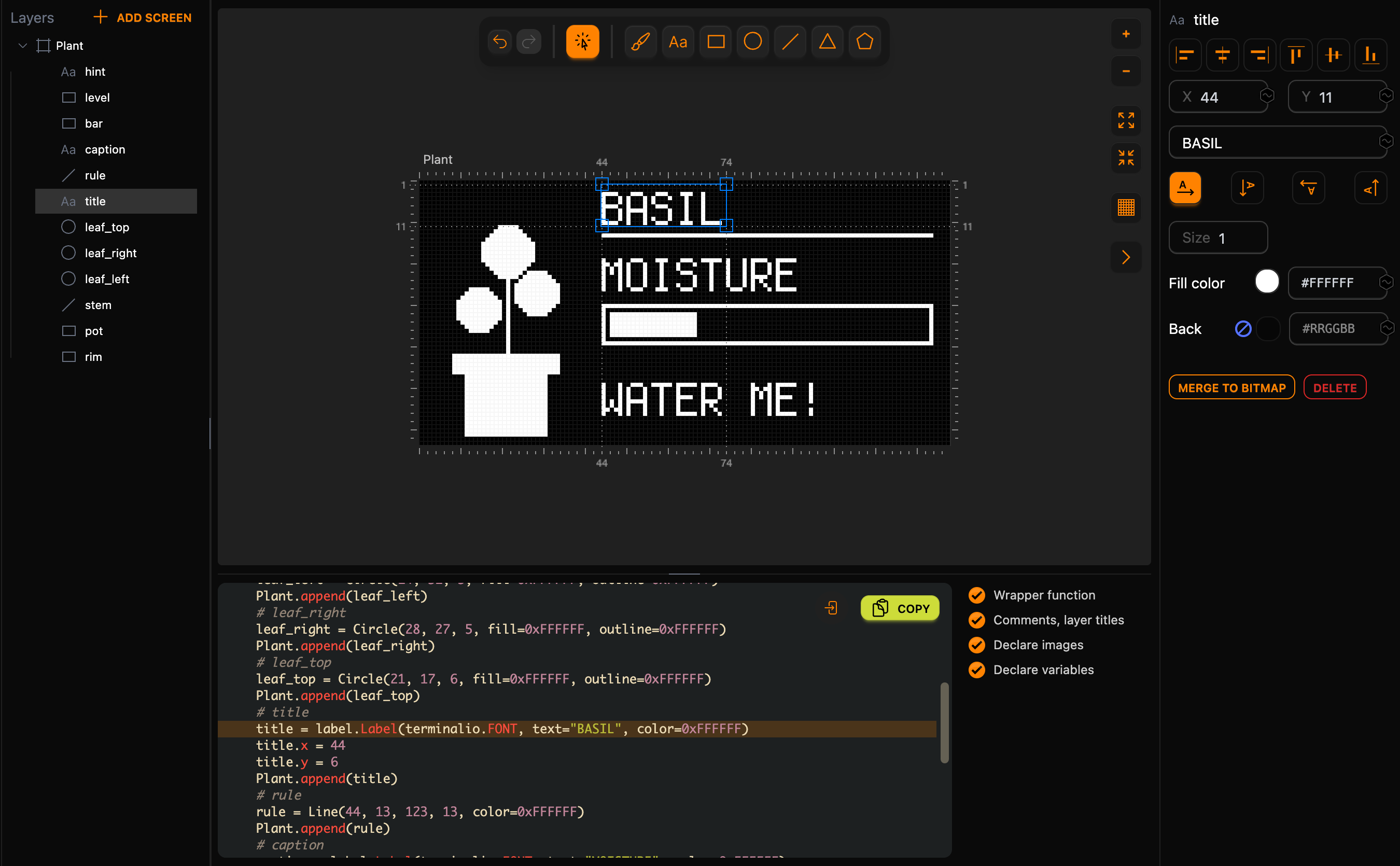
Place the same layers with the same numbers, and give the screen and the layers the same names. Two things look different in the inspector:
- A circle has one radius, R, instead of two.
- Text uses Terminus, the font built into CircuitPython. Its Size field multiplies the font:
1is the normal size.
Step 6: objects in a group
The code
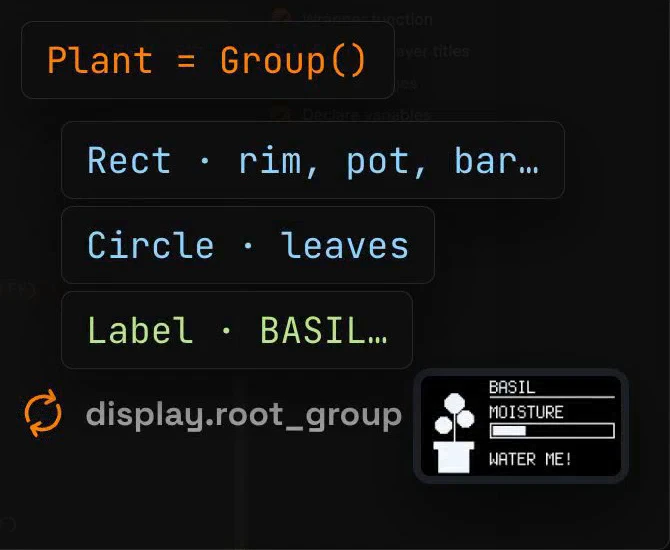
The code looks different. Every shape is an object: a Rect, a Circle, a Line or a Label for text. Each object is added to a group, and the display shows that group:
import board, busio, displayio, terminalio
import adafruit_displayio_ssd1306
from adafruit_display_text import label
from adafruit_display_shapes.rect import Rect
from adafruit_display_shapes.circle import Circle
from adafruit_display_shapes.line import Line

displayio.release_displays()
i2c = busio.I2C(board.GP5, board.GP4)
bus = displayio.I2CDisplay(i2c, device_address=0x3C)
display = adafruit_displayio_ssd1306.SSD1306(bus, width=128, height=64)

# [BEGIN lopaka generated]
# Init display
Plant = displayio.Group()
display.root_group = Plant

def drawPlant():
    # rim
    rim = Rect(8, 42, 26, 5, fill=0xFFFFFF, outline=0xFFFFFF)
    Plant.append(rim)
    # pot
    pot = Rect(11, 47, 20, 15, fill=0xFFFFFF, outline=0xFFFFFF)
    Plant.append(pot)
    # stem
    stem = Line(21, 24, 21, 41, color=0xFFFFFF)
    Plant.append(stem)
    # leaf_left
    leaf_left = Circle(14, 31, 5, fill=0xFFFFFF, outline=0xFFFFFF)
    Plant.append(leaf_left)
    # leaf_right
    leaf_right = Circle(28, 27, 5, fill=0xFFFFFF, outline=0xFFFFFF)
    Plant.append(leaf_right)
    # leaf_top
    leaf_top = Circle(21, 17, 6, fill=0xFFFFFF, outline=0xFFFFFF)
    Plant.append(leaf_top)
    # title
    title = label.Label(terminalio.FONT, text="BASIL", color=0xFFFFFF)
    title.x = 44
    title.y = 6
    Plant.append(title)
    # rule
    rule = Line(44, 13, 123, 13, color=0xFFFFFF)
    Plant.append(rule)
    # caption
    caption = label.Label(terminalio.FONT, text="MOISTURE", color=0xFFFFFF)
    caption.x = 44
    caption.y = 22
    Plant.append(caption)
    # bar
    bar = Rect(44, 30, 80, 10, outline=0xFFFFFF)
    Plant.append(bar)
    # level
    level = Rect(46, 32, 21, 6, fill=0xFFFFFF, outline=0xFFFFFF)
    Plant.append(level)
    # hint
    hint = label.Label(terminalio.FONT, text="WATER ME!", color=0xFFFFFF)
    hint.x = 44
    hint.y = 52
    Plant.append(hint)
# [END lopaka generated]
drawPlant()
while True:
    pass
The eleven lines above the markers are yours: the imports for the shapes and the text label, and the display setup on the same pins, GP5 and GP4, at the usual I2C address of these modules, 0x3C. displayio.release_displays() frees the display in case an earlier run still holds it. Below the markers, drawPlant() builds the group, and while True: pass keeps the program running. When a CircuitPython program ends, the board takes the display back for its own text output, and the plant would disappear.
The display keeps showing the group
display.root_group = Plant tells the display which group to show. From then on the display redraws that group by itself. Your code never sends a frame: if you move an object or change the text of a label, the screen follows.
Colours are 24-bit hex values: 0xFFFFFF is white, a lit pixel on this display. And title.y = 6 is the middle of the text line: a Label is placed by its left edge and its vertical centre, so Lopaka converts the Y 11 from the inspector.
Run it in the simulator
Create a new Raspberry Pi Pico project with CircuitPython and wire the display as in step 4. Add a file requirements.txt with the three Adafruit display libraries the code imports:
adafruit_displayio_ssd1306
adafruit_display_text
adafruit_display_shapes
Paste the code into code.py and press Play. The libraries load when the simulation starts, and the same plant appears. On a real board, copy these three libraries into the lib folder of the CIRCUITPY drive.
Step 7: an ESPHome project
ESPHome is made for smart home devices: you describe the device in a YAML file, and it appears in Home Assistant. Create a new project with the platform ESPHome, size 128×64, and place the same layers with the same numbers.
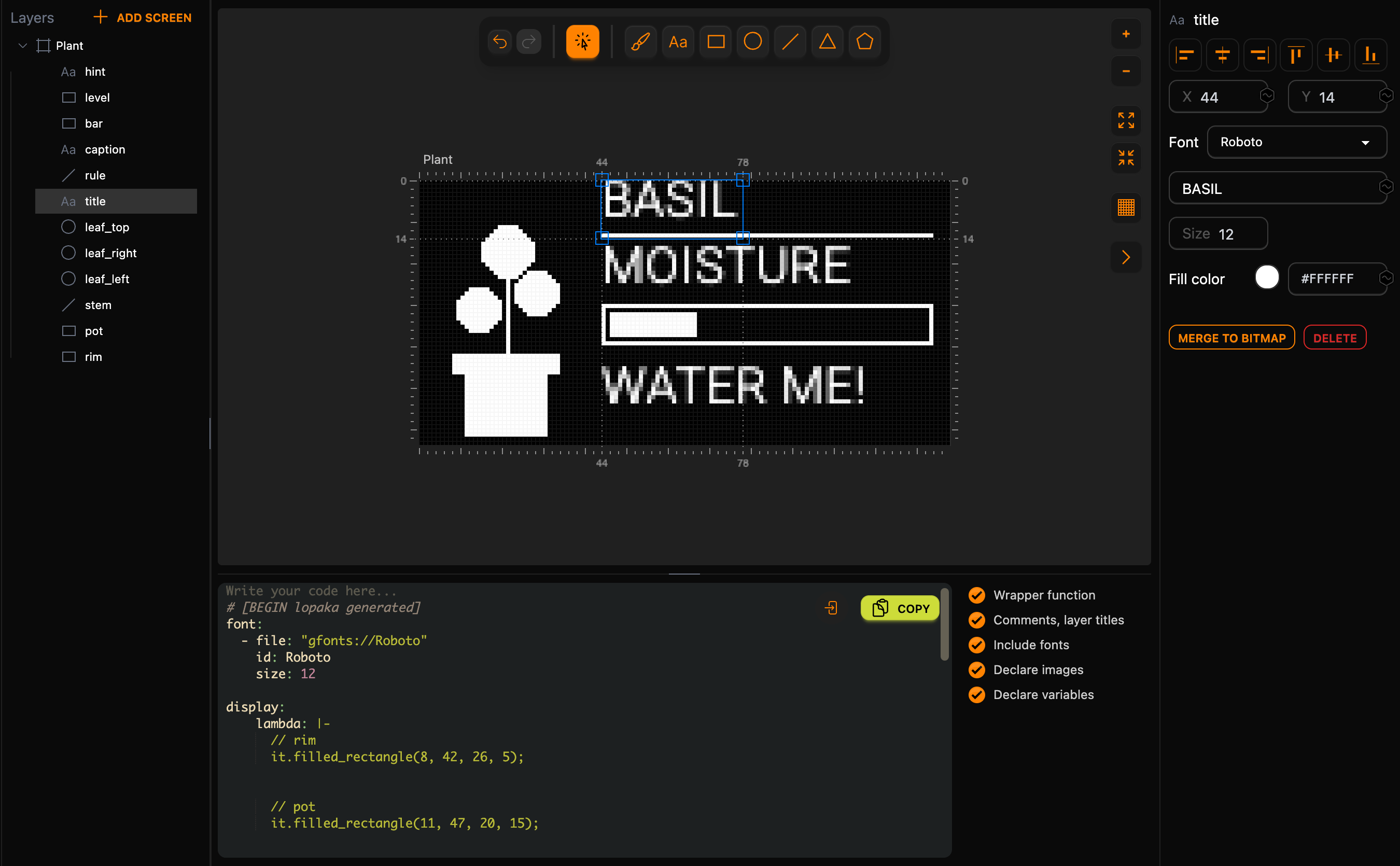
The text works differently here. ESPHome uses TrueType fonts in any size, and the Font list offers Courier Prime, Fira Code, Merriweather, Montserrat, Roboto, Roboto Mono and Ubuntu. Select BASIL, pick Roboto and set Size to 12. The next text you add keeps Roboto but starts at size 14, so set 12 on MOISTURE and WATER ME! too. Every font and size you use becomes a separate entry in the code, and the device stores each one.
In ESPHome, the Y of a text is the bottom of its text box, and Roboto 12 makes a box 14 pixels tall. At Y 11, the top of BASIL would stick out above the screen. Move the three texts a little lower: Y 14, 30 and 59.
Step 8: a font and a lambda
What Lopaka writes
In ESPHome, the design becomes two pieces of YAML: a font: section that pulls the font from Google Fonts, and a lambda, a few lines of C++ that live inside the YAML file:
# [BEGIN lopaka generated]
font:
    - file: 'gfonts://Roboto'
      id: Roboto
      size: 12

display:
    lambda: |-
        // rim
        it.filled_rectangle(8, 42, 26, 5);


        // pot
        it.filled_rectangle(11, 47, 20, 15);


        // stem
        it.line(21, 24, 21, 41);


        // leaf_left
        it.filled_circle(14, 31, 5);


        // leaf_right
        it.filled_circle(28, 27, 5);


        // leaf_top
        it.filled_circle(21, 17, 6);


        // title
        it.print(44, 0, id(Roboto), "BASIL");


        // rule
        it.line(44, 13, 123, 13);


        // caption
        it.print(44, 16, id(Roboto), "MOISTURE");


        // bar
        it.rectangle(44, 30, 80, 10);


        // level
        it.filled_rectangle(46, 32, 21, 6);


        // hint
        it.print(44, 45, id(Roboto), "WATER ME!");

# [END lopaka generated]
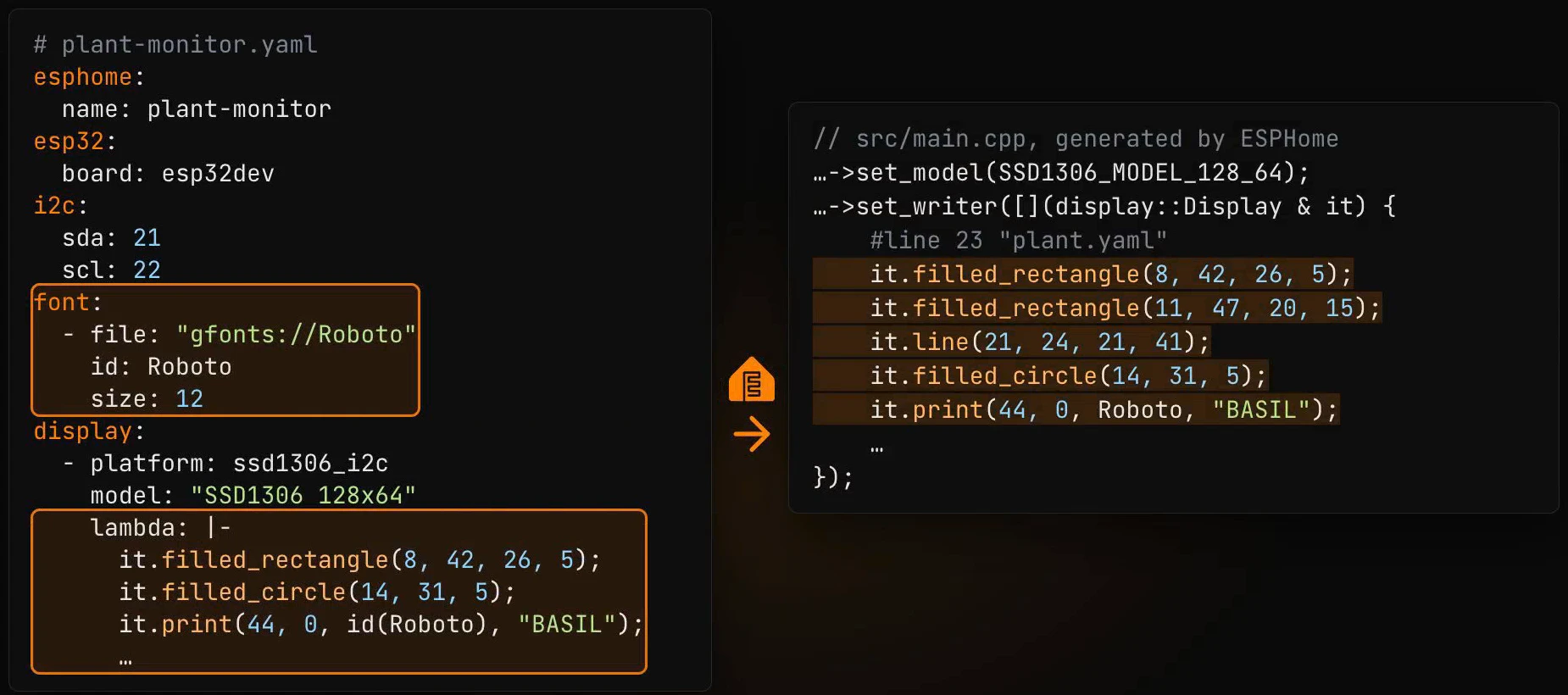
it is the display. filled_circle takes the centre and the radius, like MicroPython's ellipse. print(44, 0, ...) takes the top-left corner of the text box: the box of BASIL runs from row 0 to row 14, and the inspector shows its bottom, 14.
Put it in your device's config
The rest of the YAML file describes your device, and you write it yourself: the board, the I2C pins and the display. Put Lopaka's font: section at the top level and its lambda: under your display, with the indentation as it is:
esphome:
    name: plant-monitor

esp32:
    board: esp32dev
    framework:
        type: esp-idf

i2c:
    sda: 21
    scl: 22

font:
    - file: 'gfonts://Roboto'
      id: Roboto
      size: 12

display:
    - platform: ssd1306_i2c
      model: 'SSD1306 128x64'
      address: 0x3C
      lambda: |-
          // rim
          it.filled_rectangle(8, 42, 26, 5);
          // ...the rest of the lambda from Lopaka
Copy the whole lambda, from // rim to the last it.print. The only line Lopaka does not give you under display: is - platform: ssd1306_i2c with its model and address: that part tells ESPHome which display you have.
Step 9: build the firmware and run it
ESPHome is compiled. Save the file as plant.yaml and run esphome compile plant.yaml. ESPHome turns the whole file into C++, with your lambda inside it line for line, and compiles firmware for the ESP32.
In the simulator, create an ESP32 project and connect the display: SDA to pin 21, SCL to pin 22, GND to GND and VCC to 3V3. Load the compiled firmware.factory.bin with the simulator's Upload Firmware and Start Simulation command. The plant is on the screen.
On a real ESP32, esphome run plant.yaml builds the same firmware and flashes it over USB. Because the drawing lives in a lambda, the same lines can print live sensor values later, for example the real moisture instead of a fixed bar.
Step 10: a Flipper Zero project
The Flipper Zero has its own screen, also 128×64 pixels, black on orange. Create a new project with the platform Flipper Zero, One. This platform has no default size: open Screen Size and pick Zero Horizontal (128×64).
Place the same layers with the same numbers. Lopaka knows the Flipper's four built-in fonts: FontPrimary, FontSecondary, FontKeyboard and FontBigNumbers. New text starts in FontPrimary, which is the font for all three texts here.
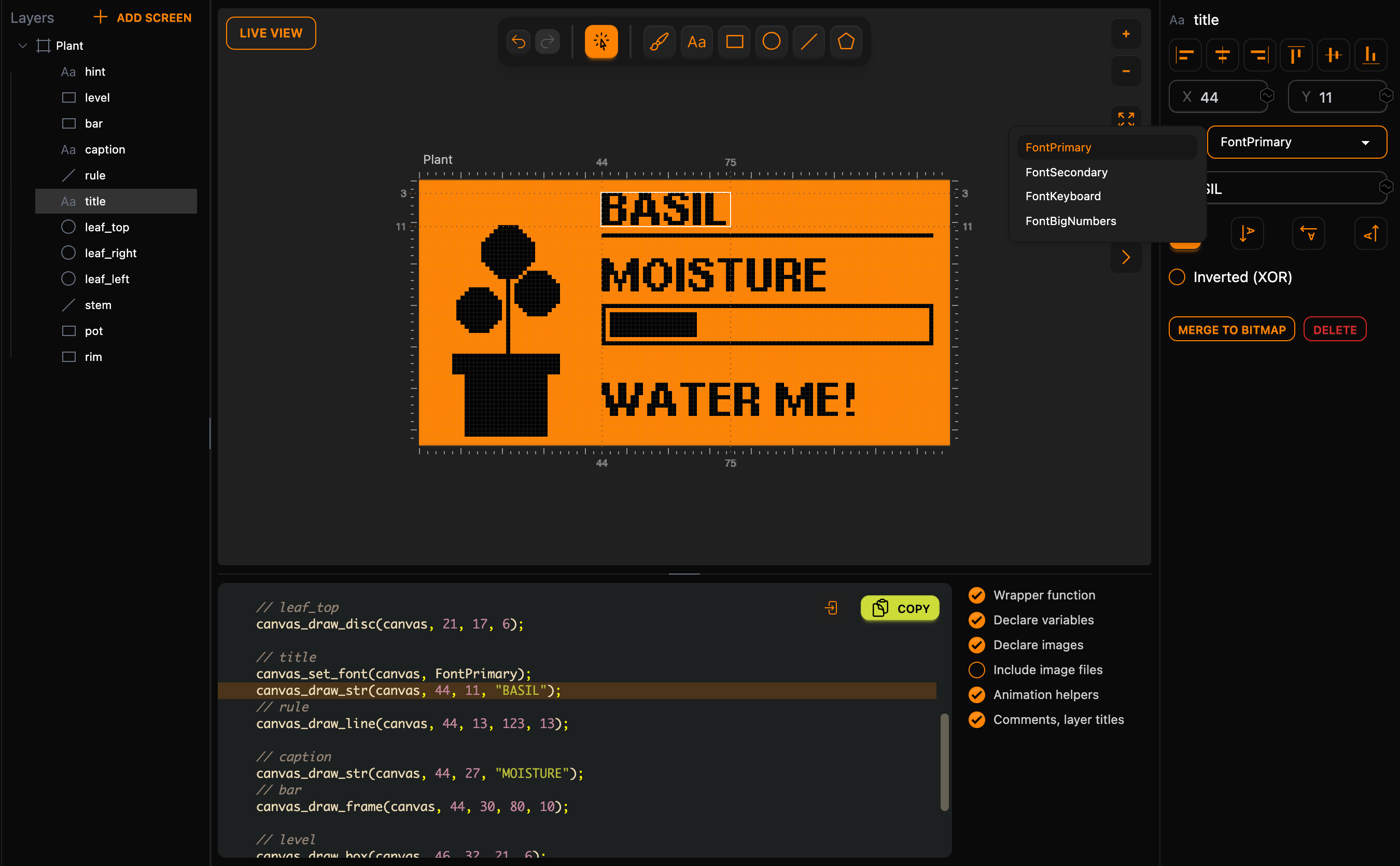
Step 11: C for the canvas
Lopaka writes C for the Flipper's canvas:
// [BEGIN lopaka generated]

void drawPlant(Canvas* canvas) {
    canvas_set_bitmap_mode(canvas, true);

    // rim
    canvas_draw_box(canvas, 8, 42, 26, 5);

    // pot
    canvas_draw_box(canvas, 11, 47, 20, 15);

    // stem
    canvas_draw_line(canvas, 21, 24, 21, 41);

    // leaf_left
    canvas_draw_disc(canvas, 14, 31, 5);

    // leaf_right
    canvas_draw_disc(canvas, 28, 27, 5);

    // leaf_top
    canvas_draw_disc(canvas, 21, 17, 6);

    // title
    canvas_set_font(canvas, FontPrimary);
    canvas_draw_str(canvas, 44, 11, "BASIL");
    // rule
    canvas_draw_line(canvas, 44, 13, 123, 13);

    // caption
    canvas_draw_str(canvas, 44, 27, "MOISTURE");
    // bar
    canvas_draw_frame(canvas, 44, 30, 80, 10);

    // level
    canvas_draw_box(canvas, 46, 32, 21, 6);

    // hint
    canvas_draw_str(canvas, 44, 57, "WATER ME!");
}
// [END lopaka generated]
canvas_draw_frame draws an outline, canvas_draw_box a filled rectangle and canvas_draw_disc a filled circle around its centre. The y of canvas_draw_str is the baseline, the same number as in the inspector, so the texts keep 11, 27 and 57. All three texts use FontPrimary, so canvas_set_font appears once.
This function goes into the draw callback of a Flipper app: the function the Flipper calls whenever it redraws your app's screen. You build the app with Flipper's own tools.
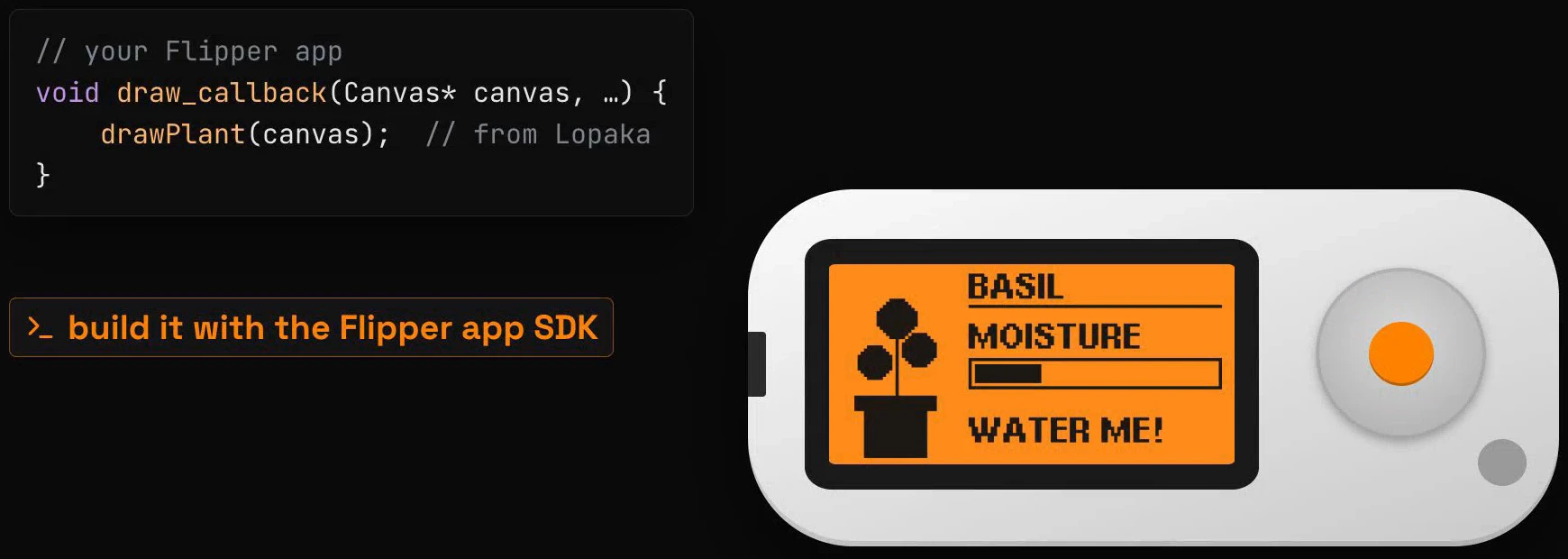
Five platforms side by side
Side by side: an Arduino Uno, an ESP32 running ESPHome, a Pico with MicroPython, a Pico with CircuitPython, and the Flipper Zero version, ready for its app. The Arduino Uno runs the same design in a U8g2 project, set up as in episode 1, with the 6x13B font.
What changes between platforms
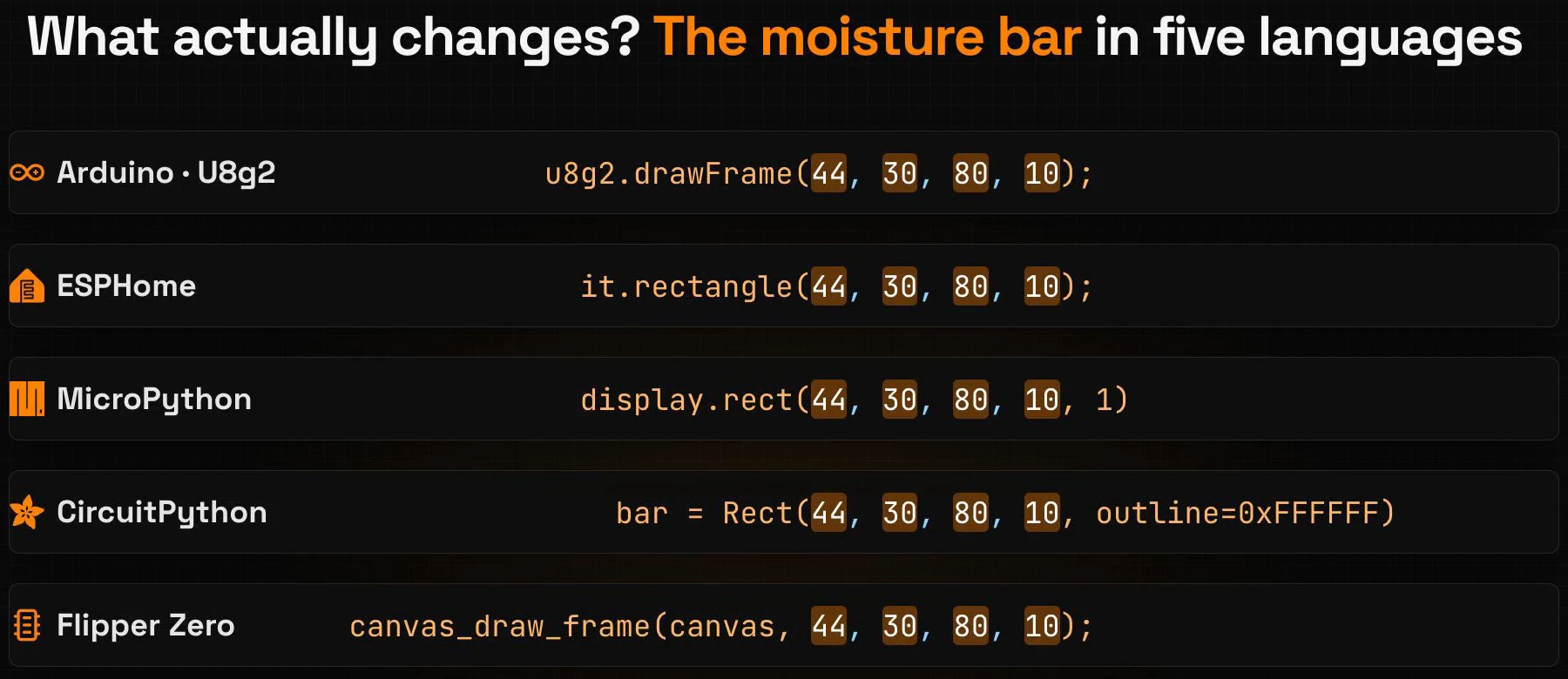
Same numbers, different words
Look at the moisture bar on all five platforms. Forty-four, thirty, eighty, ten: the numbers are the same everywhere. Only the words around them change: the name of the call, the 1 for the colour in MicroPython, the outline= in CircuitPython, the canvas in front on the Flipper.
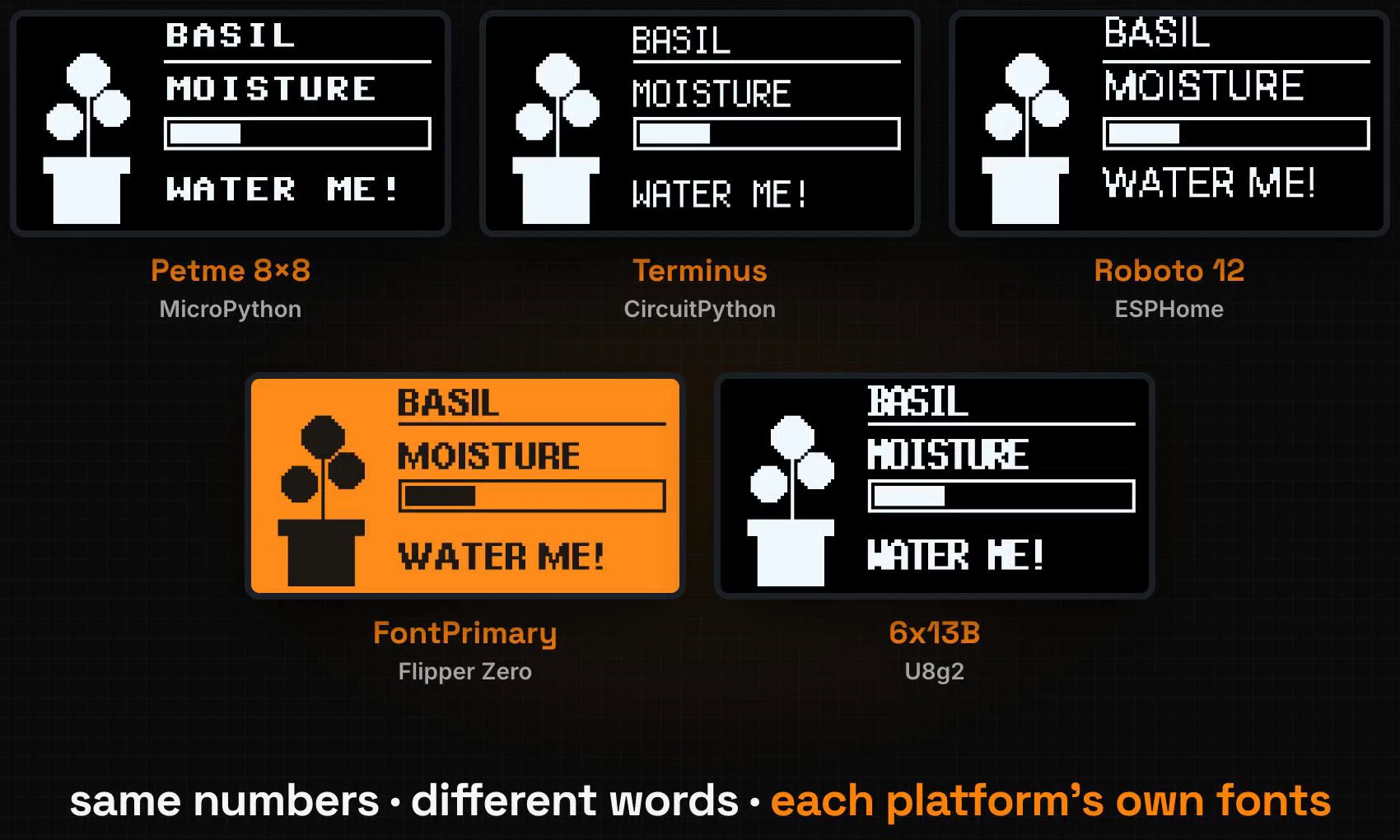
Each platform has its own fonts
The fonts change too, because every platform has its own set: Petme 8×8 in MicroPython, Terminus in CircuitPython, Roboto 12 in ESPHome, FontPrimary on the Flipper Zero and 6x13B in U8g2. That is why the texts needed a different Y in ESPHome. Lopaka draws each project with the platform's own fonts, so the canvas shows the text you will get on the device.
Recap
- Compiled or interpreted, the pixels stay the same: Arduino, ESPHome and Flipper apps are compiled into firmware; MicroPython and CircuitPython run a text file through an interpreter.
- Pick the platform when you create the project: the platform decides the language of the code, and each platform needs its own project.
- Same layers, new language: place the same layers with the same numbers, and Lopaka writes the code in that platform's language.
Next episode: E-paper & Shipping. Screens that keep their picture without power. Read episode 10.
Ready to try? Open Lopaka and take your screen to a new platform.