
Lopaka Basics 05: From Browser to Board
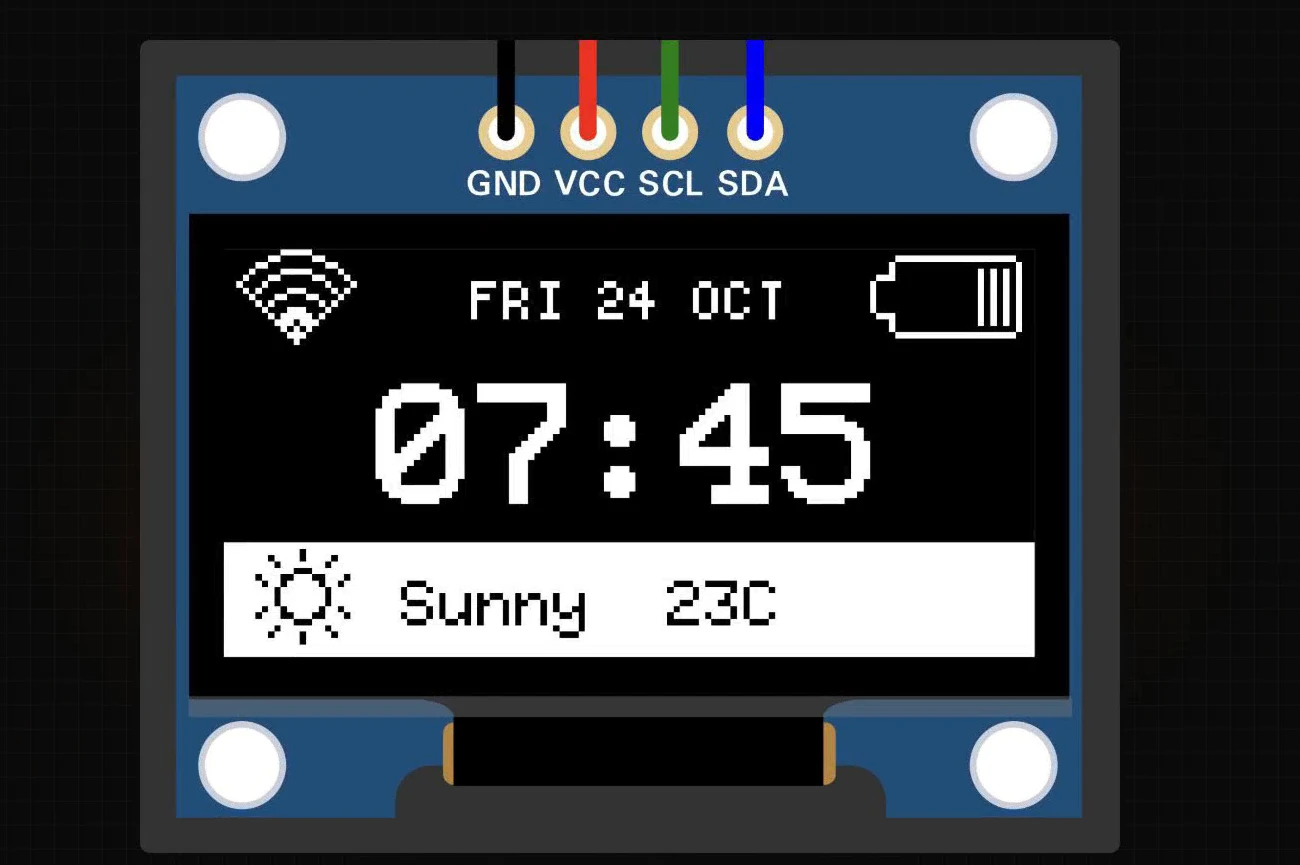
You drew a screen, you uploaded the code, and the display stays black. The display is rarely broken. Usually it is one of five things, and once you fix the right one, the screen lights up.
In this episode you will take the morning dashboard from episode 2 from the browser to a board: install the library in the Arduino IDE, build the sketch around Lopaka's code and check how much memory it uses. Then you will go through the five reasons a new display stays black, and the fix for each.
What you will build: an Arduino sketch that shows the Morning and Night screens from episode 2 on a 128×64 SSD1306 OLED, plus a checklist for a black screen. What you need: a browser, the free Arduino IDE and the Morning Dashboard project from episode 2. An Arduino UNO and an OLED module are optional; we run the sketch in the simulator from episode 1.
How the board talks to the screen
Four wires: power, clock and data
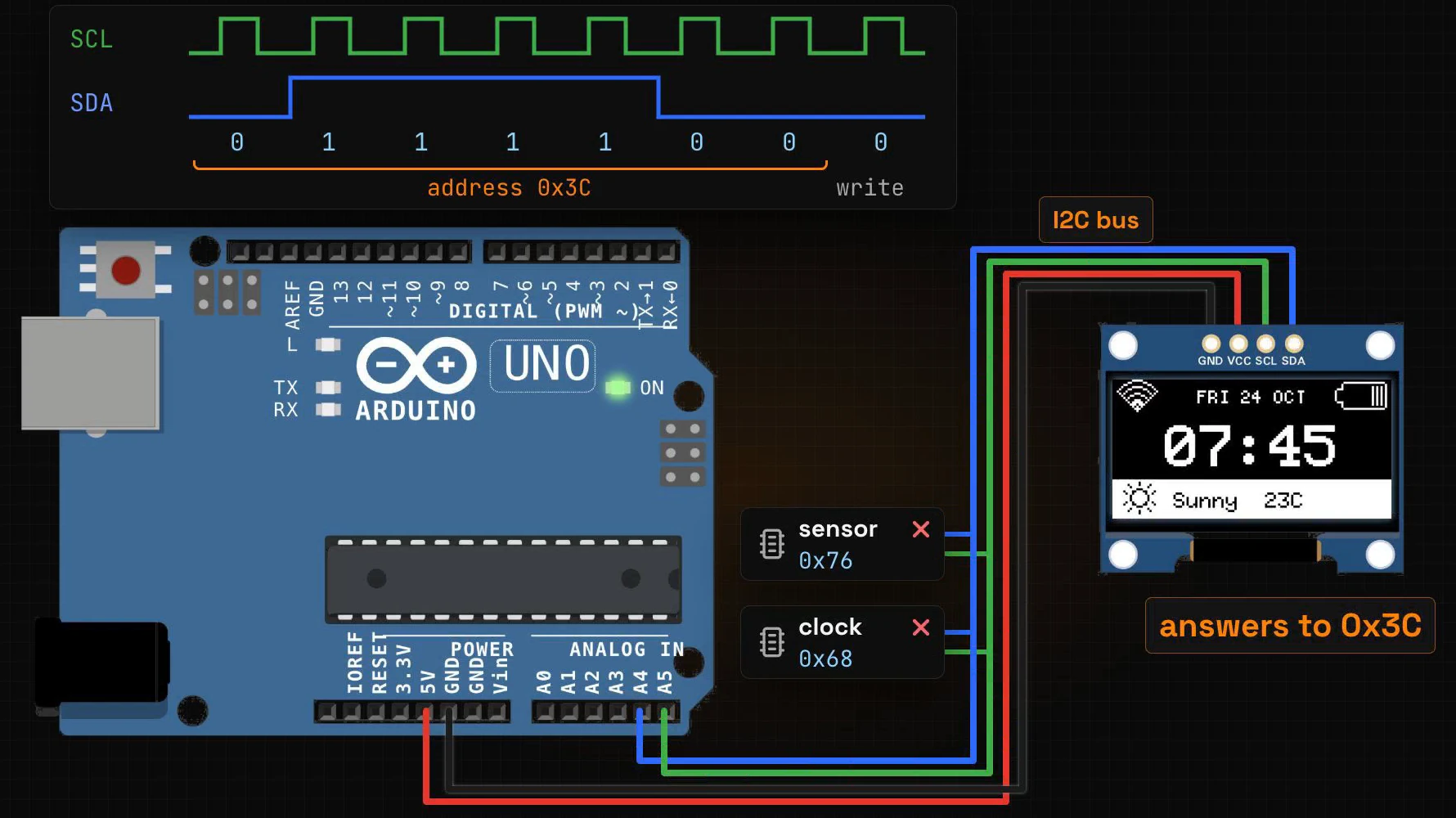
A small OLED like ours needs four wires. Two are power: VCC and GND. The other two are a bus called I2C:
- SCL is the clock. The board sends a steady tick on it.
- SDA carries the data, one bit per tick.
Every message starts with an address
Other parts can share the same two wires: a temperature sensor, a real-time clock and the display can all hang on SCL and SDA. So every message starts with an address, and only the part with that address answers.
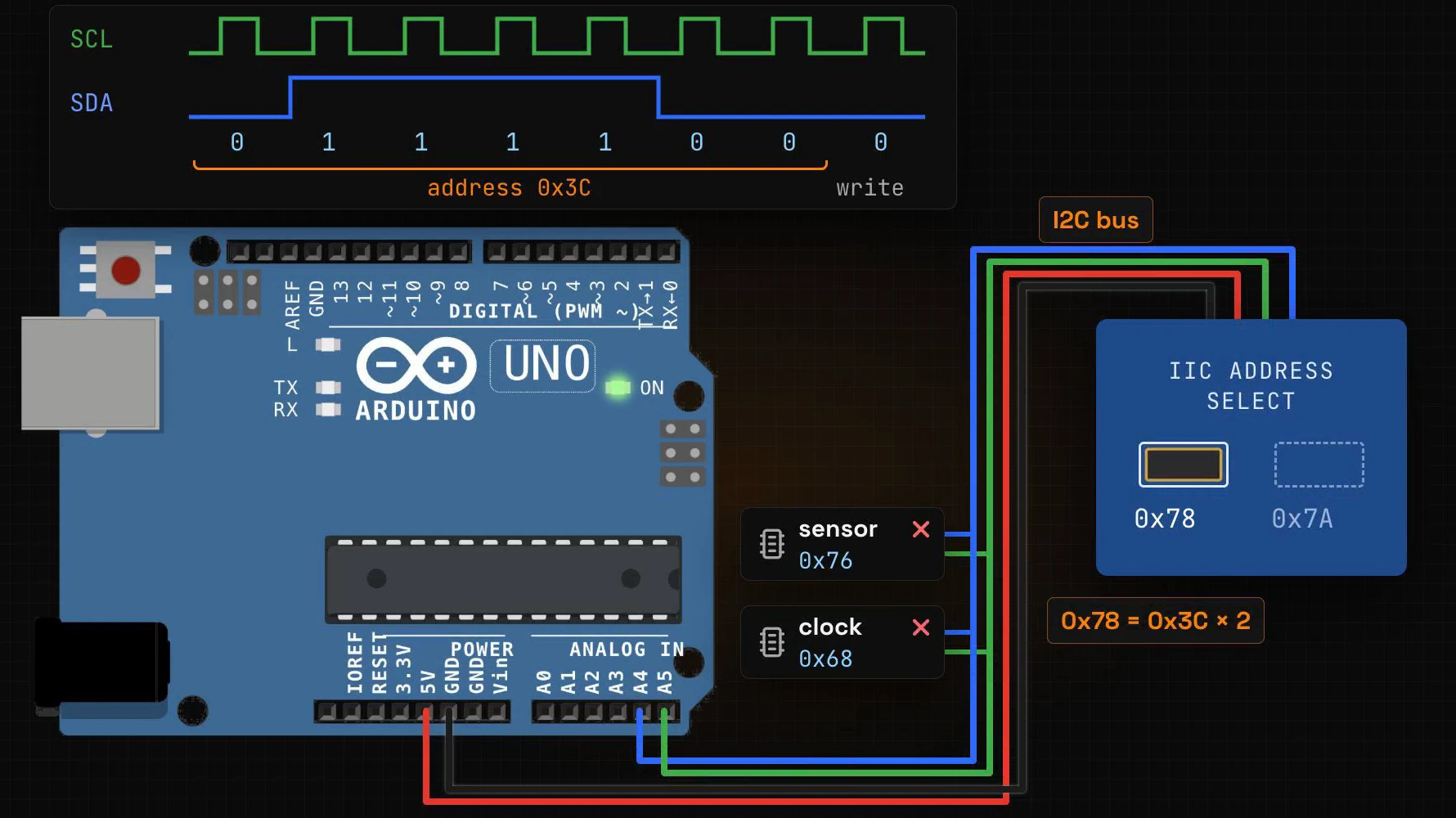
Most of these displays answer to 0x3C. Some answer to 0x3D. On many modules a tiny resistor on the back sets the address, next to a label such as "IIC ADDRESS SELECT 0x78 / 0x7A". Those two numbers are the same addresses doubled: 0x3C × 2 = 0x78 and 0x3D × 2 = 0x7A. Keep that in mind for reason 2 below.
Bigger colour screens use SPI
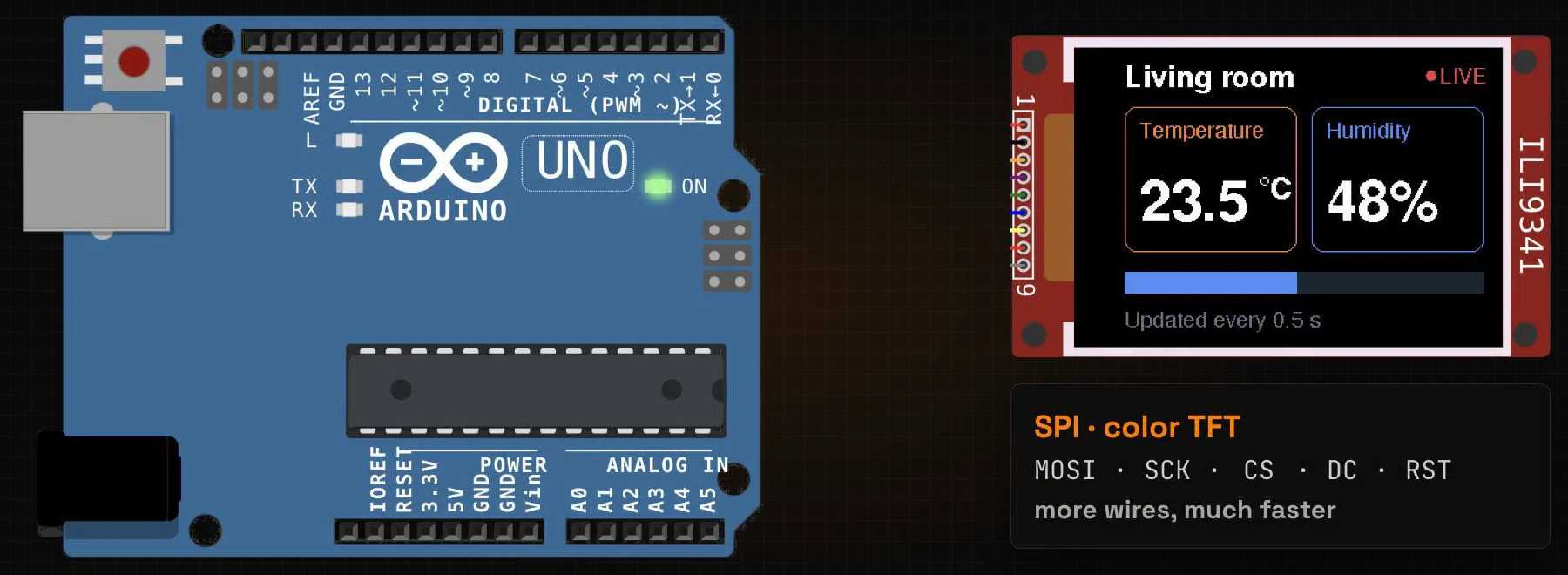
Colour screens such as the TFT from episode 4 usually use SPI instead: more wires (MOSI, SCK, CS, DC and RST), much faster, and a select wire, CS, instead of an address.
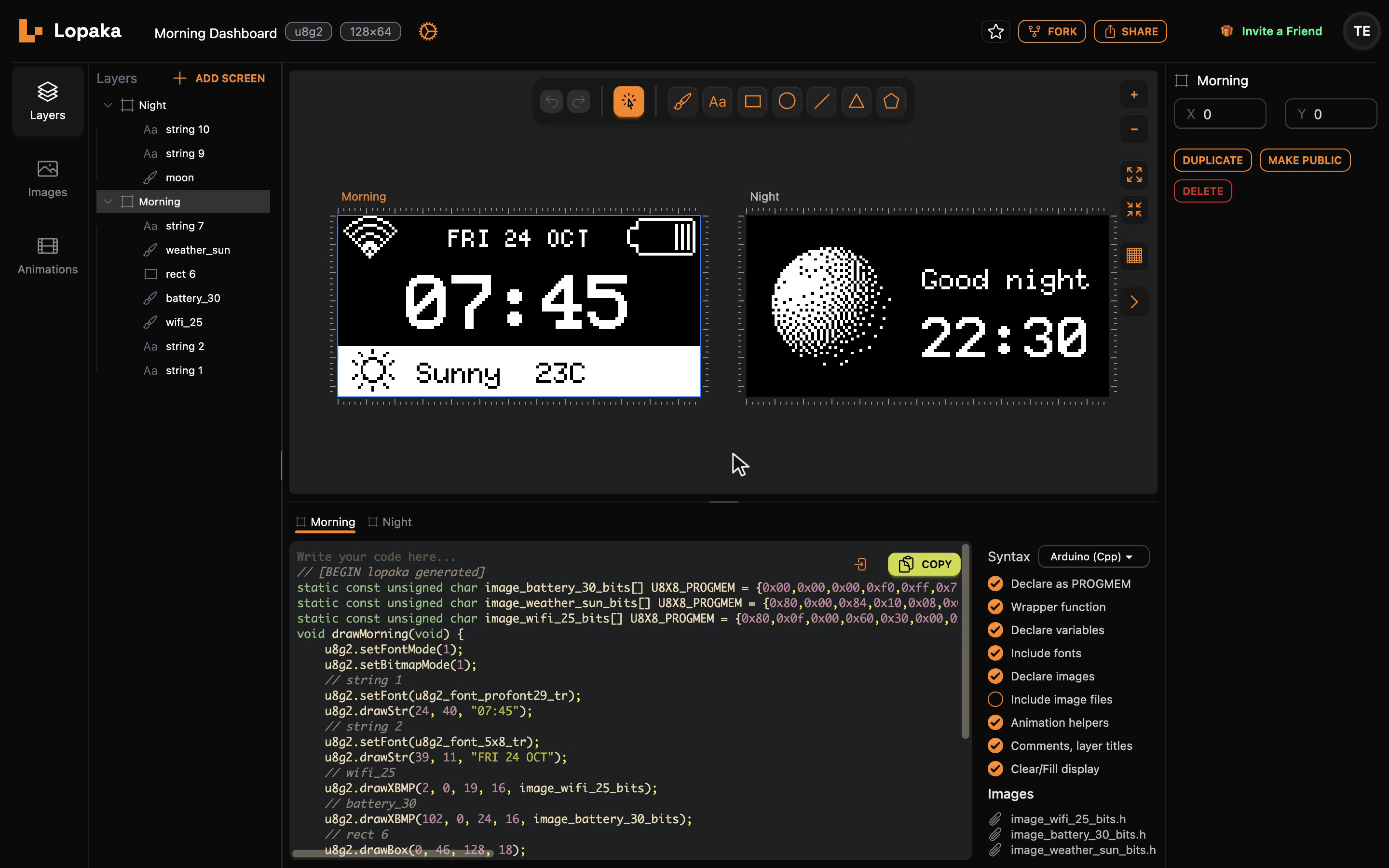
Step 1: copy the code from Lopaka
Open the Morning Dashboard from episode 2: a 128×64 OLED with the U8g2 library and two screens, Morning and Night.
Lopaka writes the drawing functions, one per screen: drawMorning() and drawNight(). The sketch around them, with the display setup and loop(), you write once in the Arduino IDE.
Click Copy on the Morning tab of the code panel, then switch to the Night tab and copy that too. Copy takes the code of the open tab. The generated code is the same as in episode 2.
Step 2: install U8g2
In the Arduino IDE, open the Library Manager (the books icon on the left), search for U8g2 and click INSTALL on the U8g2 library by oliver. The episode used version 2.36.19.
Step 3: pick the board
Click Select Board at the top, choose Select other board and port, type uno and pick Arduino UNO. Without a board plugged in, the IDE can still compile the sketch; you only need the port to upload.
Step 4: build the sketch
A new sketch already has setup() and loop(). Paste Lopaka's code at the top, then add three lines: include the library, create the display, and start it in setup(). In loop(), clear the buffer, draw, and send the buffer to the screen:
#include <U8g2lib.h>
U8G2_SSD1306_128X64_NONAME_F_HW_I2C u8g2(U8G2_R0, U8X8_PIN_NONE);

// Paste the Lopaka code here: drawMorning() and drawNight()

void setup() {
  // put your setup code here, to run once:
  u8g2.begin();
}

void loop() {
  // put your main code here, to run repeatedly:
  u8g2.clearBuffer();
  if (millis() / 3000 % 2) drawNight(); else drawMorning();
  u8g2.sendBuffer();
}
setup() runs once, when the board starts. loop() runs again and again. The if line shows each screen for three seconds, as in episode 2, and the clear, draw, send order is the frame buffer from episode 1.
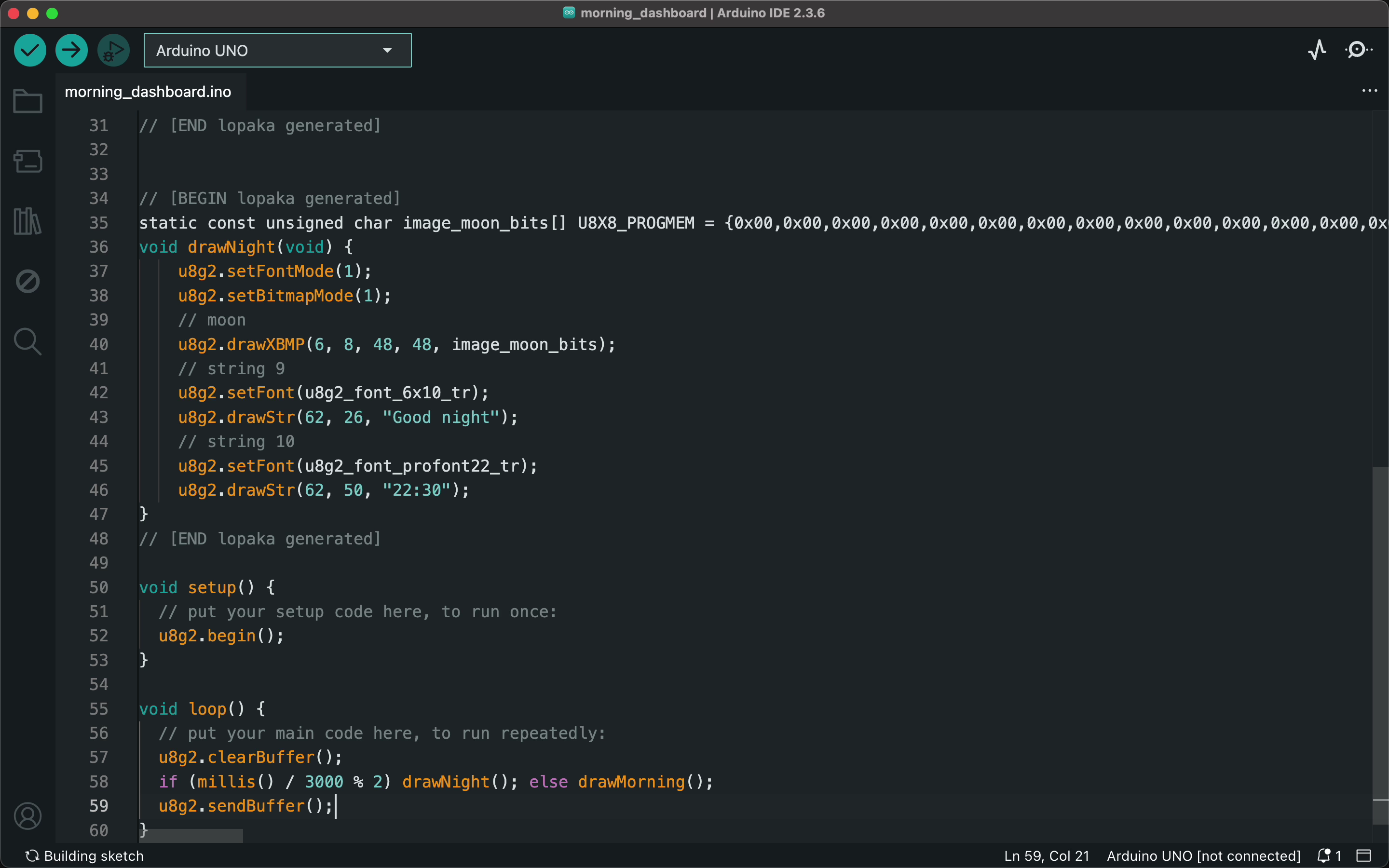
The constructor line describes your display
The long line under the #include is the constructor. It describes your display, and each part of its name means something:
- SSD1306: the controller chip on the module.
- 128X64: the size in pixels.
- NONAME: a generic module, not a specific brand.
- F: the buffer mode.
Fis a full frame buffer, 1,024 bytes of RAM.1draws the screen in pages and needs only 128 bytes. - HW_I2C: the wiring, hardware I2C on the board's SDA and SCL pins.
U8G2_R0 means no rotation, and U8X8_PIN_NONE says no reset pin is wired. The U8g2 library has a constructor for every combination of chip, size, buffer and wiring. Pick the wrong one, and the screen stays black.
Step 5: verify and run
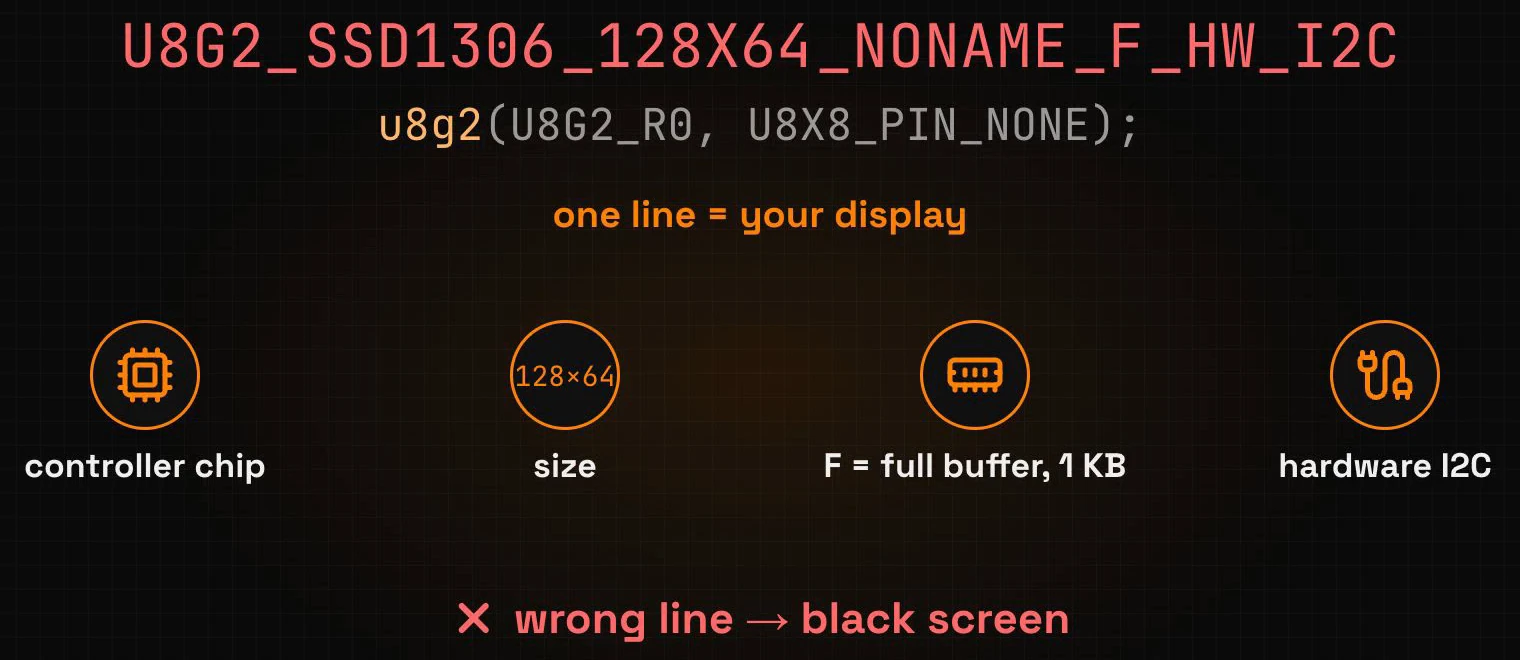
Verify
Click Verify, the check mark at the top left. The IDE compiles the sketch and reports:
Sketch uses 15394 bytes (47%) of program storage space. Maximum is 32256 bytes.
Global variables use 1600 bytes (78%) of dynamic memory, leaving 448 bytes for local variables. Maximum is 2048 bytes.
The sketch takes under half of the flash and more than three quarters of the RAM. The frame buffer alone is 1,024 of the UNO's 2,048 bytes; everything else takes 576. Keep an eye on that 78%: it comes back in reason 5.
Upload, or run it in the simulator
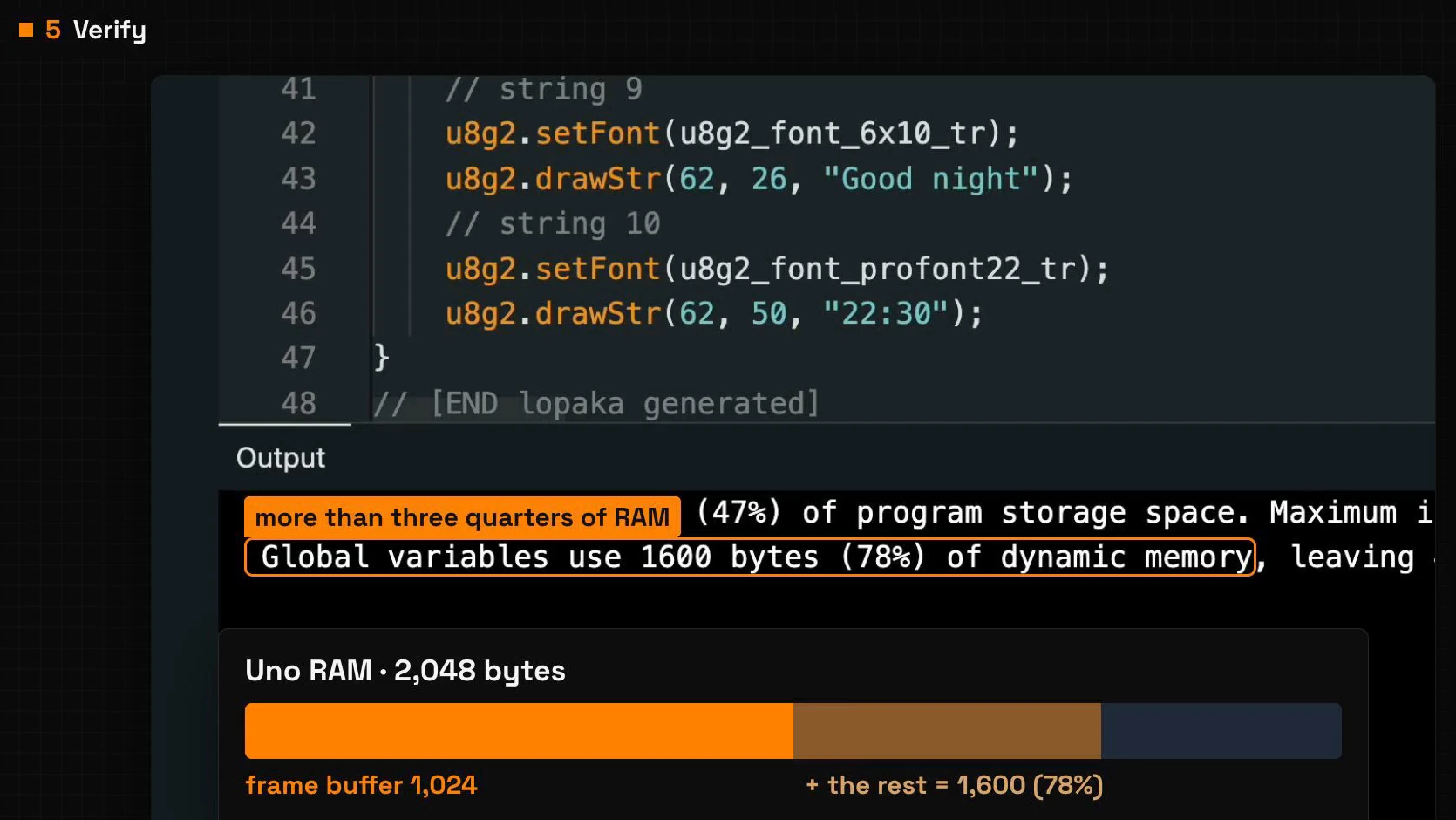
With a board plugged in, pick its port in the same Select Board dialog and click Upload, the arrow next to Verify.
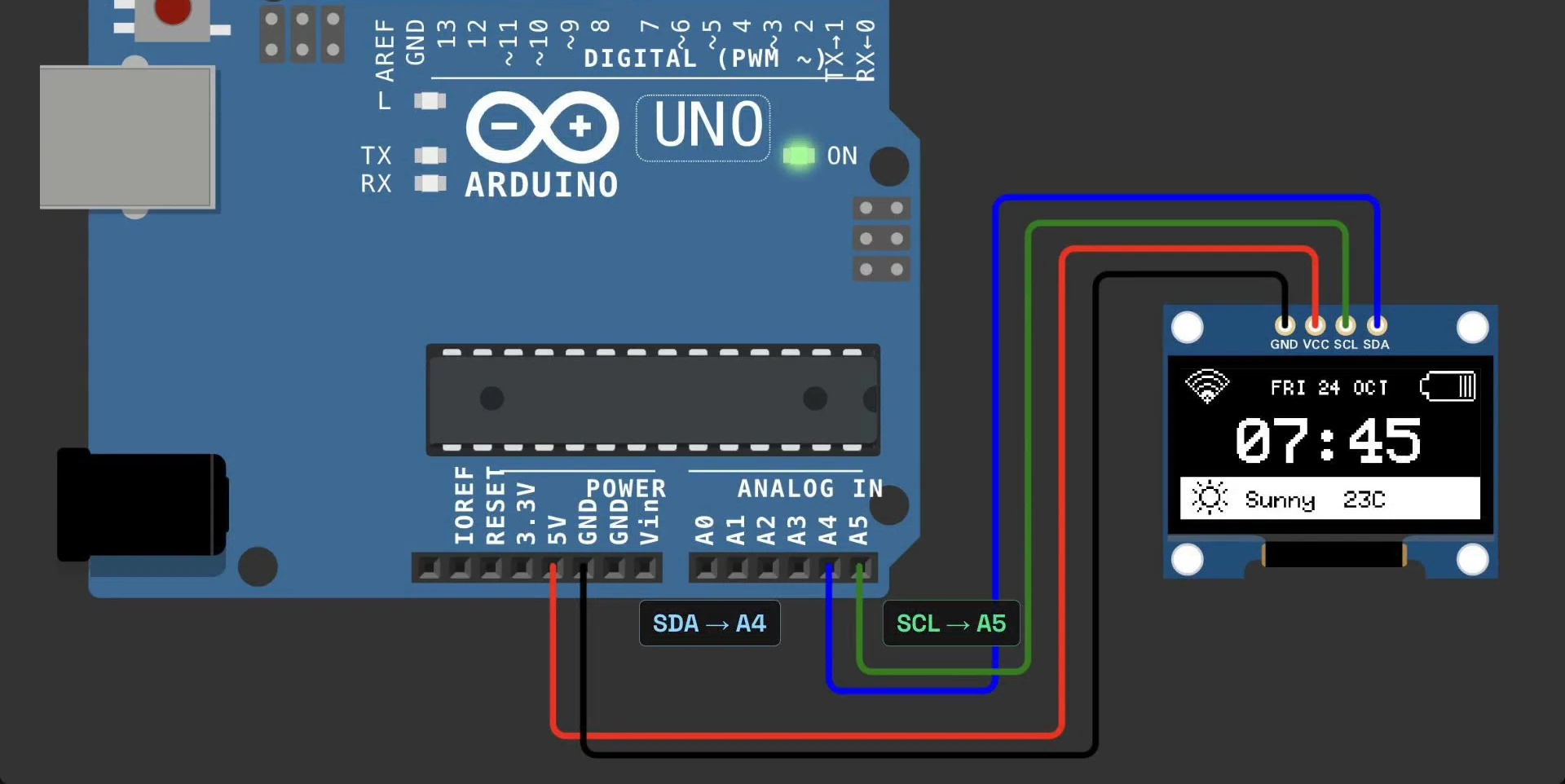
No board? Open the simulator project from episode 1: an Arduino UNO with an SSD1306 display wired GND to GND, VCC to 5V, SDA to A4 and SCL to A5, and the U8g2 library. Paste the sketch and press Play. The display shows the Morning screen and switches to Night every three seconds.
Five reasons a screen stays black
The checks go from the outside in: wires, address, chip, code and memory. In each one, we break the working setup in the simulator, watch the screen go black, and fix it.
1. The wires
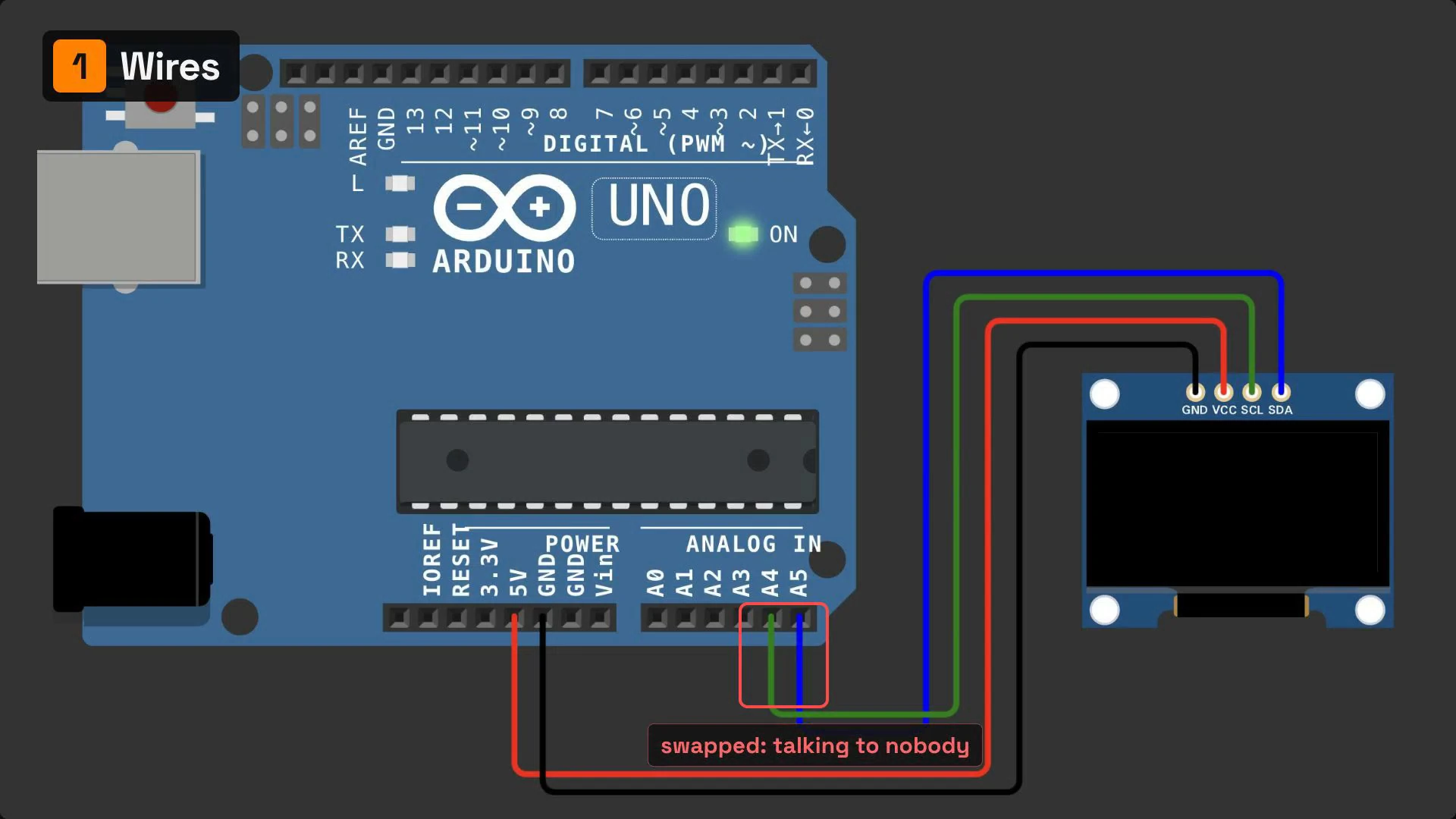
On an UNO, SDA goes to A4 and SCL to A5. Swap them, and the board is talking to nobody: the screen stays black.
Check power and ground too. Other boards use other pins: on most ESP32 boards, SDA is pin 21 and SCL is pin 22.
2. The address
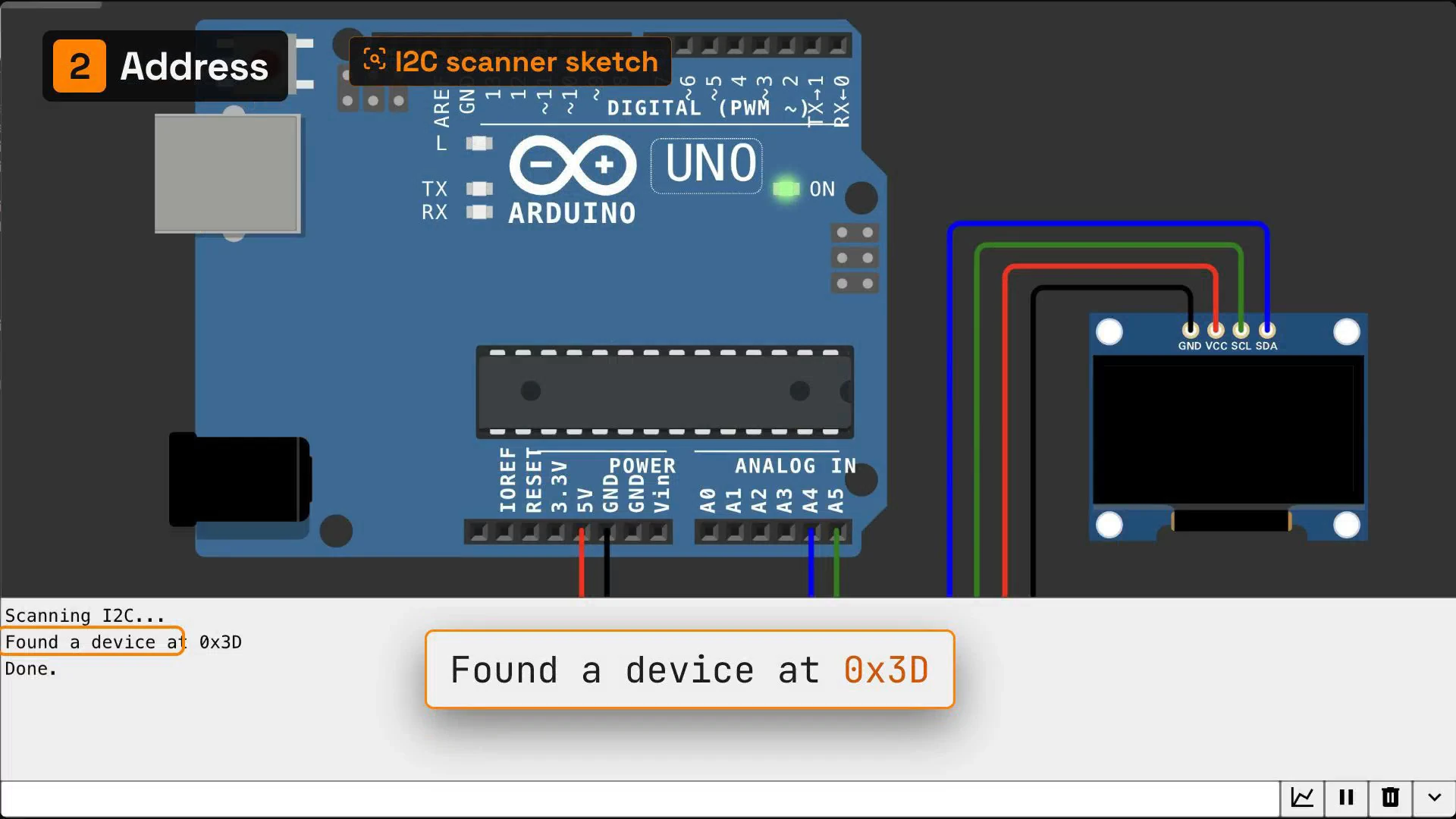
Most modules answer to 0x3C, some to 0x3D. U8g2 talks to 0x3C unless you tell it otherwise. If the module is set to 0x3D, nothing answers, and the screen stays black.
To find out which one you have, run an I2C scanner sketch. It asks every address on the bus and prints the ones that answer:
#include <Wire.h>

void setup() {
  Wire.begin();
  Serial.begin(9600);
  Serial.println("Scanning I2C...");
  for (byte a = 1; a < 127; a++) {
    Wire.beginTransmission(a);
    if (Wire.endTransmission() == 0) {
      Serial.print("Found a device at 0x");
      Serial.println(a, HEX);
    }
  }
  Serial.println("Done.");
}

void loop() {}
Upload it and open the Serial Monitor at 9600 baud.
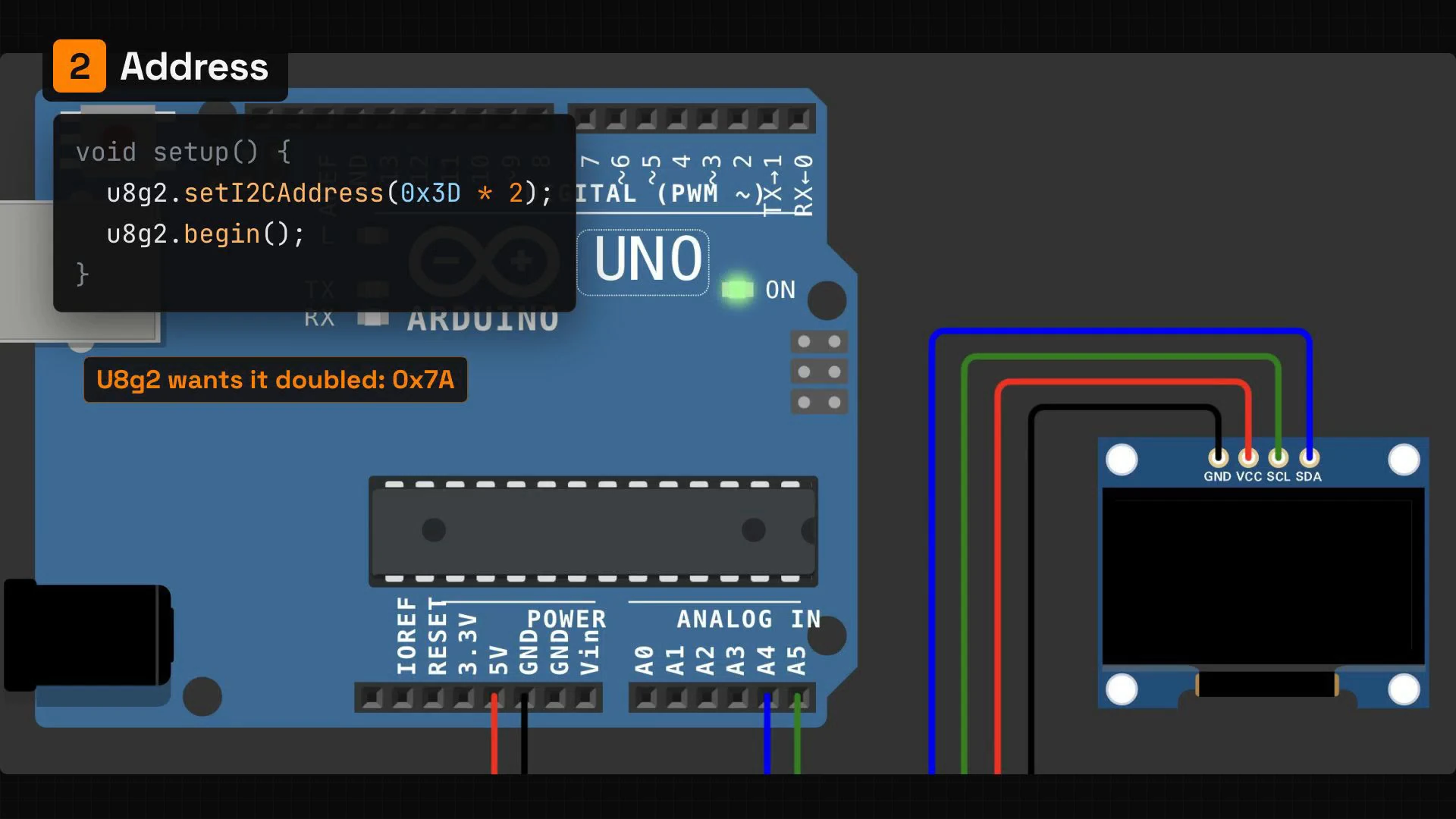
Then set the address in your dashboard sketch, before begin():
void setup() {
  u8g2.setI2CAddress(0x3D * 2);
  u8g2.begin();
}
U8g2 wants the address doubled, so 0x3D becomes 0x3D * 2, 0x7A: the same number printed on the back of the module.
3. The chip
Two modules can look exactly alike and use different controllers. Most small 0.96-inch screens use the SSD1306. Many 1.3-inch ones use the SH1106. Run SSD1306 code on an SH1106, and you get a blank screen or a strip of noise along the edge.
The fix is the chip name in the constructor:
U8G2_SH1106_128X64_NONAME_F_HW_I2C u8g2(U8G2_R0, U8X8_PIN_NONE);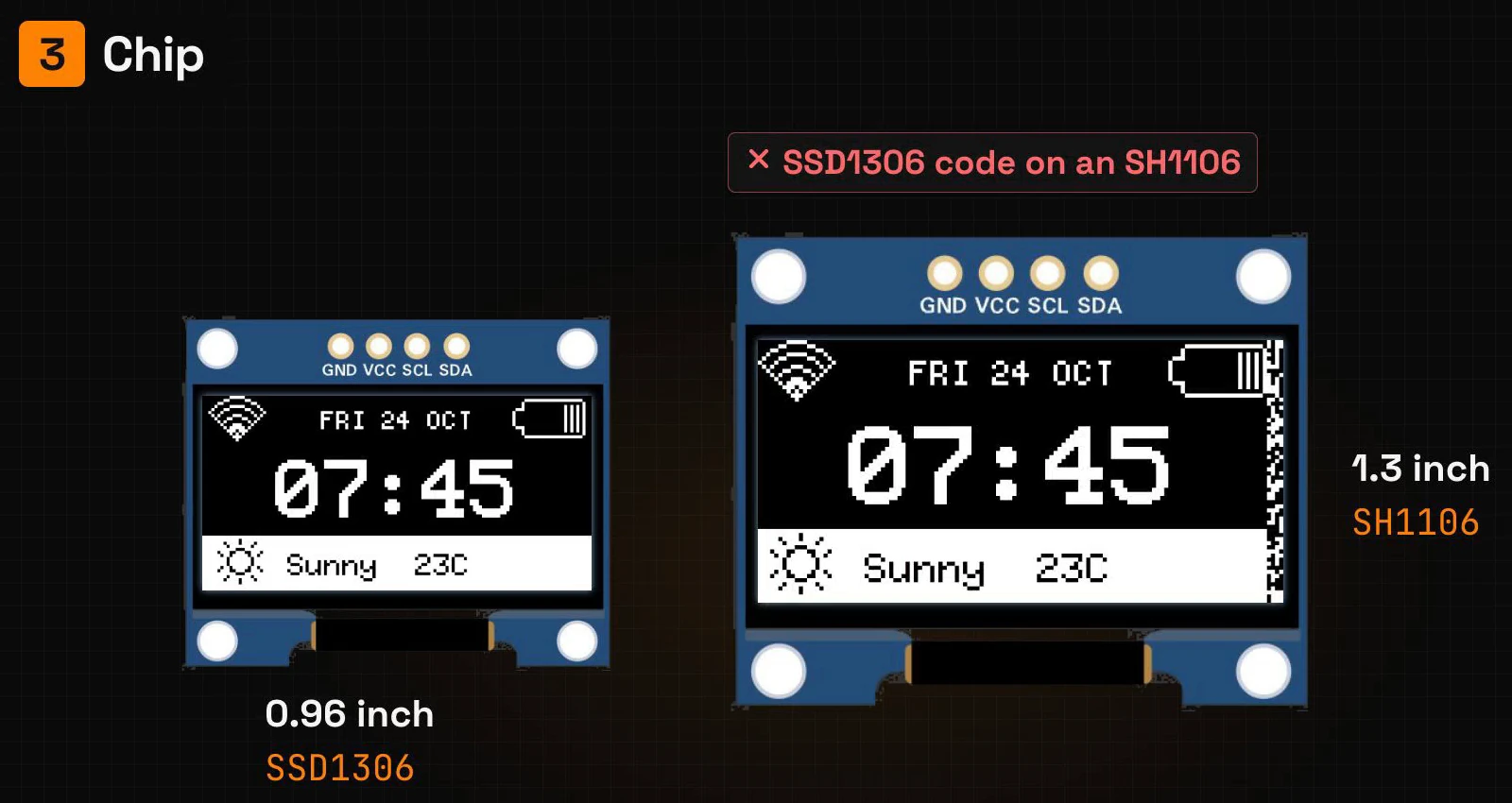
4. The code
U8g2 draws into a buffer in memory, and only sendBuffer() moves the picture to the screen. Forget that line, or forget u8g2.begin() in setup(), and the screen stays dark. The sketch still compiles without an error, so check these lines first:
u8g2.begin();          // in setup()
u8g2.clearBuffer();    // in loop()
drawMorning();
u8g2.sendBuffer();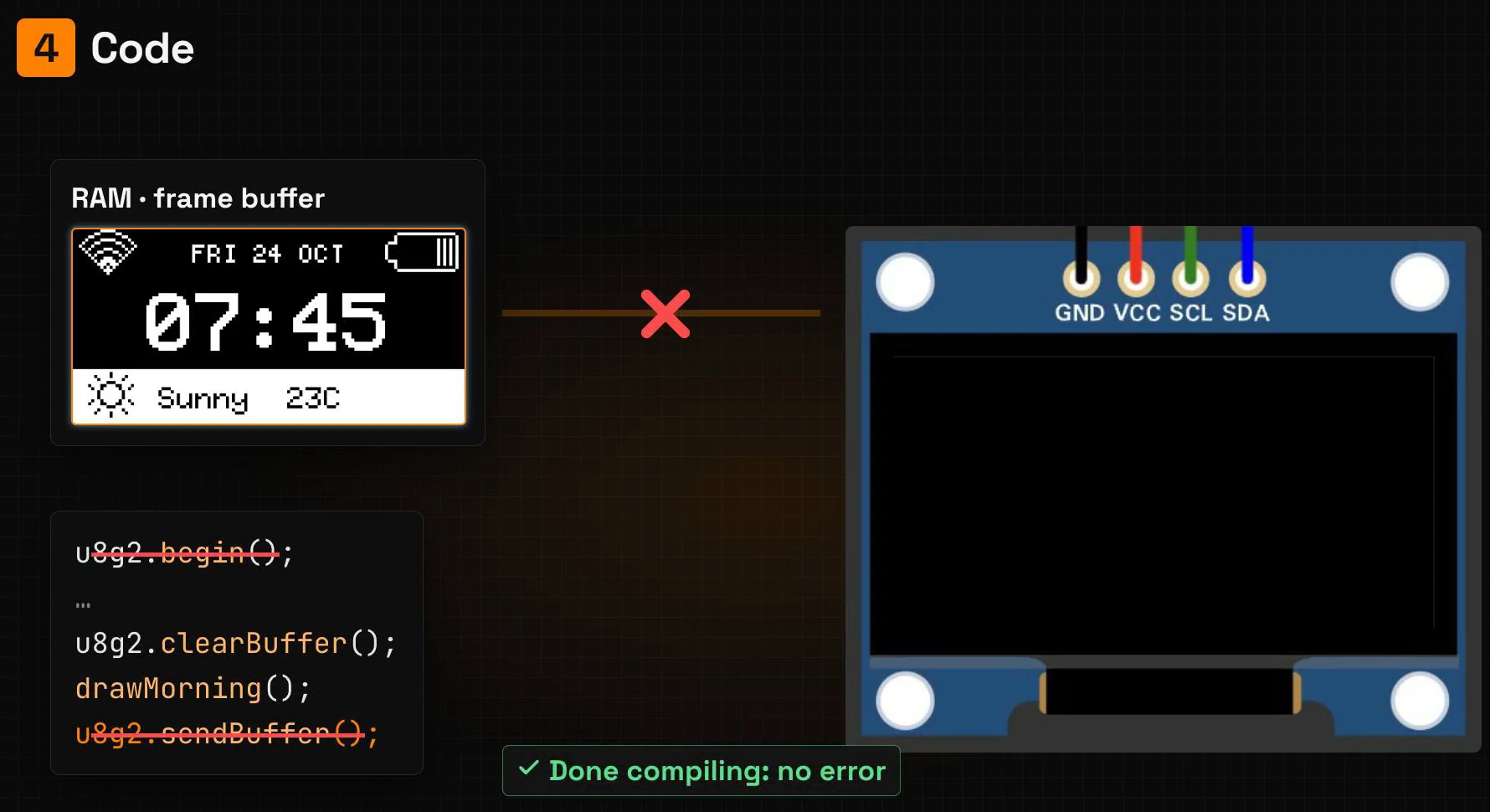
5. The memory
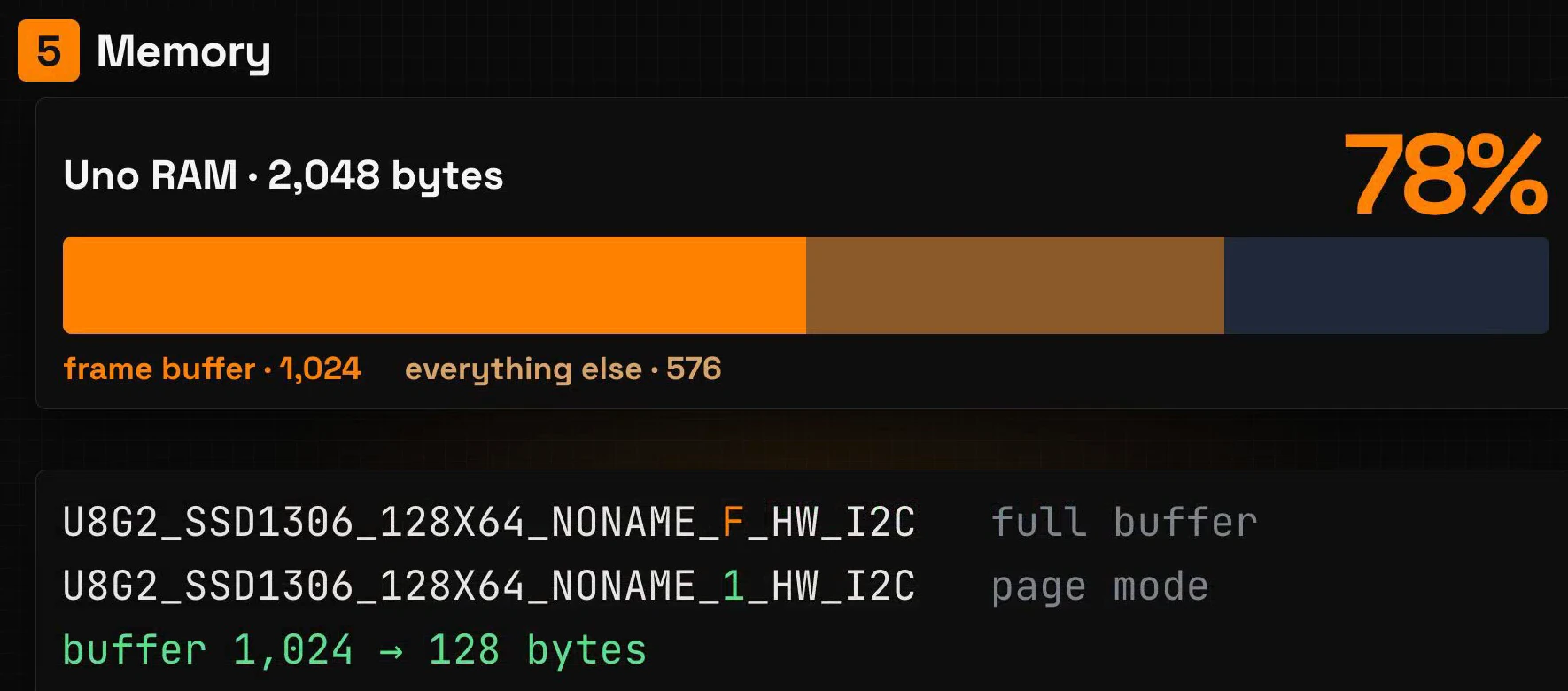
Remember that 78%? An UNO has 2,048 bytes of RAM, and the frame buffer takes half.
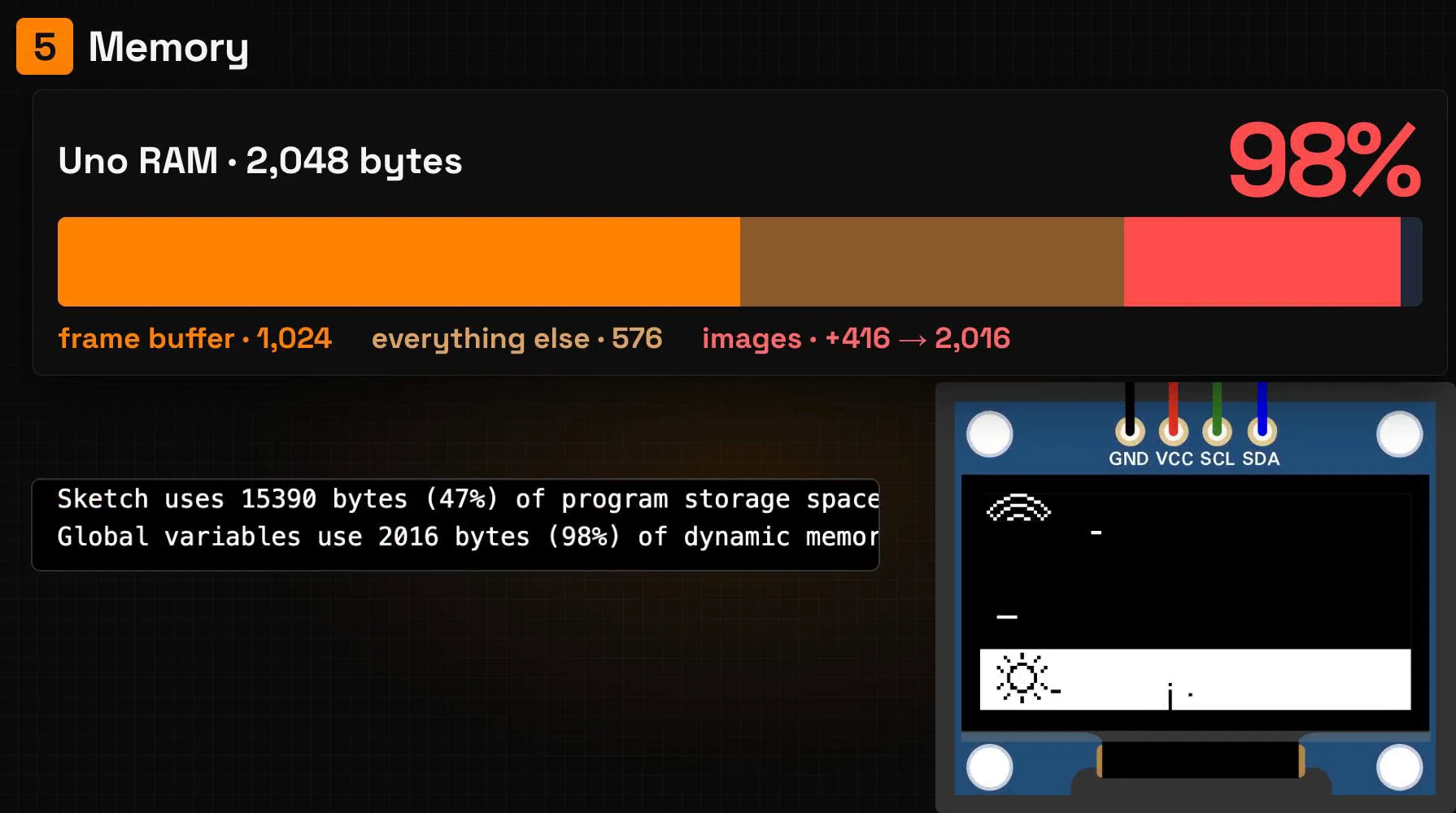
Lopaka keeps images in flash with PROGMEM: the Declare as PROGMEM switch next to the code is on by default, and the arrays get U8X8_PROGMEM. Switch it off, and the images move to RAM. The moon alone is 48 × 48 / 8 = 288 bytes, and the four images of the dashboard take 416. Now the sketch uses 2,016 bytes, 98% of the RAM, with 32 bytes left for everything the program does while it runs. It still compiles, but the screen falls apart: in the simulator, the text disappears and the pictures break.
Leave PROGMEM on. If you still run short of RAM, switch to page mode: put a 1 instead of the F in the constructor, and the buffer shrinks from 1,024 bytes to 128.
U8G2_SSD1306_128X64_NONAME_1_HW_I2C u8g2(U8G2_R0, U8X8_PIN_NONE);In page mode the library draws the screen in eight strips, one after another, so loop() changes too. Instead of clearBuffer() and sendBuffer(), the drawing goes inside a firstPage() / nextPage() loop:
void loop() {
  u8g2.firstPage();
  do {
    if (millis() / 3000 % 2) drawNight(); else drawMorning();
  } while (u8g2.nextPage());
}
With page mode, the same dashboard uses 704 bytes, 34% of the RAM.
Recap
- Lopaka draws the screen, the IDE builds the sketch around it: install U8g2, pick the board, paste the drawing functions and add the include, the constructor,
begin()and the clear, draw, send loop. - One constructor line describes your display: chip, size, buffer and wiring.
- Black screen? Check five things: the wires, the address, the chip, the code and the memory.
Next episode: Screens & Menus. More than one screen, with menus and a button. Read episode 6.
Ready to try? Open Lopaka and put your screen on a real board.