
Lopaka Basics 06: Screens & Menus
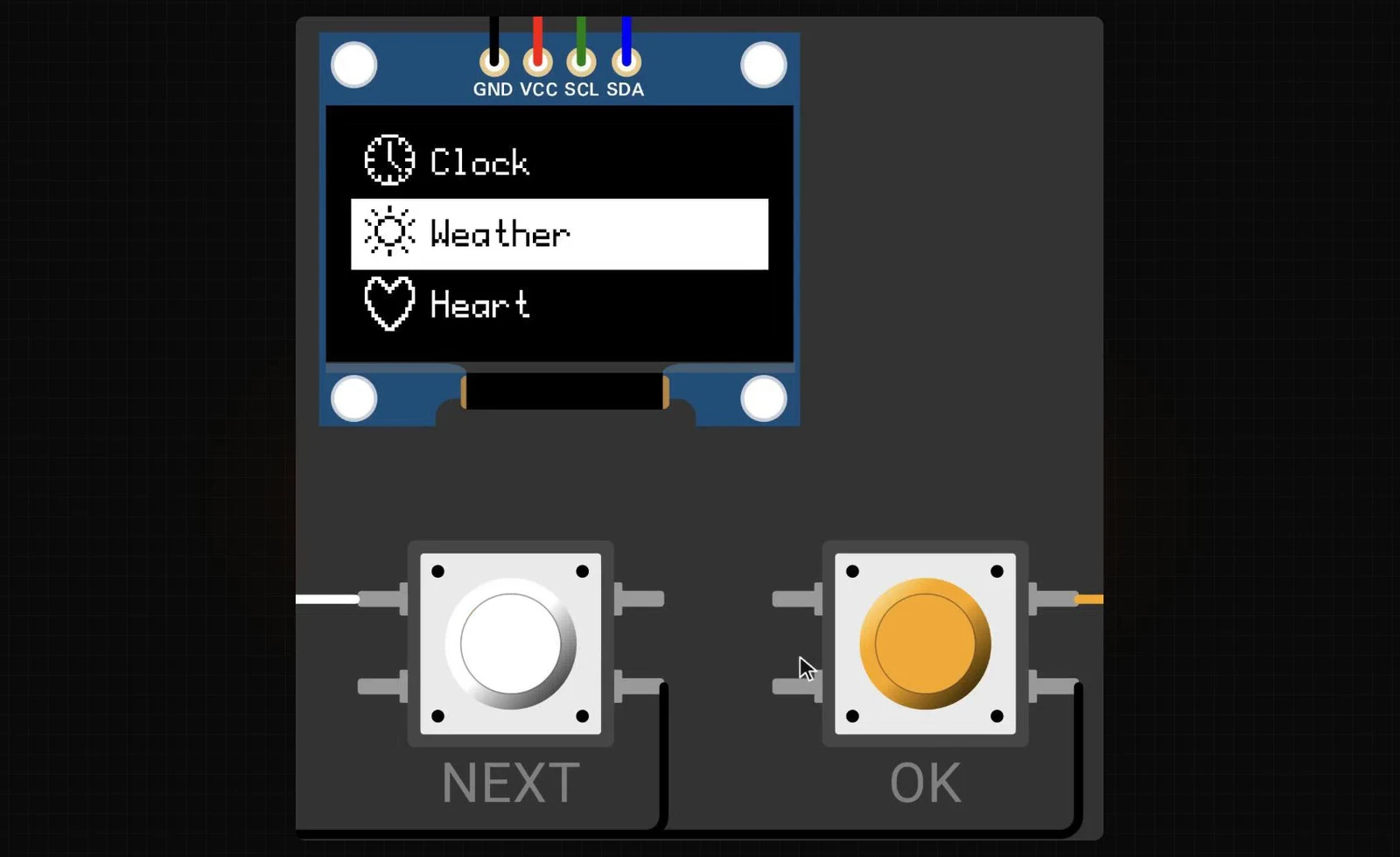
Click: the next screen. Click: and the next one. The other button opens a menu, and the cursor waits on the page you came from. It feels like a real gadget, and it is four drawings from Lopaka, two buttons and one short sketch.
In this episode you will find out how every menu works inside: a map of screens and buttons that fits in two variables. Then you will draw the four screens in Lopaka, write the sketch that reads the buttons, and run it on a simulated Arduino UNO.
What you will build: a small clock, weather and heart-rate gadget on a 128×64 OLED. The NEXT button flips through three pages, and OK opens a menu with a cursor. What you need: a browser and the simulator setup from episode 1: an Arduino UNO, an SSD1306 OLED and the U8g2 library. Two push buttons are new. A real board is optional; the wiring is the same as in episode 5.
A menu is a map
The device is always on one screen
Every menu in every gadget works like a map. At any moment the device shows exactly one screen. Which screen that is, is the device's state.
Each button is an arrow
Each button press moves the device from one state to the next, like an arrow on the map. Our gadget has three pages and a menu:
- NEXT walks through the pages: the clock, the weather, the heart rate, and back to the clock.
- OK jumps down to the menu, with the cursor on the page you came from.
- In the menu, NEXT moves the cursor, and OK opens that page.
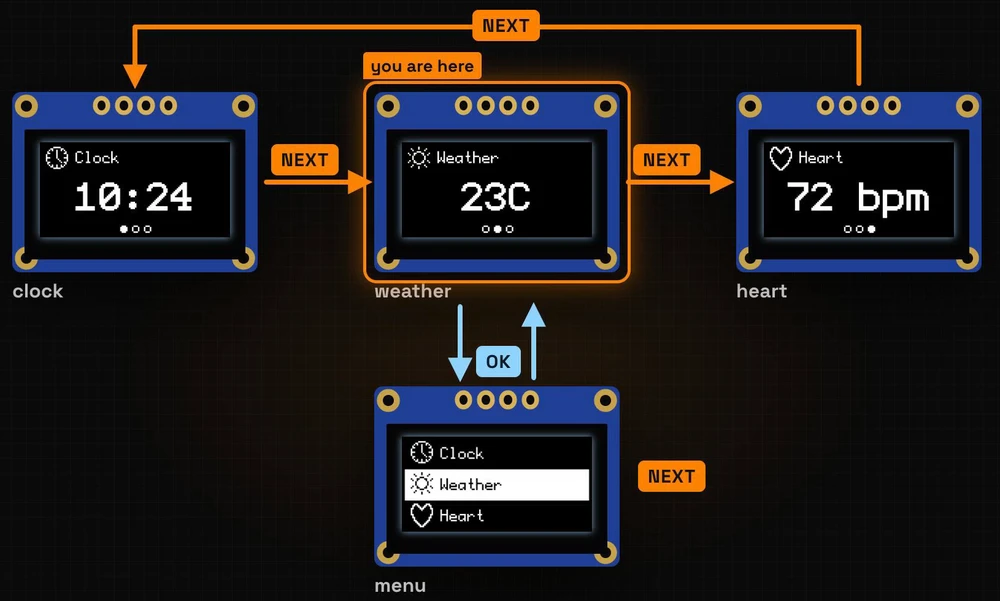
Draw the map first, and the code almost writes itself.
Two variables hold the whole map
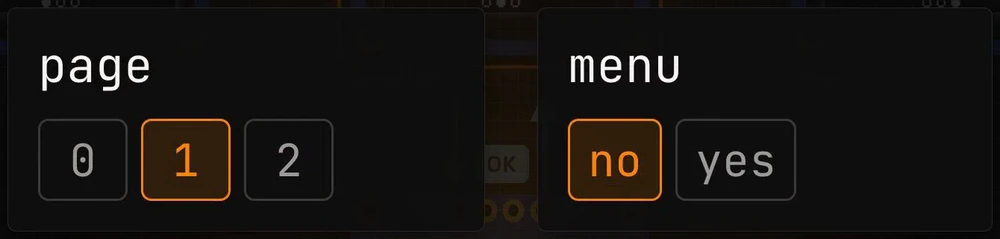
The whole map fits in two variables:
page: which page, 0 for the clock, 1 for the weather, 2 for the heart rate;menu: is the menu open, no or yes.
The menu cursor needs no variable of its own: it always stands on page.
Step 1: the first screen
Draw the clock page
Start a new project as in episode 1: + New Project, platform U8g2, screen size 128×64. We called it "Pocket Gadget".
The first page has an icon and a title at the top, a big clock in the middle, and three dots at the bottom that show which page you are on:
- The icon. Open the Images tab, search for "clock" and click the
clockicon. Back in Layers, set X4and Y3. - The title. Add a text
Clockin theprofont12font at X24, Y14. - The clock. Add a text
10:24inprofont29at X24, Y46. - The dots. Pick the ellipse tool (the circle icon) and draw three small circles with RX and RY
2, all at Y56: the first at X54with Filled on, then at X62and X70with Filled off.
Every character of profont29 is 16 pixels wide, so "10:24" is 80 pixels wide, and (128 − 80) / 2 = 24 puts it in the middle. In the code the dots become drawFilledEllipse(56, 58, 2, 2), drawEllipse(64, 58, 2, 2) and drawEllipse(72, 58, 2, 2): the inspector shows the top-left corner of the box around a circle, U8g2 wants its centre. The middle dot sits at x = 64, the middle of the screen.
Group the dots
In the Layers panel, click ellipse 6, then Shift-click ellipse 4 to select all three dots. Press Ctrl + G (Cmd + G on a Mac): the dots are now a group and move as one piece. Double-click the group's name and call it dots.
Rename the screen: the name becomes the function
Double-click the screen's name above the canvas, Screen 1, and rename it to Clock. That name goes straight into the code: the screen becomes a function called drawClock.
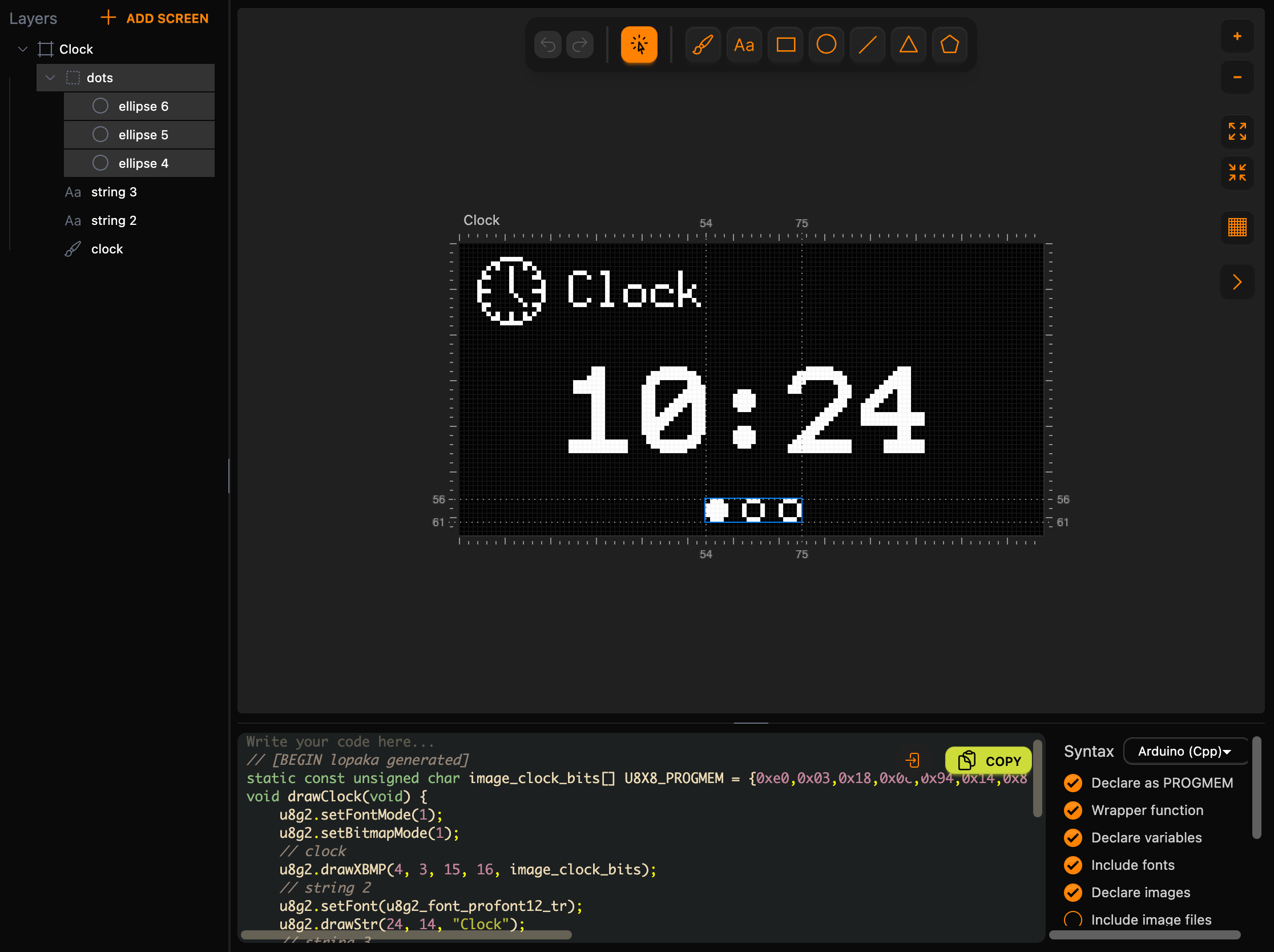
This is the code of the Clock screen:
// [BEGIN lopaka generated]
static const unsigned char image_clock_bits[] U8X8_PROGMEM = {0xe0,0x03,0x18,0x0c,0x94,0x14,0x82,0x20,0x86,0x30,0x81,0x40,0x81,0x40,0x87,0x70,0x01,0x41,0x01,0x42,0x06,0x34,0x02,0x20,0x94,0x14,0x98,0x0c,0xe0,0x03,0x00,0x00};
void drawClock(void) {
    u8g2.setFontMode(1);
    u8g2.setBitmapMode(1);
    // clock
    u8g2.drawXBMP(4, 3, 15, 16, image_clock_bits);
    // string 2
    u8g2.setFont(u8g2_font_profont12_tr);
    u8g2.drawStr(24, 14, "Clock");
    // string 3
    u8g2.setFont(u8g2_font_profont29_tr);
    u8g2.drawStr(24, 46, "10:24");
    // ellipse 4
    u8g2.drawFilledEllipse(56, 58, 2, 2);
    // ellipse 5
    u8g2.drawEllipse(64, 58, 2, 2);
    // ellipse 6
    u8g2.drawEllipse(72, 58, 2, 2);
}
// [END lopaka generated]
The group does not appear in the code. It only helps you move the dots together in the editor.
Step 2: duplicate the pages
The other pages share the same layout, so don't start over. Select the Clock screen by clicking its name, and click Duplicate in the inspector. A copy called Clock copy appears to the right. Rename it to Weather, then change what differs:
- The icon. Select the
clocklayer and press Delete. In Images, search for "sun", addweather_sunand set X4, Y3. - The texts. Select
string 2and typeWeather. Selectstring 3, type23Cand set X to40: three characters of 16 pixels make 48, and (128 − 48) / 2 = 40. - The dots. Open the
dotsgroup, turn Filled off forellipse 4and on forellipse 5.
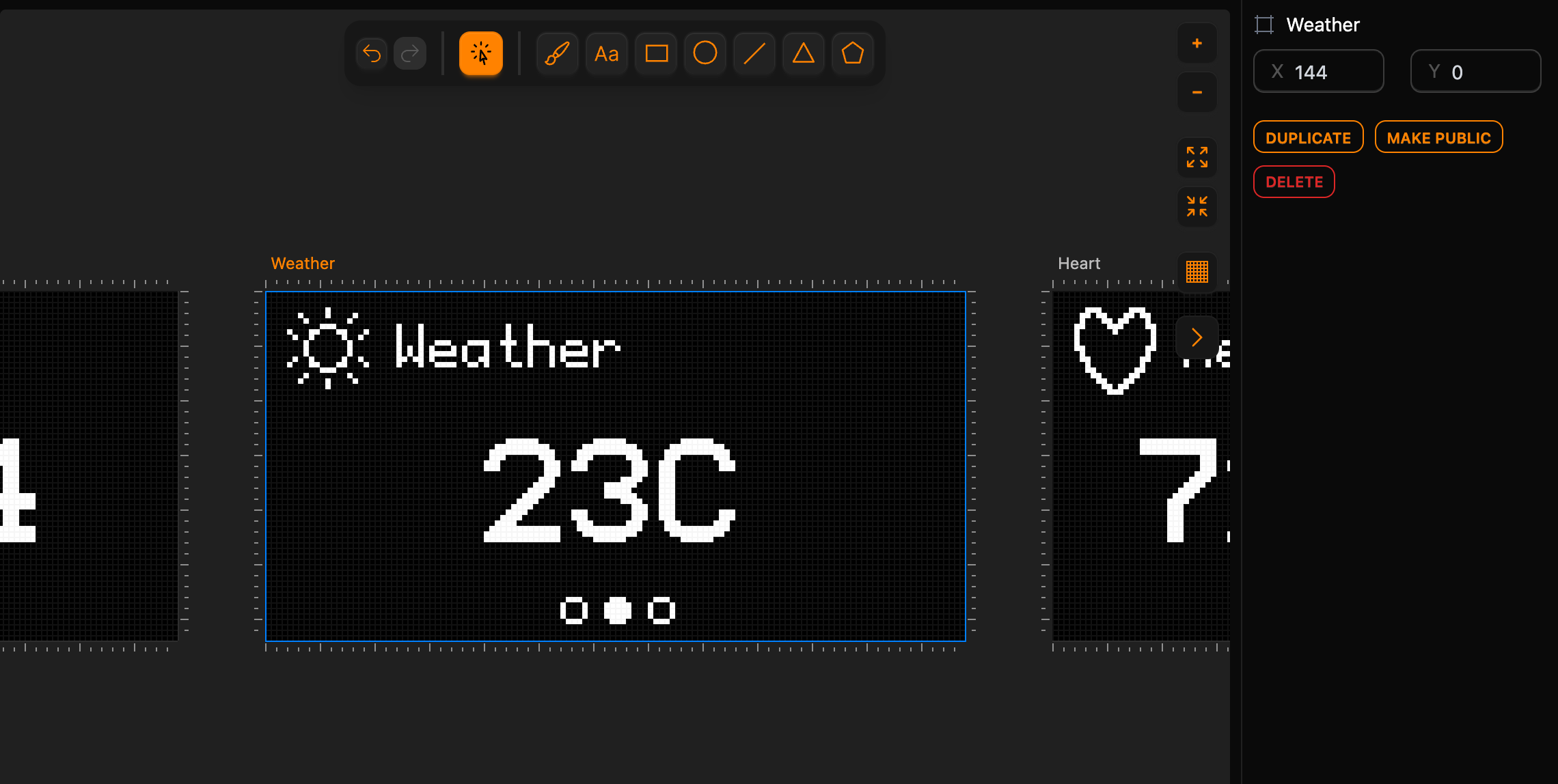
Duplicate once more for the heart rate: duplicate Weather, rename the copy to Heart, replace the sun with the heart icon at X 4, Y 3, type Heart and 72 bpm with X 16, and fill the third dot instead of the second. Each copy gets its own function: drawWeather() and drawHeart().
Step 3: the menu
Three rows
The menu is a new screen. Click Add Screen in the Layers panel and rename the new screen to Menu. Add three rows, each with an icon and a label:
| Row | Icon at X 6 | Label in profont12 at X 26 |
|---|---|---|
| Clock | clock, Y 3 | Clock, Y 15 |
| Weather | weather_sun, Y 24 | Weather, Y 36 |
| Heart | heart, Y 45 | Heart, Y 57 |
A new text starts in the last font you used, so check that each label is in profont12. The rows are 21 pixels apart: every number in the second row is the first one plus 21, and the third row adds 21 again.
A bar in XOR mode
Now the cursor: a filled bar on top of the first row.
- Pick the rectangle tool, drag a rectangle and set X
2, Y1, W124, H21. - Turn on Filled and Inverted (XOR).
The bar is 21 pixels tall, the height of one row. In XOR mode it flips the pixels under it, as in episode 2: the icon and the text under the bar turn black. The bar is the top layer, so it is drawn last, over the row it flips.
A variable for the bar's position
The sketch has to move the bar from row to row. Double-click the rectangle's layer name and rename it to bar. Then click the small Add variable button at the right edge of the Y field in the inspector.
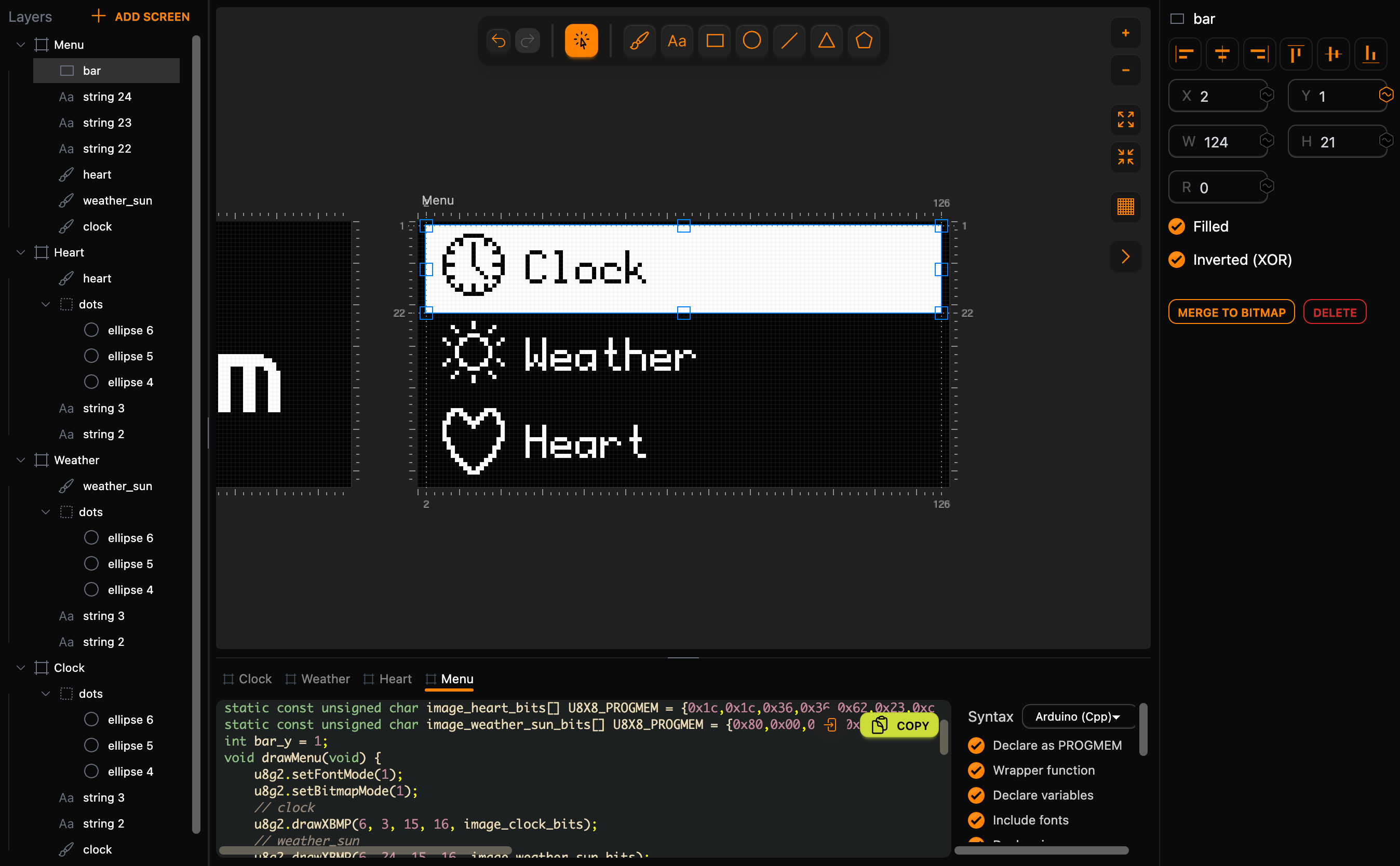
The Y position of the bar is now a variable, named after the layer:
// [BEGIN lopaka generated]
int bar_y = 1;
void drawMenu(void) {
    u8g2.setFontMode(1);
    u8g2.setBitmapMode(1);
    // clock
    u8g2.drawXBMP(6, 3, 15, 16, image_clock_bits);
    // weather_sun
    u8g2.drawXBMP(6, 24, 15, 16, image_weather_sun_bits);
    // heart
    u8g2.drawXBMP(6, 45, 15, 16, image_heart_bits);
    // string 22
    u8g2.setFont(u8g2_font_profont12_tr);
    u8g2.drawStr(26, 15, "Clock");
    // string 23
    u8g2.drawStr(26, 36, "Weather");
    // string 24
    u8g2.drawStr(26, 57, "Heart");
    // bar
    u8g2.setDrawColor(2);
    u8g2.drawBox(2, bar_y, 124, 21);
}
// [END lopaka generated]
Now the code can move the cursor to any row: bar_y is 1 for the first row, 22 for the second and 43 for the third. setDrawColor(2) is U8g2's XOR mode. The image arrays above drawMenu are left out here; more on them in Step 5.
Step 4: arrange the screens like the map
All four screens live on one big canvas, so arrange them like the map: drag the Menu screen by its name and drop it under Weather. You can also type the position into the inspector: Menu at X 144, Y 100. Click Fit all on the right of the canvas to see everything at once.
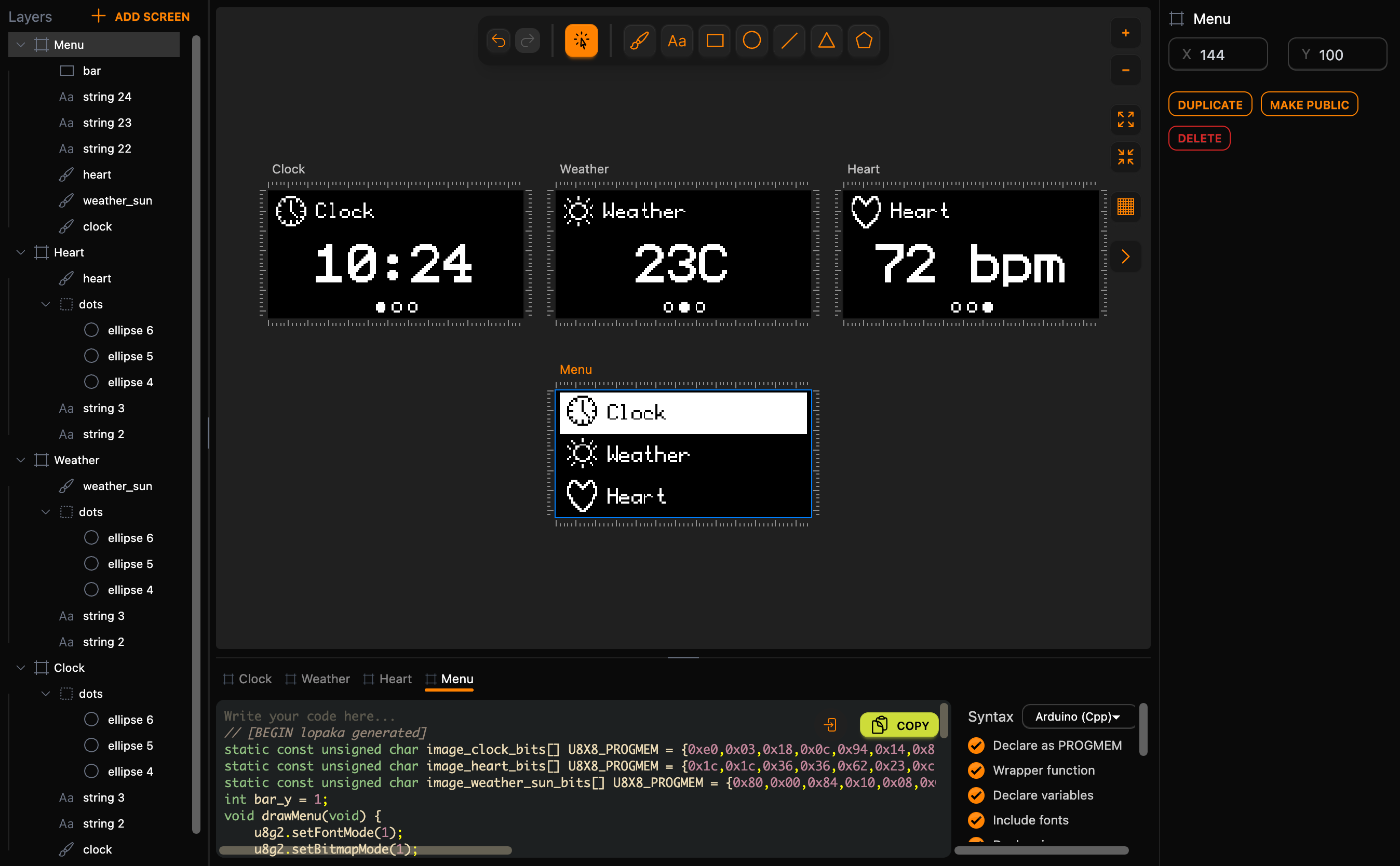
Each screen gets its own tab in the code panel and its own draw function: drawClock(), drawWeather(), drawHeart() and drawMenu(). Where a screen sits on the canvas does not change its code.
Step 5: the buttons and the sketch
A button pulls the pin to ground
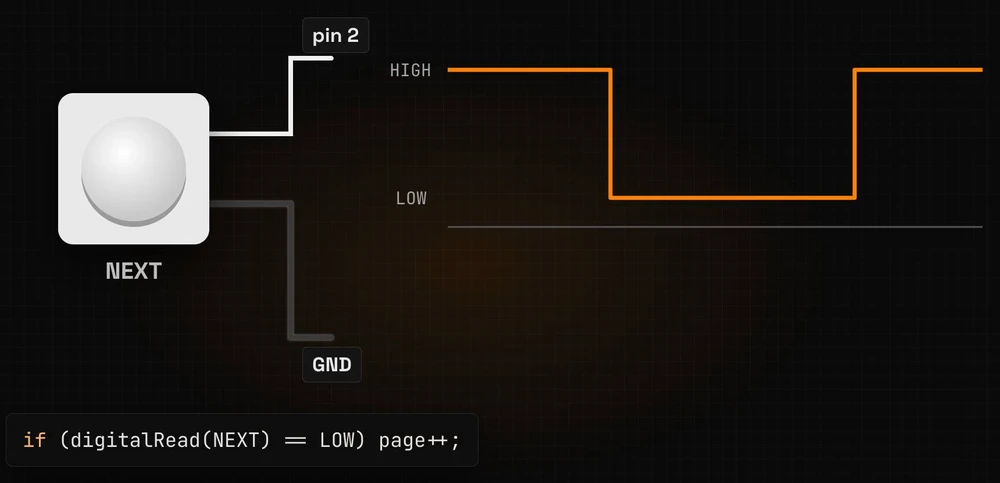
Now the buttons. Each one connects a pin of the board to ground: NEXT to pin 2, OK to pin 3. With the pin set to INPUT_PULLUP, a resistor inside the chip holds it HIGH, and it reads LOW while the button is pressed.
Catch the press, not the hold
The obvious code says: if the button is down, go to the next page.
if (digitalRead(NEXT) == LOW) page++;But loop() runs over and over, many times during one press, and the pages spin like a slot machine.
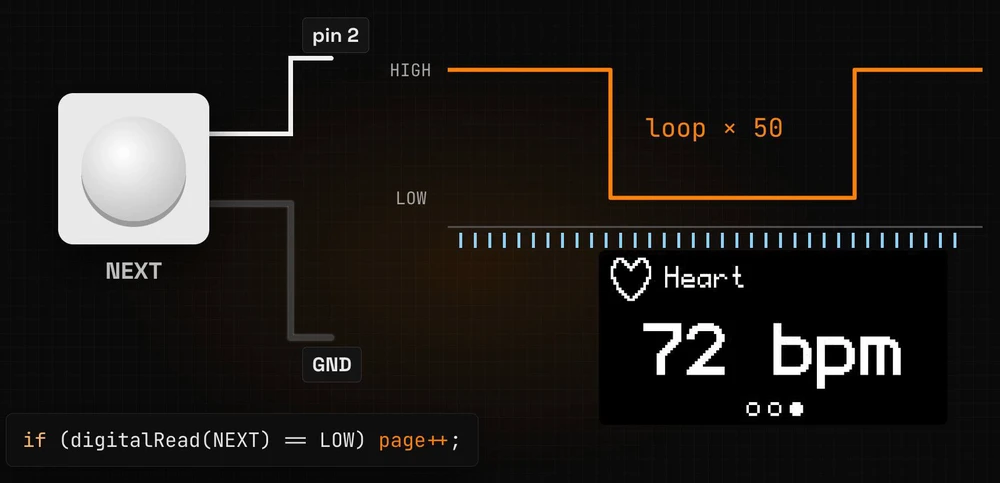
Real buttons also bounce: for about a millisecond the contacts chatter, and one press can look like several. So don't ask whether the button is down. Catch the moment it goes down, and ignore it for the next twenty milliseconds.
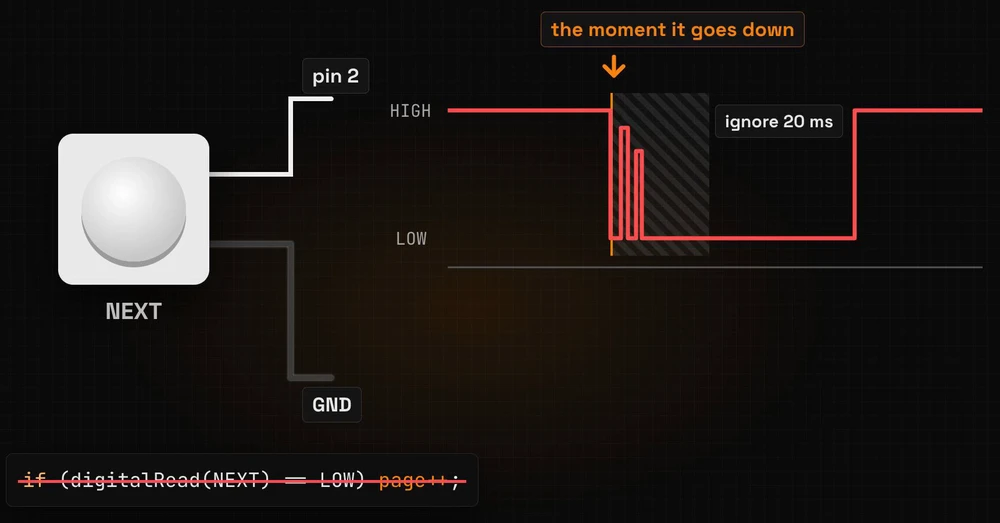
That is what the pressed() function in the sketch does:
// true only at the moment the button goes down; ignore bounce for 20 ms
bool pressed(int pin) {
  static bool was[4];
  static unsigned long t[4];
  bool down = digitalRead(pin) == LOW;
  bool press = down && !was[pin] && millis() - t[pin] > 20;
  if (down != was[pin]) t[pin] = millis();
  was[pin] = down;
  return press;
}
was remembers whether the button was down on the previous loop, and t remembers when it last changed. A press counts only if the button is down now, was up before, and has been quiet for more than 20 ms. Both arrays are indexed by the pin number and have four slots, enough for pins 2 and 3. If you wire a button to pin 4 or higher, make them bigger.
The whole sketch
The four draw functions from Lopaka go where the comment says; everything else in the sketch is the menu logic:
#include <U8g2lib.h>
U8G2_SSD1306_128X64_NONAME_F_HW_I2C u8g2(U8G2_R0, U8X8_PIN_NONE);

// Paste the code of the Clock, Weather, Heart and Menu tabs here

const int NEXT = 2, OK = 3;
int page = 0;          // 0 clock, 1 weather, 2 heart
bool menu = false;
bool changed = true;

// true only at the moment the button goes down; ignore bounce for 20 ms
bool pressed(int pin) {
  static bool was[4];
  static unsigned long t[4];
  bool down = digitalRead(pin) == LOW;
  bool press = down && !was[pin] && millis() - t[pin] > 20;
  if (down != was[pin]) t[pin] = millis();
  was[pin] = down;
  return press;
}

void setup() {
  pinMode(NEXT, INPUT_PULLUP);
  pinMode(OK, INPUT_PULLUP);
  u8g2.begin();
}

void loop() {
  if (pressed(NEXT)) { page = (page + 1) % 3; changed = true; }
  if (pressed(OK))   { menu = !menu;          changed = true; }
  if (!changed) return;
  changed = false;

  u8g2.clearBuffer();
  u8g2.setDrawColor(1);
  if (menu) {
    bar_y = 1 + page * 21;
    drawMenu();
  } else {
    switch (page) {
      case 0: drawClock(); break;
      case 1: drawWeather(); break;
      case 2: drawHeart(); break;
    }
  }
  u8g2.sendBuffer();
}
The two variables from the map are at the top: page and menu. In loop():
- NEXT moves to the next page.
% 3is the remainder after dividing by 3, so after page 2 comes page 0 again: from the heart rate back to the clock. In the menu, the same line moves the cursor. - OK opens or closes the menu. The menu shows the current
page, so the cursor waits on the page you came from, and OK in the menu opens the page under the cursor. - Then we draw, but only when something changed.
changedstarts astrue, so the first page is drawn once at startup. - In the menu, the bar's position comes from the page number:
1 + page * 21gives 1, 22 or 43, the three rows from Step 3. - Otherwise, a
switchpicks which page to draw.
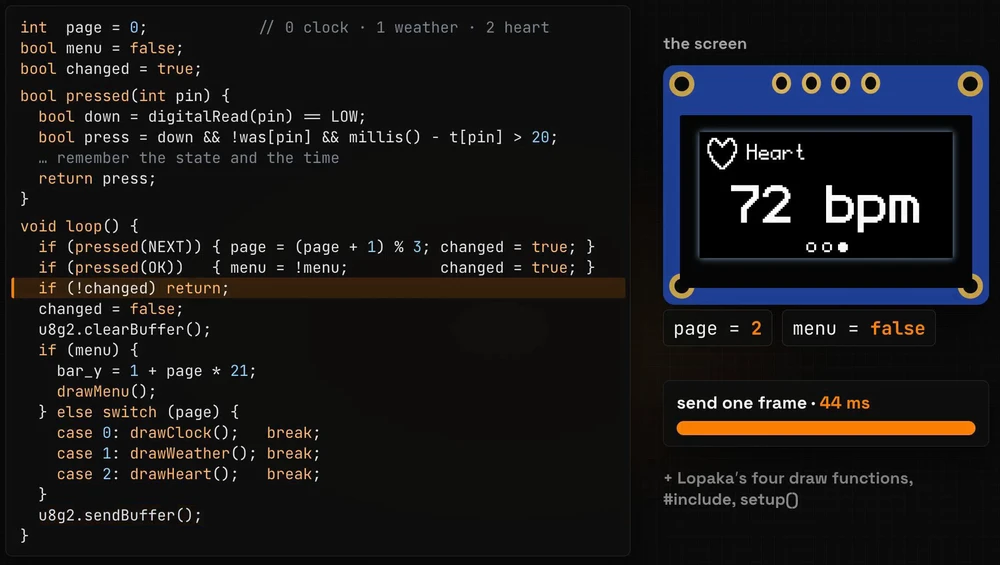
In the simulator, sending one full frame to this display takes about 44 milliseconds; we measured sendBuffer() with micros(). Redrawing on every loop would spend most of the time sending the same picture again. With changed, the screen redraws only after a press, and loop() keeps checking the buttons.
drawMenu() leaves XOR mode on, so the sketch switches back to normal drawing with setDrawColor(1) before every frame.
Copy each tab into the sketch
Copy takes the code of the open tab. Open the Clock tab, click Copy and paste the code into the sketch, then do the same for Weather and Heart.
Before you copy the Menu tab, turn off Declare images in the switches next to the code. The menu uses the same three icons as the pages, and the page tabs have already declared their arrays. The switch applies to the whole project, so turn it back on afterwards.
Compiled for an UNO, the sketch uses 14,588 bytes of flash (45%) and 1,619 bytes of RAM (79%). As in episode 1, most of that RAM is the 1,024-byte frame buffer.
Run it in the simulator
Open the simulator project from episode 1: an Arduino UNO and an SSD1306 OLED wired to GND, 5V, A5 (SCL) and A4 (SDA), with the U8g2 library. Add two push buttons and wire them:
- NEXT: one leg to pin 2, the other to GND;
- OK: one leg to pin 3, the other to GND.
Paste the sketch with the four tabs in place and press Play. Next, next, next: the pages go round and back to the clock. OK opens the menu, right on the current page. NEXT moves the cursor to the weather, and OK opens it. One press, one step.
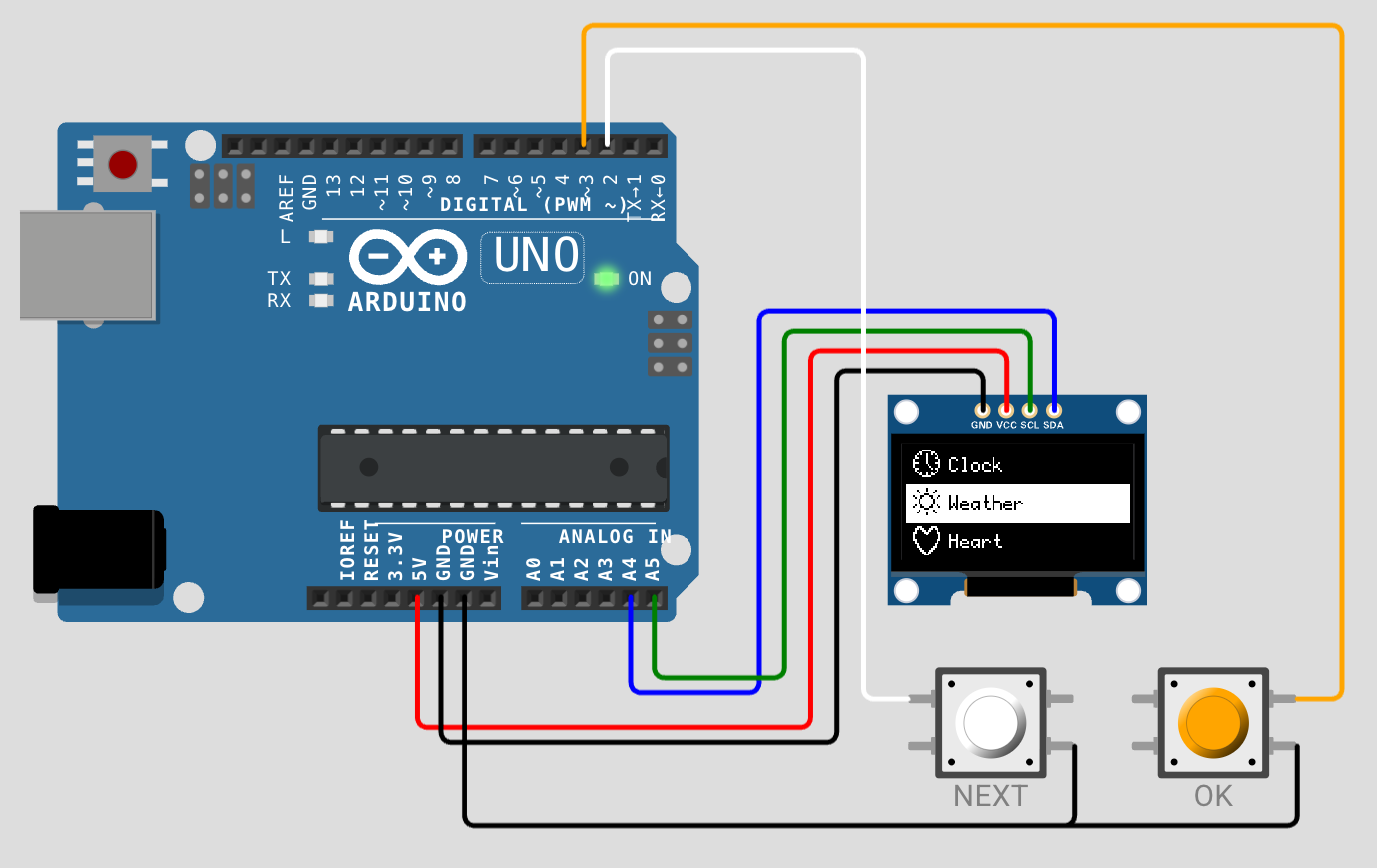
On a real board, wire the buttons the same way. A common tactile button has four legs joined in pairs; if a button seems pressed all the time or never, use two legs on opposite corners.
Recap
- Every screen of your gadget is a screen in Lopaka: each one becomes its own draw function, and Duplicate keeps the layout.
- Draw the map of states first: two variables, the page and whether the menu is open, can run the whole menu.
- Catch the press, not the hold: react to the moment a button goes down, and ignore it for 20 ms after that.
Next episode: Animations. The screens start to move: from a GIF to a tiny OLED. Read episode 7.
Ready to try? Open Lopaka and draw the screens of your own gadget.